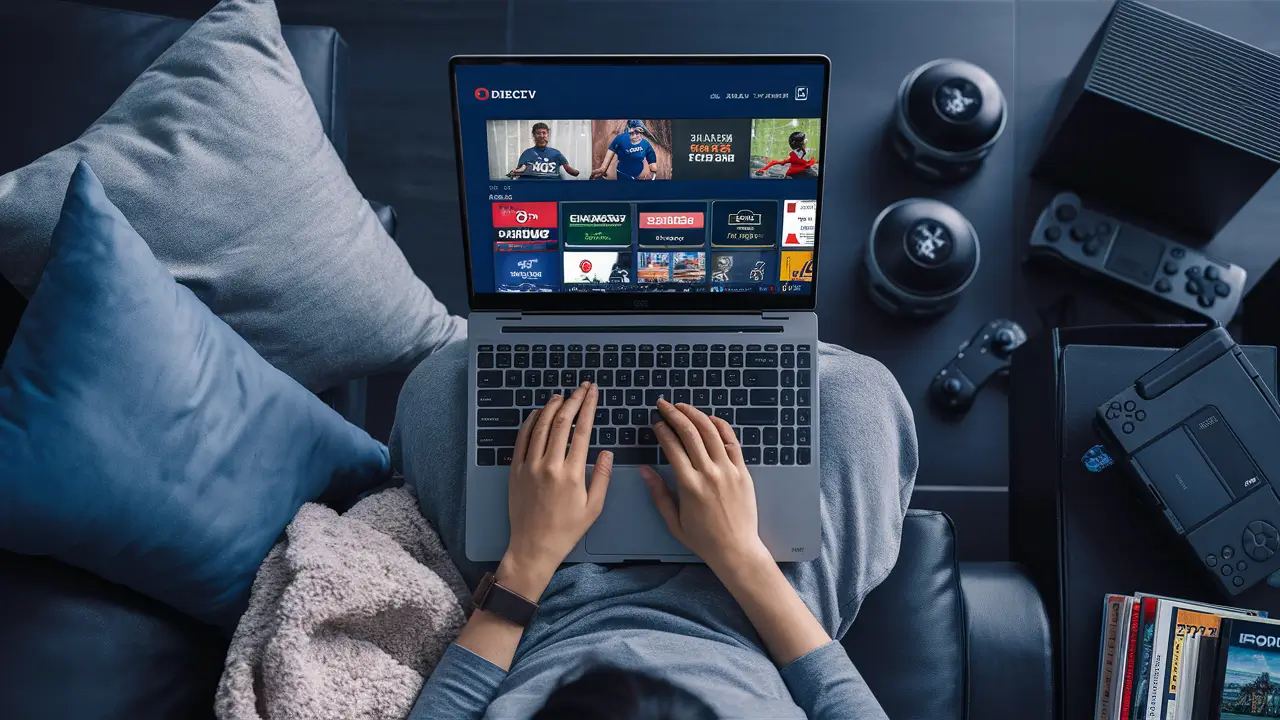
Yes, you absolutely can stream DIRECTV on your laptop, opening up a world of live TV and on-demand content wherever you have an internet connection. This guide will walk you through the essential methods, requirements, and tips to ensure a seamless viewing experience on your portable device.
Understanding DIRECTV Streaming Options
DIRECTV offers two primary pathways for accessing its content, and understanding the distinction is crucial for answering "Can you stream DIRECTV on laptop?" effectively. These pathways cater to different service types: DIRECTV Stream, which is an internet-based TV service, and traditional DIRECTV Satellite, which can also be accessed remotely through specific applications and platforms. Each method has its own set of requirements, benefits, and user interfaces. For instance, DIRECTV Stream is designed from the ground up for online viewing, while DIRECTV Satellite leverages its existing infrastructure and offers streaming as an added convenience for its subscribers. This fundamental difference dictates how you'll access your favorite shows and live sports on a laptop.
The landscape of television consumption has dramatically shifted over the past decade, with streaming becoming not just an option but often the preferred method for many. DIRECTV, a long-standing player in the pay-TV market, has adapted to this evolution by providing robust streaming capabilities. Whether you are a new subscriber considering DIRECTV Stream or an existing satellite customer looking to expand your viewing flexibility, knowing the nuances of each service's streaming features is paramount. This section will lay the groundwork by outlining the core streaming services DIRECTV provides, setting the stage for detailed guides on how to utilize them on your laptop.
In 2025-26, the demand for flexible viewing solutions continues to grow. Consumers are no longer tethered to their living room televisions. They expect to be able to catch up on news, watch live sports, or enjoy a binge-watching session of their favorite series on any device, including their laptops. DIRECTV has responded by investing in technologies that enable this kind of ubiquitous access. The key takeaway here is that the answer to "Can you stream DIRECTV on laptop?" is a resounding yes, but the "how" depends on which DIRECTV service you subscribe to.
DIRECTV Stream Overview
DIRECTV Stream is DIRECTV's dedicated internet-based television service. It operates similarly to other popular streaming TV providers, delivering live channels, on-demand content, and DVR capabilities entirely over your broadband internet connection. This means no satellite dish is required. DIRECTV Stream is designed for users who want a cable-like experience without the traditional cable or satellite hardware. Its packages are tiered, offering a variety of channel lineups that cater to different interests, from sports enthusiasts to news junkies and general entertainment viewers. The service is accessible through a variety of devices, including smart TVs, streaming sticks, mobile devices, and, importantly for this discussion, laptops.
The appeal of DIRECTV Stream lies in its simplicity and flexibility. You sign up online, download an app or use a web browser, and start watching. It's an attractive option for cord-cutters or those who are moving and don't want the hassle of satellite installation. The service aims to replicate the traditional DIRECTV experience but with the added benefits of internet delivery, such as easier portability and integration with modern digital lifestyles. By 2025-26, DIRECTV Stream has solidified its position as a major competitor in the live TV streaming market, continuously updating its features and channel offerings to meet consumer demand.
DIRECTV Satellite Overview
DIRECTV Satellite, the company's traditional offering, involves a physical satellite dish installed at your home to receive television signals. While primarily designed for viewing on televisions connected to a set-top box, DIRECTV Satellite subscribers also have access to streaming capabilities. This is typically managed through the DIRECTV app or website, which allows authorized users to stream select live channels and on-demand content to various devices, including laptops. This feature is particularly valuable for existing satellite customers who want to watch their subscribed channels while away from home or in a different room without a TV. It bridges the gap between traditional broadcast and modern streaming, offering a hybrid approach to television consumption.
The streaming aspect for DIRECTV Satellite subscribers is an add-on benefit, extending the reach of their existing subscription. It's important to note that the available content for streaming might differ slightly from what's directly accessible via the set-top box, often depending on content rights agreements. However, for many users, it provides sufficient flexibility to catch their favorite programs on their laptop. As of 2025-26, DIRECTV continues to support its satellite customer base, and the ability to stream on laptops remains a key feature for enhancing subscriber value and convenience.
DIRECTV Stream vs. DIRECTV Satellite: Streaming Differences
The fundamental difference in how you stream DIRECTV on a laptop hinges on whether you subscribe to DIRECTV Stream or DIRECTV Satellite. While both services allow for laptop streaming, the method, interface, and potentially the content library can vary significantly. Understanding these distinctions is key to setting up your streaming experience correctly and ensuring you have access to the content you expect.
Streaming Methodology
For DIRECTV Stream, streaming on a laptop is the primary mode of access. You will typically use a web browser (like Chrome, Firefox, or Edge) to navigate to the DIRECTV Stream website and log in with your account credentials. Alternatively, DIRECTV may offer a dedicated desktop application for Windows or macOS, although browser-based access is more common and universally compatible. The entire experience is built around an internet connection, making it inherently suitable for any device with web browsing capabilities.
For DIRECTV Satellite, streaming on a laptop is an extension of your satellite subscription. You will generally use the official DIRECTV app, which is available for download on various platforms, or access streaming through the DIRECTV website. This requires you to be logged into your DIRECTV account. The app or website acts as a portal to stream channels that are part of your satellite package. This method relies on your existing satellite subscription being active and linked to your online account. The infrastructure is different; the streaming capability is an added feature rather than the core delivery mechanism.
Content Availability and Interface
DIRECTV Stream generally offers a consistent channel lineup and on-demand library across all its supported devices, including laptops. The user interface is designed to be modern and intuitive, mirroring the experience you'd find on other popular streaming platforms. You can expect access to live channels, a cloud DVR (for recording programs), and a vast library of on-demand movies and TV shows. The channel selection is determined by the DIRECTV Stream package you subscribe to (e.g., Entertainment, Choice, Ultimate, Premier).
DIRECTV Satellite streaming typically provides access to a selection of live channels and on-demand content that aligns with your satellite TV package. While many popular channels are available, there might be some limitations compared to watching directly through your set-top box, especially for regional sports networks or specific premium channels, depending on licensing agreements in 2025-26. The interface might feel slightly less integrated or modern than DIRECTV Stream's dedicated app, but it's functional and provides access to your subscribed programming. The cloud DVR functionality is also often available through the streaming portal for satellite subscribers, allowing remote management and viewing of recordings.
Device Compatibility
DIRECTV Stream is designed for broad compatibility. On laptops, it's primarily accessed via web browsers. This means any laptop running a modern operating system (Windows, macOS, ChromeOS) with an up-to-date web browser should be able to stream DIRECTV Stream without issues. The service is optimized for streaming over the internet.
DIRECTV Satellite streaming, when accessed via the DIRECTV app, requires the app to be compatible with your laptop's operating system. While the DIRECTV app is widely available for mobile devices, its availability and functionality on desktop operating systems can sometimes be more limited or may require specific versions. Browser-based streaming via the DIRECTV website is usually the more reliable method for laptops. It's essential to check the DIRECTV website for the most current information on app availability and system requirements for laptop streaming.
Pricing and Packages
DIRECTV Stream packages are priced as standalone internet TV subscriptions. They are generally competitive with other live TV streaming services. Pricing varies based on the channel lineup and features included. Since it's an internet-only service, there are no separate equipment rental fees associated with satellite dishes or set-top boxes beyond what might be offered for a streaming device if you choose to purchase one through DIRECTV.
DIRECTV Satellite packages are priced based on the channel tiers and any premium add-ons you select. The streaming capability is typically included as part of the subscription, without an additional charge, provided you are an active subscriber. However, the overall cost of DIRECTV Satellite might be higher due to the inclusion of satellite hardware, installation, and potentially different programming costs compared to DIRECTV Stream. It's crucial to compare the total cost of ownership and the specific channel lineups that matter most to you.
Comparison Table: Streaming Differences
| Feature | DIRECTV Stream | DIRECTV Satellite (Streaming) |
|---|---|---|
| Primary Access Method | Internet-based streaming (web browser/app) | Extension of satellite subscription (app/web browser) |
| Hardware Requirement | None (uses existing internet and device) | Satellite dish and set-top box (for primary TV viewing) |
| Interface | Modern, integrated streaming interface | Functional, integrated with satellite account |
| Content Availability | Consistent across devices, based on internet package | Based on satellite package, potential minor variations |
| Laptop Access | Web browser (primary) | Web browser or dedicated app (check compatibility) |
| Pricing Model | Monthly subscription for internet TV service | Part of overall satellite subscription cost |
How to Stream DIRECTV Stream on Your Laptop
Streaming DIRECTV Stream on your laptop is a straightforward process designed for convenience and accessibility. Since DIRECTV Stream is an internet-based service, its primary delivery method is online, making laptops an ideal platform. The steps involved are minimal, primarily requiring a stable internet connection and your DIRECTV Stream login credentials. This section will guide you through the process, ensuring you can start watching your favorite channels and on-demand content on your laptop with ease.
Step 1: Ensure You Have a DIRECTV Stream Subscription
The prerequisite for streaming DIRECTV Stream on any device, including your laptop, is an active DIRECTV Stream subscription. If you do not yet have a subscription, you will need to visit the DIRECTV Stream website and choose a package that suits your needs. Packages like Entertainment, Choice, Ultimate, and Premier offer different channel lineups and features. Once you have subscribed, you will create a DIRECTV Stream user ID and password, which are essential for logging into the service.
Step 2: Access the DIRECTV Stream Website
For most laptop users, the easiest and most universally compatible way to stream DIRECTV Stream is through a web browser. Open your preferred web browser (e.g., Google Chrome, Mozilla Firefox, Microsoft Edge, Safari) on your laptop. Navigate to the official DIRECTV Stream website. The exact URL might vary slightly, but it's typically found by searching for "DIRECTV Stream login" or directly visiting the service's portal. Ensure you are on the legitimate DIRECTV Stream website to avoid phishing or fraudulent sites.
Step 3: Log In to Your Account
Once on the DIRECTV Stream website, look for a "Sign In," "Log In," or "My Account" button. Click on it, and you will be prompted to enter your DIRECTV Stream user ID and password. This is the same username and password you created when you signed up for the service. After entering your credentials, click the login button. If you have enabled two-factor authentication, you may need to complete an additional verification step.
Step 4: Navigate and Start Watching
Upon successful login, you will be directed to the DIRECTV Stream interface within your web browser. This interface typically displays your available channels, on-demand content, and DVR recordings. You can browse through the channel guide to find live TV programming, search for specific shows or movies, or access your recorded content from your cloud DVR. Simply click on a channel or program you wish to watch, and the streaming player will launch within the browser window. You can then use the player controls to play, pause, rewind, or fast-forward (if applicable to the content and your subscription).
Alternative: DIRECTV Stream App for Laptops
While browser-based streaming is the most common method, DIRECTV may also offer a dedicated DIRECTV Stream desktop application for Windows or macOS. If available, you can download this application from the DIRECTV Stream website or potentially from your operating system's app store. Installing and launching this app can sometimes provide a more integrated experience, with features like picture-in-picture or better performance optimization. The login process within the app would be identical to the web-based login.
Key Considerations for DIRECTV Stream Laptop Streaming:
- Internet Speed: A stable and reasonably fast internet connection is crucial for smooth streaming. DIRECTV recommends a minimum of 8 Mbps for HD streaming, but 15-25 Mbps or higher is ideal for multiple devices or 4K content if available.
- Browser Compatibility: Ensure your web browser is up-to-date. Older browsers may not support the latest streaming technologies.
- Account Credentials: Keep your DIRECTV Stream username and password secure and readily accessible.
- Device Performance: A reasonably modern laptop with sufficient processing power and RAM will contribute to a better viewing experience.
By following these steps, you can effectively stream DIRECTV Stream on your laptop, enjoying your favorite programming wherever you have a reliable internet connection.
How to Stream DIRECTV Satellite on Your Laptop
For DIRECTV Satellite subscribers, streaming on a laptop offers a valuable way to extend your viewing options beyond your primary television. This capability allows you to watch live channels and on-demand content from your satellite package on your laptop, whether you're in another room of the house or traveling. The process involves using the official DIRECTV app or the DIRECTV website, provided you have an active satellite subscription. This section details the steps to get DIRECTV Satellite streaming on your laptop.
Step 1: Confirm Your DIRECTV Satellite Subscription and Online Account
To stream DIRECTV Satellite content on your laptop, you must have an active DIRECTV Satellite subscription. Crucially, your satellite account needs to be linked to an online DIRECTV account. If you haven't already done so, you'll need to visit the DIRECTV website and register your satellite account to create a DIRECTV online username and password. This online login is what grants you access to the streaming features. Ensure your subscription is current and in good standing.
Step 2: Choose Your Streaming Method: App or Website
DIRECTV provides two primary ways for satellite subscribers to stream on their laptops:
- DIRECTV App: DIRECTV offers an official app that can be downloaded on various devices. For laptops, you'll need to check if a dedicated desktop version is available for your operating system (Windows or macOS). You can typically find download links on the DIRECTV website or through your OS's app store.
- DIRECTV Website: Alternatively, you can stream directly through a web browser by visiting the DIRECTV website and navigating to the streaming or "Watch TV Everywhere" section. This method is often the most reliable for laptops as it doesn't depend on a specific app installation.
Step 3: Download and Install the DIRECTV App (If Applicable)
If you opt for the app method, visit the DIRECTV website and find the section for downloading the app. Follow the instructions to download the installer file for your laptop's operating system. Once downloaded, run the installer and follow the on-screen prompts to install the DIRECTV app. Ensure your laptop meets any system requirements specified by DIRECTV for the app.
Step 4: Log In with Your DIRECTV Online Credentials
Whether you are using the DIRECTV app or the DIRECTV website for streaming, you will need to log in using your DIRECTV online account username and password. This is the login information you created when you registered your satellite account online. Enter these credentials when prompted. If you have forgotten your login details, use the "Forgot Password" or "Forgot Username" links provided on the login page.
Step 5: Navigate to Live TV or On-Demand Content
Once logged in, you will see an interface that allows you to browse your available content. For DIRECTV Satellite streaming, this typically includes:
- Live TV Channels: Access a selection of live channels from your satellite package. The available channels may be extensive but could have some limitations compared to your set-top box, especially for certain regional or premium content.
- On-Demand Library: Browse and stream movies and TV shows available in DIRECTV's on-demand library.
- DVR Recordings: If you have a Genie DVR, you can often access and watch your recorded programs remotely through the app or website. This feature allows you to manage your recordings and watch them on your laptop.
Navigate through the menus to find the channel or program you want to watch. Click on it to start playback. The streaming player will load within the app or browser window.
Important Notes for DIRECTV Satellite Streaming:
- Internet Connection: A stable internet connection is essential. For the best quality, DIRECTV recommends a minimum of 8 Mbps for HD streaming.
- Content Availability: While comprehensive, the streaming library might not perfectly mirror your satellite set-top box's full offering due to content rights.
- Device Support: Always check the DIRECTV website for the most up-to-date information on supported operating systems and browsers for their app and streaming services in 2025-26.
- Geographic Restrictions: Some content might be restricted based on your geographic location, especially live local channels or regional sports networks.
- Simultaneous Streams: There might be limits on how many devices can stream simultaneously from a single DIRECTV Satellite account.
By following these steps, DIRECTV Satellite subscribers can successfully leverage their existing subscription to stream content on their laptops, adding a significant layer of viewing flexibility.
Essential Requirements for Streaming
To successfully stream DIRECTV on your laptop, whether it's DIRECTV Stream or DIRECTV Satellite, several key requirements must be met. These are not just about having the right subscription but also about ensuring your technical environment is conducive to a smooth and enjoyable viewing experience. Failing to meet these requirements can lead to buffering, poor video quality, or an inability to stream at all. This section details the essential components you'll need.
A Stable Internet Connection
This is arguably the most critical requirement. Streaming video, especially live TV in high definition, consumes a significant amount of bandwidth. DIRECTV provides recommendations for internet speeds to ensure optimal performance:
- DIRECTV Stream: For a single stream in HD, DIRECTV recommends a minimum download speed of 8 Mbps. For a better experience, especially if you plan to stream on multiple devices or watch in 4K (if available and supported by your package), speeds of 15-25 Mbps or higher are strongly advised.
- DIRECTV Satellite Streaming: Similar recommendations apply. A stable connection is paramount. If your internet is inconsistent, you'll likely experience buffering, pixelation, or dropped streams.
Consider the following regarding your internet connection:
- Speed: Regularly test your internet speed using online speed test tools.
- Reliability: A wired Ethernet connection is generally more stable than Wi-Fi. If using Wi-Fi, ensure you have a strong signal where you plan to watch.
- Bandwidth Caps: Be aware of any data caps imposed by your Internet Service Provider (ISP). Excessive streaming can consume a lot of data, potentially leading to overage charges or throttling.
A Compatible Laptop
While most modern laptops can handle streaming, there are a few considerations:
- Operating System: For DIRECTV Stream via web browser, any recent version of Windows, macOS, or ChromeOS should work. For the DIRECTV app (Satellite streaming), ensure the app is compatible with your OS version. Check DIRECTV's official support pages for specific OS requirements.
- Web Browser: If streaming via a browser, ensure you are using an up-to-date version of a major browser like Google Chrome, Mozilla Firefox, Microsoft Edge, or Safari.
- Processing Power and RAM: A laptop with at least an Intel Core i3 processor (or equivalent) and 4GB of RAM is generally sufficient for smooth HD streaming. More demanding tasks or multitasking might benefit from higher specifications.
- Graphics Card: While most integrated graphics are capable of handling video playback, a dedicated graphics card can improve performance, especially for higher resolutions.
A Valid DIRECTV Subscription and Account
This is fundamental. You must have an active subscription to either DIRECTV Stream or DIRECTV Satellite. For DIRECTV Stream, this means having a current subscription to one of their internet TV packages. For DIRECTV Satellite, you need an active satellite TV service. In both cases, you'll need to have successfully registered your service with DIRECTV online and possess the correct login credentials (username and password) to access the streaming platforms.
Necessary Software or Browser Plugins
In most modern streaming scenarios, complex plugins are no longer required. DIRECTV Stream and the DIRECTV app primarily rely on HTML5 video players and standard browser technologies. However, it's always a good practice to ensure:
- JavaScript Enabled: Most web-based streaming services require JavaScript to be enabled in your browser.
- Cookies Allowed: Browsers need to accept cookies for proper session management and login persistence.
- No VPN Interference: While VPNs can enhance privacy, they can sometimes interfere with streaming services by masking your true location or IP address, potentially leading to access issues. If you use a VPN, try disabling it temporarily if you encounter streaming problems.
Audio Output
Ensure your laptop's audio is functioning correctly. This includes having functional speakers or headphones connected. For a more immersive experience, consider using quality headphones or external speakers. The audio quality will also depend on the source stream and your internet connection.
Power Source
Streaming video can be power-intensive. To avoid interruptions, especially during longer viewing sessions or while traveling, ensure your laptop is plugged into a power outlet or has a sufficient battery charge.
Comparison Table: Essential Requirements
| Requirement | Details |
|---|---|
| Internet Connection | Minimum 8 Mbps for HD; 15-25+ Mbps recommended. Stable and reliable. |
| Laptop Compatibility | Modern OS (Windows, macOS, ChromeOS), updated browser, sufficient RAM/CPU. |
| DIRECTV Subscription | Active DIRECTV Stream or DIRECTV Satellite subscription. |
| Online Account | Registered DIRECTV online account with valid login credentials. |
| Software/Browser | Updated web browser (Chrome, Firefox, Edge, Safari) with JavaScript enabled. |
| Audio Output | Functional speakers or headphones. |
| Power | Laptop connected to power or sufficient battery charge. |
By ensuring these requirements are met, you'll significantly increase your chances of a smooth and enjoyable DIRECTV streaming experience on your laptop.
Optimizing Your Streaming Experience
Once you've confirmed you can stream DIRECTV on your laptop, the next step is to ensure the experience is as smooth, high-quality, and uninterrupted as possible. Even with the right subscription and a capable laptop, various factors can affect streaming performance. This section provides actionable tips and strategies to optimize your viewing, making your laptop a powerful entertainment hub.
Maximize Your Internet Connection
Your internet connection is the backbone of your streaming experience. Here's how to get the most out of it:
- Wired Connection: Whenever possible, connect your laptop directly to your router using an Ethernet cable. This eliminates Wi-Fi interference and provides a more stable, faster connection.
- Optimize Wi-Fi: If Wi-Fi is your only option:
- Router Placement: Position your router in a central location, away from obstructions like thick walls, metal objects, or other electronic devices that can cause interference.
- 2.4GHz vs. 5GHz: Most modern routers offer both 2.4GHz and 5GHz bands. The 5GHz band is generally faster but has a shorter range. The 2.4GHz band has a longer range but can be more susceptible to interference. Experiment to see which works best in your viewing location.
- Reduce Network Congestion: Limit other bandwidth-intensive activities on your network while streaming. This includes large downloads, online gaming, or multiple simultaneous video streams on other devices.
- Router Firmware: Ensure your router's firmware is up-to-date. Manufacturers regularly release updates that can improve performance and security.
- Mesh Wi-Fi Systems: For larger homes or areas with poor Wi-Fi coverage, consider a mesh Wi-Fi system to provide a more consistent signal throughout your house.
- ISP Speed Test: Periodically run internet speed tests. If your speeds consistently fall below DIRECTV's recommendations, contact your ISP.
Manage Laptop Performance
Your laptop's performance directly impacts its ability to process and display video streams smoothly.
- Close Unnecessary Applications: Before you start streaming, close any applications running in the background that you don't need. This frees up CPU resources and RAM, allowing your laptop to dedicate more power to the streaming player.
- Update Your Operating System and Browser: Ensure your laptop's OS and web browser are updated to the latest versions. Updates often include performance improvements and bug fixes.
- Clear Browser Cache and Cookies: Regularly clearing your browser's cache and cookies can help resolve minor performance issues and ensure the website loads correctly.
- Disable Browser Extensions: Some browser extensions, particularly ad blockers or privacy tools, can sometimes interfere with video playback. Try disabling them temporarily if you experience streaming problems.
- Keep Your Laptop Cool: Overheating can cause your laptop to throttle its performance. Ensure the vents are clear and the laptop is in a well-ventilated area.
- Antivirus Scans: Run regular antivirus and malware scans. Malicious software can consume system resources and slow down your laptop.
Adjust Video Quality Settings
Most streaming services, including DIRECTV, allow you to adjust the video quality. This can be a powerful tool for managing your streaming experience, especially on slower or unstable internet connections.
- Automatic Setting: The default setting is usually "Auto," which dynamically adjusts the video quality based on your internet speed. This is often the best option for most users.
- Manual Adjustment: If you consistently experience buffering on "Auto," you can try manually setting the video quality to a lower resolution (e.g., from HD to SD). While this reduces visual fidelity, it significantly lowers bandwidth requirements and can provide a smoother, uninterrupted stream.
- Check Resolution: Be aware of the resolution of the content you are watching. 4K content requires significantly more bandwidth than HD (1080p) or SD (480p).
Manage Audio Settings
While less critical for performance, proper audio setup enhances the viewing experience.
- Volume Levels: Ensure your laptop's volume is at an appropriate level and that no other applications are producing conflicting sounds.
- Headphones/External Speakers: For better audio immersion, use quality headphones or external speakers. Ensure they are properly connected and configured in your laptop's sound settings.
- Audio Sync Issues: If you experience audio sync problems (audio not matching video), try refreshing the stream, restarting the browser/app, or checking for system updates.
Utilize DVR Features Effectively
If you are a DIRECTV Satellite subscriber with DVR capabilities, leverage them for an optimized experience:
- Record and Watch Later: Instead of streaming live during peak internet usage times in your household, record the program using your DVR and watch it later when your internet bandwidth is less constrained.
- Remote Access to Recordings: Ensure your DVR is connected to the internet and your online account is set up correctly so you can access your recordings on your laptop remotely.
Stay Informed About Updates
DIRECTV periodically updates its streaming platforms and apps. Keeping your software and apps updated ensures you have access to the latest features, performance enhancements, and bug fixes, all of which contribute to a better streaming experience.
Optimize Viewing Environment
While not strictly technical, a comfortable viewing environment can significantly improve your enjoyment.
- Screen Brightness and Contrast: Adjust your laptop's screen settings for optimal viewing comfort.
- Ergonomics: Ensure you are positioned comfortably, especially for longer viewing sessions.
By implementing these optimization strategies, you can transform your laptop into a reliable and high-quality platform for enjoying your DIRECTV subscription, ensuring you can watch what you want, when you want, with minimal disruption.
Troubleshooting Common Streaming Issues
Despite best efforts to optimize, you might occasionally encounter issues while streaming DIRECTV on your laptop. Common problems include buffering, poor video quality, error messages, or complete playback failures. This section provides a systematic approach to troubleshooting these common problems, helping you resolve them quickly and get back to watching your favorite content.
Issue 1: Constant Buffering or Pausing
Symptoms: The video playback frequently stops to buffer, or the stream pauses intermittently.
Possible Causes & Solutions:
- Insufficient Internet Speed:
- Run an internet speed test. If speeds are below 8 Mbps for HD, this is likely the cause.
- Try a wired Ethernet connection instead of Wi-Fi.
- Reduce the number of devices using your internet connection simultaneously.
- Close other bandwidth-intensive applications on your laptop.
- If using Wi-Fi, move closer to the router or try a different Wi-Fi band (5GHz for speed, 2.4GHz for range).
- Contact your ISP to inquire about upgrading your internet plan if consistently low speeds persist.
- Wi-Fi Interference:
- Move your router to a more central location, away from other electronics (microwaves, cordless phones) and physical obstructions.
- Consider changing your Wi-Fi channel if your router allows.
- Router Overload:
- Restart your modem and router. Unplug them for 30 seconds, then plug them back in, modem first, then router.
- DIRECTV Server Issues:
- Check DIRECTV's social media or status pages for any reported outages or service disruptions.
Issue 2: Poor Video Quality (Pixelation, Blurriness)
Symptoms: The video appears blocky, blurry, or lacks detail, even when not buffering.
Possible Causes & Solutions:
- Internet Speed Fluctuations:
- Even if your speed is generally sufficient, brief drops can cause quality degradation. Implement solutions from the "Buffering" section.
- If DIRECTV Stream or app allows, manually set the video quality to a lower resolution (e.g., 720p instead of 1080p).
- Outdated Browser or App:
- Ensure your web browser or the DIRECTV app is updated to the latest version.
- Clear your browser's cache and cookies.
- Laptop Hardware Limitations:
- If your laptop is older or has low specifications, it might struggle to render higher-quality video streams. Close background applications to free up resources.
- Content Source Quality:
- Some older content or specific channels might not be available in the highest resolution.
Issue 3: Error Messages or Playback Failure
Symptoms: You receive an error code (e.g., "Error 30," "Playback Error") or the video simply won't start.
Possible Causes & Solutions:
- Login/Authentication Issues:
- Log out of your DIRECTV account and log back in.
- Ensure you are using the correct username and password for your DIRECTV Stream or Satellite online account.
- If using the DIRECTV app for Satellite, ensure your account is properly linked.
- Geographic Restrictions:
- Some content, especially live local channels or sports, may be restricted based on your geographic location. Ensure your VPN is off if you are using one.
- Browser/App Compatibility:
- Try a different web browser (e.g., if using Chrome, try Firefox).
- Ensure your browser has JavaScript and cookies enabled.
- If using the DIRECTV app, check for updates or reinstall it.
- Device Limit Reached:
- DIRECTV may limit the number of simultaneous streams per account. Ensure you aren't exceeding this limit. Log out of other devices if necessary.
- DIRECTV Service Outage:
- Check DIRECTV's official channels for any reported service disruptions in your area.
- Contact DIRECTV Support:
- If you encounter persistent error codes, note the specific code and contact DIRECTV customer support for assistance.
Issue 4: Audio Sync Problems
Symptoms: The audio is ahead of or behind the video.
Possible Causes & Solutions:
- Internet Latency:
- This can sometimes cause audio/video sync issues. Implement solutions from the "Buffering" section.
- Browser/App Glitch:
- Refresh the page or restart the app.
- Clear your browser's cache.
- Laptop Performance:
- Close unnecessary background applications to free up system resources.
- Audio Drivers:
- Ensure your laptop's audio drivers are up-to-date.
General Troubleshooting Steps
When facing any streaming issue, consider these general steps:
- Restart Everything: Reboot your laptop, modem, and router.
- Check DIRECTV Status: Look for any official announcements about service outages.
- Test Another Device: If possible, try streaming on a different device (e.g., a smartphone or tablet) to see if the issue is specific to your laptop or your internet connection.
- Simplify Your Setup: Temporarily disconnect any unnecessary peripherals or network devices.
- Contact Support: If you've exhausted these steps, reach out to DIRECTV customer support. Be prepared to provide details about the issue, error messages, and troubleshooting steps you've already taken.
By systematically addressing these common issues, you can resolve most problems and ensure a smooth DIRECTV streaming experience on your laptop.
Alternatives and Complementary Services
While DIRECTV offers robust streaming capabilities for its subscribers, the landscape of digital entertainment is vast. Understanding alternatives and complementary services can help you make informed decisions about your viewing habits and potentially supplement your DIRECTV experience. This section explores other options available to laptop users looking for live TV and on-demand content.
Other Live TV Streaming Services
For those considering cord-cutting or looking for alternatives to DIRECTV Stream, several other services offer live TV channels over the internet. These services often provide different channel lineups, pricing structures, and features:
- YouTube TV: Known for its extensive channel selection, unlimited cloud DVR, and user-friendly interface. It's a strong competitor to DIRECTV Stream.
- Hulu + Live TV: Combines live TV channels with Hulu's on-demand library, offering a comprehensive entertainment package.
- Sling TV: A more budget-friendly option that allows users to customize their channel packages by choosing from "Sling Orange" and "Sling Blue" base packages and adding extra "Extras" for specific interests like sports or kids' programming.
- FuboTV: Primarily focused on sports enthusiasts, FuboTV offers a wide array of sports channels along with general entertainment and news.
- Philo: A more affordable service focusing on entertainment, lifestyle, and documentary channels, omitting most sports and news networks.
These services are all accessible on laptops via web browsers or dedicated apps, offering flexibility comparable to DIRECTV Stream.
On-Demand Streaming Services
While DIRECTV Stream and Satellite offer on-demand libraries, dedicated on-demand services provide vast catalogs of movies, TV shows, and original content. These can complement your live TV subscription:
- Netflix: The industry leader in original series and a massive library of movies and documentaries.
- Amazon Prime Video: Offers a mix of original content, licensed movies, and TV shows, often bundled with an Amazon Prime membership.
- Max (formerly HBO Max): Features content from HBO, Warner Bros., DC, and Discovery+, known for its high-quality original programming and blockbuster movies.
- Disney+: The go-to service for Disney, Pixar, Marvel, Star Wars, and National Geographic content.
- Apple TV+: Focuses on a curated selection of high-budget original series and films.
- Peacock: Offers content from NBCUniversal, including current shows, movies, and live sports.
These services are perfect for binge-watching and are readily available on laptops.
Sports-Specific Streaming Options
For dedicated sports fans, DIRECTV's sports packages are excellent, but there are also standalone options:
- ESPN+: Offers a wide range of live sports, original series, and exclusive content not available on ESPN's linear channels.
- MLB.TV, NBA League Pass, NHL.TV: Official league streaming services that allow you to watch out-of-market games for specific sports. (Note: Blackout restrictions often apply for local games).
- Individual Sports Networks: Some sports channels offer their own streaming apps or are included in live TV streaming bundles.
Complementary Use of DIRECTV Satellite Features
For DIRECTV Satellite subscribers, the ability to stream on a laptop is itself a complementary service to their primary TV viewing. It extends the value of their subscription by allowing:
- Remote DVR Management: Accessing and managing your Genie DVR recordings from your laptop, even when away from home.
- Watching in Different Rooms: If you don't have a set-top box in every room, your laptop can serve as an additional screen.
- Travel Viewing: Catching up on your subscribed channels while traveling, provided you have a reliable internet connection.
Considering Cord-Cutting vs. Hybrid Approaches
When evaluating DIRECTV against alternatives, consider your viewing habits:
- Full Cord-Cutting: If you primarily watch on-demand content and a limited selection of live channels, a bundle of on-demand services and a cheaper live TV streamer like Sling TV or Philo might be more cost-effective than DIRECTV Stream.
- Hybrid Approach: Many users find a balance. They might keep DIRECTV Satellite for its comprehensive channel lineup and DVR capabilities while supplementing with on-demand services like Netflix or Disney+ for specific content. Alternatively, DIRECTV Stream offers a robust live TV experience that can replace traditional cable/satellite for many.
The choice depends on your budget, the specific channels you watch most frequently, and your preference for live versus on-demand content. By understanding these alternatives, you can ensure your entertainment setup on your laptop is perfectly tailored to your needs.
The Future of DIRECTV Streaming
The television and streaming industry is in constant flux, driven by technological advancements, evolving consumer preferences, and intense market competition. DIRECTV, as a major player, is continually adapting its strategies and services. Looking ahead to the near future (2025-2026 and beyond), several trends and potential developments are likely to shape DIRECTV's streaming offerings and how users, including laptop viewers, interact with the service.
Enhanced 4K and HDR Content Delivery
As 4K television adoption continues to grow, DIRECTV is expected to further expand its 4K channel offerings and on-demand library. High Dynamic Range (HDR) technology, which provides a wider range of colors and contrast, will also become more prevalent. For laptop users, this means the potential for even more visually stunning content, provided their laptops and internet connections can support these higher resolutions and bandwidth requirements. DIRECTV's investment in infrastructure will be key to delivering a seamless 4K/HDR streaming experience.
AI and Personalization Advancements
Artificial intelligence (AI) is revolutionizing content discovery and user experience. In the coming years, DIRECTV is likely to leverage AI more extensively to:
- Personalized Recommendations: Offer more accurate and tailored recommendations for live TV, on-demand content, and even DVR recordings based on viewing habits.
- Smarter Search: Improve search functionality to understand natural language queries and provide more relevant results.
- Dynamic Content Packaging: Potentially offer more flexible, AI-driven content bundles that adapt to individual viewer needs.
For laptop users, this means a more intuitive and personalized way to find and enjoy content without sifting through endless menus.
Integration with Smart Home Ecosystems
The trend towards connected homes will likely see DIRECTV enhancing its integration with smart home devices and voice assistants. This could include:
- Voice Control: More robust voice command capabilities for controlling playback, changing channels, and searching for content directly from a laptop or paired smart devices.
- Smart Device Integration: Potential for integration with smart displays or other home automation platforms.


