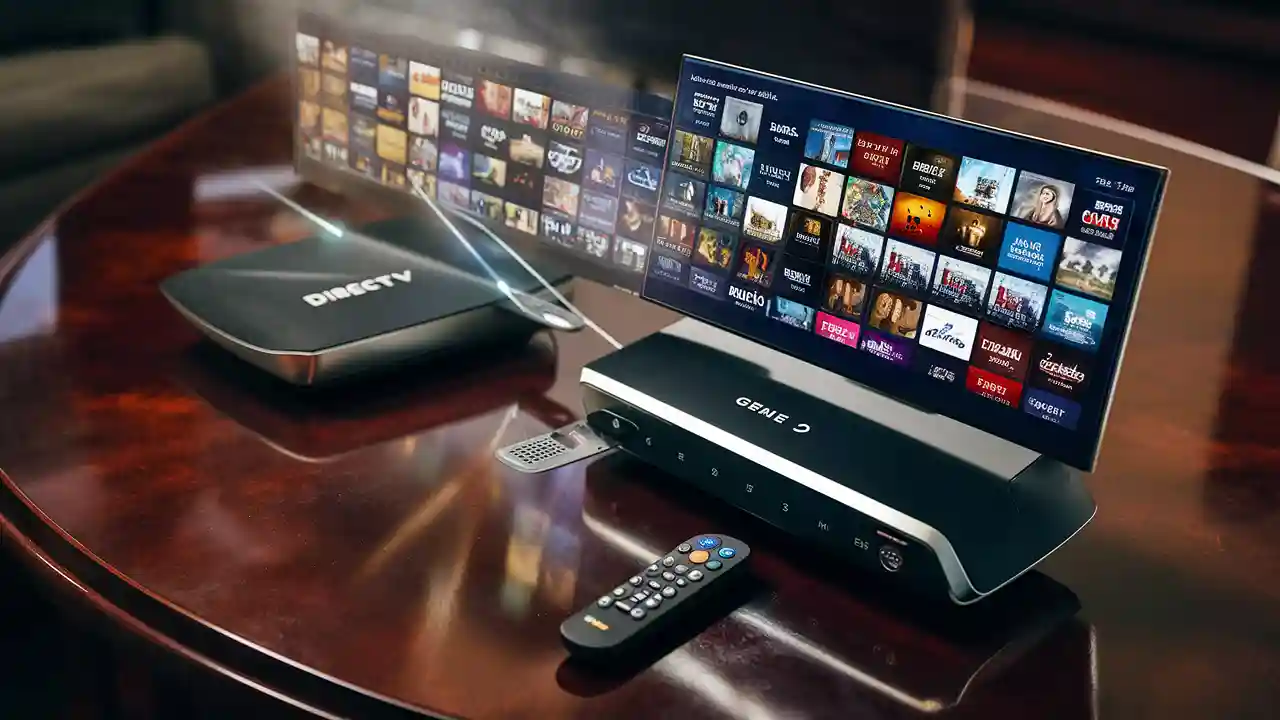
Activating your Genie 2 DIRECTV receiver is a straightforward process designed to get you watching your favorite shows quickly. This guide provides a comprehensive, step-by-step walkthrough, ensuring you can troubleshoot common issues and optimize your viewing experience from the moment you unbox your new equipment.
What is the Genie 2 DVR?
The Genie 2 is DIRECTV's premier whole-home DVR system, designed to revolutionize your television viewing. Unlike its predecessors, the Genie 2 is a server-only device, meaning it doesn't connect directly to a TV. Instead, it streams live TV, recorded content, and on-demand programming to multiple Genie Mini clients or other compatible devices throughout your home. This architecture allows for unparalleled flexibility and a streamlined entertainment experience. With its advanced capabilities, the Genie 2 supports up to 7 simultaneous streams, allowing different family members to watch or record different programs in separate rooms without interruption. It boasts a massive storage capacity, typically around 1 terabyte (TB), which translates to hundreds of hours of HD programming, and often even more in standard definition. For 2025-26, DIRECTV continues to position the Genie 2 as the flagship for its premium home entertainment offering, emphasizing its seamless integration with the DIRECTV streaming app and its ability to deliver a robust, buffer-free experience even with multiple concurrent users. Understanding its unique server-client model is key to a successful setup and activation.
Before You Begin: Essential Preparations
Before embarking on the activation process for your Genie 2 DVR, a few crucial steps will ensure a smooth and hassle-free experience. Skipping these preparatory measures can lead to activation delays or errors.
Gathering Necessary Information
You will need specific details readily available to expedite the activation. These include:
- Account Number: This is essential for verifying your identity and service. You can find it on your DIRECTV bill or by logging into your online account.
- Service Address: The physical address where your DIRECTV service is installed.
- Phone Number Associated with Account: The primary contact number linked to your DIRECTV subscription.
- Email Address: The email address on file with DIRECTV, often used for confirmation and notifications.
- Credit Card Information (if applicable): If there are any outstanding balances or if you are setting up a new service requiring a deposit, have your payment method ready.
Equipment Check and Placement
Ensure all components of your Genie 2 system are present and in good condition. This typically includes:
- The Genie 2 DVR unit (HS17 model).
- The SWM (Single Wire Multiswitch) power inserter.
- An Ethernet cable (if you plan to connect directly to your router for enhanced streaming stability).
- Any Genie Mini clients you intend to use.
Placement Considerations:
- Genie 2 DVR: This unit should be placed in a central location, ideally near your primary router if you are using a wired Ethernet connection. It does not need to be in the same room as a TV, as it acts as a central hub. Ensure it has adequate ventilation to prevent overheating.
- Genie Mini Clients: These clients connect to individual TVs. Ensure they are placed near the TV they will serve and have access to a power outlet. For wireless Genie Minis, ensure they are within a reasonable range of the Genie 2 DVR for a stable connection.
Satellite Dish and Wiring Verification
The Genie 2 system requires a specific type of satellite dish and wiring setup, usually a Slimline dish with SWM technology.
- SWM Compatibility: Your satellite dish must be SWM-compatible. Most modern DIRECTV installations are. If you have an older dish, you might need an upgrade. The SWM system allows a single coaxial cable to carry signals from the satellite to multiple tuners, which is crucial for the Genie 2's multi-room streaming.
- Coaxial Cable Connection: Ensure the coaxial cable from your SWM dish is securely connected to the SWM power inserter, and then to the Genie 2 DVR. For Genie Mini clients, ensure they are connected to the SWM system via separate coaxial cables, or wirelessly if supported and configured.
- Internet Connection: While not strictly required for basic satellite TV reception, a stable internet connection is highly recommended for the Genie 2. It enhances features like on-demand content, app integration, software updates, and troubleshooting. Connect the Genie 2 DVR to your home router via an Ethernet cable for the most reliable performance, or ensure a strong Wi-Fi signal if using wireless connectivity.
Powering Up the Equipment
Once everything is connected, power up the equipment in the correct sequence:
- Connect the SWM power inserter to power.
- Connect the Genie 2 DVR to power.
- Connect any Genie Mini clients to power.
Allow each device a few minutes to boot up. The Genie 2 DVR will likely display a "booting up" or "initializing" message on a connected TV.
Understanding Genie 2 Activation Methods
DIRECTV offers several convenient ways to activate your Genie 2 DVR. The method you choose will depend on your preference and the tools available to you. Understanding these options upfront can help you select the most efficient path to getting your system up and running.
Online Activation
This is often the quickest and most convenient method, especially if you have a stable internet connection. DIRECTV's online portal guides you through a series of prompts, verifying your equipment and account details. It's ideal for users who are comfortable navigating websites and entering information digitally. The online system is designed to automatically detect your new equipment once it's connected and powered on.
Phone Activation
For those who prefer speaking with a representative or encounter issues with online activation, the phone method is a reliable alternative. A DIRECTV customer service agent will guide you through the entire process, asking for the necessary information and remotely activating your Genie 2 DVR. This method can be particularly helpful for troubleshooting complex setup issues in real-time.
Automated Phone System
Similar to phone activation, but utilizing an automated interactive voice response (IVR) system. This can be faster than speaking with an agent if your situation is straightforward. The system will prompt you for account and equipment details, and then initiate the activation sequence.
Self-Activation via Remote (Less Common for Initial Setup)
While not typically the primary method for initial Genie 2 activation, some system refreshes or re-activations can be initiated through the receiver's remote control menu. However, for the very first setup, online or phone methods are generally recommended by DIRECTV.
Which Method is Best for You?
For most users in 2025-26, the online activation is the preferred method due to its speed and efficiency. It requires no waiting on hold and can often be completed within minutes. If you encounter any errors or prefer human assistance, the phone activation remains a robust and dependable option. The automated phone system offers a middle ground for those who want a quicker phone experience without direct agent interaction. Regardless of the method chosen, ensure your Genie 2 DVR is powered on and connected to the satellite dish and internet (if applicable) before you begin.
Step-by-Step Online Activation Guide
Activating your Genie 2 DVR online is a streamlined process. Follow these steps carefully to ensure a successful setup.
Step 1: Access the DIRECTV Activation Portal
Open a web browser on your computer or mobile device and navigate to the official DIRECTV activation page. You can usually find this by searching for "DIRECTV activate receiver" or by visiting a specific URL provided by DIRECTV during your equipment delivery or installation. A common starting point is the DIRECTV activation portal.
Step 2: Log In or Create an Account
You will likely need to log in to your existing DIRECTV online account. If you do not have one, you will be prompted to create one. This usually involves providing your account number and a billing zip code to verify your identity.
Step 3: Identify Your New Equipment
Once logged in, the portal should guide you to a section for activating new equipment. It may automatically detect your new Genie 2 DVR if it's already connected and powered on, or you might need to manually enter the 9-digit serial number and/or the 12-digit access card number (if applicable, though Genie 2 typically uses internal authorization). These numbers are usually found on a sticker on the bottom or back of your Genie 2 DVR unit.
Step 4: Confirm Service and Equipment
The system will display the service plan and equipment associated with your account. Review this information carefully to ensure it matches what you ordered and received. If there are any discrepancies, you may need to contact DIRECTV customer support before proceeding.
Step 5: Initiate Activation
Once you have confirmed all details, click the "Activate" or "Submit" button. The system will then send activation signals to your Genie 2 DVR. This process can take anywhere from 15 minutes to an hour, sometimes longer.
Step 6: Monitor Activation Progress
Keep your Genie 2 DVR powered on during the activation process. You can usually monitor the progress on the TV screen connected to the Genie 2. Look for messages indicating "Activating," "Downloading Guide," or "System Update." Do not unplug or power off the receiver during this time.
Step 7: Complete Setup on TV
Once the activation is complete, the Genie 2 DVR will likely prompt you to perform a final setup on your TV. This may include:
- Language Selection: Choose your preferred language.
- Network Setup: If you haven't already, configure your internet connection (Wi-Fi or Ethernet).
- Dish Alignment Check: The system may run a diagnostic to ensure proper satellite signal.
- Software Updates: Allow any necessary software updates to download and install.
- Pairing Genie Minis: Follow on-screen instructions to pair your Genie Mini clients with the Genie 2 DVR.
Once these steps are completed, your Genie 2 should be fully activated and ready for use.
Step-by-Step Phone Activation Guide
If you prefer to activate your Genie 2 DVR over the phone, or if you encounter issues with online activation, follow these steps.
Step 1: Locate the DIRECTV Customer Service Number
Find the correct customer service number for DIRECTV activation. This number is typically provided on your order confirmation, in the equipment packaging, or on the DIRECTV website. For 2025-26, the primary number for new activations and technical support is often around 1-800-DIRECTV (1-800-347-3288).
Step 2: Prepare Your Information
Before calling, have all the necessary information ready, as listed in the "Before You Begin" section: your account number, service address, phone number, and email address. Also, have the serial number and access card number (if applicable) of your Genie 2 DVR.
Step 3: Call DIRECTV and Navigate the Menu
Dial the DIRECTV customer service number. You will likely interact with an automated system first. Listen carefully to the prompts and select the option for "new equipment activation" or "technical support for new equipment."
Step 4: Speak with a Representative or Use the Automated System
You may be directed to an automated system that guides you through the activation process, or you may speak with a live agent.
- Automated System: Follow the voice prompts. You will be asked to enter your account number, phone number, and the serial number of your Genie 2 DVR.
- Live Agent: When you connect with a representative, clearly state that you need to activate a new Genie 2 DVR. Provide them with all the information you've gathered.
Step 5: Follow Agent/System Instructions
The representative or automated system will guide you through the activation. They will verify your account and equipment. They will then remotely send activation signals to your Genie 2 DVR.
Step 6: Confirm Activation on TV
Ensure your Genie 2 DVR is powered on and connected to your TV. The representative or system will advise you on what to look for on your TV screen. You should see messages indicating the activation process is underway. This can take some time.
Step 7: Complete On-Screen Setup
Once the activation signal is received and processed, your Genie 2 DVR will likely prompt you to complete the on-screen setup, similar to the online activation process. This includes language selection, network configuration, and pairing Genie Minis. The agent may stay on the line to assist you through these final steps, or provide instructions on how to proceed.
If you encounter any issues during the phone activation, do not hesitate to ask the representative for clarification or further assistance.
Common Genie 2 Activation Troubleshooting
While DIRECTV aims for a seamless activation experience, occasional issues can arise. Here are common problems and their solutions for activating your Genie 2 DVR.
Issue 1: Genie 2 Not Powering On or Booting Up
Possible Causes: Power adapter not plugged in, faulty power outlet, or a defective unit.
Solutions:
- Ensure the power adapter is securely plugged into both the Genie 2 DVR and a working wall outlet.
- Try a different power outlet.
- Check the power adapter for any visible damage.
- If the issue persists, contact DIRECTV support for a potential replacement.
Issue 2: "Searching for Satellite Signal" or "No Satellite Signal" Error
Possible Causes: Incorrect dish alignment, loose coaxial cable connections, SWM power inserter not powered, or a damaged cable.
Solutions:
- Verify that the coaxial cable is securely connected to the SWM power inserter and the Genie 2 DVR.
- Ensure the SWM power inserter is plugged into a power source and its indicator light is on.
- Check that the dish is pointed correctly towards the DIRECTV satellites. If you suspect misalignment, you may need a professional technician.
- Inspect coaxial cables for any cuts, kinks, or damage.
- Run a satellite alignment test from the Genie 2's diagnostic menu (accessible via remote: Menu > Settings & Help > Settings > Satellite > View Signal Strength).
Issue 3: Activation Process Fails or Times Out
Possible Causes: Internet connectivity issues (for online activation), incorrect serial number entered, temporary DIRECTV server issues, or account activation holds.
Solutions:
- For Online Activation: Ensure your internet connection is stable. Try restarting your router and modem.
- Verify Serial Number: Double-check that you have entered the correct 9-digit serial number for your Genie 2 DVR.
- Try Phone Activation: If online activation fails repeatedly, switch to the phone activation method.
- Check DIRECTV Status: Occasionally, DIRECTV may experience temporary service outages. Check their website or social media for updates.
- Contact Support: If the problem persists, call DIRECTV customer support. They can check for any issues with your account or remotely diagnose the activation failure.
Issue 4: Genie Mini Clients Not Connecting
Possible Causes: Clients not properly paired, weak wireless signal, or incorrect network setup.
Solutions:
- Re-Pair Clients: Follow the on-screen prompts on your Genie 2 DVR to re-pair your Genie Mini clients. This is usually found in the "Settings & Help" menu.
- Check Wireless Signal: Ensure Genie Minis are within a reasonable range of the Genie 2 DVR. Obstructions like thick walls can interfere with the signal. Consider a Wi-Fi extender if necessary.
- Wired Connection: If using Ethernet, ensure the cable is securely connected to both the Genie Mini and your router/switch.
- Restart Equipment: Power cycle both the Genie 2 DVR and the problematic Genie Mini client.
Issue 5: Slow On-Demand or Streaming Performance
Possible Causes: Slow internet speed, network congestion, or outdated receiver software.
Solutions:
- Test Internet Speed: Run a speed test on your internet connection. DIRECTV recommends at least 25 Mbps for optimal 4K streaming and multiple HD streams.
- Use Ethernet: Connect the Genie 2 DVR directly to your router via an Ethernet cable for the most stable connection.
- Update Software: Ensure your Genie 2 DVR has the latest software updates. This usually happens automatically, but you can check in the settings menu.
- Reduce Network Load: If multiple devices are heavily using your internet simultaneously, try to reduce the load during peak viewing times.
For any persistent issues not covered here, DIRECTV's customer support is your best resource. They have access to advanced diagnostic tools and can provide specific guidance for your account and equipment.
Optimizing Your Genie 2 Experience Post-Activation
Once your Genie 2 DVR is successfully activated, a few additional steps can significantly enhance your viewing experience, ensuring you get the most out of this advanced system. These tips focus on leveraging its features and ensuring optimal performance.
1. Explore the DIRECTV App Integration
The DIRECTV app is a powerful companion to your Genie 2. Download it onto your smartphone or tablet and log in with your DIRECTV credentials. This allows you to:
- Watch Live TV and Recorded Content Anywhere: Stream your DIRECTV channels and DVR recordings from virtually anywhere with an internet connection.
- Manage Your DVR: Schedule recordings, delete shows, and manage your playlist remotely.
- Browse and Search: Easily search for programs, view TV schedules, and discover new content.
Ensure your Genie 2 DVR is connected to your home network for seamless app synchronization.
2. Configure Your Recording Preferences
Take some time to customize your recording settings to suit your viewing habits. Access these options through the Genie 2's menu:
- Recording Quality: Choose between different recording resolutions (HD, SD) to balance storage space and picture quality. For most users in 2025-26, HD is standard.
- Series Priority: Set preferences for how the Genie 2 handles conflicts when recording multiple episodes of the same series. You can prioritize certain channels or choose which episodes to record (e.g., new episodes only).
- Storage Management: The Genie 2 automatically manages storage, but you can set preferences for how old recordings are deleted to make space for new ones.
3. Optimize Genie Mini Client Placement and Performance
For the best multi-room viewing:
- Wireless Signal Strength: If using wireless Genie Minis, ensure they are not too far from the Genie 2 DVR. Consider placing the Genie 2 in a more central location if possible.
- Wired Connections: For the most reliable performance, especially in larger homes or areas with potential wireless interference, consider using Ethernet connections for your Genie Minis.
- Power Saving Settings: Adjust power saving settings on Genie Minis if you find they are going into standby too quickly or not quickly enough.
4. Utilize Voice Remote Features
If your Genie 2 came with a voice remote, familiarize yourself with its capabilities. You can use voice commands to:
- Change channels
- Search for shows or movies
- Access specific apps
- Control playback (pause, rewind, fast forward)
- Get information about actors or sports scores
This significantly speeds up navigation and makes finding content more intuitive.
5. Explore On-Demand and App Content
Your Genie 2 provides access to a vast library of on-demand movies and TV shows, as well as popular streaming apps (like Netflix, Max, Prime Video, etc., depending on your subscription package). Ensure your Genie 2 is connected to the internet to take full advantage of these features. Navigate to the "Apps" or "On Demand" sections of the menu to explore.
6. Schedule Regular System Checks
Periodically, it's a good idea to run diagnostics:
- Signal Strength Test: Check satellite signal strength to ensure optimal reception.
- Internet Speed Test: Verify your internet connection is performing adequately for streaming services.
- Software Updates: Ensure your system is running the latest software for bug fixes and new features.
By taking these steps, you can ensure your Genie 2 DVR system is not only activated but also optimized for a superior home entertainment experience throughout 2025 and beyond.
Genie 2 vs. Older DIRECTV Receivers: A 2025-26 Comparison
As DIRECTV continues to evolve its technology, understanding how the Genie 2 stacks up against older receiver models is crucial for current and prospective subscribers. The Genie 2 represents a significant leap forward, particularly in its architecture and capabilities, making it the premium choice for most users in the 2025-26 landscape.
Architecture: Server vs. Traditional Receiver
Genie 2: This is a server-only device. It does not connect directly to a TV. Instead, it acts as a central hub, streaming content wirelessly or via Ethernet to Genie Mini clients. This means you only need one primary DVR unit for your entire home.
Older Models (e.g., HR44, HR54 Genie, older DVRs): These are traditional receivers that connect directly to a TV. To get DVR functionality in multiple rooms, you would need a separate DVR for each room, or a Genie system with multiple Genie Minis connected to a primary Genie DVR.
Simultaneous Streams
Genie 2: Supports up to 7 simultaneous streams. This is ideal for larger households where multiple people want to watch different content at the same time.
Older Models: Typically support fewer simultaneous streams. For example, an HR54 Genie might support up to 5 streams (1 main DVR + 4 Minis). Older standard DVRs might only support 2 streams.
Storage Capacity
Genie 2: Comes with a substantial internal hard drive, often around 1TB, capable of storing hundreds of hours of HD programming.
Older Models: Storage capacity varies significantly. Older standard DVRs might have 500GB or less, while earlier Genie models also offered around 1TB. The Genie 2’s large capacity is a key selling point for heavy recorders.
4K Content Support
Genie 2: Designed with 4K in mind, supporting multiple 4K streams simultaneously (though availability of 4K content is dependent on DIRECTV's offerings).
Older Models: Some later models (like HR54) offer 4K capabilities, but often with limitations on simultaneous 4K streams or requiring specific Genie Mini clients (like the C61K). The Genie 2 offers a more robust and integrated 4K experience.
Connectivity and Smart Features
Genie 2: Features enhanced connectivity, often with built-in Wi-Fi and Ethernet ports for seamless internet integration. It provides superior access to on-demand content and apps.
Older Models: Many older models required a separate Wireless Video Bridge (WVB) for wireless Genie Mini connectivity and may have had slower internet integration.
Activation Process
Genie 2: Activation is typically straightforward via online portal or phone, with a focus on its server architecture.
Older Models: Activation is similar, but the system setup and pairing of clients might differ slightly.
Table: Genie 2 vs. Older Genie Models (HR54 Example)
| Feature | Genie 2 (HS17) | Older Genie (e.g., HR54) |
|---|---|---|
| Architecture | Server-only (streams to clients) | Receiver/DVR (connects to TV) |
| Simultaneous Streams | Up to 7 | Up to 5 (with Genie Minis) |
| Storage | ~1TB (internal) | ~1TB (internal) |
| 4K Support | Enhanced, multiple streams | Supported, may have limitations |
| Connectivity | Superior Wi-Fi/Ethernet integration | May require WVB for wireless |
In summary, for users seeking the most advanced, flexible, and powerful whole-home entertainment system from DIRECTV in 2025-26, the Genie 2 is the clear choice. Its unique architecture and enhanced capabilities offer a superior experience compared to older receiver models.
Conclusion: Enjoying Your Activated Genie 2
Activating your Genie 2 DIRECTV DVR is the gateway to an enhanced home entertainment experience. By following the detailed steps for online or phone activation, and by preparing adequately beforehand, you can ensure a smooth and efficient setup. Remember that the Genie 2's server-only architecture is designed for seamless whole-home viewing, streaming content to multiple Genie Mini clients without the need for extensive wiring or multiple primary receivers. Should you encounter any hurdles during the activation process, the troubleshooting guide provides solutions for common issues, and DIRECTV's customer support remains a valuable resource. Post-activation, exploring features like the DIRECTV app, customizing recording preferences, and optimizing Genie Mini placement will unlock the full potential of your system. With its robust capabilities and future-forward design, the Genie 2 stands as DIRECTV's premier offering for 2025-26, delivering unparalleled flexibility and entertainment to your household. Enjoy your newly activated Genie 2 system!


