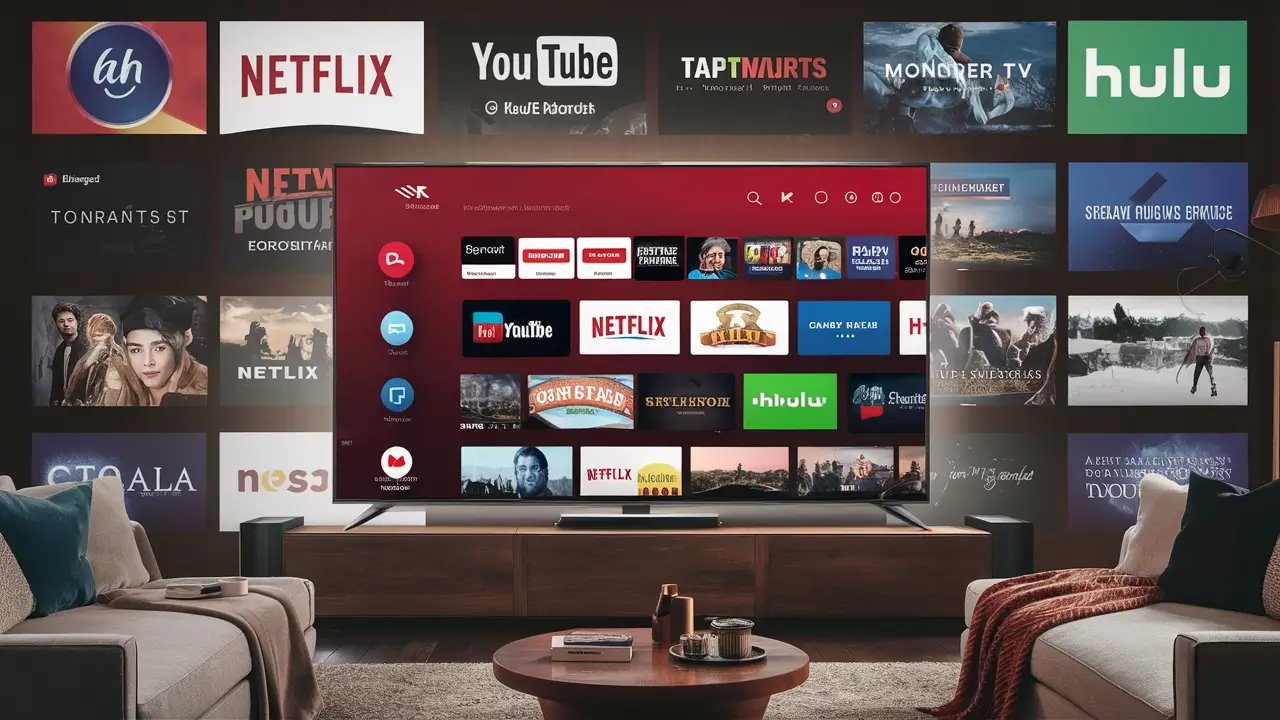
Unlock the full potential of your Dish Network experience by learning how to add apps. This guide provides a comprehensive, step-by-step walkthrough, ensuring you can easily access your favorite streaming services and enhance your entertainment without any hassle. Discover the simplest methods for expanding your digital library.
Understanding Apps on Dish Network
Dish Network, a leading satellite television provider, has evolved significantly beyond traditional channel packages. In today's interconnected world, entertainment is no longer confined to live broadcasts. Dish recognizes this shift by integrating app functionality directly into its set-top boxes, transforming your television into a more versatile hub for content consumption. This means you can access a wider array of on-demand movies, TV shows, music, games, and even productivity tools without needing separate streaming devices or smart TV capabilities for every screen in your home.
The concept of "apps" on Dish Network refers to software applications that run directly on compatible Dish receivers. These applications are designed to provide users with access to content and services beyond the standard satellite TV programming. Think of it as bringing the functionality of your smartphone or tablet's app store to your main television. This integration aims to simplify your entertainment setup, consolidating various services into a single, user-friendly interface accessible through your Dish remote.
The primary benefit of having apps on your Dish receiver is convenience. Instead of switching between different devices, remotes, and inputs, you can navigate to your desired app directly from the Dish menu. This streamlined experience is particularly appealing for households looking to reduce clutter and simplify their home entertainment systems. Furthermore, Dish continually updates its app offerings and platform, ensuring that users have access to the latest popular services and features.
It's important to understand that not all Dish receivers are created equal when it comes to app functionality. Newer, more advanced models are equipped with the necessary hardware and software to support a wider range of applications. Older or more basic receivers might have limited or no app capabilities. Therefore, before diving into the process of adding apps, it's crucial to verify the compatibility of your specific Dish set-top box. Information regarding your receiver model and its capabilities can typically be found in your user manual or by contacting Dish customer support.
The integration of apps on Dish Network represents a strategic move to compete in the rapidly evolving media landscape. As cord-cutting and the popularity of streaming services continue to grow, providers like Dish are adapting by offering a hybrid approach. This allows subscribers to enjoy the benefits of traditional satellite TV while also gaining access to the vast world of digital streaming and interactive applications. By understanding what apps are and how they function on your Dish system, you're taking the first step towards a more personalized and expansive entertainment experience.
Types of Apps Available on Dish Network
Dish Network offers a diverse and growing selection of apps designed to cater to a wide range of user interests. These applications can be broadly categorized to help you understand the breadth of entertainment and utility available directly through your Dish receiver. As of 2025-26, the app landscape on Dish is more robust than ever, reflecting the increasing demand for integrated digital experiences.
One of the most popular categories is **Video Streaming Services**. These apps provide access to on-demand libraries of movies, TV shows, and original content from major streaming platforms. While Dish offers its own HopperGO and Sling TV services for on-the-go viewing and live streaming, users can also access third-party applications. Examples include popular services like Netflix, Amazon Prime Video, and YouTube. These apps allow you to log in with your existing subscriptions, seamlessly bringing your favorite binge-watching content to your main television.
Another significant category is **Music and Audio Apps**. For those who enjoy listening to music or podcasts while relaxing or entertaining, Dish provides access to services like Pandora and iHeartRadio. These apps offer vast libraries of music across various genres, curated playlists, and live radio stations, all controllable with your Dish remote. This integration eliminates the need for separate audio devices or smart speakers for basic music playback.
**News and Information Apps** are also available, keeping you informed about current events. Services like The Weather Channel app can provide detailed local and national weather forecasts directly on your TV screen. While not as extensive as dedicated news apps on mobile devices, these provide quick access to essential information without interrupting your viewing experience.
For families, **Kids and Educational Apps** can be a valuable addition. These apps often feature engaging content designed to entertain and educate children, from interactive games to learning modules. While specific titles may vary, the focus is on providing safe and enriching content for younger viewers.
Beyond entertainment, Dish also offers some **Utility and Lifestyle Apps**. These might include features like a built-in web browser (though often limited in functionality compared to dedicated devices), or apps that provide access to sports scores and statistics. The goal is to provide quick access to information and services that complement your television viewing.
It's important to note that the availability of specific apps can depend on your Dish receiver model and your subscription package. Newer models, particularly the Hopper series, generally support a wider range of applications. Additionally, some apps might require a separate subscription to the service itself, even though you access it through your Dish receiver. For instance, to use the Netflix app on your Dish box, you must have an active Netflix subscription.
The trend in 2025-26 is towards greater integration and a more curated app store experience. Dish is actively working to partner with more content providers to expand its app offerings, aiming to become a central hub for all your entertainment needs. This includes not just major streaming services but also niche content providers and interactive applications that enhance the overall TV experience.
Here's a simplified overview of app categories:
| Category | Examples | Primary Function |
|---|---|---|
| Video Streaming | Netflix, Amazon Prime Video, YouTube | On-demand movies, TV shows, original content |
| Music & Audio | Pandora, iHeartRadio | Music streaming, podcasts, radio stations |
| News & Information | The Weather Channel | Weather forecasts, current events (limited) |
| Kids & Educational | Various educational apps | Interactive learning and entertainment for children |
| Utility & Lifestyle | Sports scores, web browser (basic) | Quick access to information and basic online functions |
By understanding these categories, you can better identify which apps would be most beneficial to add to your Dish Network system, enhancing your viewing and entertainment options significantly.
How to Add Apps on Dish Network: A Detailed Guide
Adding apps to your Dish Network receiver is a straightforward process, designed for user-friendliness. However, the exact steps can vary slightly depending on your specific Dish receiver model. This guide will walk you through the general procedure, focusing on the most common methods used with Dish's advanced receivers like the Hopper series. Ensure your receiver is connected to the internet, as this is a prerequisite for downloading and running any applications.
Step 1: Access the Apps Menu
The first step is to navigate to the applications section of your Dish Network interface. This is typically done using your remote control. Press the Menu button on your remote. This will bring up the main menu on your television screen. From there, look for an option labeled Apps, App Central, or something similar. You might need to use the arrow keys on your remote to highlight this option and then press Select or OK.
Step 2: Browse Available Apps
Once you've entered the Apps menu, you'll be presented with a list or grid of available applications. These are usually organized into categories (as discussed in the previous section) such as Entertainment, Music, Kids, etc. Some apps might be pre-installed on your receiver, while others will be available for download. Use the arrow keys to scroll through the available options and explore what's on offer.
Step 3: Select an App to Install
When you find an app you wish to add, highlight it using your remote and press Select or OK. This will usually take you to an app information screen. Here, you'll find details about the app, including a description, screenshots, and sometimes user reviews. If you decide to proceed, look for an option like Add App, Install, or Download. Select this option to begin the installation process.
Step 4: Installation Process
The installation process is typically automatic. Your Dish receiver will download the necessary files from Dish's servers and install the app. The time this takes will depend on the size of the app and the speed of your internet connection. You might see a progress bar or a notification indicating that the app is being installed. In most cases, you don't need to do anything during this phase.
Step 5: Accessing Your Installed App
Once the installation is complete, the app will usually appear in your main Apps menu, or sometimes in a dedicated "My Apps" section. You can then select it again to launch it. The first time you open an app, you may be prompted to log in with your credentials for that specific service (e.g., your Netflix username and password). This is how Dish verifies your subscription and links your account to the app.
Step 6: Logging In and Configuration
For most streaming and content-based apps, you will need to log in. Use your Dish remote to enter your username and password for the service. Some apps might offer an alternative login method, such as a code that you enter on a separate device (like a smartphone or computer) via a provided website. Follow the on-screen instructions carefully. Once logged in, you can begin using the app to browse and stream content.
Important Considerations for Specific Receivers:
- Hopper Receivers (Hopper 3, Hopper Plus): These advanced receivers offer the most comprehensive app experience. The process described above is most applicable to these models. You can typically find the Apps menu directly from the main Menu or by pressing a dedicated Apps button if your remote has one.
- Older Receivers: If you have an older Dish receiver, it might not support downloading new apps. In such cases, you may only have access to pre-installed applications or a limited selection. Check your receiver's manual or Dish's online support resources to confirm its app capabilities.
Troubleshooting Tip: If you encounter issues during installation or while trying to launch an app, try restarting your Dish receiver. Sometimes, a simple reboot can resolve temporary glitches. Ensure your internet connection is stable and that your receiver's software is up to date. You can usually check for software updates within the system settings menu.
By following these steps, you should be able to successfully add and configure your desired apps on your Dish Network system, significantly expanding your entertainment options.
Troubleshooting Common Issues When Adding Apps
While adding apps to your Dish Network receiver is generally a smooth experience, users can occasionally encounter issues. These problems can range from installation failures to apps not launching correctly. Fortunately, most common issues have straightforward solutions. This section provides a guide to troubleshooting these problems effectively, ensuring you can get back to enjoying your expanded app library.
Issue 1: App Fails to Install or Download
- Cause: Insufficient storage space on the receiver, unstable internet connection, or a temporary server issue with Dish.
- Solution:
- Check Internet Connection: Ensure your Dish receiver is properly connected to your home network and that your internet service is active and stable. You can often run a network test through your receiver's settings menu.
- Restart Receiver: Power cycle your Dish receiver by unplugging it from the power outlet for about 30 seconds, then plugging it back in. This can often resolve temporary connectivity or software glitches.
- Check Storage Space: While less common with modern receivers, if an app is particularly large, it might require significant storage. Check your receiver's system information for available space. If it's low, consider uninstalling unused apps.
- Try Later: If the issue is with Dish's servers, it might be a temporary problem. Try downloading the app again after a few hours.
Issue 2: App Won't Launch or Crashes Immediately
- Cause: Corrupted app data, outdated receiver software, or a conflict with other applications.
- Solution:
- Restart the App: Close the app completely (if possible through the interface) and try launching it again.
- Restart Receiver: As with installation issues, a full receiver reboot can often fix app-related problems.
- Check for Software Updates: Ensure your Dish receiver's firmware is up to date. Updates often include bug fixes that can resolve app performance issues. Navigate to System Settings > Software Update on your receiver.
- Clear App Cache/Data (If Available): Some advanced systems allow you to clear the cache or data for individual apps. This can resolve issues caused by corrupted temporary files. This option might be found within the app's settings or the receiver's system settings.
- Reinstall the App: If the problem persists, try uninstalling the app and then reinstalling it from the Apps menu.
Issue 3: Unable to Log In to an App
- Cause: Incorrect username/password, expired subscription, or issues with the app provider's authentication servers.
- Solution:
- Verify Credentials: Double-check that you are entering the correct username and password for the specific service. Try logging into the service on another device (computer or smartphone) to confirm your credentials are valid and your subscription is active.
- Check Service Status: Visit the website of the app provider (e.g., Netflix, Amazon Prime Video) to see if they are experiencing any service outages or login issues.
- Contact App Provider Support: If your credentials are correct and the service is operational, contact the customer support for the specific app provider. They can help troubleshoot account-specific login problems.
- Ensure Receiver is Connected: A stable internet connection is crucial for the authentication process.
Issue 4: App is Slow or Laggy
- Cause: Slow internet speed, insufficient processing power on the receiver, or the app itself is resource-intensive.
- Solution:
- Improve Internet Speed: If your internet is generally slow, consider upgrading your plan or optimizing your home network. Ensure your Dish receiver has a strong Wi-Fi signal or a stable wired connection.
- Close Other Apps: If your receiver can run multiple apps simultaneously, ensure no other resource-heavy applications are running in the background.
- Limit Background Activity: Some receivers might have settings to manage background processes.
- Consider Receiver Upgrade: If your receiver is older and consistently struggles with app performance, it might be time to consider upgrading to a newer model that offers more processing power.
Issue 5: App Not Appearing in the Apps Menu After Installation
- Cause: Installation error, or the app is located in a different section of the menu.
- Solution:
- Restart Receiver: A reboot can sometimes refresh the system and make the newly installed app visible.
- Check "My Apps" or Other Sections: Look for a "My Apps" or "Installed Apps" section within the main Apps menu. The app might be categorized differently than expected.
- Reinstall: If it's still not appearing, try uninstalling and reinstalling it.
General Troubleshooting Tips:
- Consult Your User Manual: Your Dish receiver's manual is an invaluable resource for specific troubleshooting steps tailored to your model.
- Dish Customer Support: If you've exhausted all other options, don't hesitate to contact Dish Network customer support. They can provide advanced troubleshooting and diagnose potential issues with your equipment or service.
By systematically addressing these common issues, you can ensure a smooth and enjoyable experience with the apps available on your Dish Network system.
Maximizing Your Dish App Experience
Once you've successfully added and configured your favorite apps on your Dish Network receiver, the next step is to optimize your experience to get the most out of this integrated entertainment solution. Maximizing your Dish app experience involves a combination of smart usage, organization, and understanding the full capabilities of the platform. Here’s how you can elevate your entertainment:
1. Organize Your Apps for Easy Access:
As you accumulate more apps, your Apps menu can become cluttered. Most Dish receivers allow you to reorder or organize your apps. Prioritize the apps you use most frequently by moving them to the top of the list or to a dedicated "Favorites" section if available. This saves you time and reduces frustration when you're looking for something specific to watch or listen to.
2. Leverage Voice Commands (If Supported):
If your Dish remote and receiver support voice commands, this is a game-changer for app navigation. Instead of manually browsing, you can simply say commands like "Open Netflix," "Play Stranger Things on Netflix," or "Search for comedy movies on Prime Video." This feature significantly speeds up access and makes the experience more intuitive. Ensure your remote's voice functionality is enabled and paired correctly with your receiver.
3. Utilize Universal Search Features:
Many Dish systems offer a universal search function that can look for content across multiple apps, not just live TV. If you're unsure where a particular movie or show is available, use the search bar. It might show you options on Netflix, Amazon Prime Video, or even within Dish's own on-demand library, providing a consolidated view of where to find your desired content.
4. Integrate Subscriptions Seamlessly:
Remember that while Dish provides the platform, you often need separate subscriptions for many of the apps (e.g., Netflix, Hulu, Disney+). Ensure your subscriptions are active and that you're using the correct login credentials. Some services might offer bundled deals with Dish, so it's worth checking if you can save money by subscribing through Dish.
5. Explore Dish's Native Apps and Features:
Don't forget to explore Dish's own applications and features. Services like Sling TV (if subscribed), HopperGO for mobile viewing, and Dish's On Demand library offer a wealth of content that integrates directly. Understanding how these work alongside third-party apps can provide a more cohesive entertainment ecosystem.
6. Optimize Your Internet Connection:
The performance of streaming apps is heavily dependent on your internet speed and stability. For the best experience, ensure you have a robust internet plan capable of handling HD or 4K streaming. A wired Ethernet connection to your receiver often provides a more stable and faster connection than Wi-Fi, especially if your Wi-Fi signal is weak in the location of your TV.
7. Keep Your Receiver Software Updated:
Dish regularly releases software updates for its receivers. These updates often include performance improvements, bug fixes, and sometimes even new app integrations or features. Regularly check for and install these updates to ensure your system is running optimally and securely.
8. Explore New Apps as They Become Available:
The app landscape is constantly evolving. Dish is continually adding new applications to its platform. Make it a habit to periodically browse the Apps menu to see what new services have been added. You might discover a new favorite streaming service or a utility app that enhances your TV experience.
9. Use Apps for More Than Just Entertainment:
While entertainment is the primary focus, some apps can offer utility. For instance, weather apps provide quick forecasts, and some news apps can keep you informed. Consider how these informational apps can supplement your daily routine without requiring you to switch to a different device.
10. Manage Storage and Performance:
If you notice your receiver becoming sluggish, it might be due to too many apps installed or running. Periodically review your installed apps and uninstall any that you no longer use. This can free up system resources and improve overall performance.
By implementing these strategies, you can transform your Dish Network receiver from just a TV box into a powerful, personalized entertainment hub. The goal is to make accessing your favorite content as effortless and enjoyable as possible.
Dish Network App Integration vs. Competitors (2025-26)
In the competitive landscape of pay-TV providers, app integration has become a crucial differentiator. Dish Network has been actively working to enhance its platform's app capabilities to compete with other major players like Comcast (Xfinity), Spectrum, and even smart TV operating systems like Google TV and Roku TV. As of 2025-26, the strategies and offerings vary, with each provider aiming to capture the modern viewer's attention.
Dish Network's Approach:
Dish's strategy has historically focused on providing a robust set-top box experience with its Hopper line of receivers. Their app integration aims to bring popular third-party streaming services directly to the Dish interface, reducing the need for additional streaming sticks or smart TV apps. Key strengths include:
- Consolidated Interface: Dish strives to offer a unified experience where users can access live TV, DVR, and streaming apps from a single menu.
- Growing App Catalog: They have been steadily adding major streaming platforms like Netflix, Amazon Prime Video, and YouTube, with ongoing efforts to include more.
- Voice Control Integration: Advanced remotes with voice control enhance navigation within apps.
- Sling TV Synergy: Dish also owns Sling TV, a popular live TV streaming service, which is often integrated or promoted within the Dish ecosystem.
However, Dish's app selection, while growing, may not be as exhaustive as some dedicated smart TV platforms. The performance can also depend heavily on the specific Hopper model and the user's internet connection.
Comcast (Xfinity) X1 Platform:
Comcast's X1 platform is often cited as a benchmark for integrated TV experiences. Their approach is similar to Dish in aiming for a unified interface but with a potentially larger app catalog and deeper integration with Comcast's own services.
- Extensive App Library: X1 typically boasts a wider array of apps, including many popular streaming services, news apps, and even some gaming platforms.
- Deep Integration: Comcast leverages its extensive infrastructure for seamless integration and often offers features like integrated billing for some services.
- Advanced Search: X1's voice remote and search functionality are highly regarded for their ability to find content across live TV, DVR, and apps.
The primary limitation for Xfinity is its availability, as it's tied to Comcast's service areas.
Charter Spectrum:
Spectrum, another major cable provider, has also been enhancing its TV interface with app integration. Their strategy often involves partnering with specific app providers and integrating them into their set-top boxes.
- Focus on Key Apps: Spectrum tends to focus on integrating the most popular streaming services, ensuring core user needs are met.
- Evolving Platform: Spectrum is continually updating its platform, and the availability of apps can vary by region and receiver model.
While Spectrum offers app integration, its ecosystem might be perceived as less mature or feature-rich compared to Xfinity's X1 or Dish's Hopper platform in some aspects.
Smart TV Operating Systems (Google TV, Roku TV, Fire TV):
Dedicated smart TV platforms and streaming devices offer the most extensive app stores. These platforms are built from the ground up for app-based content consumption.
- Vast App Selection: Google TV, Roku TV, and Amazon Fire TV offer thousands of apps, covering every niche imaginable.
- User-Friendly Interfaces: They are designed for intuitive navigation and often feature personalized recommendations across apps.
- Hardware Diversity: Available on a wide range of TVs and affordable streaming sticks/boxes.
The main difference here is that these are not integrated with a traditional pay-TV subscription in the same way. Users typically subscribe to these services independently or use them as a supplement to their cable/satellite package.
Comparison Table (2025-26 Outlook):
| Feature | Dish Network | Comcast X1 | Charter Spectrum | Smart TV OS (Google TV, Roku TV) |
|---|---|---|---|---|
| App Selection | Growing, covers major services | Extensive, broad range | Focus on key services, evolving | Vast, thousands of options |
| Interface Integration | Good, aims for unified experience | Excellent, highly integrated | Good, improving | Primary interface, app-centric |
| Voice Control | Yes, with compatible remotes | Excellent, robust voice search | Yes, with compatible remotes | Yes, often with built-in assistants |
| Subscription Management | Primarily through app providers | Can include bundled billing for some | Primarily through app providers | Primarily through app providers |
| Hardware Dependency | Specific Dish receivers (Hopper) | Xfinity X1 equipment | Spectrum equipment | Smart TV or streaming device |
Conclusion for 2025-26:
Dish Network holds its own in the app integration space, particularly for users who prefer a consolidated satellite TV and streaming experience within a single set-top box. While competitors like Comcast X1 might offer a slightly more extensive app library and deeper integration, Dish's Hopper platform provides a compelling and user-friendly solution. For users seeking the absolute widest selection of niche apps, dedicated smart TV platforms remain the leader, but they often require a separate device and management. Dish's strength lies in its ability to blend traditional TV with popular streaming services seamlessly, making it an attractive option for many households.
The Future of Apps on Dish Network
The trajectory of app integration on Dish Network, and indeed across the entire television industry, points towards an increasingly interconnected and personalized entertainment experience. As technology advances and consumer expectations evolve, Dish is poised to further enhance its app offerings and the underlying platform. Several key trends and developments are likely to shape the future of apps on Dish Network in the coming years.
1. Expanded App Partnerships:
The most immediate future development will likely be the addition of more app partners. Dish will continue to negotiate with major and emerging streaming services, news providers, music platforms, and even gaming companies to bring their content and functionality to the Dish platform. This includes not only popular global services but also potentially more niche or regional applications that cater to specific user demographics. Expect to see more specialized sports apps, international content providers, and perhaps even interactive educational or fitness applications.
2. Deeper Integration and Enhanced User Experience:
Future iterations of the Dish interface will likely feature even deeper integration between live TV, on-demand content, and third-party apps. This could manifest in several ways:
- Universal Recommendations: The system may become more adept at recommending content across all available sources, regardless of whether it's a live channel, a DVR recording, or an app. Algorithms will likely become more sophisticated in understanding user preferences.
- Unified Search: Search functionalities will become even more powerful, allowing users to find content with greater accuracy and speed, potentially including searching within app libraries for specific actors, directors, or keywords.
- Cross-Platform Functionality: We might see features that allow for seamless transitions between watching on the TV and continuing on a mobile device, or even interacting with apps using voice commands more extensively.
3. Advanced Hardware and Performance:
As app requirements become more demanding (e.g., higher resolution streaming, more interactive features), Dish will continue to upgrade its set-top box hardware. Newer receivers will likely feature more powerful processors, increased memory, and improved network connectivity (e.g., Wi-Fi 7, faster Ethernet ports) to ensure smooth performance for even the most resource-intensive applications. This will be crucial for supporting 4K HDR content and potentially future immersive technologies.
4. Cloud-Based Services and AI:
The role of cloud computing and artificial intelligence will grow. AI could power more personalized content discovery, smarter DVR management, and even predictive assistance. Cloud-based services might allow for more flexible app updates and feature rollouts without requiring extensive on-device downloads.
5. Interactive and Gamified Experiences:
The future might see Dish exploring more interactive applications. This could include live polls during sports events, interactive documentaries, or even casual gaming experiences accessible directly through the TV. As the line between television and interactive media blurs, Dish will likely be at the forefront of offering these engaging features.
6. Enhanced Parental Controls and Content Management:
With a wider array of content sources, robust and user-friendly parental controls will become even more critical. Future updates will likely offer more granular control over which apps and content can be accessed by different users within a household.
7. Potential for Bundling and Simplified Billing:
While currently many apps require separate subscriptions, there's potential for Dish to offer more bundled packages or simplified billing options for popular streaming services, making it easier for subscribers to manage their entertainment costs through a single provider.
In essence, the future of apps on Dish Network is about creating a truly comprehensive and intuitive entertainment ecosystem. By continuously innovating and adapting to the evolving media landscape, Dish aims to remain a central part of the modern living room, offering a seamless blend of traditional television and the vast world of digital applications. The focus will remain on user convenience, access to a wide variety of content, and a high-quality viewing experience.
In conclusion, mastering "how to add apps on Dish Network" is key to unlocking a richer, more personalized entertainment experience. By following the detailed steps outlined in this guide, you can easily expand your access to streaming services, music, and more, all from your Dish receiver. Remember to troubleshoot any issues systematically and to optimize your setup for maximum enjoyment. As Dish continues to evolve its platform, the integration of apps will only become more sophisticated, promising an even more connected future for your home entertainment.


