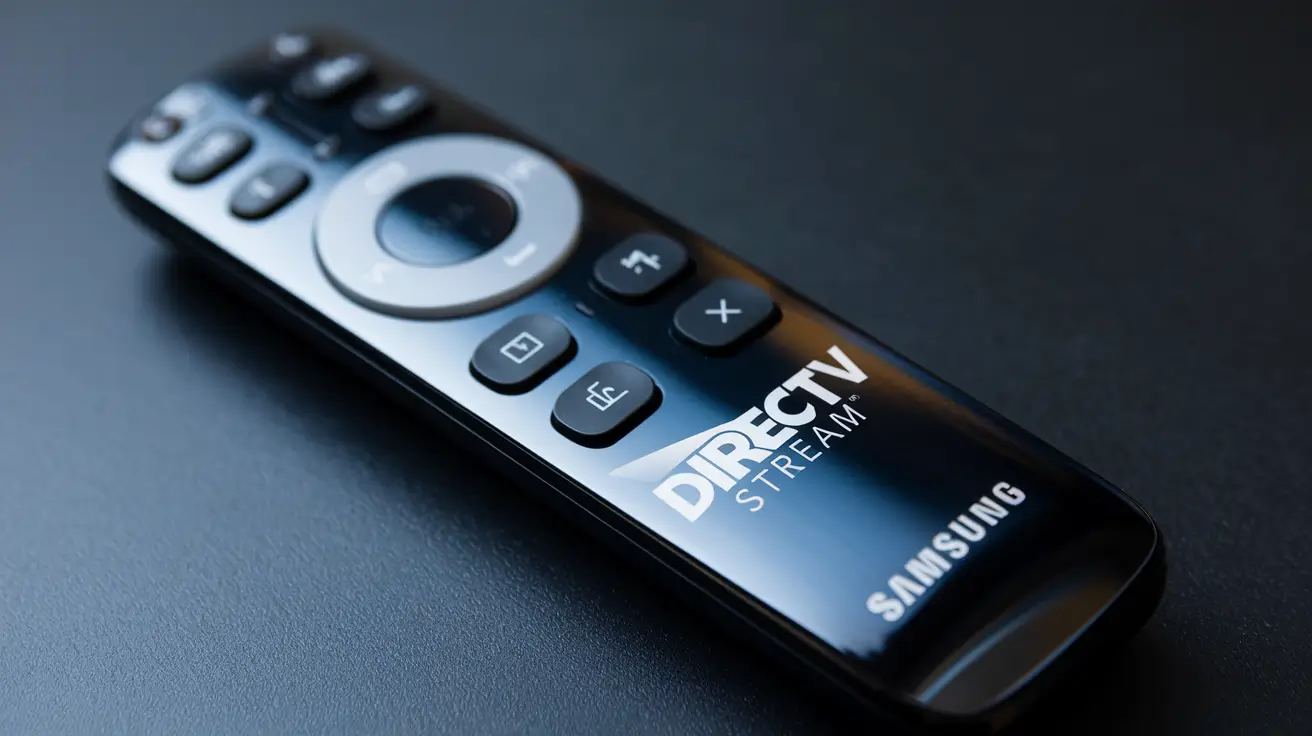
Using a Samsung remote with DIRECTV Stream can greatly improve your watching experience. Although Samsung remotes are meant to be easy to use, initially integrating them with DIRECTV Stream might appear difficult. This article will lead you through the steps to set up and utilize your Samsung remote with DIRECTV Stream, therefore enabling simpler control of your streaming service from the comfort of your sofa.
Understanding DIRECTV Stream and Samsung Remote Compatibility
What is DIRECTV Stream?
DirectV Stream is a streaming service with DVR capabilities via the Internet as well as live TV and on-demand content access. Offering a range of channels and materials without the need for a satellite dish, this adaptable substitute for conventional satellite TV
Why Use a Samsung Remote?
Easy usage and ergonomic design abound in Samsung remotes. Features like universal compatibility and voice control help to simplify your home entertainment setup. Your Samsung remote will provide flawless control when used with DIRECTV Stream.
Setting Up Your Samsung Remote for DIRECTV Stream
Step 1: Ensure Compatibility
Make sure your Samsung remote works with DIRECTV Stream before you begin. Though most contemporary Samsung remotes should be compatible, testing compatibility guarantees a better setup.
Step 2: Connect Your Samsung TV to DIRECTV Stream
-
Connect your Samsung TV to a DIRECTV Stream device with an HDMI cable. Make sure both devices on and configured to the proper HDMI input on your TV.
-
Access TV Menu: Press the "Home" or "Menu" button on your Samsung remote.
-
See External Inputs: Choose the HDMI port your DIRECTV Stream device is linked to by visiting the "Source" or "Input" section.
Step 3: Pair Your Samsung Remote with the DIRECTV Stream Device
-
Direct Pairing Option: Some Samsung remotes can directly pair with the DIRECTV Stream device if it supports HDMI-CEC (Consumer Electronics Control). Ensure HDMI-CEC is enabled on your Samsung TV. This setting is usually found under "Settings" > "General" > "External Device Manager" > "HDMI-CEC."
-
Manual Setup:
- Activate the DIRECTV Stream Device: On the DIRECTV Stream device, press the power button.
- Change Remote Control Settings: See the settings option on the DIRECTV Stream interface. Seek for the "Remote" or "Pair Remote" choice.
- Use on-screen instructions: Pair your Samsung remote with the DIRECTV Stream equipment using the on-screen instructions. This might need pushing certain buttons or inputting a code.
- Activate the DIRECTV Stream Device: On the DIRECTV Stream device, press the power button.
Step 4: Program Your Samsung Remote for DIRECTV Stream
-
Access Universal Remote Mode: Press and hold the "TV" button on your Samsung remote until the LED blinks and stays on. Release the "TV" button.
-
Enter the Code: Enter the code for the DIRECTV Stream. You can find this code in the Samsung remote’s user manual or on the Samsung support website. If the code is correct, the LED will turn off.
-
Test Remote Functions: Test the remote by using various buttons to ensure they control the DIRECTV Stream device as expected. Common functions to test include channel changing, volume control, and power on/off.
Troubleshooting Common Issues
Remote Not Pairing
- Check Batteries: Ensure that the remote batteries are fresh and correctly installed.
- Verify Compatibility: Double-check that your Samsung remote model is compatible with the DIRECTV Stream device.
- Reset Remote: Try resetting your Samsung remote by removing the batteries and pressing all the buttons for a few seconds.
No Response from DIRECTV Stream Device
- Check Connections: Ensure that all cables are securely connected.
- Restart Devices: Power cycle both the Samsung TV and the DIRECTV Stream device.
- Update Firmware: Make sure both the TV and DIRECTV Stream devices have the latest firmware updates.
Additional Tips for Enhanced Experience
Utilize Voice Control
If your Samsung remote has voice control capabilities, you can use it to search for content, change channels, and manage your DIRECTV Stream settings using voice commands. Simply press the voice command button and speak your request.
Customize Remote Settings
Explore your Samsung remote’s settings to customize button functions and shortcuts. This can help streamline your viewing experience by assigning specific functions to easily accessible buttons.
Keep Your Remote Updated
Frequent firmware upgrades for your Samsung remote should be sought for as manufacturers usually provide them to increase compatibility and performance.
Conclusion
By providing a practical and quick approach to managing your programming, using a Samsung remote with DIRECTV Stream can greatly improve your watching experience. Following the instructions in this article will help you to quickly set up and fix your remote thus guaranteeing flawless connection with your DIRECTV Stream device. With your Samsung remote, maximize your streaming service and take advantage of simplified control.
Transform your viewing experience with DirecTV! Call us today at +1 855-213-2250 to explore our plans and find the perfect package for you. Our experts are ready to assist you and get you set up with top-notch entertainment. Don’t wait—contact us now!