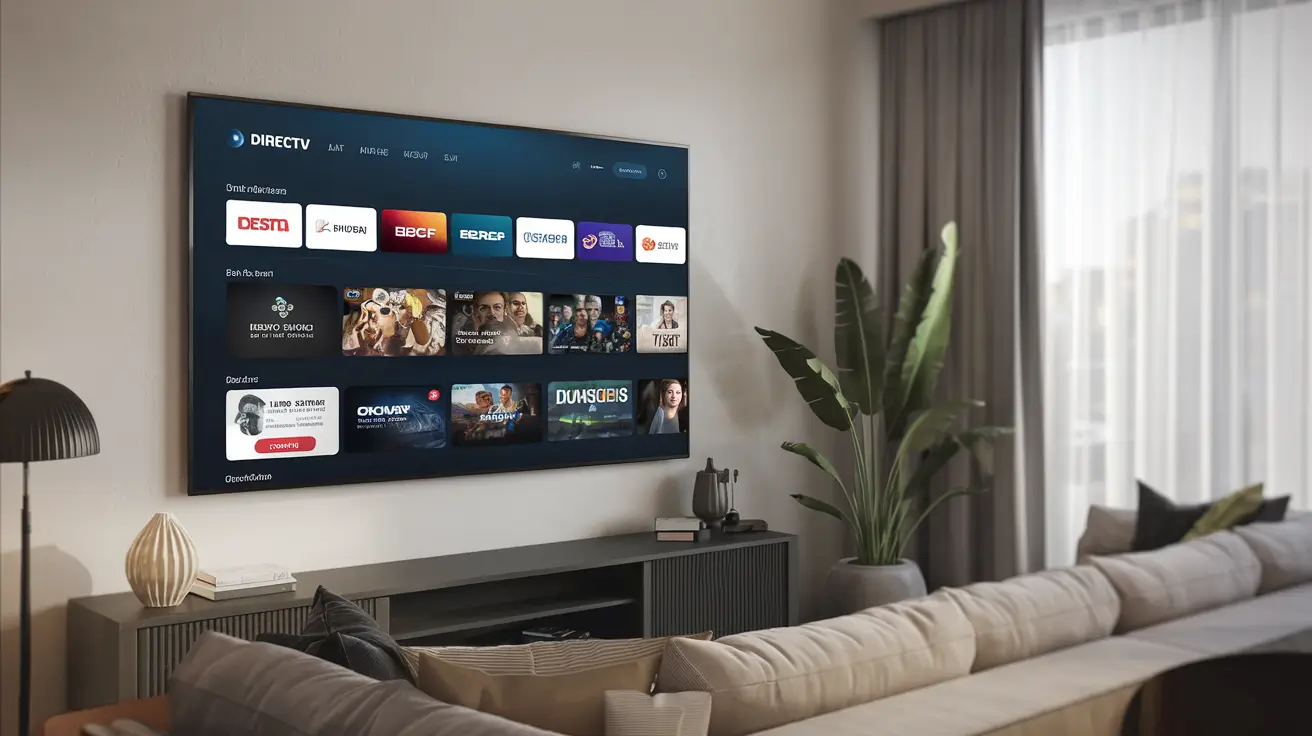
Unlock the full potential of DIRECTV Stream on your television with our comprehensive guide. Discover the simplest, most effective methods to stream your favorite live TV and on-demand content directly to your big screen, ensuring you never miss a moment.
What is DIRECTV Stream?
DIRECTV Stream, formerly known as AT&T TV, is a robust live TV streaming service that offers a compelling alternative to traditional cable and satellite television. It aims to blend the familiar channel lineups of traditional providers with the flexibility and convenience of internet-based streaming. This means you can access a wide array of live channels, including sports, news, entertainment, and local programming, all delivered over your home internet connection. Unlike some other streaming services that focus solely on on-demand content, DIRECTV Stream emphasizes live viewing, making it a strong contender for cord-cutters who still want the experience of watching scheduled broadcasts.
The service is designed to be user-friendly, with intuitive interfaces and a variety of subscription tiers to suit different needs and budgets. Whether you're a sports fanatic looking for every game, a news junkie who needs constant updates, or a family seeking entertainment for all ages, DIRECTV Stream provides packages that cater to these demands. Its appeal lies in its comprehensive channel selection, the ability to watch on multiple devices, and the option to record live TV with its cloud DVR feature. For those wondering "how to watch DIRECTV Stream on TV," the answer is multifaceted, involving various devices and straightforward setup processes.
In 2025-26, the landscape of television consumption continues to evolve rapidly. Consumers are increasingly seeking services that offer both breadth and depth in their content offerings, coupled with seamless integration into their home entertainment systems. DIRECTV Stream positions itself to meet these evolving demands by providing a high-quality streaming experience that doesn't compromise on the live TV aspect that many viewers still value. The service's commitment to delivering a premium viewing experience, including access to popular sports leagues and premium movie channels, further solidifies its place in the competitive streaming market. Understanding the various ways to access this service on your television is the first step to enjoying its full benefits.
DIRECTV Stream Device Options
One of the primary advantages of DIRECTV Stream is its versatility in terms of device compatibility. This means you have multiple pathways to get the service onto your television screen, catering to different user preferences and existing equipment. The most common and recommended method is using the dedicated DIRECTV Stream device, but the service also supports a range of popular streaming sticks, smart TVs, and gaming consoles.
The Official DIRECTV Stream Device
DIRECTV Stream offers its own proprietary streaming device, which is often considered the optimal way to experience the service. This device is designed to provide a seamless and integrated experience, featuring a user-friendly interface that closely mimics the DIRECTV Stream app. It connects directly to your TV via HDMI and connects to your home network via Wi-Fi or Ethernet.
- Features: The DIRECTV Stream device boasts a streamlined interface, voice remote capabilities, and easy access to live TV, on-demand content, and apps. It's optimized for the DIRECTV Stream service, ensuring smooth performance and quick navigation.
- Availability: It can be purchased or, in some cases, leased as part of a DIRECTV Stream subscription package. The exact terms and availability can vary, so it's worth checking DIRECTV's current offers.
- Benefits: For users who want the most straightforward and fully integrated experience, the DIRECTV Stream device is the top recommendation. It eliminates compatibility concerns and provides access to all features without any potential limitations that might arise with third-party devices.
Smart TVs and Streaming Sticks/Boxes
For those who prefer not to use the dedicated DIRECTV Stream device, the service is widely available on many popular smart TVs and third-party streaming platforms. This offers flexibility and allows users to leverage devices they may already own.
Smart TVs
Many modern smart TVs come with built-in app stores that host the DIRECTV Stream application. Brands like Samsung, LG, Sony, and Vizio often have the app pre-installed or available for download.
- Supported Brands: Look for the DIRECTV Stream app on the app stores of major smart TV manufacturers.
- Setup: Simply navigate to your TV's app store, search for "DIRECTV Stream," download the app, and log in with your DIRECTV Stream credentials.
- Considerations: Performance can vary depending on the TV's processing power and operating system. Ensure your smart TV's software is up to date for the best experience.
Streaming Sticks and Boxes
This category includes devices like Amazon Fire TV Stick, Roku devices, Google Chromecast with Google TV, and Apple TV. These devices connect to your TV's HDMI port and provide a platform for various streaming apps.
- Amazon Fire TV: The DIRECTV Stream app is available on the Amazon Appstore. Search for it, download, and sign in.
- Roku: DIRECTV Stream can be found in the Roku Channel Store. Install the channel and log in.
- Google Chromecast with Google TV: The DIRECTV Stream app is available on the Google Play Store for Chromecast with Google TV devices.
- Apple TV: The app is available on the App Store for Apple TV devices.
- Benefits: These devices are generally affordable and offer a wide range of streaming options beyond DIRECTV Stream, making them versatile entertainment hubs.
Gaming Consoles
For gamers, DIRECTV Stream also offers compatibility with major gaming consoles, allowing you to switch from gaming to live TV without needing to change devices.
- PlayStation: The DIRECTV Stream app is available on PlayStation 4 and PlayStation 5.
- Xbox: The app can be found on Xbox One and Xbox Series X/S.
- Setup: Similar to smart TVs and streaming devices, download the app from the console's respective app store and log in.
- Considerations: Ensure your console has sufficient storage space for the app and that its operating system is updated.
By understanding these device options, users can choose the method that best suits their existing setup and preferences for watching DIRECTV Stream on their TV.
Watching DIRECTV Stream on Your TV
Getting DIRECTV Stream onto your television screen is a straightforward process, regardless of the device you choose. The core requirement for all methods is a stable internet connection and an active DIRECTV Stream subscription. Here, we'll break down the general steps involved, followed by specific instructions for the most common device types.
General Steps to Get Started
- Subscribe to DIRECTV Stream: First, you need an active DIRECTV Stream subscription. Visit the official DIRECTV Stream website to explore plans and sign up. You'll create an account with a username and password.
- Ensure Internet Connectivity: DIRECTV Stream is an internet-based service. Make sure your home internet connection is stable and offers sufficient bandwidth for streaming. DIRECTV recommends a minimum of 25 Mbps for optimal HD streaming, especially if multiple devices are in use.
- Choose Your Device: Select the device you'll use to watch DIRECTV Stream on your TV. This could be the dedicated DIRECTV Stream device, a smart TV, a streaming stick/box, or a gaming console.
- Connect the Device: Ensure your chosen device is properly connected to your TV (usually via HDMI) and your home network (Wi-Fi or Ethernet).
- Download the App: Access your device's app store and search for the "DIRECTV Stream" application. Download and install it.
- Log In: Open the DIRECTV Stream app and log in using the username and password associated with your DIRECTV Stream account.
- Start Streaming: Once logged in, you'll have access to the DIRECTV Stream interface, where you can browse live channels, on-demand content, and set up your DVR.
Specific Setup Guides
Method 1: Using the DIRECTV Stream Device
This is the most integrated experience, often recommended by DIRECTV.
- Unbox and Connect: Connect the DIRECTV Stream device to your TV using an HDMI cable and plug in the power adapter. Connect it to your home network via Wi-Fi or Ethernet.
- Power On: Turn on your TV and select the correct HDMI input for the DIRECTV Stream device. Power on the device itself.
- Initial Setup: Follow the on-screen prompts. This will typically involve connecting to your Wi-Fi network (if not using Ethernet) and signing into your DIRECTV Stream account.
- Pair Remote: The device may prompt you to pair the voice remote. Follow the instructions for successful pairing.
- Navigate and Watch: Once setup is complete, you'll be presented with the DIRECTV Stream interface. Use the remote to browse channels and start watching.
Method 2: Using a Smart TV App
This method is convenient if your TV already supports the app.
- Access App Store: Navigate to your smart TV's app store (e.g., Samsung App Store, LG Content Store, Vizio SmartCast).
- Search and Download: Search for "DIRECTV Stream." Select the official app and click "Install" or "Download."
- Launch App: Once installed, open the DIRECTV Stream app.
- Sign In: You will be prompted to enter your DIRECTV Stream username and password.
- Start Streaming: After successful login, you can begin watching.
Method 3: Using a Streaming Stick/Box (Roku, Fire TV, Apple TV, Chromecast with Google TV)
These devices offer a dedicated streaming experience.
- Connect Device: Plug your streaming stick or box into your TV's HDMI port and connect it to power. Ensure it's connected to your home network.
- Set Up Device: Follow the initial setup instructions for your specific streaming device (e.g., setting up Roku, logging into your Amazon account for Fire TV).
- Access App Store: Open the app store on your streaming device (e.g., Roku Channel Store, Amazon Appstore, Apple App Store, Google Play Store).
- Search and Install: Search for "DIRECTV Stream," select the app, and install it.
- Launch and Log In: Open the DIRECTV Stream app and sign in with your DIRECTV Stream account credentials.
- Start Watching: You are now ready to stream.
Method 4: Using a Gaming Console (PlayStation, Xbox)
Integrate DIRECTV Stream into your gaming setup.
- Access Console's App Store: On your PlayStation or Xbox, navigate to the console's digital store (e.g., PlayStation Store, Microsoft Store).
- Search and Download: Search for "DIRECTV Stream" and download the application.
- Launch App: Open the installed DIRECTV Stream app.
- Sign In: Enter your DIRECTV Stream username and password.
- Begin Streaming: Once logged in, you can access all DIRECTV Stream content.
By following these steps, users can efficiently set up and start watching DIRECTV Stream on their preferred television setup, enjoying a seamless transition to live and on-demand entertainment.
Setting Up the DIRECTV Stream App
The DIRECTV Stream app is the gateway to the service's content on most devices. While the exact steps might vary slightly depending on your operating system or device manufacturer, the core process remains consistent. This section provides a detailed walkthrough of setting up the app, ensuring a smooth and hassle-free experience.
Downloading and Installing the App
The first step is to acquire the app on your chosen device. This is typically done through the device's native app store.
- For Smart TVs:
- Navigate to your TV's built-in app store.
- Use the search function and type "DIRECTV Stream."
- Select the official DIRECTV Stream app from the search results.
- Click "Install," "Download," or "Add Channel" (the wording may vary).
- Wait for the download and installation to complete.
- For Streaming Devices (Roku, Fire TV, Apple TV, Chromecast with Google TV):
- Navigate to the device's app store (e.g., Roku Channel Store, Amazon Appstore, Apple App Store, Google Play Store).
- Search for "DIRECTV Stream."
- Select the app and proceed with the installation.
- For Gaming Consoles (PlayStation, Xbox):
- Go to the console's digital marketplace (e.g., PlayStation Store, Microsoft Store).
- Search for "DIRECTV Stream."
- Download and install the application.
Logging In to Your Account
Once the app is installed, you'll need to authenticate your subscription by logging in.
- Launch the App: Open the DIRECTV Stream app on your device.
- Select "Sign In": You will usually see a prominent "Sign In" or "Log In" button.
- Enter Credentials: You will be prompted to enter your DIRECTV Stream username and password. These are the credentials you created when you subscribed to the service.
- Username: This is typically an email address.
- Password: Enter the password you set for your account.
- Two-Factor Authentication (if applicable): Some services, including DIRECTV Stream, may employ two-factor authentication for added security. If prompted, you may need to enter a code sent to your email or phone.
- "Remember Me" Option: Many apps offer a "Remember Me" or "Keep me signed in" option. Enabling this can save you time on future logins, but consider the security implications if multiple people use your TV.
Navigating the App Interface
After a successful login, you'll be presented with the DIRECTV Stream interface. Understanding its layout is key to quickly finding your desired content.
- Home Screen: This is your central hub, often featuring recommendations, recently watched shows, and highlights.
- Live TV Guide: This is where you'll find the familiar grid-style TV guide, allowing you to browse channels by time and program.
- On Demand: Access a library of movies and TV shows available to watch anytime.
- Sports: Dedicated sections for live sports events, scores, and related content.
- Search: A powerful tool to find specific channels, shows, movies, or actors.
- DVR: Access your recorded programs if you have the cloud DVR feature enabled.
- Settings: Manage your account preferences, parental controls, and device settings.
Customizing Your Experience
DIRECTV Stream allows for some personalization to enhance your viewing.
- Favorite Channels: Mark your most-watched channels as favorites to quickly access them from a dedicated list in the guide.
- Watchlist: Add shows or movies to your watchlist to keep track of content you want to view later.
- Parental Controls: Set up parental controls to restrict access to certain channels or content based on ratings. This is crucial for families.
- Profiles: While not as common as on some other streaming services, DIRECTV Stream may offer profile options for different users within a household, personalizing recommendations.
By following these setup steps, you can ensure that your DIRECTV Stream app is configured correctly, allowing you to dive into your favorite programming with ease and confidence.
Troubleshooting Common Issues
While DIRECTV Stream is designed for a smooth user experience, like any streaming service, you might occasionally encounter issues. Understanding common problems and their solutions can save you time and frustration. Here are some frequent issues and how to address them.
1. Buffering and Poor Video Quality
This is perhaps the most common streaming problem, often related to internet connection speed or stability.
- Check Your Internet Speed: Run an internet speed test (e.g., Speedtest.net) on a device connected to the same network. DIRECTV Stream recommends at least 25 Mbps for HD streaming. If your speed is consistently lower, contact your Internet Service Provider (ISP).
- Reduce Network Congestion: Too many devices using your internet simultaneously can slow down your connection. Try disconnecting other devices that are actively downloading, uploading, or streaming.
- Restart Your Modem and Router: Unplug your modem and router for about 30 seconds, then plug them back in. Allow them to fully reboot before testing DIRECTV Stream again.
- Use a Wired Connection: If possible, connect your streaming device directly to your router using an Ethernet cable. This provides a more stable and faster connection than Wi-Fi.
- Move Your Router: Ensure your router is in a central location, away from obstructions and potential interference (like microwaves or thick walls).
- Clear App Cache: On some devices (like smart TVs or streaming boxes), you can clear the cache of the DIRECTV Stream app. This can resolve performance issues. The method varies by device.
2. App Not Loading or Crashing
If the DIRECTV Stream app fails to open, freezes, or closes unexpectedly.
- Restart the App: Close the DIRECTV Stream app completely and relaunch it.
- Restart Your Device: Power cycle the TV, streaming device, or gaming console you are using.
- Check for App Updates: Ensure you have the latest version of the DIRECTV Stream app installed. App stores usually notify you of available updates.
- Check for Device Software Updates: Make sure your smart TV's firmware, streaming device's operating system, or console's software is up to date.
- Reinstall the App: Uninstall the DIRECTV Stream app and then reinstall it from the app store. You will need to log in again.
3. Login Issues
Problems entering your username and password or being unable to log in.
- Verify Credentials: Double-check that you are entering the correct username (email address) and password. Passwords are case-sensitive.
- Reset Your Password: If you've forgotten your password, use the "Forgot Password" link on the DIRECTV Stream login page or through the app. You'll receive instructions to reset it via email.
- Check Account Status: Ensure your DIRECTV Stream subscription is active and that there are no billing issues. You can check this by logging into your DIRECTV account on the web.
- Clear Browser Cache (if logging in via web browser): If you're trying to log in via a web browser to manage your account, clearing your browser's cache and cookies can sometimes resolve login problems.
4. No Sound or Audio Issues
If you can see the picture but there's no sound, or the audio is distorted.
- Check Volume: Ensure the volume is turned up on your TV, streaming device, and the DIRECTV Stream app itself.
- Check Mute: Make sure the device or TV is not muted.
- Test Other Apps: Try playing audio from a different app (e.g., YouTube, Netflix) to determine if the issue is specific to DIRECTV Stream or a general device problem.
- Restart Device: A simple restart of your TV or streaming device can often fix audio glitches.
- Check Audio Settings: Ensure your TV or streaming device's audio output settings are configured correctly (e.g., HDMI audio, stereo vs. surround sound).
- HDMI Cable: If using an HDMI connection, try a different HDMI cable or port.
5. Specific Channels Not Working
If you encounter problems with one or a few specific channels.
- Check Local Channel Availability: Local channels can sometimes be affected by regional outages or changes in carriage agreements. Check the DIRECTV Stream website or contact support for updates.
- Restart the App and Device: This is a good first step for any glitch.
- Check for Service Outages: Occasionally, there might be a broader service outage affecting certain channels. DIRECTV often posts updates on their support pages or social media.
- Verify Your Package: Ensure the channel you're trying to watch is included in your current DIRECTV Stream subscription package.
When to Contact DIRECTV Stream Support
If you've tried the above troubleshooting steps and are still experiencing issues, it's time to reach out to DIRECTV Stream customer support. They can provide more in-depth assistance and may be aware of specific network issues or account problems.
- Have Information Ready: When contacting support, be prepared to provide details about your issue, the device you're using, and the troubleshooting steps you've already taken.
- Support Channels: DIRECTV Stream offers support via phone, chat, and online resources on their website.
By systematically addressing these common problems, most users can resolve their DIRECTV Stream viewing issues and get back to enjoying their favorite content.
Maximizing Your DIRECTV Stream Experience
Once you've successfully set up DIRECTV Stream on your TV, there are several ways to enhance your viewing experience, making it more personalized, convenient, and enjoyable. These tips range from utilizing built-in features to understanding how to optimize your setup for the best performance.
1. Leverage the Cloud DVR
If your DIRECTV Stream plan includes the Cloud DVR, make sure you're using it to its full potential. This feature allows you to record live TV and watch it at your convenience, essentially giving you on-demand access to your favorite shows even if they aren't currently airing or available in the on-demand library.
- Record Entire Series: Set up series recordings so you never miss an episode of your favorite shows.
- Schedule Recordings Remotely: Many DIRECTV Stream apps allow you to schedule recordings even when you're away from home, ensuring you don't miss a crucial game or episode.
- Manage Storage: Understand the DVR storage limits and recording quality options to manage your recorded content effectively.
2. Utilize Voice Commands
If you're using the DIRECTV Stream device or a compatible remote, voice commands can significantly speed up navigation and content discovery.
- Search for Content: Simply say "Search for [Show Name]" or "Find [Movie Title]" to instantly bring up results.
- Change Channels: "Go to ESPN" or "Switch to Channel 5."
- Control Playback: "Pause," "Rewind 30 seconds," or "Play."
- Access Specific Features: "Open my DVR" or "Show me live sports."
3. Personalize Your Channel Lineup
Most DIRECTV Stream interfaces allow you to customize your channel guide by marking channels as favorites.
- Create a Favorites List: This filters your guide to show only the channels you watch most frequently, saving you time scrolling through dozens of channels.
- Quick Access: Your favorites are usually accessible via a dedicated tab or button in the guide.
4. Explore On-Demand Content and Apps
Beyond live TV, DIRECTV Stream offers a vast library of on-demand movies and TV shows. Additionally, the DIRECTV Stream device and many compatible platforms allow you to download and use other popular streaming apps.
- Discover New Shows: Browse the "On Demand" section regularly for new additions or classics.
- Download Other Apps: Utilize the app store on your DIRECTV Stream device or smart TV to download apps like Netflix, Hulu, Disney+, Max, etc., consolidating your entertainment in one place.
- Utilize Google Chromecast: If using Chromecast, you can cast content from your phone or tablet to your TV, expanding your viewing options.
5. Optimize Your Network for Streaming
A strong and stable internet connection is paramount for a smooth streaming experience.
- Prioritize Bandwidth: If possible, use a wired Ethernet connection for your primary streaming device.
- Upgrade Your Internet Plan: If you consistently experience buffering, consider upgrading your internet speed with your ISP. For a household with multiple streamers, a plan of 100 Mbps or higher is often recommended in 2025-26.
- Consider a Mesh Wi-Fi System: If you have a large home or dead zones, a mesh Wi-Fi system can provide more consistent coverage throughout your house.
6. Understand Your Subscription Package
DIRECTV Stream offers various packages (e.g., Entertainment, Choice, Ultimate, Premier). Familiarize yourself with the channels included in your specific plan.
- Check Channel Lineups: Visit the DIRECTV Stream website to see the full channel list for each package. This helps you know what content you have access to and what might be missing.
- Upgrade if Necessary: If you find yourself constantly missing key sports games or specific channels, consider if upgrading your package is worthwhile.
7. Utilize Parental Controls
For households with children, setting up parental controls is essential.
- Lock Channels and Programs: Restrict access to content based on ratings (e.g., TV-MA, R-rated movies).
- Set Passcodes: Require a passcode to access locked content, ensuring children cannot bypass restrictions.
By implementing these strategies, you can transform your DIRECTV Stream setup into a highly personalized and efficient entertainment hub, ensuring you get the most value and enjoyment from your subscription.
Comparing DIRECTV Stream to Competitors
The live TV streaming market is crowded, with numerous services vying for consumer attention. DIRECTV Stream stands out due to its unique blend of traditional channel lineups and modern streaming technology. Understanding how it stacks up against key competitors like YouTube TV, Hulu + Live TV, Sling TV, and FuboTV is crucial for making an informed decision.
DIRECTV Stream vs. YouTube TV
DIRECTV Stream:
- Strengths: Offers a more traditional cable-like experience with a wider variety of premium channel add-ons (HBO, Cinemax, Starz, etc.). Often has more comprehensive local channel coverage in certain areas. The dedicated DIRECTV Stream device provides a seamless integration.
- Weaknesses: Generally more expensive than competitors, especially for comparable channel counts. User interface can feel less modern than some rivals. DVR is unlimited but recordings expire after 9 months.
- 2025-26 Outlook: Continues to appeal to those who want a near-cable replacement with robust sports and premium channel options. Pricing remains a barrier for some.
YouTube TV:
- Strengths: Excellent user interface, unlimited cloud DVR storage with a 9-month expiration policy, strong sports coverage, and a good selection of local channels. Integrates well with other Google services.
- Weaknesses: Premium channel add-ons are available but sometimes feel less integrated. Channel lineup can change periodically.
- 2025-26 Outlook: Remains a top contender due to its user experience and unlimited DVR. Pricing adjustments are always a factor to watch.
DIRECTV Stream vs. Hulu + Live TV
DIRECTV Stream:
- Strengths: More extensive sports broadcasting rights, particularly for regional sports networks (RSNs) in many areas, and a broader selection of premium movie channels.
- Weaknesses: Higher price point compared to Hulu + Live TV.
- 2025-26 Outlook: Its strength in RSNs continues to be a significant differentiator for sports fans.
Hulu + Live TV:
- Strengths: Bundles live TV with Hulu's extensive on-demand library (including FX on Hulu). Offers a strong selection of entertainment and news channels. Competitive pricing, especially when bundled with Disney+ and ESPN+.
- Weaknesses: Limited DVR storage (typically 50 hours, expandable). Less comprehensive RSN coverage compared to DIRECTV Stream.
- 2025-26 Outlook: The bundle value remains its biggest draw. Continued integration of Disney+ and ESPN+ content is a key strategy.
DIRECTV Stream vs. Sling TV
DIRECTV Stream:
- Strengths: More comprehensive channel packages and often better local channel availability.
- Weaknesses: Significantly more expensive than Sling TV's base packages.
- 2025-26 Outlook: Positioned as a premium, full-service option.
Sling TV:
- Strengths: Highly customizable and affordable. Offers two base packages (Orange and Blue) that can be combined, with numerous add-on "Extras" for specific interests (sports, kids, news).
- Weaknesses: Limited DVR storage (10 hours standard, expandable). Local channel availability can be inconsistent. Less premium channel selection.
- 2025-26 Outlook: Continues to be the go-to for budget-conscious cord-cutters who want to build a personalized package.
DIRECTV Stream vs. FuboTV
DIRECTV Stream:
- Strengths: Stronger overall channel selection, especially in premium movie channels and some niche sports.
- Weaknesses: Higher price point.
- 2025-26 Outlook: Competes directly with FuboTV for sports enthusiasts but often at a higher cost.
FuboTV:
- Strengths: Marketed heavily towards sports fans, offering a vast array of sports channels, including many international leagues and RSNs. Unlimited DVR storage (9-month expiration). Good selection of news and entertainment channels.
- Weaknesses: Can be one of the more expensive options. Some users find the interface less intuitive than competitors. Historically, its focus on sports meant fewer entertainment-focused channels, though this has broadened.
- 2025-26 Outlook: Continues to be a primary destination for die-hard sports fans. Its ability to maintain competitive pricing while expanding content is key.
Key Differentiating Factors in 2025-26
- Regional Sports Networks (RSNs): DIRECTV Stream and FuboTV generally offer the most comprehensive RSN coverage, crucial for local professional and college sports. YouTube TV has been phasing out many RSNs, making it less ideal for fans of those specific teams.
- Premium Channels: DIRECTV Stream often provides the most straightforward access to premium movie and entertainment channels like HBO Max, Showtime, Starz, etc., either included in higher tiers or as easily accessible add-ons.
- Pricing: Sling TV remains the budget champion. YouTube TV and Hulu + Live TV offer competitive mid-range pricing with strong value. DIRECTV Stream and FuboTV are typically at the higher end, justified by their extensive content.
- User Experience: YouTube TV and Hulu are often praised for their modern, intuitive interfaces. The DIRECTV Stream device offers a polished experience, but the app interfaces on other platforms can vary.
- DVR: FuboTV and YouTube TV offer unlimited DVR storage (with expiration). Hulu + Live TV offers limited DVR, and Sling TV's is also limited. DIRECTV Stream's DVR is unlimited but has a 9-month expiration.
Ultimately, the "best" service depends on individual priorities. For those seeking a comprehensive, cable-like experience with broad channel access and premium options, DIRECTV Stream is a strong contender, provided the price is within budget. Sports fans might lean towards FuboTV or DIRECTV Stream for RSNs, while those prioritizing value and on-demand content might prefer Hulu + Live TV or YouTube TV.
Conclusion
Watching DIRECTV Stream on your TV is an accessible and rewarding experience, thanks to its versatile device support and user-friendly app. Whether you opt for the dedicated DIRECTV Stream device, utilize the app on your smart TV, or stream via a popular stick or console, the process is designed to be straightforward. By understanding the setup steps, troubleshooting common issues, and leveraging features like the Cloud DVR and voice commands, you can fully maximize your DIRECTV Stream subscription.
In the competitive landscape of 2025-26, DIRECTV Stream distinguishes itself by offering a robust selection of channels, including critical regional sports networks and premium entertainment options, catering to viewers who desire a comprehensive, near-cable replacement. While it may come at a higher price point than some competitors, the breadth of content and the integrated experience it provides often justify the investment for dedicated users. Ultimately, choosing the right method to watch DIRECTV Stream on your TV hinges on your existing technology and your specific viewing preferences, ensuring you can enjoy your favorite live and on-demand content seamlessly on the big screen.


