-
Posted on: 07 Jan 2026
-
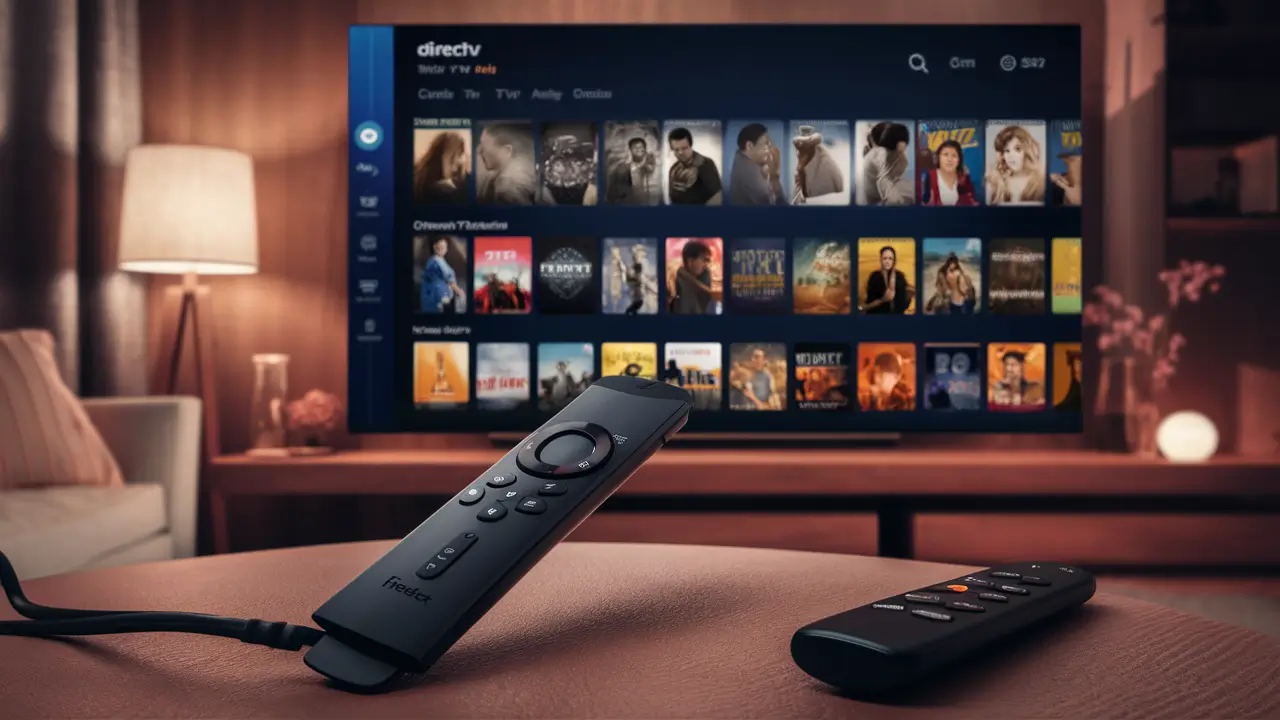
Yes, you absolutely can get DIRECTV Stream on your Fire TV Stick, and it's a remarkably straightforward process. This guide will walk you through everything you need to know, from initial setup to optimizing your viewing experience, ensuring you can enjoy live TV and on-demand content seamlessly.
What is DIRECTV Stream?
DIRECTV Stream, formerly known as AT&T TV, is a premier live TV streaming service that offers a comprehensive alternative to traditional cable or satellite subscriptions. It provides access to a vast array of live channels, including local networks, sports, entertainment, news, and premium movie channels, all delivered over your internet connection. Unlike some streaming services that require separate apps for different content types, DIRECTV Stream consolidates live TV, sports, and on-demand movies and shows into a single, user-friendly interface. This makes it an attractive option for cord-cutters who don't want to sacrifice the breadth of channels and features they're accustomed to with traditional TV providers. With various subscription tiers available, it aims to cater to a wide range of viewing preferences and budgets.
Fire TV Stick Compatibility
The Amazon Fire TV Stick is one of the most popular streaming devices globally, known for its affordability and ease of use. Its open platform allows for a wide range of applications to be sideloaded or downloaded directly from the Amazon Appstore. Fortunately for DIRECTV Stream subscribers, the DIRECTV Stream app is officially available on the Amazon Appstore, making it fully compatible with virtually all Fire TV Stick models. This includes the Fire TV Stick Lite, Fire TV Stick (2nd Gen and newer), Fire TV Stick 4K, Fire TV Stick 4K Max, and Fire TV Cube. As long as your Fire TV Stick is connected to a stable internet connection and running a reasonably recent version of its operating system, you should have no issues installing and running the DIRECTV Stream application. This widespread compatibility ensures that a vast number of users can easily access their DIRECTV Stream subscription on their preferred streaming device.
Getting Started with DIRECTV Stream on Firestick
Embarking on your DIRECTV Stream journey with a Fire TV Stick is designed to be as seamless as possible. The process involves a few key steps: ensuring you have a DIRECTV Stream subscription, confirming your Fire TV Stick is set up and connected to the internet, and then downloading and installing the DIRECTV Stream application from the Amazon Appstore. For new users, the initial setup of the Fire TV Stick itself is straightforward. You'll need to connect it to your TV via HDMI, plug in the power adapter, and follow the on-screen prompts to connect to your Wi-Fi network. Once your Fire TV Stick is operational, the primary task is to locate and install the DIRECTV Stream app. This guide will detail each of these steps, ensuring a smooth transition to your new streaming experience.
Prerequisites for Setup
Before you can begin enjoying DIRECTV Stream on your Fire TV Stick, a few essential prerequisites need to be met. These are fundamental to ensuring a smooth installation and a high-quality streaming experience.
- Active DIRECTV Stream Subscription: The most crucial requirement is an active subscription to DIRECTV Stream. You must have already signed up for a plan through the official DIRECTV Stream website or a designated retailer. Your login credentials (username and password) will be essential for accessing the service on your Fire TV Stick.
- Compatible Fire TV Stick Device: As mentioned, most modern Fire TV Stick models are compatible. Ensure your device is powered on and functioning correctly.
- Stable Internet Connection: DIRECTV Stream, like any streaming service, requires a reliable and reasonably fast internet connection. For optimal performance, especially for HD and 4K content, a minimum download speed of 25 Mbps is recommended by DIRECTV. A slower connection may lead to buffering, pixelation, or lower video quality. Ensure your Wi-Fi router is within range or consider a wired Ethernet connection if possible for maximum stability.
- Amazon Account Logged In: Your Fire TV Stick must be logged into your Amazon account. This is necessary to access the Amazon Appstore and download applications.
- Updated Fire TV OS: It's good practice to ensure your Fire TV Stick's operating system is up-to-date. You can usually check for updates in the Fire TV Stick's settings menu under "My Fire TV" > "About" > "Check for Updates."
Meeting these prerequisites will significantly streamline the installation and setup process, allowing you to start watching your favorite channels and content with minimal delay.
Downloading the DIRECTV Stream App
The process of downloading and installing the DIRECTV Stream app on your Amazon Fire TV Stick is remarkably intuitive, thanks to the Amazon Appstore. This section will guide you through each step, ensuring you can quickly get the app onto your device.
Step-by-Step Installation Guide
- Navigate to the Fire TV Home Screen: Power on your TV and ensure your Fire TV Stick is active. You should see the Fire TV home screen.
- Access the Search Function: On the Fire TV home screen, look for the search icon, typically represented by a magnifying glass. This is usually located in the top navigation bar. Select it.
- Search for "DIRECTV Stream": Using your Fire TV remote, type "DIRECTV Stream" into the search bar. As you type, suggestions will appear. Select the correct app from the suggestions.
- Select the App: The search results will display the official DIRECTV Stream app. It should have the DIRECTV Stream logo. Select it to view its details page.
- Download and Install: On the app's details page, you will see a "Get" or "Download" button. Select this button. The Fire TV Stick will automatically download and install the application. This process typically takes a minute or two, depending on your internet speed.
- Open the App: Once the installation is complete, the button will change to "Open." You can select "Open" to launch the DIRECTV Stream app immediately. Alternatively, you can find the app later in your list of installed applications on the Fire TV home screen, usually under "Your Apps & Channels."
If you encounter any issues during the download or installation, double-check your internet connection and ensure your Fire TV Stick has sufficient storage space. Restarting your Fire TV Stick and router can also resolve temporary glitches.
Signing In and Navigating the Interface
Once the DIRECTV Stream app is installed on your Fire TV Stick, the next crucial step is signing in with your account credentials and familiarizing yourself with the app's interface. This section will guide you through the login process and provide an overview of how to navigate the DIRECTV Stream experience on your Fire TV device.
Logging Into Your Account
- Launch the DIRECTV Stream App: Navigate to your apps list on the Fire TV Stick and select the DIRECTV Stream app icon to launch it.
- Enter Your Credentials: You will be prompted to enter your DIRECTV Stream username and password. Use your Fire TV remote to carefully type in your credentials. Pay attention to capitalization and special characters.
- Sign In: After entering your information, select the "Sign In" or "Login" button.
- Device Registration (if applicable): In some cases, DIRECTV Stream may require you to register your device. Follow any on-screen prompts to complete this step. This usually involves confirming your identity or entering a code displayed on your TV screen into a web browser on another device.
If you have forgotten your username or password, there will typically be a "Forgot Username" or "Forgot Password" link on the login screen. Click this link and follow the instructions to recover your account information.
Navigating the DIRECTV Stream Interface on Firestick
The DIRECTV Stream app on Fire TV Stick is designed for intuitive navigation using your remote control. The main interface typically includes several key sections:
- Home: This is your central hub, often featuring personalized recommendations, trending content, and quick access to recently watched programs.
- Live TV: This section provides access to the full channel lineup included in your subscription. You can usually browse by channel number or by category (e.g., News, Sports, Entertainment).
- On Demand: Here you'll find a library of movies and TV shows available for streaming at your convenience, without needing to adhere to a broadcast schedule.
- Sports: A dedicated section for sports enthusiasts, highlighting live games, sports news, and related on-demand content.
- Movies: Browse a curated selection of movies available through your subscription or for purchase/rent.
- Settings: Access account information, manage parental controls, adjust streaming quality, and view other preferences.
Using Your Fire TV Remote:
- D-Pad (Directional Pad): Use the up, down, left, and right arrows to navigate through menus, channels, and content listings.
- Select Button (Center of D-Pad): Press this to select an item, play a video, or confirm an action.
- Back Button: Press this to go back to the previous screen or exit a menu.
- Home Button: Press this to return to the Fire TV home screen at any time.
- Menu/Options Button (Often looks like three horizontal lines): This button can sometimes bring up context-sensitive menus or options within the app.
Take some time to explore each section of the app. The layout is generally consistent with other streaming services, making it easy to adapt to. You can usually use the search function within the app to find specific channels, shows, or movies.
DIRECTV Stream Plans and Features (2025-26)
DIRECTV Stream offers a tiered subscription model, providing users with a range of channel packages to suit different viewing needs and budgets. As of 2025-26, the core plans remain consistent, focusing on delivering a robust live TV experience with varying channel selections. Understanding these plans is key to choosing the right subscription for your household.
Overview of Plans
DIRECTV Stream typically structures its plans with increasing channel counts and features as you move up the tiers. The most common plans include:
- Entertainment: This is the entry-level package, offering a solid foundation of popular channels, including local networks, sports, and entertainment.
- Choice: This plan builds upon the Entertainment package by adding more sports channels, regional sports networks (RSNs), and a wider variety of entertainment options.
- Ultimate: The Ultimate package significantly expands the channel selection, incorporating premium movie channels, more sports, and specialized content.
- Premier: This is the top-tier offering, including all channels from the Ultimate package plus premium movie channels like HBO, Cinemax, Showtime, and Starz.
It's important to note that channel availability can vary by region, especially for local networks and RSNs. DIRECTV Stream makes efforts to provide these channels where available, but blackouts and regional restrictions can apply.
Key Features of DIRECTV Stream
Beyond the channel lineups, DIRECTV Stream distinguishes itself with several key features designed to enhance the user experience:
- Unlimited Cloud DVR: A significant advantage of DIRECTV Stream is its unlimited cloud DVR storage. This allows you to record as many shows and movies as you want and store them for a set period (typically 9 months). You can access your recordings from any device where DIRECTV Stream is available.
- Simultaneous Streams: Most DIRECTV Stream plans allow for multiple simultaneous streams, typically up to 3 devices at once. This means different family members can watch different programs on different devices concurrently.
- Local Channels: DIRECTV Stream generally provides access to local broadcast channels (ABC, CBS, NBC, FOX) in most major markets, a crucial feature for many cord-cutters.
- Regional Sports Networks (RSNs): For sports fans, the availability of RSNs is paramount. Higher-tier plans like Choice and above often include these networks, allowing you to watch local and regional professional and college sports.
- On-Demand Library: A robust on-demand library complements the live TV offering, providing thousands of movies and TV episodes to stream anytime.
- No Annual Contracts: DIRECTV Stream operates on a month-to-month basis, meaning you are not locked into a long-term contract. You can cancel your subscription at any time without penalty.
- 4K Content: Certain sporting events and on-demand titles are available in 4K Ultra HD, offering a superior viewing experience on compatible TVs and devices.
Comparing DIRECTV Stream Plans
Choosing the right DIRECTV Stream plan depends heavily on your individual viewing habits and priorities. Here's a simplified comparison to help you decide, focusing on the 2025-26 offerings:
Feature Entertainment Choice Ultimate Premier Local Channels (ABC, CBS, NBC, FOX) Yes (in most markets) Yes (in most markets) Yes (in most markets) Yes (in most markets) Popular Entertainment Channels Yes Yes Yes Yes Sports Channels (ESPN, etc.) Yes Yes Yes Yes Regional Sports Networks (RSNs) Limited/None Yes Yes Yes Premium Movie Channels (HBO, etc.) No No No Yes Unlimited Cloud DVR Yes Yes Yes Yes Simultaneous Streams 3 3 3 3 Estimated Price Range (Monthly) $$ $$$ $$$$ $$$$$ Note: Price ranges are estimates and subject to change. Always check the official DIRECTV Stream website for current pricing and channel lineups.
Who is each plan for?
- Entertainment: Ideal for individuals or families who primarily watch popular network shows, basic news, and general entertainment channels. It's a cost-effective entry point.
- Choice: A strong contender for sports fans who want access to local RSNs and a broader selection of sports programming, alongside more entertainment options.
- Ultimate: Suits viewers who want a comprehensive channel package, including premium movie channels and a wider array of niche sports and entertainment networks.
- Premier: The ultimate package for cinephiles and those who want every major premium channel and the most extensive selection of live TV content available.
When making your decision, consider which channels you watch most frequently. You can often find detailed channel lists on the DIRECTV Stream website to compare against your must-have list.
Troubleshooting Common Issues
While DIRECTV Stream on Fire TV Stick is generally reliable, users may occasionally encounter issues. This section addresses some common problems and provides practical solutions to get you back to streaming.
App Crashing or Freezing
Symptoms: The DIRECTV Stream app closes unexpectedly, freezes, or becomes unresponsive.
Solutions:
- Restart the App: The simplest solution is often to force close the app and relaunch it. Go to Fire TV Settings > Applications > Manage Installed Applications > DIRECTV Stream > Force Stop. Then, relaunch the app.
- Clear App Cache and Data: Sometimes, corrupted cache files can cause issues. Go to Fire TV Settings > Applications > Manage Installed Applications > DIRECTV Stream > Clear Cache. If that doesn't work, try Clear Data (this will require you to log in again).
- Restart Your Fire TV Stick: Unplug the power adapter from your Fire TV Stick, wait for 30 seconds, and plug it back in. This can resolve many temporary software glitches.
- Check for App Updates: Ensure you have the latest version of the DIRECTV Stream app. Go to the Amazon Appstore, search for DIRECTV Stream, and see if an update is available.
- Check Fire TV OS Updates: Ensure your Fire TV Stick's operating system is up-to-date (Settings > My Fire TV > About > Check for Updates).
Buffering or Poor Video Quality
Symptoms: Videos frequently pause to buffer, or the picture quality is pixelated or blurry.
Solutions:
- Check Internet Speed: Run an internet speed test on your Fire TV Stick. You can do this by downloading a speed test app from the Amazon Appstore or by visiting a speed test website using the Fire TV Silk browser. DIRECTV recommends at least 25 Mbps for HD streaming.
- Restart Your Router and Modem: Unplug your modem and router, wait for 60 seconds, and then plug them back in, starting with the modem. Wait for them to fully boot up before restarting your Fire TV Stick.
- Reduce Network Congestion: If other devices on your network are heavily using bandwidth (e.g., downloading large files, streaming on multiple devices), it can impact DIRECTV Stream performance. Try to limit other high-bandwidth activities during your viewing session.
- Move Closer to the Router: If using Wi-Fi, ensure your Fire TV Stick is within a reasonable range of your router. Obstacles like walls can weaken the signal.
- Use a Wired Connection (Ethernet): If your Fire TV Stick model supports it (or via an adapter), a wired Ethernet connection generally provides a more stable and faster connection than Wi-Fi.
- Lower Streaming Quality: In the DIRECTV Stream app settings, you may be able to manually adjust the video quality to a lower setting (e.g., from "Best" to "Good") if your internet speed is consistently borderline.
Login Issues
Symptoms: You are unable to log in with your username and password.
Solutions:
- Double-Check Credentials: Ensure you are entering the correct username and password. Pay close attention to capitalization and any special characters.
- Reset Password: If you suspect you've forgotten your password, use the "Forgot Password" link on the login screen or on the DIRECTV Stream website.
- Clear App Data: As mentioned above, clearing the app's data (Settings > Applications > Manage Installed Applications > DIRECTV Stream > Clear Data) will reset the app and prompt you to log in again.
- Check for Account Issues: Ensure your DIRECTV Stream subscription is active and there are no billing issues. You can check this by logging into your account on the DIRECTV Stream website.
Audio or Video Sync Problems
Symptoms: The audio and video are out of sync.
Solutions:
- Restart the App and Device: This is often the quickest fix. Force close the DIRECTV Stream app and restart your Fire TV Stick.
- Check TV Settings: Some TVs have motion smoothing or other video processing settings that can sometimes cause sync issues. Try disabling these temporarily to see if it resolves the problem.
- Check HDMI Cables: Ensure your HDMI cables are securely connected and are not damaged.
- Update Fire TV and App: Ensure both your Fire TV OS and the DIRECTV Stream app are up-to-date.
If problems persist after trying these solutions, contacting DIRECTV Stream customer support is the next recommended step. They can provide more specific assistance related to your account and service.
Optimizing Your Firestick for DIRECTV Stream
To ensure the best possible viewing experience with DIRECTV Stream on your Fire TV Stick, a few optimization steps can make a significant difference. These tips focus on enhancing performance, improving video and audio quality, and ensuring a smooth, uninterrupted stream.
Network Optimization
Your internet connection is the backbone of your streaming experience. Prioritizing and optimizing your network is crucial.
- Use a Wired Ethernet Connection: Whenever possible, connect your Fire TV Stick directly to your router using an Ethernet cable. This provides a more stable and often faster connection than Wi-Fi, reducing the risk of buffering and dropped connections. If your Fire TV Stick doesn't have an Ethernet port, consider a USB Ethernet adapter.
- Optimize Wi-Fi Signal: If Wi-Fi is your only option:
- Router Placement: Position your Wi-Fi router in a central location, away from obstructions like thick walls, metal objects, or other electronic devices that can cause interference (e.g., microwaves).
- Use the 5GHz Band: If your router is dual-band, connect your Fire TV Stick to the 5GHz network. It offers faster speeds and less interference than the 2.4GHz band, though its range is shorter.
- Mesh Wi-Fi or Extenders: If you have a large home or dead spots, consider a mesh Wi-Fi system or Wi-Fi extenders to ensure a strong signal reaches your Fire TV Stick.
- Quality of Service (QoS) Settings: Some routers allow you to prioritize network traffic for specific devices or applications. If your router supports QoS, configure it to give priority to your Fire TV Stick or streaming traffic.
- Regularly Reboot Router: Make it a habit to restart your modem and router weekly. This clears temporary glitches and can improve performance.
Firestick Performance Tweaks
Your Fire TV Stick itself can be optimized for better performance.
- Keep Software Updated: Regularly check for and install updates for both your Fire TV Stick operating system and the DIRECTV Stream app. Updates often include performance improvements and bug fixes.
- Free Up Storage Space: While the DIRECTV Stream app isn't excessively large, having ample free storage on your Fire TV Stick can prevent slowdowns. Uninstall any apps you no longer use. Go to Settings > My Fire TV > About > Storage to check available space.
- Disable Unnecessary Background Apps: Some apps run in the background and consume resources. While Fire TV OS manages this to some extent, closing apps you aren't actively using can help. You can force stop apps that are known to be resource-intensive if they are not needed.
- Adjust Video Quality Settings: Within the DIRECTV Stream app settings, you can often choose your preferred streaming quality. If you experience consistent buffering on a good connection, try setting it to "Good" or "Better" instead of "Best" to reduce bandwidth requirements.
- Power Cycle Your Fire TV Stick: Occasionally, unplugging the power to your Fire TV Stick for about 30 seconds can resolve minor performance hiccups.
Audio and Display Settings
Ensure your TV and Fire TV Stick are configured for the best audio and visual output.
- HDMI Connection: Use a high-quality HDMI cable, preferably one rated for the resolution and refresh rate you intend to use (e.g., HDMI 2.0 for 4K at 60Hz). Ensure the cable is securely plugged into both the Fire TV Stick and your TV.
- TV Picture Settings: On your TV, ensure that motion smoothing or other image processing features are either turned off or set to a neutral setting, as these can sometimes introduce audio sync issues or artifacts.
- Audio Output: If you are using a soundbar or A/V receiver, ensure the audio output settings on both your TV and Fire TV Stick are configured correctly to match your setup (e.g., stereo, Dolby Digital, or passthrough).
By implementing these optimization strategies, you can significantly enhance your DIRECTV Stream viewing experience on your Amazon Fire TV Stick, enjoying clearer picture, smoother playback, and fewer interruptions.
Alternatives to DIRECTV Stream on Firestick
While DIRECTV Stream is an excellent option for many, it's always wise to be aware of the alternatives available on the Fire TV Stick. The streaming landscape is vast, and different services cater to various needs and budgets. Here are some popular alternatives that offer live TV streaming and are compatible with Fire TV devices:
Live TV Streaming Services
- YouTube TV: Widely regarded as one of the top live TV streaming services, YouTube TV offers a comprehensive channel lineup, including local networks, sports, and entertainment. It boasts unlimited cloud DVR storage and a user-friendly interface. It's a direct competitor to DIRECTV Stream and is fully supported on Fire TV Sticks.
- Hulu + Live TV: This service combines Hulu's extensive on-demand library with a robust live TV channel package. It's a great option for those who want both live content and a vast on-demand catalog in one subscription. It also offers unlimited DVR and is available on Fire TV.
- Sling TV: Sling TV offers a more customizable approach with its à la carte channel packages (Orange and Blue) and add-on options. It's often a more budget-friendly choice for those who want specific channels rather than a broad bundle. Sling TV is well-supported on Fire TV.
- FuboTV: Originally focused on sports, FuboTV has expanded to offer a comprehensive live TV package that includes a wide array of sports, news, and entertainment channels. It's known for its high-quality streaming and DVR capabilities, and it's available on Fire TV.
- Philo: Philo is a more niche service, focusing on entertainment and lifestyle channels at a lower price point. It lacks local channels and major sports networks but is a good option for those seeking specific content like AMC, HGTV, Discovery, and more. It's compatible with Fire TV.
On-Demand and Other Streaming Options
While not direct replacements for live TV, these services are popular on Fire TV and can complement or substitute live TV for some users:
- Netflix: The king of on-demand streaming, offering a vast library of movies, TV shows, documentaries, and original content.
- Amazon Prime Video: Included with an Amazon Prime subscription, offering a good selection of movies, TV shows, and original programming.
- Max (formerly HBO Max): Home to HBO's acclaimed series, Warner Bros. films, and a growing library of originals and other content.
- Disney+: The go-to service for Disney, Pixar, Marvel, Star Wars, and National Geographic content.
- Apple TV+: Offers a curated selection of high-quality original series and movies.
Factors to Consider When Choosing
When deciding between DIRECTV Stream and its alternatives, consider the following:
- Channel Lineup: What specific channels are essential for you? Compare the channel lists carefully.
- Price: Live TV streaming services vary significantly in cost. Determine your budget.
- DVR Functionality: Do you need cloud DVR? If so, compare storage limits and retention periods.
- Simultaneous Streams: How many people in your household will be watching at once?
- On-Demand Content: Do you also want a strong on-demand library?
- Regional Sports Networks (RSNs): If you're a big sports fan, RSN availability is crucial.
- User Interface: Some interfaces are more intuitive than others. Try free trials if available.
The Fire TV Stick's versatility means you can easily switch between these services, trying them out to find the perfect fit for your entertainment needs. For users specifically asking "Can you get DIRECTV Stream on Firestick?", the answer is a resounding yes, but understanding the competitive landscape helps make an informed decision.
Conclusion
To definitively answer the question, "Can you get DIRECTV Stream on Firestick?", the answer is a resounding and enthusiastic yes. The DIRECTV Stream application is readily available on the Amazon Appstore, making installation and setup on any compatible Fire TV Stick model a straightforward process. Whether you're a seasoned cord-cutter or new to streaming, the combination of DIRECTV Stream's comprehensive channel packages, unlimited cloud DVR, and the Fire TV Stick's accessibility and affordability offers a compelling alternative to traditional cable TV.
By following the simple steps outlined in this guide – from downloading the app and signing in to navigating the interface and understanding the various plan options available for 2025-26 – you can quickly begin enjoying your favorite live channels, sports, and on-demand content. Remember to optimize your network and Fire TV Stick for the best performance, and don't hesitate to explore the troubleshooting tips if you encounter any issues. While DIRECTV Stream is a top-tier choice, exploring alternatives like YouTube TV, Hulu + Live TV, or Sling TV can also be beneficial if your needs or budget differ. Ultimately, the DIRECTV Stream app on your Fire TV Stick provides a powerful, flexible, and high-quality streaming solution.