-
Posted on: 07 Jan 2026
-
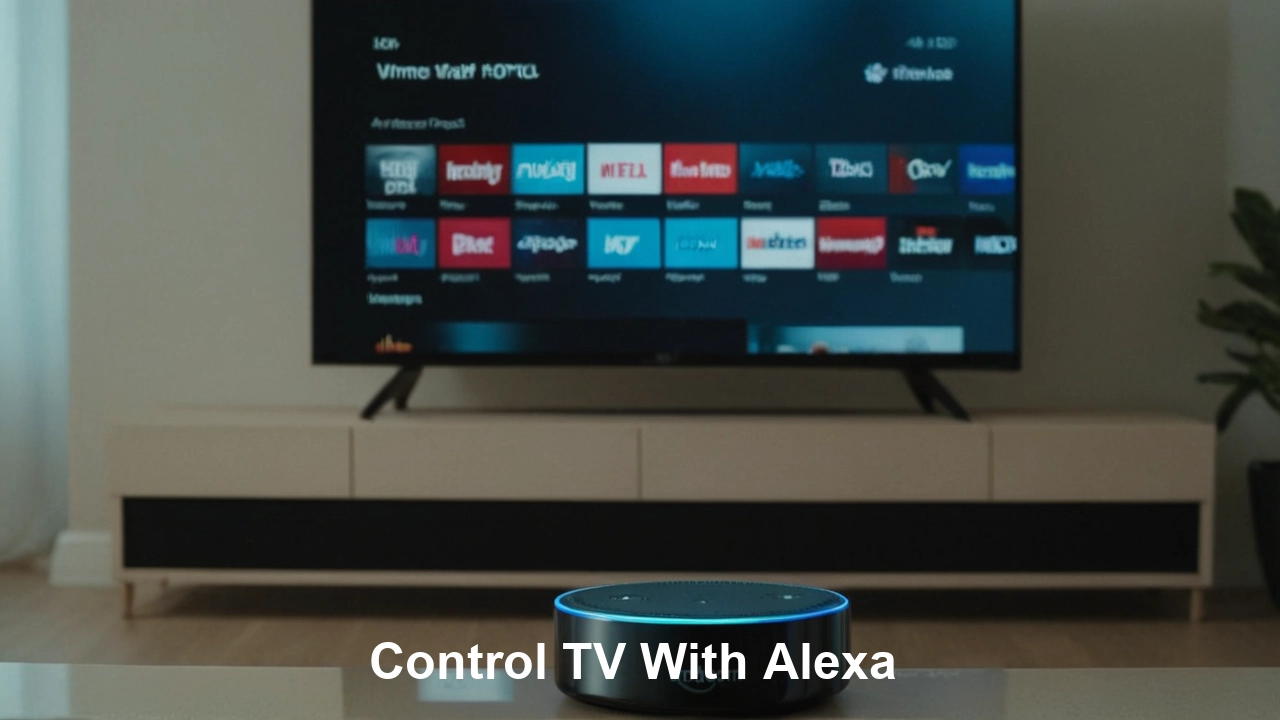
Unlock the full potential of your smart home by learning how to control your TV with Alexa. This guide provides a comprehensive, step-by-step approach to integrating your television with Amazon's voice assistant, offering unparalleled convenience and a futuristic entertainment experience. Get ready to command your viewing with just your voice.
What is Alexa TV Control?
Alexa TV control refers to the capability of using Amazon's voice assistant, Alexa, to operate your television. This encompasses a wide range of functions, from basic commands like turning the TV on/off and changing channels to more advanced actions such as adjusting volume, launching specific apps, playing content, and even searching for shows or movies. Essentially, it transforms your television into a smart, voice-activated device, seamlessly integrating it into your broader smart home ecosystem. This technology leverages either built-in smart TV capabilities, external streaming devices compatible with Alexa, or universal remote solutions that can be controlled by Alexa, all orchestrated through an Echo device or the Alexa app.
Why Control Your TV with Alexa? The Unseen Advantages
In today's increasingly connected world, convenience and efficiency are paramount. Controlling your TV with Alexa offers a suite of benefits that go beyond mere novelty, enhancing your daily entertainment experience significantly. As of 2025, the integration of voice control into our living rooms has moved from a futuristic concept to a mainstream expectation, and for good reason. Let's delve into the advantages that make this technology a must-have for any modern household.
Enhanced Convenience and Hands-Free Operation
The most immediate and obvious benefit is the sheer convenience. Imagine settling down after a long day and being able to say, "Alexa, turn on the TV," without lifting a finger. No more fumbling for the remote, especially when it's lost somewhere in the couch cushions. This hands-free operation is invaluable, particularly for individuals with mobility challenges, parents juggling multiple tasks, or anyone who simply appreciates the ease of voice commands. The ability to adjust volume, change channels, or even pause a show mid-scene while your hands are occupied with cooking or holding a baby adds a layer of effortless control that traditional remotes simply cannot match.
Seamless Integration with Smart Home Ecosystems
Alexa is more than just a TV remote; it's the central hub of your smart home. When your TV is integrated, it becomes another node in this intelligent network. This means you can create routines that involve your TV. For instance, you could set up a "Good Morning" routine that turns on your TV to a news channel, adjusts the smart lights, and brews your coffee. Or, a "Movie Night" routine could dim the lights, set the thermostat, and turn on your TV to your favorite streaming service. This interconnectedness creates a more immersive and automated living experience, making your home truly responsive to your needs and preferences.
Improved Accessibility for All Users
Voice control significantly enhances accessibility for individuals who may find it difficult to operate a traditional remote. This includes the elderly, people with disabilities, or those with temporary injuries. Alexa's natural language processing allows for intuitive interaction, making technology more inclusive. By simply speaking commands, users can access entertainment without the physical dexterity required for button pressing or menu navigation, thereby promoting greater independence and enjoyment of media.
Faster Navigation and Content Discovery
While navigating smart TV menus with a remote can sometimes be clunky, Alexa can often streamline this process. Instead of clicking through multiple screens to find a specific app or show, you can simply say, "Alexa, open Netflix," or "Alexa, search for 'The Mandalorian' on Disney+." This direct command approach saves time and reduces frustration, especially when you know exactly what you want to watch. Furthermore, Alexa can assist in content discovery by suggesting shows or movies based on your viewing history or by responding to broader requests like "Alexa, what are some good action movies?"
Centralized Control for Multiple Devices
For households with multiple entertainment devices – a smart TV, a streaming stick, a soundbar, a Blu-ray player – managing several remotes can be cumbersome. Alexa can act as a universal controller, unifying the operation of these devices. Through compatible smart remotes or direct integration, you can use Alexa to switch inputs, control playback on different devices, and manage your entire home theater system with a single voice interface. This consolidation simplifies your entertainment setup and reduces clutter.
Future-Proofing Your Entertainment System
As technology advances, voice control is becoming increasingly standard. By adopting Alexa TV control now, you are future-proofing your entertainment system. Manufacturers are increasingly building Alexa compatibility directly into their smart TVs, and the capabilities of voice assistants are constantly expanding. Staying ahead of the curve ensures that your setup will remain relevant and functional as the industry evolves, offering ongoing benefits and access to new features as they become available.
Is My TV Compatible with Alexa? The Ultimate Checklist
Before you can start enjoying the convenience of controlling your TV with Alexa, it's crucial to determine if your television is compatible. The landscape of smart TV technology is diverse, with various manufacturers and integration methods. This section will guide you through the essential checks to ensure a smooth setup. As of 2025, compatibility has become more widespread, but understanding the nuances is key.
Built-in Alexa or Fire TV Edition TVs
The most straightforward compatibility comes from TVs that have Alexa built-in or are Amazon Fire TV Edition models. These televisions are designed from the ground up to work seamlessly with Alexa. You'll often find the Alexa functionality integrated directly into the TV's operating system and remote. To check if your TV falls into this category:
- Look for "Fire TV Edition" branding: Many brands like Insignia, Toshiba, and Amazon's own Omni Series offer Fire TV Edition models.
- Check your TV's settings menu: Navigate to the settings on your smart TV. Look for sections related to "Voice Control," "Smart Features," "Alexa," or "Amazon Services." If you find an Alexa option, it's likely built-in.
- Consult your TV's manual or manufacturer's website: The product documentation is the definitive source for compatibility information.
Smart TVs with Alexa Skill Support
Many other smart TV manufacturers, such as Samsung, LG, Sony, and Vizio, offer TVs that are not Fire TV Editions but can still be controlled by Alexa through dedicated skills. These skills act as bridges, allowing Alexa to communicate with your TV. For this to work, your TV generally needs to be connected to your home Wi-Fi network and be a relatively modern smart TV model.
- Check the TV manufacturer's specifications: Visit the official website of your TV brand and search for your specific model. Look for mentions of "Alexa compatibility" or "Works with Alexa."
- Search the Alexa Skills Store: Open the Alexa app on your smartphone, go to the "Skills & Games" section, and search for your TV brand (e.g., "LG TV," "Samsung SmartThings"). If a skill exists, your TV is likely compatible.
- Ensure your TV is on the same network: For skill-based control, your TV must be connected to the same Wi-Fi network as your Alexa device.
Using Streaming Devices with Alexa Integration
If your TV isn't a smart TV or doesn't have direct Alexa integration, you can still gain Alexa control by using a compatible streaming device. These devices connect to your TV via HDMI and provide a smart interface, often with Alexa built-in or supported.
- Amazon Fire TV Stick/Cube: These are the most direct route. Any TV with an HDMI port can become Alexa-controlled with a Fire TV device.
- Roku Devices: Many newer Roku streaming devices and Roku TVs support Alexa integration through the Roku Alexa Skill.
- Apple TV (with limitations): While Apple TV doesn't have direct Alexa integration, you can sometimes use third-party apps or routines to trigger certain Apple TV functions via Alexa, though this is less seamless.
- Google Chromecast with Google TV: While primarily designed for Google Assistant, some limited cross-platform integrations might be possible through third-party solutions or specific skills, but it's not a primary Alexa control method.
Key Checkpoints for Streaming Devices:
- Ensure the streaming device itself is compatible with Alexa.
- The streaming device must be connected to your TV's HDMI port and powered on.
- Both the streaming device and your Alexa device should be on the same Wi-Fi network.
Universal Remote Solutions
For older TVs or those with limited smart capabilities, a universal smart remote that can be controlled by Alexa is an option. Devices like the Logitech Harmony Hub (though discontinued, still functional for existing users) or other IR/Bluetooth smart hubs can learn commands from your existing TV remote and be programmed to respond to Alexa. This is a more complex setup but offers broad compatibility.
- Check the smart hub's compatibility list: Ensure the hub supports your TV model and can be controlled by Alexa.
- Follow the hub's setup instructions: This typically involves "teaching" the hub the commands from your original TV remote.
Essential Requirements for All Setups
Regardless of the method, a few core requirements usually apply:
- Wi-Fi Network: Your TV (or streaming device/smart hub) and your Alexa device must be connected to the same home Wi-Fi network.
- Amazon Account: You'll need an Amazon account to set up Alexa and link compatible services.
- Alexa App: The Amazon Alexa app on your smartphone or tablet is essential for setup, linking accounts, and managing skills.
- Power: The TV and any connected streaming devices must be powered on.
By systematically going through these compatibility checks, you can confidently determine how to integrate your TV with Alexa and begin enjoying voice-controlled entertainment.
Step-by-Step: Setting Up Alexa TV Control
Setting up Alexa TV control can vary slightly depending on your TV's make and model, and the method you choose (built-in, skill, or streaming device). However, the general process follows a logical sequence. Here’s a comprehensive step-by-step guide to get you started.
Step 1: Ensure Prerequisites are Met
Before diving into the setup, confirm you have the following:
- Compatible TV or Streaming Device: As determined in the previous section.
- Amazon Echo Device: Or another Alexa-enabled device (e.g., Echo Dot, Echo Show).
- Amazon Account: Logged into your Amazon account on the Alexa app.
- Home Wi-Fi Network: Ensure your TV (or streaming device) and Alexa device are connected to the same network.
- Alexa App: Downloaded and installed on your smartphone or tablet (iOS or Android).
Step 2: Connect Your TV to Your Wi-Fi Network
This is a fundamental step for any smart functionality. Navigate to your TV's network settings and connect it to your home Wi-Fi. If you're using a streaming device, ensure it's also connected to the same network.
Step 3: Set Up Your TV/Streaming Device
If you have a new smart TV or streaming device, follow the manufacturer's on-screen instructions to complete its initial setup, including logging into any relevant accounts (e.g., your TV manufacturer's account, Google account for Android TV, or your streaming service accounts).
Step 4: Enable Alexa Integration (Method-Specific)
This is where the process diverges based on your setup:
Method A: For Fire TV Edition TVs or Fire TV Devices
- Automatic Setup: For Fire TV Edition TVs, Alexa is usually pre-configured. You might just need to sign in with your Amazon account during the initial TV setup.
- Linking Accounts: If using a Fire TV Stick or Cube, Alexa is typically linked automatically when you sign in with your Amazon account.
- Voice Control: The remote for Fire TV devices usually has a microphone button. Press and hold it, then speak your command.
Method B: For Smart TVs with Alexa Skills (e.g., LG, Samsung, Sony, Vizio)
- Open the Alexa App: On your smartphone or tablet.
- Navigate to Skills: Tap "More" (usually in the bottom right corner) and then select "Skills & Games."
- Search for Your TV Brand's Skill: Type the name of your TV manufacturer (e.g., "LG ThinQ," "Samsung SmartThings," "Sony").
- Enable the Skill: Select the correct skill and tap "Enable to Use."
- Link Your TV Account: You will be prompted to link your TV account. This usually involves logging in with the credentials you use for your TV manufacturer's smart home app or portal (e.g., your Samsung account, LG account). Follow the on-screen instructions carefully.
- Discover Devices: Once the skill is linked, Alexa will prompt you to discover devices. Alternatively, you can manually ask Alexa, "Alexa, discover devices." This process allows Alexa to find your compatible TV on the network.
- Assign to a Room: After discovery, you can assign your TV to a specific room in the Alexa app (e.g., "Living Room TV"). This helps Alexa understand which TV you're referring to if you have multiple.
Method C: For Streaming Devices like Roku (with Alexa Skill)
- Follow Method B steps 1-5, but search for the "Roku" skill in the Alexa app.
- Link your Roku account when prompted.
- Discover Devices: Alexa should discover your Roku device.
- Assign to a Room.
Method D: For Universal Smart Hubs (e.g., Logitech Harmony)
- Set up the Hub: Follow the manufacturer's instructions to set up your universal smart hub and add your TV and other devices to it.
- Link the Hub's Skill: In the Alexa app, search for the skill associated with your smart hub (e.g., "Logitech Harmony").
- Enable and Link: Enable the skill and follow the prompts to link your smart hub account.
- Configure Activities: Within your smart hub's app, you'll create "activities" (e.g., "Watch TV," "Play Movie"). These activities will control your TV, soundbar, etc.
- Control via Alexa: Once linked, you can say commands like, "Alexa, turn on Watch TV," which will trigger the corresponding activity on your hub.
Step 5: Test Your Setup
Once the linking and discovery process is complete, it's time to test. Try basic commands:
- "Alexa, turn on [TV Name]."
- "Alexa, turn off [TV Name]."
- "Alexa, set volume to 50 on [TV Name]."
- "Alexa, change channel to [Channel Number/Name] on [TV Name]."
- "Alexa, open [App Name] on [TV Name]." (e.g., "Alexa, open Netflix on Living Room TV.")
Replace "[TV Name]" with the name you assigned in the Alexa app (e.g., "Living Room TV," "Bedroom TV").
Step 6: Explore Advanced Commands
Once the basics are working, you can explore more advanced commands. Refer to the "Mastering the Commands" section for details. You might also want to explore creating Alexa Routines for more complex automations involving your TV.
Troubleshooting Tips During Setup
- Ensure Devices are on the Same Network: This is the most common issue. Double-check your Wi-Fi settings.
- Restart Devices: Sometimes a simple restart of your TV, streaming device, and Echo device can resolve connection issues.
- Check Account Credentials: Ensure you're using the correct username and password for your TV manufacturer's account.
- Update Software: Make sure your TV, streaming device, and Alexa app are running the latest software versions.
- Re-link Skill: If you encounter persistent issues, try disabling and re-enabling the relevant Alexa skill.
By following these steps, you should be able to successfully integrate your TV with Alexa and enjoy a new level of control over your home entertainment.
Exploring the Methods: How to Control Your TV with Alexa
As we've touched upon, there isn't a single way to control your TV with Alexa. The method depends heavily on your existing television hardware and your desired level of integration. Understanding these different approaches will help you choose the best path forward. As of 2025, the options are more diverse and accessible than ever before.
1. Built-in Alexa / Fire TV Edition TVs
Description: These are TVs manufactured with Alexa's voice assistant technology integrated directly into the operating system. Amazon's own Fire TV Edition models are the prime example, but other manufacturers like Insignia, Toshiba, and Pioneer have also produced TVs with this feature. These TVs come with a microphone-enabled remote, allowing you to speak commands directly to the TV, which then processes them via Alexa.
How it Works: When you press the microphone button on the remote and speak, the audio is sent to Amazon's servers for processing. Alexa then communicates directly with the TV's internal software to execute commands like changing channels, launching apps, adjusting settings, or searching for content.
Pros:
- Most seamless and integrated experience.
- No additional hardware required beyond the TV itself.
- Voice commands are often faster and more responsive.
Cons:
- Limited to specific TV models; requires purchasing a new TV if yours isn't compatible.
- Functionality is tied to Amazon's ecosystem.
Best For: Users looking for the most integrated and straightforward Alexa experience, willing to invest in a new TV.
2. Smart TVs with Alexa Skills
Description: This is a very common method for modern smart TVs from brands like Samsung, LG, Sony, Vizio, and others. These TVs don't have Alexa built-in, but they are designed to work with Alexa through specific "skills" available in the Alexa app. Your TV needs to be connected to your home Wi-Fi network.
How it Works: You enable a specific skill for your TV brand in the Alexa app (e.g., "LG ThinQ," "Samsung SmartThings"). After linking your TV manufacturer's account to your Amazon account, Alexa can send commands to your TV via your home network. You typically use your Echo device (or the Alexa app) to issue commands.
Pros:
- Works with a wide range of existing smart TVs without needing to buy a new one.
- Offers a good level of control over TV functions and apps.
- Leverages your existing Echo device.
Cons:
- Setup can sometimes be complex, requiring linking accounts.
- Responsiveness can depend on network speed and skill performance.
- The range of commands might be slightly more limited than built-in Alexa.
Best For: Owners of compatible smart TVs who want to add voice control without replacing their television.
3. Streaming Devices with Alexa Integration
Description: If your TV is not a smart TV or lacks Alexa compatibility, you can add this functionality using a compatible streaming device. The most popular options include Amazon Fire TV devices (Sticks, Cubes) and certain Roku devices.
How it Works: The streaming device connects to your TV via HDMI and provides its own smart interface. Amazon Fire TV devices are inherently Alexa-enabled. Roku devices can be controlled via Alexa through a dedicated Roku skill. You interact with the streaming device's interface using Alexa commands.
Pros:
- Transforms non-smart TVs into Alexa-controllable entertainment hubs.
- Often more affordable than buying a new smart TV.
- Provides access to a vast library of streaming apps and content.
- Fire TV devices offer the most comprehensive Alexa integration.
Cons:
- Requires purchasing an additional device.
- You are controlling the streaming device, which then controls the TV's input/power (though often seamlessly).
- Roku's Alexa integration might be less comprehensive than Fire TV's.
Best For: Owners of older or non-smart TVs who want to add Alexa control and access modern streaming services.
4. Universal Smart Remote Hubs
Description: For users with complex home theater setups or older devices that don't support smart integration, a universal smart remote hub is an option. Devices like the Logitech Harmony Hub (though discontinued, still used by many) or similar products from other brands can learn infrared (IR) and Bluetooth commands from your existing remotes and be controlled via Alexa.
How it Works: The smart hub acts as a central controller. You program it with the commands for all your devices (TV, soundbar, Blu-ray player, etc.). Then, you enable the hub's Alexa skill and link your account. Alexa commands are sent to the hub, which then relays the correct IR or Bluetooth signal to the target device.
Pros:
- Highly versatile, can control virtually any IR or Bluetooth device.
- Consolidates control of multiple devices into one system.
- Can create complex "activities" (e.g., "Movie Time" that turns on TV, soundbar, and Blu-ray player).
Cons:
- Often the most complex setup process.
- Requires purchasing a dedicated hub.
- Responsiveness can sometimes be affected by line-of-sight issues for IR.
- Logitech Harmony is discontinued, making support and new purchases challenging.
Best For: Enthusiasts with extensive home theater systems or those needing to control legacy devices.
Choosing the Right Method
To determine the best method for you:
- Check your TV's specifications: Does it have "Fire TV Edition" or built-in Alexa?
- If not, check its smart capabilities: Can it connect to Wi-Fi and does its manufacturer have an Alexa skill?
- If neither applies, consider a streaming device: A Fire TV Stick is often the most direct route.
- If you have many devices or older tech: A universal smart hub might be necessary, but research current options carefully.
By understanding these methods, you can make an informed decision and begin your journey to voice-controlled television viewing.
Mastering the Commands: Advanced Alexa TV Control Techniques
Once you've successfully set up Alexa to control your TV, you'll likely start with basic commands like turning it on/off or changing the volume. However, Alexa's capabilities extend far beyond these fundamentals. Mastering advanced commands can significantly enhance your viewing experience, making it more interactive and efficient. As of 2025, the sophistication of these commands continues to grow.
1. App Launching and Navigation
Instead of manually navigating menus, you can directly tell Alexa which app to open.
- "Alexa, open Netflix on [TV Name]."
- "Alexa, launch YouTube on [TV Name]."
- "Alexa, open Prime Video on [TV Name]."
- "Alexa, go to Hulu."
Some skills allow for deeper app navigation:
- "Alexa, search for 'comedy movies' on Netflix."
- "Alexa, play the latest episode of [Show Name] on Disney+."
2. Content Search and Discovery
Alexa can be a powerful tool for finding what to watch across various services.
- "Alexa, find action movies on [TV Name]."
- "Alexa, what shows are available on HBO Max?"
- "Alexa, search for [Actor's Name] movies."
- "Alexa, recommend a documentary."
When integrated with specific services, the search can be more targeted:
- "Alexa, find 'Stranger Things' on Netflix."
- "Alexa, play the trailer for [Movie Title]."
3. Playback Control Beyond Basics
Beyond play/pause and volume, Alexa offers finer control over your media.
- "Alexa, fast forward 30 seconds."
- "Alexa, rewind 1 minute."
- "Alexa, skip intro."
- "Alexa, go to the beginning."
- "Alexa, what did they just say?" (useful for rewinding short segments if supported)
- "Alexa, show me the TV guide."
4. Channel Surfing and Input Switching
While app launching is common, Alexa can also handle traditional channel changes and input management.
- "Alexa, change channel to ESPN."
- "Alexa, go to channel 5."
- "Alexa, switch input to HDMI 2."
- "Alexa, turn on the Blu-ray player." (if controlled via a smart hub or compatible device)
5. Picture and Sound Settings
Depending on your TV's compatibility, you might be able to adjust visual and audio settings.
- "Alexa, set the picture mode to Cinema."
- "Alexa, turn on the Sports mode."
- "Alexa, enable surround sound."
- "Alexa, turn off motion smoothing."
Note: The availability of these commands is highly dependent on the TV manufacturer and the specific Alexa skill or integration.
6. Creating Alexa Routines
Routines are perhaps the most powerful aspect of Alexa integration. They allow you to trigger multiple actions with a single voice command or at a scheduled time.
Example Routine: "Movie Night"
Trigger: "Alexa, it's movie night."
Actions:
- Turn off living room lights.
- Set smart thermostat to 70 degrees.
- Turn on Living Room TV.
- Open Netflix on Living Room TV.
- Set volume to 45.
Example Routine: "Good Morning"
Trigger: "Alexa, good morning."
Actions:
- Turn on Bedroom TV to a news channel.
- Slowly brighten bedroom lights.
- Tell you the weather forecast.
To create routines:
- Open the Alexa app.
- Tap "More" then "Routines."
- Tap the "+" icon to create a new routine.
- Set the "When this happens" (your trigger phrase or schedule).
- Add "Actions," selecting "Smart Home" to control your TV or other devices.
7. Using Alexa for Troubleshooting
While not a direct control command, you can sometimes use Alexa to diagnose issues.
- "Alexa, is the [TV Name] online?"
- "Alexa, what is the IP address of the [TV Name]?" (less common, depends on skill)
Tips for Mastering Commands
- Be Specific: Clearly state the TV name if you have multiple devices.
- Use Natural Language: Alexa is designed to understand conversational speech.
- Experiment: Don't be afraid to try different phrasing.
- Check the Skill's Documentation: The Alexa app often provides example commands for each skill.
- Keep Software Updated: Ensure your TV, streaming device, and Alexa app are up-to-date for the latest command support.
By exploring these advanced commands and leveraging routines, you can transform your TV interaction from a chore into a seamless, voice-driven experience.
Troubleshooting Common Alexa TV Control Problems
Even with the best setup, you might encounter issues when trying to control your TV with Alexa. Fortunately, most problems are common and have straightforward solutions. Here’s a guide to troubleshooting the most frequent hiccups.
Issue 1: Alexa Doesn't Recognize the TV or Command
Symptom: Alexa says, "I couldn't find a device named [TV Name]," or "I don't know how to do that."
Possible Causes & Solutions:
- Incorrect Device Name: Ensure you are using the exact name assigned to your TV in the Alexa app (e.g., "Living Room TV," not just "TV"). Try saying, "Alexa, what devices are named [TV Name]?"
- Device Not Discovered: The TV might not have been properly discovered by Alexa. Go to the Alexa app -> Devices -> Tap the "+" icon -> Add Device -> Select your TV brand or type -> Follow the prompts to re-discover devices.
- TV/Streaming Device Offline: Check if your TV or streaming device is connected to Wi-Fi. Ensure it's powered on.
- Alexa Device Offline: Make sure your Echo device is online and functioning correctly.
- Incorrect Skill Linking: If using a skill, ensure it's properly enabled and linked. Try disabling and re-enabling the skill in the Alexa app.
- Command Not Supported: The specific command might not be supported by your TV's integration or the Alexa skill. Check the skill's documentation for supported commands.
- Network Issues: A weak or unstable Wi-Fi connection can cause communication failures. Restart your router and modem.
Issue 2: TV Turns On/Off But Other Commands Fail
Symptom: You can turn the TV on and off with Alexa, but changing channels, launching apps, or adjusting volume doesn't work.
Possible Causes & Solutions:
- Limited Skill Functionality: Some skills offer basic power control but lack deeper integration. Verify the capabilities of your TV's Alexa skill.
- Account Linking Issues: The link between your TV manufacturer's account and your Amazon account might be broken. Re-link the skill in the Alexa app.
- Software Updates Needed: Ensure both your TV's firmware and the Alexa app are up-to-date.
- Specific App Permissions: Some apps require specific permissions for Alexa to control them. Check app settings or the skill's configuration.
- Fire TV Specific: If using a Fire TV device, ensure you're signed into the correct Amazon account on the device itself.
Issue 3: Slow or Delayed Response
Symptom: There's a noticeable delay between your voice command and the TV's action.
Possible Causes & Solutions:
- Network Congestion: Too many devices on your Wi-Fi network can slow down communication. Try disconnecting non-essential devices.
- Weak Wi-Fi Signal: Ensure your TV and Alexa device have a strong signal from your router. Consider a Wi-Fi extender or mesh system.
- Server Latency: Sometimes, the delay is due to Amazon's or the manufacturer's servers processing the command. This is usually temporary.
- TV/Streaming Device Performance: Older or less powerful smart TVs/streaming devices may process commands more slowly.
- Complex Routines: Routines involving multiple steps can take longer to execute.
Issue 4: Alexa Responds, But Not to the TV
Symptom: Alexa hears you, responds verbally, but the TV doesn't react, or another device (like a smart light) responds instead.
Possible Causes & Solutions:
- Incorrect Device Name Assignment: You might be using a name that's too similar to another Alexa-controlled device. Ensure unique and clear names in the Alexa app.
- Misheard Command: Alexa might have slightly misheard your command or the device name. Try repeating the command clearly.
- Conflicting Skills: If multiple skills could potentially control the TV, Alexa might choose the wrong one. Review your enabled skills and device assignments.
- Default Device Settings: In some cases, Alexa might default to a different device if not explicitly told which one to control. Ensure you specify "[TV Name]" in your commands.
Issue 5: Inability to Link TV Account to Alexa Skill
Symptom: You're stuck on the account linking screen or get an error message when trying to connect your TV account to the Alexa skill.
Possible Causes & Solutions:
- Incorrect Credentials: Double-check your TV manufacturer's username and password.
- Account Verification Issues: Some manufacturers require email verification or two-factor authentication. Follow all on-screen prompts carefully.
- Server Issues: The manufacturer's or Amazon's servers might be experiencing temporary problems. Try again later.
- Outdated TV Software: Ensure your TV's firmware is up-to-date, as this can affect account linking compatibility.
- Region/Country Restrictions: Ensure the skill and your account are set up for the same region.
General Troubleshooting Steps
- Restart Everything: Turn off your TV, streaming device, Echo device, and router. Wait 30 seconds, then turn them back on in this order: Router, Echo device, TV/Streaming device.
- Check Your Network: Run a speed test on your Wi-Fi to ensure it's stable.
- Update Apps and Firmware: Regularly check for updates for your TV, streaming device, and the Alexa app.
- Consult Manufacturer Support: If problems persist, refer to your TV manufacturer's support website or contact their customer service.
- Consult Amazon Support: For issues related to Alexa itself, Amazon's support resources can be helpful.
By systematically working through these potential issues, you can resolve most problems and enjoy uninterrupted voice control of your television.
The Evolving Landscape: The Future of Alexa and TV Integration
The way we interact with our televisions is undergoing a rapid transformation, and voice control, spearheaded by assistants like Alexa, is at the forefront of this evolution. As we look towards the coming years, the integration of Alexa with televisions promises to become even more sophisticated, intuitive, and indispensable. Based on current trends and technological advancements in 2025, here’s a glimpse into the future of Alexa TV integration.
Deeper Content Understanding and Personalization
Current voice search is good, but the future holds much more nuanced understanding. Expect Alexa to:
- Contextual Understanding: Alexa will better understand conversational context. Instead of just "Find action movies," you might say, "I'm in the mood for something exciting, maybe a spy thriller like the last one I watched," and Alexa will grasp the reference and provide highly tailored recommendations.
- Proactive Suggestions: Based on your viewing habits, time of day, and even external factors like weather or upcoming events, Alexa might proactively suggest content. "It's raining outside, would you like to watch that new mystery series everyone's talking about?"
- Personalized Profiles: Advanced voice recognition will allow Alexa to identify different users in the household, automatically switching to their preferred profiles, watchlists, and content recommendations on streaming services.
Enhanced Smart Home Orchestration
The living room will become an even more integrated part of the smart home ecosystem.
- Complex Scene Setting: Routines will become more dynamic. Imagine saying, "Alexa, I'm ready for bed," and not only will the lights dim and doors lock, but the TV will automatically switch to a sleep timer mode or display ambient nature scenes.
- Interconnected Devices: Future TVs might communicate more directly with other smart devices. For example, if your smart doorbell detects a visitor while you're watching a movie, Alexa could pause the TV and display the camera feed on a picture-in-picture window without you asking.
- Energy Management: Alexa could optimize TV usage for energy efficiency, automatically dimming the screen or entering low-power mode when not actively being watched or when ambient light conditions change.
More Natural and Intuitive Voice Interaction
The way we speak to Alexa will become even more human-like.
- Multi-Turn Conversations: Instead of discrete commands, you'll engage in more natural back-and-forth dialogues. "Alexa, find a comedy." "Okay, I found these." "Which one stars Will Ferrell?" "That's 'Anchorman'." "Play it."
- Gesture and Gaze Integration: Future interfaces might combine voice with subtle gestures or eye-tracking. Looking at a particular actor on screen while saying "Tell me more about them" could trigger Alexa to provide information.
- Improved Noise Cancellation: Alexa devices will become even better at isolating your voice in noisy environments, ensuring commands are heard even during loud movie scenes or parties.
Seamless Cross-Platform and Device Compatibility
While currently fragmented, expect greater standardization and interoperability.
- Universal Standards: Industry-wide adoption of standards like Matter could simplify how Alexa interacts with a wider range of TVs and entertainment devices, regardless of manufacturer.
- Cloud-Based Intelligence: More processing will likely happen in the cloud, allowing even lower-powered devices to offer sophisticated voice control capabilities.
- Integration with AR/VR: As augmented and virtual reality become more mainstream, Alexa could play a role in navigating these immersive environments, potentially controlling virtual interfaces or content playback within VR experiences.
Advanced Accessibility Features
Voice control is already a boon for accessibility, and this will only improve.
- Customizable Voice Profiles: Alexa will adapt better to diverse speech patterns and accents.
- Visual Feedback Integration: For users with hearing impairments, Alexa could provide more robust visual cues on-screen to confirm commands or convey information.
- Simplified Interfaces: Voice will become the primary way to navigate complex interfaces, making technology accessible to a broader audience.
In conclusion, the future of Alexa TV integration points towards a more intelligent, personalized, and seamlessly connected entertainment experience. Voice control will evolve from a convenient feature to an integral part of how we discover, consume, and interact with content, making our living rooms more responsive and intuitive than ever before.
Conclusion
Mastering how to control your TV with Alexa unlocks a new dimension of convenience and immersion in your home entertainment. From the simple act of turning on your favorite show with a voice command to orchestrating complex movie night routines, the possibilities are vast and continually expanding. We've explored the essential steps for setup, delved into the various methods of integration, uncovered advanced commands to elevate your experience, and provided troubleshooting tips to overcome common hurdles. As technology marches forward, expect Alexa's role in our living rooms to become even more central, offering deeper personalization and seamless control.
Your actionable next step: Identify your TV's compatibility using the checklist provided. If you have a compatible smart TV, enable the relevant Alexa skill today. If not, consider an affordable streaming device like an Amazon Fire TV Stick to bridge the gap. Embrace the power of your voice and transform your television into the intelligent centerpiece of your smart home.