-
Posted on: 07 Jan 2026
-
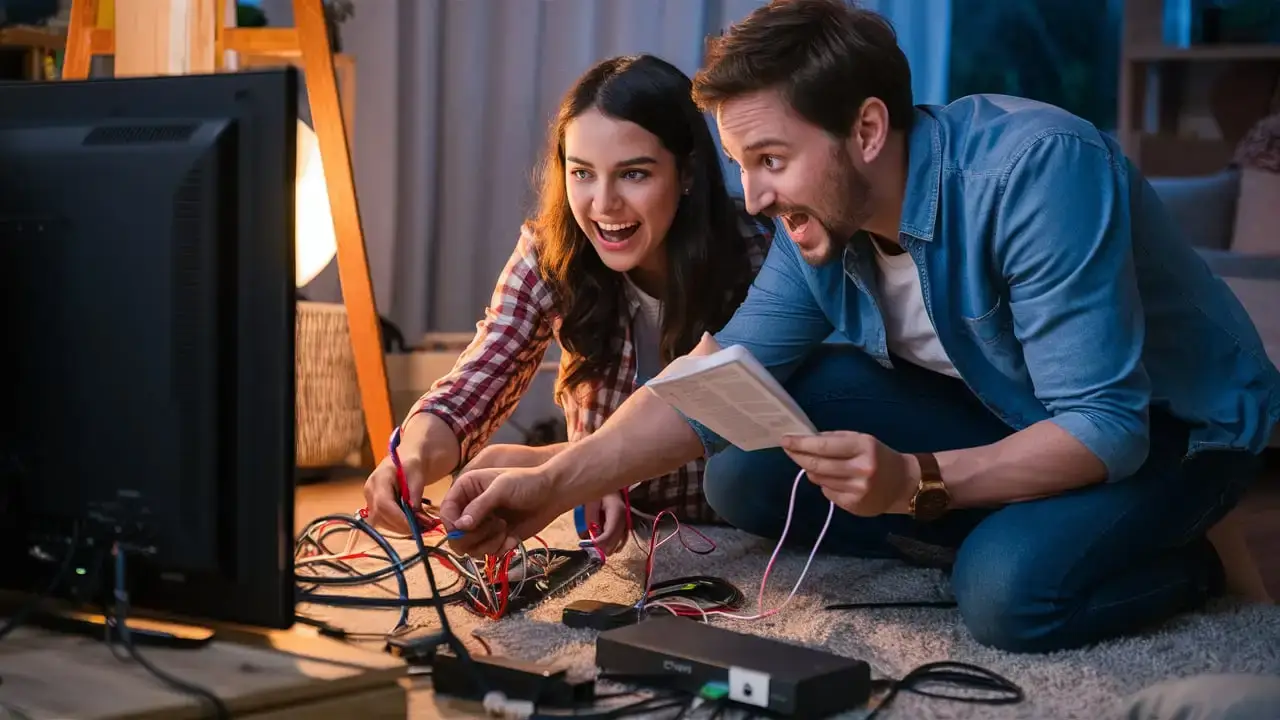
Hooking up a new TV with Dish Network can seem daunting, but with this comprehensive guide, you'll have your system up and running smoothly. We cover everything from unboxing to final activation, ensuring a hassle-free installation process. Get ready to enjoy your favorite channels!
Getting Started: What You'll Need
Before you begin the physical setup of your new TV and Dish Network system, it’s crucial to gather all the necessary components and understand what’s involved. This preparatory phase is key to a smooth installation, minimizing potential frustration and ensuring you have everything readily available. Dish Network typically provides a package that includes the satellite receiver, remote control, and essential cables. However, there are a few other items you might need to have on hand, depending on your specific setup and whether you're doing a self-installation or having a professional technician visit.
Essential Components Provided by Dish Network
When you receive your Dish Network equipment, it will generally include the following:
- Satellite Receiver (or Set-Top Box): This is the heart of your Dish Network system. It decodes the satellite signal and converts it into a format your TV can display. Newer models often come with advanced features like DVR capabilities, allowing you to record, pause, and rewind live TV. As of 2025, Dish continues to offer various receiver models, including the Wally, Hopper 3, and Joey clients, each with different functionalities and storage capacities. The Hopper 3, for instance, is known for its 4K capabilities and extensive recording features, while the Wally is a more compact, portable option often used for RVs or secondary TVs.
- Remote Control: Designed to operate the receiver and often capable of controlling basic TV functions like power and volume. Dish remotes are typically user-friendly, with dedicated buttons for channel surfing, accessing the guide, and navigating menus.
- Power Cord: To supply electricity to the satellite receiver.
- HDMI Cable: For connecting the receiver to your new TV. HDMI (High-Definition Multimedia Interface) is the standard for transmitting high-definition audio and video signals, ensuring the best possible picture and sound quality. Most modern TVs and receivers exclusively use HDMI.
- Ethernet Cable (Optional): Some receivers may include an Ethernet cable for a wired internet connection, which is beneficial for on-demand services and software updates.
- User Manual: A guide to help you understand your specific receiver model and its features.
Additional Items You Might Need for Self-Installation
If you opt for a self-installation, which Dish Network offers for many customers, you’ll need to ensure you have the following tools and materials. It's important to note that while self-installation can save money, it requires a certain level of technical comfort and adherence to precise instructions, especially regarding the satellite dish alignment.
- Your New Television: Ensure it's compatible with HDMI connections.
- Screwdriver Set: You’ll likely need Phillips head screwdrivers for mounting brackets and securing connections.
- Drill and Drill Bits: For mounting the satellite dish on an exterior wall or roof, and potentially for running cables.
- Ladder: A sturdy ladder is essential for accessing mounting locations for the satellite dish. Ensure it's placed on stable ground.
- Level: To ensure the satellite dish is mounted perfectly horizontally and vertically, which is critical for optimal signal reception.
- Measuring Tape: For precise placement of the dish and cable routing.
- Wire Strippers and Crimpers (if applicable): For any custom cable work, though usually not required for standard Dish Network installations.
- Cable Clips or Ties: To neatly secure and manage cables, preventing tripping hazards and improving aesthetics.
- Sealant (e.g., silicone caulk): To seal any holes drilled into exterior walls to prevent water intrusion.
- Gloves and Safety Glasses: For personal protection during the installation process.
- A Clear View of the Southern Sky: The satellite dish needs an unobstructed line of sight to the Dish Network satellites, which are located in geostationary orbit above the equator. This means a clear view towards the south is paramount in North America. Obstructions like trees, buildings, or hills can significantly degrade or block the signal.
Understanding Professional Installation
For those who prefer not to undertake the physical installation themselves, Dish Network offers professional installation services. A certified technician will visit your home, install the satellite dish, run the necessary cables, connect the receiver, and ensure everything is working correctly. This service is often included with new subscriptions or can be purchased for a fee. Professional installation guarantees that the dish is aligned precisely, which is the most technically challenging part of the setup. As of 2025, Dish continues to emphasize professional installation for optimal performance, especially for complex setups or areas with potential signal interference.
Unboxing and Initial Setup
Once you have all your components ready, the next step is to carefully unbox your new Dish Network equipment and prepare it for connection. This phase is straightforward and primarily involves identifying each part and ensuring nothing is damaged during transit.
Step-by-Step Unboxing Process
Follow these steps to unbox your Dish Network receiver and accessories:
- Open the Packaging: Carefully open the main box containing the satellite receiver. Use a box cutter or scissors to cut through the tape, being mindful not to damage the contents inside.
- Identify the Receiver: Locate the satellite receiver unit. It's usually a black or gray box, varying in size depending on the model (e.g., Hopper, Joey, Wally).
- Check for Accessories: Inside the box, you should find the remote control, power cord, and HDMI cable. Verify that all listed accessories are present.
- Inspect for Damage: Examine the receiver and all accessories for any signs of physical damage, such as cracks, dents, or loose parts. If you notice any damage, contact Dish Network customer support immediately.
- Keep Packaging: It’s advisable to keep the original packaging for a short period. This can be useful if you need to return the equipment or if you decide to move and need to pack it securely.
Preparing Your New TV
Your new television will also need some preparation before connecting the Dish Network receiver. Ensure your TV is placed in its desired location and is stable. If you haven't already, you might need to:
- Remove from Box: Carefully remove the TV from its packaging, following the manufacturer's instructions.
- Attach Stand or Mount: If using the TV stand, attach it securely. If wall-mounting, ensure the mount is properly installed and rated for your TV's size and weight.
- Plug In TV: Connect the TV's power cord to a wall outlet.
- Turn On TV: Power on your TV and select the correct input source (e.g., HDMI 1, HDMI 2) where you will connect the Dish receiver. This is crucial for seeing the setup prompts later.
Connecting the Power and HDMI Cables to the Receiver
This is where you physically link the receiver to your TV and power source.
- Connect HDMI Cable: Plug one end of the HDMI cable into the HDMI OUT port on the back of the Dish Network receiver. Plug the other end into an available HDMI IN port on your TV. Note which HDMI port you use on the TV (e.g., HDMI 1).
- Connect Power Cord: Plug the receiver's power cord into the power port on the back of the unit. Plug the other end into a working electrical outlet. Avoid using the same outlet as high-draw appliances if possible, though modern receivers are generally efficient.
- Optional Ethernet Connection: If your receiver supports it and you prefer a wired internet connection for enhanced features, connect one end of the Ethernet cable to the Ethernet port on the receiver and the other end to your home router.
At this stage, you have physically connected the components. The next steps involve the satellite dish itself and then the activation and setup process.
Connecting the Dish Receiver to Your TV
This section focuses specifically on the connection between the Dish Network receiver and your television. While the HDMI cable is the primary link, understanding the ports and ensuring a secure connection is vital for optimal performance.
Understanding HDMI Ports
HDMI (High-Definition Multimedia Interface) is the standard for transmitting digital audio and video signals. Modern TVs and receivers are equipped with multiple HDMI ports, usually labeled HDMI 1, HDMI 2, etc. It’s important to:
- Use the Correct Ports: Connect the HDMI cable from the receiver's HDMI OUT port to one of your TV's HDMI IN ports.
- Note the Port Number: Remember which HDMI input you used on your TV. You'll need to select this input on your TV's remote to view the Dish Network signal.
- Check Cable Quality: For 4K content (supported by newer Dish receivers like the Hopper 3), ensure you are using a High-Speed HDMI cable that supports the required bandwidth. Most cables included with new equipment will be sufficient.
Connecting Other Cables (if applicable)
While HDMI is the primary connection, some older setups or specific configurations might involve other cables:
- Coaxial Cable: This cable runs from the satellite dish to the receiver. You'll connect it to the SAT-IN or LNB IN port on the receiver. This connection is typically made during the satellite dish installation phase, not directly at the TV.
- Optical Audio (Toslink): If your TV or sound system supports it and you want to bypass the HDMI audio, an optical cable can be used for digital audio transmission. Connect from the receiver's optical OUT to the TV's or soundbar's optical IN.
- Ethernet Cable: As mentioned earlier, for a wired internet connection to enable On-Demand services, apps, and software updates.
Ensuring a Secure Connection
Loose connections are a common cause of signal loss or intermittent picture/sound. Ensure that:
- Cables are Firmly Seated: Push the HDMI cable ends firmly into their respective ports on both the receiver and the TV until they feel snug.
- No Visible Damage: Inspect the cables and ports for any bent pins or damage.
Selecting the Correct TV Input
This is a critical step that often trips up new users. After connecting the HDMI cable:
- Turn on your TV.
- Using your TV's remote, press the "Input" or "Source" button.
- Cycle through the available inputs until you select the one corresponding to the HDMI port you used for the Dish receiver (e.g., HDMI 1, HDMI 2).
If the connection is successful and the receiver is powered on, you should see the Dish Network welcome screen or setup menu appear on your TV.
Satellite Dish Installation and Alignment
This is arguably the most technical and critical part of the entire process, especially for self-installation. The satellite dish must be precisely aligned to receive signals from the Dish Network satellites. Incorrect alignment will result in no signal or a weak, unreliable signal.
Choosing the Right Location
The ideal location for your satellite dish is one that offers a clear, unobstructed view of the southern sky. Consider the following:
- Elevation: The dish needs to be mounted at a height that clears immediate obstructions like fences or low bushes.
- Azimuth and Elevation Angles: These are the horizontal and vertical angles required to point the dish directly at the satellites. Dish Network satellites are located in geostationary orbit, meaning they appear stationary in the sky from your location. The specific angles vary based on your geographic location within North America. You can find these precise angles using Dish Network's online tools or by consulting your installation manual. For example, in the central United States, the azimuth might be around 200-240 degrees (southwest), and the elevation might be 30-45 degrees.
- Mounting Surface: The dish needs to be mounted on a stable, sturdy surface. Common options include:
- Roof Mount: Provides a high vantage point but can be challenging and potentially dangerous to install.
- Wall Mount: A common and often easier option, provided there's a clear southern exposure.
- Ground Mount: Requires a concrete base and is ideal if roof or wall mounting is not feasible, but takes up yard space.
- Cable Run: Consider the shortest and safest path for the coaxial cable to run from the dish to your receiver.
Mounting the Dish
The mounting process involves securing the dish bracket to your chosen surface and then attaching the dish itself.
- Install the Mount: Securely attach the mounting bracket to the wall, roof, or ground using appropriate hardware (lag bolts for wood, masonry anchors for brick/concrete). Use a level to ensure the mast is perfectly vertical.
- Assemble the Dish: Follow the manufacturer's instructions to assemble the dish reflector, LNB arm, and LNB (Low-Noise Block downconverter).
- Attach Dish to Mast: Mount the assembled dish onto the mast. Initially, do not tighten the bolts completely, as you'll need to adjust the dish for alignment.
Aligning the Satellite Dish
This is the most critical step for signal acquisition. Dish Network receivers have a built-in signal meter that assists in this process.
- Connect Coaxial Cable: Run the coaxial cable from the LNB on the dish to the SAT-IN port on your Dish Network receiver.
- Access Signal Meter: Power on the receiver and TV. Navigate to the receiver's menu (usually via the "Menu" or "Settings" button on the remote) and find the "System Test" or "Signal Meter" option.
- Initial Dish Adjustment:
- Azimuth Adjustment: Slowly sweep the dish horizontally (left and right) while watching the signal meter. Look for the highest possible signal strength reading.
- Elevation Adjustment: Once you find a peak in azimuth, slowly adjust the dish vertically (up and down) to find the highest signal strength.
- Fine-Tuning: Make very small, incremental adjustments to both azimuth and elevation, constantly monitoring the signal meter. The goal is to achieve the strongest and most stable signal possible. Dish Network typically requires a Signal Quality reading of 80 or higher for optimal performance.
- Tighten Bolts: Once you've achieved the best possible alignment and the signal meter is consistently high, carefully tighten all the bolts that secure the dish to the mast. Be careful not to move the dish while tightening.
- Verify Signal: After tightening, re-check the signal meter to ensure the alignment hasn't shifted.
Securing Cables and Weatherproofing
Once the dish is aligned and secured:
- Cable Management: Use cable clips or ties to neatly secure the coaxial cable along the mast and down to the receiver. Avoid sharp bends or kinks in the cable.
- Weatherproofing: If you drilled holes through exterior walls, use silicone sealant to weatherproof the openings, preventing water damage.
Note: If you are struggling with dish alignment or are uncomfortable working at heights, it is highly recommended to utilize Dish Network's professional installation service.
Receiver Activation and Channel Setup
With the physical connections and dish alignment complete, the final stages involve activating your receiver with Dish Network and configuring your channels. This process is generally guided by on-screen prompts.
Activating Your Dish Network Receiver
Dish Network requires you to activate your receiver to link it to your account and authorize service. There are typically a few ways to do this:
- Online Activation: Visit the Dish Network website (dish.com) and look for the "Activate Receiver" or "Self-Install" section. You'll likely need your account number and the receiver's unique ID (often found on a sticker on the receiver itself).
- Phone Activation: Call Dish Network customer service. They have a dedicated line for new installations and activations. You'll be guided through the process by a representative. The number is usually provided with your equipment or on your order confirmation.
- Automated System: Some installations can be activated through an automated phone system.
During activation, you'll confirm your service plan and ensure the receiver is properly registered. The system will then send authorization signals to your receiver. This process can take anywhere from 15 minutes to a couple of hours, depending on network traffic and the receiver's connection status.
On-Screen Setup Guide
Once the receiver is powered on and has a signal, it will likely initiate an on-screen setup guide. Follow these prompts carefully:
- Language Selection: Choose your preferred language for the receiver's interface.
- TV Type: Select your TV type (e.g., HD, 4K) to ensure optimal picture settings.
- HDMI Connection Confirmation: The system may ask you to confirm that the HDMI cable is connected and that you can see the picture.
- Signal Test: The receiver will perform another signal test to confirm it's receiving a strong signal from the satellite. If the signal is weak, you may need to revisit the dish alignment steps.
- Software Updates: The receiver will check for and download any necessary software updates. This is crucial for ensuring all features are working correctly and for security. This step can take some time, and the receiver may restart.
- Remote Control Pairing: You'll likely be guided through pairing your remote control with the receiver. This often involves pressing a specific button sequence on the remote.
Channel Scanning and Favorites Setup
After the initial setup and software updates, the receiver will typically scan for available channels based on your subscription package.
- Automatic Channel Scan: This process is usually automatic. The receiver tunes into different transponders on the satellites and identifies all the channels you are authorized to receive.
- Favorites Lists: Once channels are found, you can begin organizing them. Most Dish receivers allow you to create "Favorites Lists." This is highly recommended as it lets you filter your channel guide to show only the channels you watch regularly, making channel surfing much faster and more convenient. You can create multiple lists (e.g., "Sports," "Kids," "News").
- Channel Guide Navigation: Familiarize yourself with the Electronic Program Guide (EPG). Use the arrow keys on your remote to navigate through channels and times. Pressing "Info" or "Select" on a program usually brings up more details about the show, including synopses and cast information.
Setting Up DVR Functionality (if applicable)
If your receiver has DVR capabilities (like the Hopper 3), you'll want to set it up:
- Formatting the Hard Drive: If it's a new DVR, you may need to format the internal or external hard drive. Follow the on-screen prompts for this.
- Recording Preferences: Configure your default recording settings, such as whether to record only new episodes or all episodes, and how long to keep recordings.
- Series Priority: Set up series recordings, which automatically record every episode of a chosen show.
Once these steps are completed, your Dish Network system should be fully operational, and you can begin watching television.
Troubleshooting Common Issues
Even with a perfect installation, you might encounter occasional issues. Here are some common problems and their solutions for Dish Network installations in 2025-26.
No Signal or Weak Signal
This is the most frequent problem and is almost always related to the satellite dish alignment or obstructions.
- Check Connections: Ensure the coaxial cable is securely connected to both the dish LNB and the receiver's SAT-IN port.
- Verify TV Input: Double-check that your TV is set to the correct HDMI input.
- Inspect for Obstructions: New trees, building construction, or even heavy snow/ice can block the signal. Check the line of sight to the southern sky.
- Re-align the Dish: If you suspect misalignment, you may need to repeat the dish alignment process using the receiver's signal meter.
- Weather Impact: Heavy rain, snow, or thunderstorms can temporarily disrupt satellite signals (rain fade). The signal should return once the weather clears.
- Dish Network Support: If the problem persists, contact Dish Network customer support. They can remotely diagnose your signal strength and may schedule a technician visit.
Receiver Not Powering On
If your receiver is completely unresponsive:
- Check Power Cord: Ensure the power cord is securely plugged into both the receiver and a working electrical outlet. Try a different outlet.
- Power Cycle the Receiver: Unplug the receiver from the power outlet, wait 30-60 seconds, and then plug it back in. This can resolve temporary glitches.
- Check Remote: Ensure the remote has fresh batteries and is pointed correctly at the receiver.
Picture or Sound Issues (Pixelation, Freezing, Audio Dropouts)
These can be caused by a weak signal, internal receiver issues, or problems with your TV.
- Check Signal Strength: Use the receiver's signal meter to check the quality of the signal for the channels you're watching. If it's low, address dish alignment or obstructions.
- HDMI Cable: Try a different HDMI cable, or ensure the current one is securely connected.
- Receiver Reboot: Power cycle the receiver as described above.
- TV Settings: Check your TV's picture and sound settings. Ensure they are not causing interference.
- Software Glitches: Ensure your receiver's software is up to date.
Remote Control Not Working
If your remote isn't controlling the receiver:
- Batteries: Replace the batteries with new ones.
- Obstructions: Ensure there's a clear line of sight between the remote and the receiver's sensor.
- Pairing: Re-pair the remote with the receiver following the instructions in the setup guide or receiver manual.
- Receiver Issue: Try controlling the receiver using the buttons on the unit itself (if available) to see if the receiver is functioning.
Error Codes
Dish Network receivers display error codes to help diagnose problems. Common codes include:
- Error 111: Often indicates a signal problem.
- Error 502: Usually means the receiver is not authorized or needs activation.
- Error 92: Can indicate a problem with the receiver's internal components.
Refer to your Dish Network manual or the Dish website for a comprehensive list of error codes and their specific solutions. For persistent or complex issues, contacting Dish Network customer support is the best course of action.
Optimizing Your Dish Network Experience
Once your Dish Network system is up and running smoothly, there are several ways to enhance your viewing experience, making it more enjoyable and efficient. These tips focus on leveraging the features of modern receivers and smart viewing habits.
Utilizing DVR and Recording Features
If you have a DVR-enabled receiver (like the Hopper 3), make the most of its capabilities:
- Set Up Series Priority: This is a game-changer for busy viewers. Configure your DVR to automatically record all episodes of your favorite shows, prioritizing new episodes. You can set priority levels (e.g., "New episodes first," "All episodes").
- Manage Storage: Keep an eye on your DVR storage space. Delete shows you've watched or no longer need to make room for new recordings. Dish receivers typically offer options to automatically delete older recordings.
- Remote Access Recording: Dish Anywhere™ allows you to manage your DVR recordings from your smartphone, tablet, or computer. You can schedule recordings remotely, watch live TV, and access your recorded content from virtually anywhere with an internet connection. This is a significant benefit for travelers or those away from home.
Navigating the Electronic Program Guide (EPG) Efficiently
The EPG is your gateway to all available content. Here's how to use it effectively:
- Create Favorites Lists: As mentioned earlier, this is paramount. Tailor your guide to show only the channels you watch. This drastically reduces scrolling time.
- Search Functionality: Use the search feature to quickly find specific shows, movies, or actors. This is much faster than browsing through hundreds of channels.
- Filter by Genre: Some EPGs allow filtering by genre (e.g., Movies, Sports, News), which can be helpful when you're in the mood for something specific.
Exploring On-Demand and Pay-Per-View Options
Dish Network offers a vast library of On-Demand content and Pay-Per-View (PPV) events.
- Dish On Demand: Access a wide selection of movies and TV shows available to stream directly through your receiver, often at no extra cost beyond your subscription.
- Pay-Per-View: Order movies, sports events (like boxing matches or UFC fights), or other special programming for a one-time fee. This is typically done through the receiver's menu. Ensure you understand the pricing before confirming an order.
Connecting to the Internet for Enhanced Features
A stable internet connection unlocks many advanced features:
- Software Updates: Ensures your receiver has the latest features, bug fixes, and security patches.
- Dish Anywhere™: Essential for remote DVR management and streaming.
- On-Demand Services: Access to a broader range of streaming content and interactive features.
- App Integration: Newer receivers may integrate with various streaming apps, allowing you to access content from services like Netflix or Amazon Prime Video directly through your Dish interface (though this often requires separate subscriptions to those services).
Optimizing Picture and Sound Quality
While HDMI provides excellent quality, a few tweaks can help:
- Receiver Settings: Ensure your receiver's video output settings match your TV's capabilities (e.g., 1080p, 4K).
- TV Settings: Adjust your TV's picture settings (brightness, contrast, sharpness) to your preference. Some TVs have specific "Dish Network" or "Movie" picture modes that can enhance viewing.
- Sound System: If you have a soundbar or home theater system, ensure it's properly connected (HDMI ARC or Optical) and configured for the best audio experience.
Regular Maintenance
Keep your system running optimally with simple maintenance:
- Reboot Periodically: Performing a power cycle (unplugging and replugging) of your receiver once a month can help clear temporary glitches and maintain performance.
- Keep Receiver Vents Clear: Ensure the receiver has adequate ventilation to prevent overheating, which can degrade performance.
By implementing these optimization strategies, you can ensure you're getting the most out of your Dish Network subscription and enjoying a seamless, high-quality entertainment experience.
In conclusion, successfully hooking up a new TV with Dish Network is an achievable task with careful planning and execution. From ensuring you have all the necessary components and tools to the precise alignment of the satellite dish and the final activation steps, each stage plays a vital role. Remember to prioritize a clear southern sky for the dish, double-check all cable connections, and utilize the on-screen guides provided by Dish Network. For those who find the dish alignment challenging, professional installation remains a reliable option. By following this comprehensive guide, you can confidently set up your system and begin enjoying your favorite channels without delay. Embrace the power of your DVR, explore the vast content library, and optimize your settings for the best possible viewing experience.