-
Posted on: 07 Jan 2026
-
Connecting your DIRECTV service to your smart TV unlocks a world of enhanced entertainment, blending traditional satellite programming with the convenience of streaming apps. This comprehensive guide will walk you through every step, ensuring a seamless integration for an unparalleled viewing experience. Discover the easiest methods, troubleshooting tips, and the benefits of this modern setup.
Understanding Your DIRECTV and Smart TV Setup
Before diving into the "how-to," it's crucial to understand what you're working with. A smart TV, by definition, has built-in internet connectivity and an operating system that allows it to run applications, much like a smartphone or tablet. DIRECTV, on the other hand, is a satellite television provider that delivers a vast array of channels and on-demand content through a satellite dish and a set-top receiver box. The goal of hooking up DIRECTV to your smart TV is to bridge these two technologies, allowing you to watch your DIRECTV channels directly on your smart TV's display, often alongside your favorite streaming services, without needing multiple devices or complex wiring.
The primary components involved are your DIRECTV receiver (often called a Genie or a client box), your smart TV, and the necessary cables or network connections. The most common and straightforward method involves a physical cable connection, while more advanced users might explore wireless options. The choice of method often depends on the specific models of your DIRECTV receiver and smart TV, as well as your home network capabilities. Understanding these basics will make the subsequent steps much clearer and easier to follow. In 2025-26, the integration between traditional pay-TV and smart TV platforms is more seamless than ever, with manufacturers and providers alike prioritizing user experience and connectivity.
DIRECTV's commitment to innovation means that their receivers are increasingly designed to work harmoniously with modern display technologies. This includes supporting high-definition (HD) and ultra-high-definition (UHD or 4K) resolutions, as well as various audio formats. Your smart TV, with its advanced processing power and display capabilities, is the perfect companion to showcase the quality of DIRECTV's offerings. For instance, many new smart TVs in 2025 boast refresh rates of 120Hz and HDR support, which can significantly enhance the visual fidelity of live sports and cinematic content delivered by DIRECTV. Ensuring your setup is optimized means taking advantage of these features.
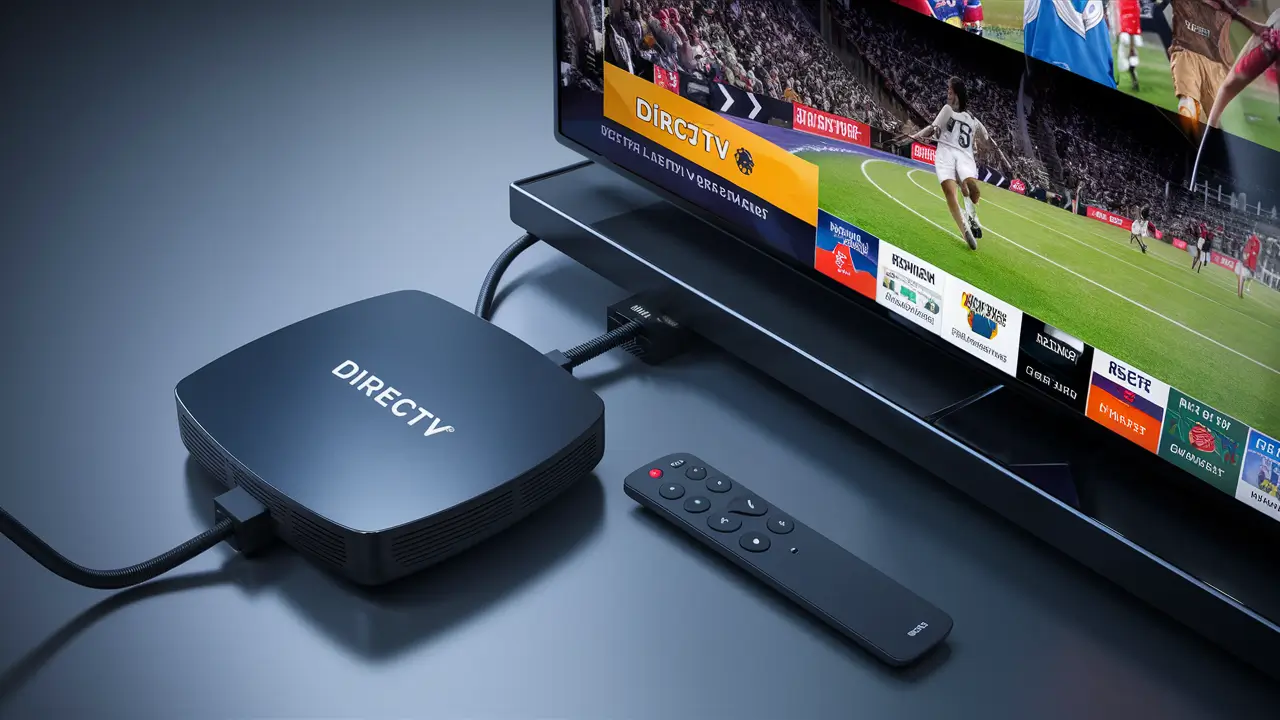
The DIRECTV receiver acts as the gateway for your satellite signal. It decodes the satellite transmission and outputs it in a format that your smart TV can understand and display. This output is typically handled through a High-Definition Multimedia Interface (HDMI) port. Similarly, your smart TV has multiple HDMI inputs designed to receive video and audio signals from external devices. The process of connecting them is essentially about establishing a clear, high-quality pathway for this signal. We will explore the most common and effective ways to achieve this connection.
Method 1: HDMI Cable - The Direct Connection
The most common and recommended method for connecting your DIRECTV receiver to your smart TV is by using an HDMI cable. This method provides the highest quality audio and video signal transmission, ensuring you get the best possible viewing experience. It's a simple plug-and-play process that requires minimal technical expertise.
What You'll Need:
- Your DIRECTV receiver box
- Your smart TV
- A High-Definition Multimedia Interface (HDMI) cable. Ensure it's rated for the resolution you intend to use (e.g., HDMI 2.0 or higher for 4K content).
- Remote controls for both your DIRECTV receiver and your smart TV.
Step-by-Step Guide:
1. Power Down Your Devices:
For safety and to prevent any potential electrical surges, it's best to turn off both your DIRECTV receiver and your smart TV. Unplugging them from the power outlet is an extra precaution, though not always strictly necessary for HDMI connections.
2. Locate the HDMI Ports:
On the back or side of your DIRECTV receiver, find the HDMI OUT port. On your smart TV, locate an available HDMI IN port. Most smart TVs have multiple HDMI ports, often labeled with numbers (HDMI 1, HDMI 2, etc.) or specific functions (e.g., "ARC" for Audio Return Channel, which is useful for soundbars but not essential for this basic connection).
3. Connect the HDMI Cable:
Insert one end of the HDMI cable firmly into the HDMI OUT port on your DIRECTV receiver. Then, insert the other end into the chosen HDMI IN port on your smart TV. Ensure both ends are securely seated.
4. Power Up Your Devices:
Plug your DIRECTV receiver and smart TV back into the power outlets if you unplugged them. Turn on your smart TV first, and then turn on your DIRECTV receiver. The order can sometimes matter, especially with older smart TV models.
5. Select the Correct Input Source on Your Smart TV:
Using your smart TV's remote control, press the "Input," "Source," or "TV/Video" button. A menu will appear on your screen, listing all available input sources (e.g., TV Tuner, HDMI 1, HDMI 2, AV, Component). Select the HDMI input that corresponds to the port you plugged the DIRECTV receiver into. For example, if you plugged the cable into HDMI 2, select "HDMI 2."
Once the correct input is selected, you should see the DIRECTV receiver's interface displayed on your smart TV. This typically includes the DIRECTV logo, followed by the channel guide or the last channel you were watching. If you don't see the DIRECTV picture, double-check the cable connections and ensure you've selected the correct input source.
6. Initial Setup and Configuration (If Necessary):
In most cases, the DIRECTV receiver will automatically detect the smart TV and adjust the display settings. However, if the picture appears distorted, stretched, or has incorrect aspect ratios, you may need to adjust the video output settings on your DIRECTV receiver. This is usually done through the receiver's main menu, often under "Settings" or "System Setup." Look for options related to "Video Output," "Resolution," or "Aspect Ratio." Ensure these settings match your smart TV's capabilities (e.g., 1080p for Full HD, 4K for Ultra HD) and your preferred aspect ratio (e.g., 16:9 widescreen).
The DIRECTV Genie system, widely used in 2025-26, offers robust customization options. For instance, you can set the receiver to output in 4K if both your receiver and TV support it. This is crucial for enjoying premium content like sports events broadcast in UHD. Remember to consult your DIRECTV receiver's manual for specific instructions on accessing and modifying these settings, as menu layouts can vary slightly between models.
Advantages of the HDMI Connection:
- Superior Video and Audio Quality: HDMI transmits uncompressed digital signals, delivering crisp HD and 4K video and high-fidelity surround sound.
- Simplicity: It's a single cable solution that's easy to connect and manage.
- Wide Compatibility: Virtually all modern smart TVs and DIRECTV receivers are equipped with HDMI ports.
- Future-Proofing: HDMI standards are continuously updated to support higher resolutions and faster refresh rates, ensuring your setup remains relevant.
Considerations for HDMI Cables:
When purchasing an HDMI cable, consider its certification. For 4K content at 60Hz and High Dynamic Range (HDR), an HDMI 2.0 or HDMI 2.1 certified cable is recommended. While older HDMI versions might work, they may limit the resolution or frame rate, impacting the viewing experience. The length of the cable can also be a factor; longer cables may require higher quality construction to avoid signal degradation. For distances exceeding 15-25 feet, consider an active HDMI cable or an HDMI over Ethernet extender.
Method 2: Wireless Streaming Apps and Screen Mirroring
For users who prefer a cable-free setup or wish to integrate DIRECTV content with their smart TV's app ecosystem, wireless methods offer an alternative. These methods typically involve using DIRECTV's dedicated apps or utilizing your smart TV's screen mirroring capabilities.
DIRECTV App Integration:
DIRECTV offers applications that allow you to stream live TV and On Demand content directly to your smart devices, including many smart TVs. The availability and functionality of these apps can vary depending on your specific DIRECTV package and your smart TV's operating system (e.g., Android TV, Roku TV, webOS, Tizen).
DIRECTV App on Smart TVs (If Available):
Some smart TV platforms, particularly those running Android TV or Google TV, may have a dedicated DIRECTV app available in their app store. If you find the app:
- Download and Install: Search for the "DIRECTV" app in your smart TV's app store and install it.
- Log In: Open the app and log in using your DIRECTV account credentials (username and password).
- Stream Content: Once logged in, you can browse and stream live channels and On Demand content directly on your smart TV.
This method provides a native smart TV experience, allowing you to switch between DIRECTV and other streaming apps seamlessly. However, the availability of this direct app integration is not universal for all smart TV models and DIRECTV subscriptions in 2025-26. Check your TV's app store and DIRECTV's official website for compatibility information.
DIRECTV Stream (Formerly AT&T TV):
It's important to distinguish between DIRECTV satellite service and DIRECTV Stream. DIRECTV Stream is an internet-based TV service that is fully integrated with smart TV apps. If you are a DIRECTV Stream subscriber, you will likely find a dedicated DIRECTV Stream app on your smart TV's app store. This app is designed for IP-based streaming and offers a different experience than the satellite service.
For DIRECTV satellite subscribers, the primary app integration is often through the DIRECTV mobile app on a smartphone or tablet, which can then be cast to a smart TV. However, some smart TV platforms are beginning to support direct streaming of DIRECTV satellite content through specific apps, often requiring a DIRECTV subscription and potentially an additional subscription fee for the app's functionality.
Screen Mirroring and Casting:
If a dedicated DIRECTV app isn't available for your smart TV, or if you want to mirror content from a DIRECTV app on your mobile device, screen mirroring (also known as Miracast, Smart View, or AirPlay for Apple devices) and casting (like Chromecast) are viable options.
Using Screen Mirroring (Miracast, Smart View, AirPlay):
This technology allows you to wirelessly display the screen of your smartphone, tablet, or computer onto your smart TV. The process varies by device and TV manufacturer.
- Enable Screen Mirroring on Your TV: On your smart TV, navigate to the settings and find the screen mirroring or wireless display option. Ensure it's enabled and discoverable.
- Initiate Mirroring from Your Device: On your smartphone or tablet (Android or iOS), open the screen mirroring feature (often found in quick settings or display options). Your device will scan for available displays.
- Select Your TV: Choose your smart TV from the list of detected devices.
- Connect: You may need to confirm the connection on your TV. Once connected, your device's screen will be mirrored onto the TV.
- Open DIRECTV App: Open the DIRECTV app on your mobile device and start streaming. The content will appear on your smart TV.
Note: Screen mirroring duplicates your device's entire screen. This means notifications and other on-screen elements from your device will also be visible on the TV. Performance can also be affected by your Wi-Fi network's strength and speed.
Using Casting (Chromecast, Roku Casting, etc.):
Casting is a more efficient method than screen mirroring, as it allows your smart TV to stream content directly from the internet, rather than mirroring your device's screen. This frees up your mobile device to be used for other tasks.
- Ensure Compatibility: Your smart TV needs to support casting (e.g., built-in Chromecast, Roku TV with casting capabilities) or you need a separate casting device like a Google Chromecast plugged into an HDMI port. Your DIRECTV app on your mobile device must also support casting.
- Connect Devices to the Same Wi-Fi Network: Both your smart TV (or casting device) and your mobile device must be connected to the same Wi-Fi network.
- Open the DIRECTV App: Launch the DIRECTV app on your smartphone or tablet.
- Tap the Cast Icon: Look for the cast icon (usually a rectangle with Wi-Fi waves in the corner) within the DIRECTV app.
- Select Your TV/Casting Device: Tap the cast icon and select your smart TV or casting device from the list.
- Play Content: The content will begin playing on your smart TV, and your mobile device will act as a remote control.
Casting is generally preferred for streaming as it consumes less battery on your mobile device and provides a smoother playback experience, provided your network is robust. Many smart TVs in 2025-26 come with built-in Chromecast or similar casting technologies, making this a very convenient option.
Pros and Cons of Wireless Methods:
Feature Pros Cons DIRECTV App (Native) Seamless integration, smart TV interface, easy app switching. Limited availability on certain TV platforms, may require separate subscription. Screen Mirroring Works with most devices and TVs, no app needed on TV. Mirrors entire screen (notifications visible), can drain device battery, potential lag. Casting Frees up mobile device, efficient streaming, generally smoother playback. Requires app support for casting, devices must be on same Wi-Fi, needs compatible TV or casting device. The choice between these wireless methods depends on your specific devices and your preference for integration versus flexibility. For the best experience, always ensure your Wi-Fi network is stable and has sufficient bandwidth, especially for streaming high-definition content. A strong 5GHz Wi-Fi connection is recommended for wireless streaming in 2025-26.
Troubleshooting Common Issues
Even with the most straightforward setup, you might encounter issues when connecting your DIRECTV to your smart TV. Here are some common problems and their solutions.
No Picture or Sound:
- Check Cable Connections: Ensure the HDMI cable is securely plugged into both the DIRECTV receiver and the smart TV. Try unplugging and replugging them.
- Verify Input Source: Double-check that your smart TV is set to the correct HDMI input source. Cycle through the inputs using your TV remote.
- Restart Devices: Power cycle both your DIRECTV receiver and your smart TV. Turn them off, unplug them from the power outlet for about 30 seconds, then plug them back in and turn them on.
- Try a Different HDMI Port: If your TV has multiple HDMI ports, try connecting the cable to a different one.
- Test the HDMI Cable: If possible, test the HDMI cable with another device or try a different HDMI cable altogether. Damaged or faulty cables are a common culprit.
Picture Quality Issues (Pixelation, Freezing, Artifacts):
- Check Signal Strength: Poor satellite signal can cause picture degradation. You can usually check signal strength in your DIRECTV receiver's menu settings. If it's low, you may need to adjust your satellite dish or contact DIRECTV for assistance.
- HDMI Cable Quality: As mentioned earlier, a low-quality or damaged HDMI cable can lead to artifacts. Ensure you're using a certified cable appropriate for your resolution (e.g., HDMI 2.0+ for 4K).
- Receiver Settings: Ensure the video output resolution on your DIRECTV receiver is set correctly. If your TV is 4K but your receiver is set to 1080p, you won't get the best picture. Conversely, if your TV is 1080p and the receiver is set to 4K, you might experience issues.
- Interference: Ensure there are no physical obstructions or strong sources of electromagnetic interference near the receiver or cables.
"No Signal" Message on TV:
- Confirm TV is On and Correct Input: This is the most basic check. Ensure your TV is powered on and the correct HDMI input is selected.
- DIRECTV Receiver Status: Check if the DIRECTV receiver is powered on and functioning correctly. Look for indicator lights on the front panel.
- HDMI Handshake Issue: Sometimes, devices can have trouble communicating. Power cycling both devices in the correct order (TV first, then receiver) can often resolve this.
- Check for Software Updates: Ensure both your smart TV and DIRECTV receiver have the latest firmware or software updates installed. Updates can fix compatibility issues.
Wireless Connection Problems (App or Mirroring):
- Wi-Fi Network: Ensure both your smart TV and your mobile device are connected to the *same* Wi-Fi network.
- Router Placement and Signal Strength: If your Wi-Fi signal is weak in the area where your TV is located, it can cause buffering or dropped connections. Consider moving your router closer or using a Wi-Fi extender.
- Restart Router and Devices: Reboot your Wi-Fi router, your smart TV, and your mobile device.
- App Updates: Make sure the DIRECTV app and your smart TV's operating system are up to date.
- Firewall/Network Settings: Advanced network settings or firewalls on your router might be blocking the connection. Consult your router's manual or ISP for guidance.
- Casting Device Issues: If using a separate casting device like Chromecast, ensure it's properly powered and connected.
Smart TV Features Not Working with DIRECTV:
It's important to remember that while you're using your smart TV's display, the DIRECTV receiver is the primary device controlling the DIRECTV service. Features like picture-in-picture (PIP) or advanced recording capabilities are typically managed by the DIRECTV receiver itself, not the smart TV's operating system. If you're looking for advanced features, ensure your DIRECTV receiver model supports them.
For instance, if you have a DIRECTV Genie DVR, you can record multiple shows simultaneously and watch them on any connected TV in your home. This functionality is independent of your smart TV's built-in smart features. The smart TV acts as a display and an interface for apps, while the DIRECTV receiver handles the satellite signal processing and DVR functions.
In 2025-26, DIRECTV is also enhancing its integration with voice assistants like Alexa and Google Assistant. If your smart TV supports these assistants, you might be able to control your DIRECTV receiver using voice commands, provided the integration is set up correctly through the DIRECTV app or a compatible smart home hub. This adds another layer of convenience to your connected entertainment setup.
Optimizing Your Viewing Experience
Once your DIRECTV is successfully connected to your smart TV, you'll want to ensure you're getting the best possible viewing experience. This involves a few key considerations.
Resolution and Picture Settings:
Match Resolution: Ensure your DIRECTV receiver is set to output the highest resolution your smart TV supports. For most modern smart TVs, this will be 4K (2160p) or 1080p (Full HD). Check your DIRECTV receiver's video output settings and your smart TV's display settings.
Aspect Ratio: Set the aspect ratio to 16:9 widescreen for most content. Some DIRECTV receivers offer an "Auto" setting that can intelligently switch between 16:9 and 4:3 for older content, but manual selection is often more reliable.
Picture Mode: Smart TVs often have various picture modes (e.g., Cinema, Standard, Vivid, Sports). For DIRECTV, "Cinema" or "Movie" modes often provide the most accurate color reproduction and contrast, especially for movies and dramas. "Sports" mode can enhance motion clarity for live events. Experiment with these modes to find what looks best to you.
HDR Settings: If both your DIRECTV receiver and smart TV support High Dynamic Range (HDR), ensure HDR is enabled in both devices' settings. This will significantly improve contrast, color vibrancy, and detail in both bright and dark scenes, particularly noticeable in 4K HDR content.
Audio Settings:
HDMI Audio: The HDMI cable carries both audio and video. Ensure your DIRECTV receiver is set to output audio via HDMI. Most receivers will default to this. Your smart TV should automatically detect and play the audio.
Surround Sound: If you have a surround sound system (soundbar or AV receiver) connected to your smart TV (often via HDMI ARC or optical cable), ensure your DIRECTV receiver is configured to output surround sound formats like Dolby Digital. Your smart TV will then pass this audio signal through to your sound system.
Audio Sync: Occasionally, you might experience lip-sync issues where the audio is slightly out of sync with the video. Most smart TVs and DIRECTV receivers have an "Audio Delay" or "Lip Sync" setting to correct this. Adjust it incrementally until the audio and video align.
Network Optimization for Wireless Streaming:
Wi-Fi Band: If using wireless methods, ensure your devices are connected to the 5GHz Wi-Fi band if possible. It offers faster speeds and less interference than the 2.4GHz band, which is crucial for smooth streaming.
Router Quality: A modern, high-quality Wi-Fi router is essential for a good streaming experience. If you're experiencing frequent buffering, consider upgrading your router.
Bandwidth: Ensure your internet plan provides sufficient bandwidth. DIRECTV recommends at least 5 Mbps for HD streaming and 25 Mbps for 4K streaming. However, for multiple devices streaming simultaneously, higher speeds are advisable.
Wired Connection (Ethernet): For the most stable wireless streaming experience, consider connecting your smart TV directly to your router using an Ethernet cable if your TV has an Ethernet port. This bypasses potential Wi-Fi interference and provides a more consistent connection.
DIRECTV Remote Control Integration:
Many smart TVs in 2025-26 offer features that allow you to control connected devices using your smart TV's remote. This is often achieved through HDMI-CEC (Consumer Electronics Control). When enabled on both your TV and DIRECTV receiver, you can typically use your TV remote to power the receiver on/off and control basic playback functions (play, pause, rewind). Consult your TV and DIRECTV receiver manuals for instructions on enabling HDMI-CEC.
Furthermore, DIRECTV remotes themselves are becoming more sophisticated. Some newer DIRECTV remotes can be programmed to control basic functions of your smart TV, such as volume and power, consolidating your remote control needs. Check your DIRECTV remote's manual for programming instructions.
Future Trends and Integration
The landscape of home entertainment is constantly evolving, and the integration of satellite TV services like DIRECTV with smart TV technology is at the forefront of this evolution. As we move further into 2025 and beyond, expect even more seamless and intelligent connections.
AI and Personalized Content Discovery:
Artificial intelligence is playing an increasingly significant role. In the coming years, expect DIRECTV and smart TV platforms to leverage AI more deeply for personalized content recommendations. Your viewing habits across both live TV and streaming apps will be analyzed to suggest programs you're most likely to enjoy, delivered through a unified interface. This could mean seeing DIRECTV channels and Netflix recommendations side-by-side, curated by a single intelligent system.
Enhanced Voice Control and Smart Home Integration:
Voice control is already becoming standard, but future integrations will be more sophisticated. Imagine asking your smart TV to "find the DIRECTV game starting now" or "record the latest episode of my favorite show on DIRECTV" with natural language commands. Deeper integration with smart home ecosystems will allow for more complex routines, such as dimming lights and adjusting the thermostat when you start watching a movie on DIRECTV.
Unified User Interfaces:
The trend towards a single, unified interface for all your entertainment sources will continue. Instead of switching between inputs or separate apps, you'll likely see a dashboard that seamlessly blends DIRECTV channels, DVR recordings, and streaming service content. This aims to simplify navigation and make discovering content across all platforms effortless.
Cloud-Based Services and 5G:
While DIRECTV is traditionally satellite-based, there's a growing trend towards cloud-based services and leveraging faster internet speeds. The expansion of 5G networks could enable more robust wireless streaming options for DIRECTV content, potentially reducing reliance on satellite dishes for some users or enhancing the performance of streaming apps. DIRECTV Stream already exemplifies this shift towards internet-delivered television.
Interactive and Immersive Experiences:
The future may also bring more interactive elements. For live sports, this could mean enhanced stats overlays, multiple camera angles controllable via your smart TV, or even real-time betting integration. For other content, expect more interactive documentaries or educational programs that leverage the smart TV's capabilities.
The connection between DIRECTV and your smart TV is more than just a way to watch channels; it's becoming the central hub of your home entertainment. By understanding the current methods and anticipating future trends, you can ensure your setup is optimized for years to come. The ongoing advancements promise a future where accessing and enjoying all forms of content is more intuitive, personalized, and immersive than ever before.
Statistics Snapshot (2025-2026 Projections):
- Smart TV penetration is expected to exceed 85% of households in developed markets by the end of 2026.
- The average household in 2025-26 subscribes to over 4.5 streaming services, highlighting the need for unified content access.
- 4K UHD content availability is projected to increase by 30% across major pay-TV and streaming platforms by 2026.
- Voice control usage for TV navigation is anticipated to grow by 25% annually through 2026.
These trends underscore the importance of a well-integrated DIRECTV and smart TV setup. As technology advances, the methods of connection and the user experience will continue to evolve, making it easier than ever to enjoy your favorite programming.
Conclusion
Connecting your DIRECTV service to your smart TV is a straightforward process that significantly enhances your home entertainment experience. Whether you opt for the robust, high-fidelity connection of an HDMI cable or the convenience of wireless streaming apps and screen mirroring, the goal is to seamlessly integrate your satellite programming with the modern capabilities of your smart television. The HDMI method remains the most reliable for consistent, high-quality picture and sound, while wireless options offer flexibility and a cable-free aesthetic, especially with the growing availability of dedicated DIRECTV apps and casting technologies.
By following the step-by-step guides and troubleshooting tips provided, you can overcome common hurdles and ensure a smooth setup. Remember to optimize your TV and receiver settings for the best possible resolution and audio output, and to maintain a strong, stable Wi-Fi network if you're utilizing wireless features. As technology progresses, expect even more intuitive integrations, advanced AI-driven recommendations, and sophisticated voice control capabilities, further blurring the lines between traditional TV and smart entertainment platforms.
In summary, hooking up DIRECTV to your smart TV is an essential step for any modern viewer looking to maximize their entertainment options. Prioritize the HDMI connection for its performance, but explore wireless methods for their convenience. With a little attention to detail, you'll be enjoying your DIRECTV channels and apps on your smart TV in no time, ready to embrace the future of connected viewing.