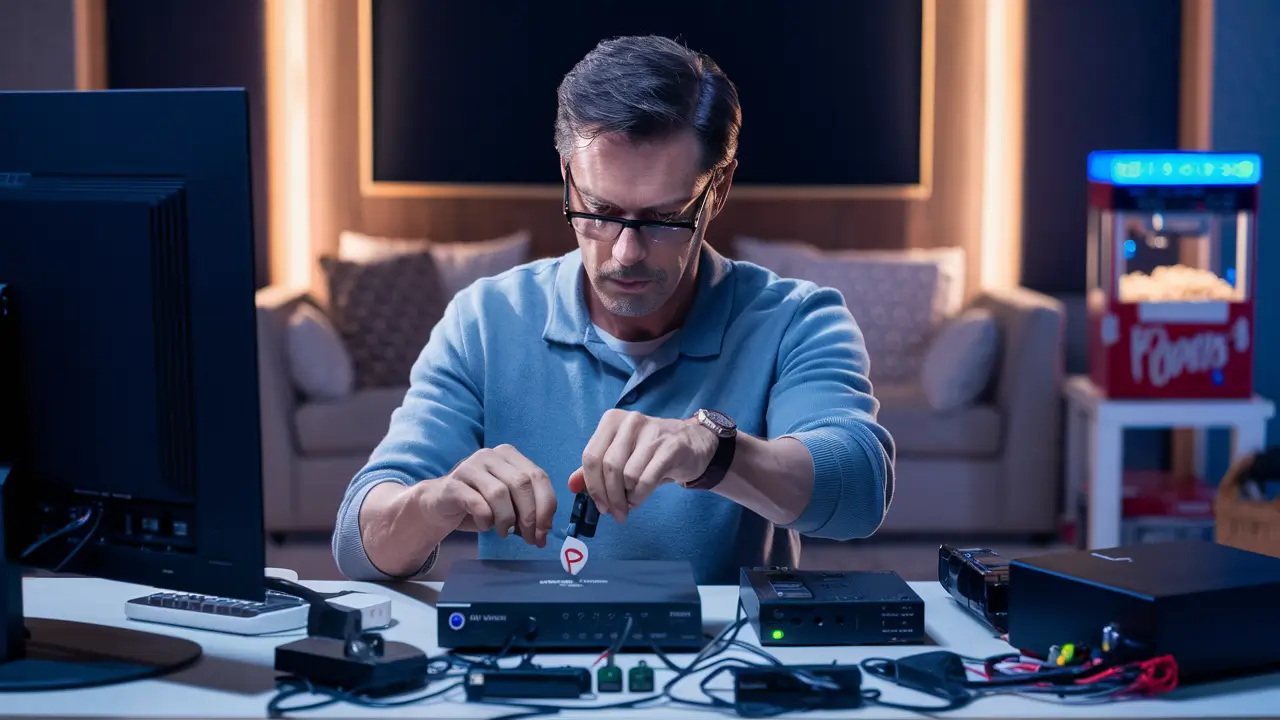
Dish Network TV Setup: Your Comprehensive Guide
Hooking up your Dish Network to your TV might seem daunting, but this guide breaks down the process into simple, actionable steps. We'll cover everything from unboxing your equipment to activating your service, ensuring a seamless installation for your home entertainment. Get ready to enjoy crystal-clear channels and premium programming with confidence.
Before You Begin: Essential Preparations
Before diving into the physical installation of your Dish Network system, thorough preparation is key to a smooth and successful setup. This phase involves understanding your specific needs, gathering necessary tools, and ensuring your installation location is suitable. Neglecting these preparatory steps can lead to delays, frustration, and potentially a less-than-optimal viewing experience. For 2025-26, Dish Network continues to emphasize user-friendly installation, but a little foresight goes a long way.
Assessing Your Viewing Needs
The first crucial step is to determine what you want from your Dish Network service. Consider the number of televisions you need to connect, the types of programming you're most interested in (sports, movies, news, international channels), and your budget. Dish offers a variety of packages, and understanding your priorities will help you choose the right subscription plan, which in turn influences the type of receiver and equipment you'll need. For instance, if you plan to record shows, you'll need a DVR receiver. If you have multiple TVs, you might need additional Joey clients. Researching current Dish Network packages for 2025-26 will provide clarity on available options and pricing structures.
Gathering Necessary Tools and Materials
While Dish Network often provides a comprehensive installation kit, having a few extra tools on hand can be beneficial, especially if you're opting for a self-installation. Essential tools typically include:
- Screwdriver set: Phillips and flathead screwdrivers are indispensable for securing cables and mounting brackets.
- Wire strippers and cutters: For preparing coaxial cables if any modifications are needed.
- Drill and drill bits: If you need to create new cable entry points or mount equipment securely.
- Level: Crucial for ensuring satellite dish alignment is precise, which directly impacts signal strength.
- Measuring tape: For determining optimal cable lengths and placement of equipment.
- Ladder: If your satellite dish installation requires roof access. Ensure it's stable and used safely.
- Cable ties or zip ties: For neatly organizing and securing cables, preventing tangles and improving aesthetics.
- Pen and paper: To note down any important information, like receiver ID numbers or error codes.
Ensure you have adequate coaxial cable (RG6 is standard for satellite TV) and any necessary connectors. The type and length of cable will depend on the distance between your satellite dish, the main receiver, and any additional TVs.
Choosing the Right Installation Location
The location for your satellite dish is paramount for receiving a strong, consistent signal. The dish needs a clear, unobstructed view of the southern sky (in the Northern Hemisphere) to lock onto the Dish Network satellites.
- Satellite Dish Placement: Avoid trees, tall buildings, or any structures that could block the signal path. The ideal location is typically on an exterior wall or the roof, facing south. Consider ease of access for professional installation or future maintenance.
- Receiver Placement: The main receiver (and any additional receivers) should be placed in a well-ventilated area, away from direct sunlight or heat sources, to prevent overheating. Ensure it's close enough to your television for easy cable connections and within reach of power outlets.
- Cable Routing: Plan how the coaxial cable will run from the dish to the receiver. Minimize the length of the cable run to maintain signal integrity. Consider aesthetics and security when routing cables, ensuring they are not exposed to damage or tripping hazards.
For 2025-26, understanding local weather patterns can also be a factor. While Dish systems are robust, extreme weather can temporarily affect signal. A well-placed dish minimizes this impact.
Understanding Your Dish Network Equipment
Dish Network provides a suite of equipment designed to deliver a high-quality viewing experience. Familiarizing yourself with each component before you begin the hookup process will make the installation significantly smoother. The core components typically include the satellite dish, the LNB (Low-Noise Block downconverter), coaxial cables, the satellite receiver (or set-top box), and a remote control. For advanced users or larger households, additional receivers like Joey clients might be involved.
The Satellite Dish and LNB
The satellite dish is the primary means of receiving signals from space. Its size and type can vary depending on your location and the services you subscribe to. The LNB, mounted at the focal point of the dish, collects the satellite signals and converts them into a frequency range that can be transmitted down the coaxial cable.
- Dish: Typically a parabolic reflector.
- LNB: The component on the arm of the dish that receives the signal.
Proper alignment of the dish is critical. Even a slight misalignment can result in a weak or lost signal. This is why professional installation is often recommended, as they use specialized equipment to achieve optimal aiming.
Satellite Receivers (Set-Top Boxes)
The satellite receiver, often referred to as a set-top box, is the heart of your Dish Network system inside your home. It decodes the satellite signals, processes them, and sends the video and audio to your television. Dish Network offers several types of receivers, each with different capabilities:
- Standard Definition (SD) Receivers: Older models, less common now, suitable for older TVs or basic viewing.
- High Definition (HD) Receivers: The standard for modern viewing, offering superior picture quality.
- Digital Video Recorders (DVRs): These receivers allow you to record, pause, and rewind live TV, as well as store your favorite shows for later viewing. Models like the Hopper series are popular for their advanced DVR capabilities.
- Joey Clients: These are smaller, client receivers that connect to a primary Hopper DVR. They allow you to watch and record content on additional TVs without needing a separate subscription or tuner for each. This is a cost-effective solution for multi-room viewing.
The specific receiver you receive will depend on your chosen subscription package and any promotional offers available in 2025-26. Always check your order details to know exactly what equipment you'll be working with.
Cabling and Connectors
Coaxial cable (RG6) is used to connect the LNB on the satellite dish to the receiver inside your home. It's designed to carry high-frequency signals with minimal loss.
- RG6 Coaxial Cable: The standard for satellite and cable TV. It has a thicker conductor and better shielding than older RG59 cable.
- F-Connectors: These screw-on connectors are used at both ends of the coaxial cable to attach it to the LNB and the receiver.
Ensure all connections are tight and secure. Loose connections are a common cause of signal issues. If you need to extend cable runs, use high-quality RG6 cable and minimize the number of splices.
Remote Control
Each receiver comes with a remote control. Modern Dish Network remotes are often universal remotes, capable of controlling your TV, Blu-ray player, and soundbar in addition to your Dish receiver. Familiarize yourself with its buttons, especially those for power, channel changing, volume, menu navigation, and recording (if you have a DVR).
Step-by-Step Dish Network TV Hookup Guide
This section details the physical installation process for connecting your Dish Network system. While professional installation is often the most straightforward and recommended option, understanding these steps can empower those opting for a self-installation or help troubleshoot issues if a professional has already set up the dish.
Step 1: Mount the Satellite Dish
This is arguably the most critical step. The dish must be securely mounted to a stable surface with a clear southern exposure.
- Choose a location: As discussed in the preparation phase, select a spot with an unobstructed view of the southern sky.
- Assemble the mount: Follow the manufacturer's instructions to assemble the dish mount. This usually involves attaching a pole or bracket to a wall or roof.
- Secure the mount: Use appropriate hardware (lag bolts for wood, masonry anchors for brick/concrete) to firmly attach the mount. Ensure it is plumb (perfectly vertical) using a level.
- Attach the dish: Assemble the dish and attach it to the mount. Do not tighten the adjustment bolts completely yet, as you will need to aim it.
Step 2: Connect the Coaxial Cable
Once the dish is mounted, you need to connect it to your receiver.
- Run the cable: Carefully route the RG6 coaxial cable from the dish location to where your receiver will be placed. Use cable clips or staples to secure the cable along its path, avoiding sharp bends or kinks. If drilling through walls, use a grommet to protect the cable.
- Connect to LNB: Screw one end of the coaxial cable securely onto the LNB port on the satellite dish.
- Connect to receiver: Screw the other end of the coaxial cable into the "Satellite In" or "LNB In" port on your Dish Network receiver.
Note: If you have a multi-LNB dish or are connecting to multiple satellites, you may have more than one coaxial cable. Ensure each is connected to the appropriate port on the LNB and receiver. For 2025-26, Dish continues to refine multi-satellite reception technology.
Step 3: Aim the Satellite Dish
This step requires precision and patience. The goal is to point the dish directly at the Dish Network satellites.
- Initial Alignment: Loosely tighten the dish's elevation and azimuth adjustment bolts.
- Use a signal meter (if available): Professional installers use satellite signal meters. For self-installation, you can use your receiver's on-screen signal meter (accessible through the system's menu) or a dedicated handheld meter.
- Slow Adjustments: Slowly sweep the dish left and right (azimuth) and up and down (elevation) while monitoring the signal meter. Look for the strongest possible signal reading.
- Fine-tuning: Once a strong signal is found, make very small adjustments to optimize it. Tighten all adjustment bolts securely once the signal is maximized.
- Check for Obstructions: Ensure no new obstructions have appeared since your initial assessment.
If you are unable to achieve a satisfactory signal, it's highly recommended to contact Dish Network support or a certified installer. Incorrect aiming is the most common reason for signal loss.
Step 4: Connect the Receiver to Power
With the dish connected, it's time to power up the receiver.
- Connect power adapter: Plug the receiver's power adapter into a wall outlet and connect it to the receiver.
- Turn on receiver: Press the power button on the receiver or its remote control.
The receiver will begin its boot-up sequence, which can take several minutes. During this time, it will attempt to establish a connection with the satellite dish and download necessary software updates.
Connecting the Receiver to Your Television
Once the satellite dish is physically connected and the receiver is powered on, the next step is to link the receiver to your television for viewing. The method of connection depends on the types of ports available on both your receiver and your TV. Modern setups primarily use HDMI, but older connections are still relevant for some users.
Using HDMI Cables (Recommended)
HDMI (High-Definition Multimedia Interface) is the standard for transmitting high-definition video and audio signals digitally. It offers the best picture and sound quality and is the simplest connection method.
- Locate HDMI ports: Find the HDMI output port on the back of your Dish Network receiver (often labeled "HDMI Out"). On your TV, locate an available HDMI input port (labeled "HDMI 1," "HDMI 2," etc.).
- Connect the cable: Plug one end of an HDMI cable into the receiver's HDMI Out port and the other end into the TV's HDMI In port.
- Select HDMI input on TV: Using your TV's remote control, cycle through the input sources (usually by pressing a button labeled "Input," "Source," or "AV") until you select the HDMI input that the receiver is connected to.
If you have a 4K TV and a 4K-capable Dish receiver (available for select services in 2025-26), ensure you are using a certified High-Speed HDMI cable for the best performance.
Using Component or Composite Cables (Older Connections)
If your TV or receiver lacks HDMI ports, you may need to use older analog connections.
- Component Cables (YPbPr): These use three RCA connectors for video (Red, Green, Blue) and separate RCA connectors for audio (Red, White). They provide a higher quality analog signal than composite.
- Composite Cables: These use three RCA connectors for video (Yellow) and audio (Red, White). They offer standard definition quality.
Connection Steps:
- Identify ports: Locate the corresponding Component or Composite output ports on the receiver and input ports on the TV.
- Connect cables: Match the colors of the cables to the corresponding colored ports on both devices.
- Select input on TV: Use your TV's remote to select the correct Component or Composite input source.
While these connections work, the picture quality will be significantly lower than with HDMI.
Connecting Audio Systems (Optional)
If you have a soundbar or home theater system, you can connect it to your receiver for enhanced audio.
- Optical Audio (Toslink): Many receivers and sound systems have an optical audio port. This digital connection provides excellent sound quality.
- RCA Audio: Some systems may use stereo RCA audio cables (Red and White).
Connect the appropriate audio cable from the receiver's audio output to your sound system's audio input. Then, ensure your sound system is set to the correct input source.
Receiver Setup and Activation Process
Once your Dish Network equipment is physically connected, the next crucial phase is setting up and activating your receiver. This process typically involves on-screen prompts and communication with Dish Network's servers to authorize your service.
Initial Receiver Boot-Up and Software Update
When you first power on your receiver after connecting it, it will initiate a boot-up sequence. This can take anywhere from 5 to 30 minutes, depending on the receiver model and the speed of your internet connection (if applicable for updates).
- Power On: Press the power button on the receiver or remote.
- Wait for Boot: The screen may display a Dish Network logo, loading bars, or messages like "Please Wait." Avoid unplugging the receiver during this process.
- Software Download: If your receiver is connected to the internet (via Ethernet or Wi-Fi), it will automatically check for and download the latest software updates. This ensures you have the most current features and bug fixes. For 2025-26, Dish is continually enhancing its software for better user experience and integration with smart home devices.
On-Screen Setup Wizard
After the initial boot-up and any software updates, your receiver will likely present an on-screen setup wizard. This wizard guides you through the remaining configuration steps.
- Language Selection: Choose your preferred language for the on-screen menus.
- Dish Alignment Confirmation: The wizard may prompt you to confirm that the dish is properly aligned. It might display signal strength readings for different satellites.
- Location Information: You may need to enter your zip code or address to ensure the receiver is tuned to the correct local channels and programming guide.
- Remote Control Pairing: If you have a voice-enabled or advanced remote, you'll likely need to pair it with the receiver. Follow the on-screen instructions, which usually involve pressing a specific button combination.
- Network Connection (if applicable): If you want to access on-demand content or use streaming apps, you'll need to connect your receiver to your home Wi-Fi network or via an Ethernet cable. The wizard will guide you through selecting your network and entering your password.
Activation and Service Authorization
This is the final step where Dish Network authorizes your service and unlocks your subscribed channels.
- Activation Prompt: The setup wizard will eventually lead you to an activation screen. It might display an account number or a request for information.
- Contact Dish Network: You will typically need to contact Dish Network to complete the activation. This can be done via:
- Phone: Call the customer service number provided during setup or on your order confirmation.
- Online: Visit the Dish Network website and navigate to the activation or account management section.
- Dish App: Use the official Dish mobile app, which often facilitates activation.
- Provide Information: Have your account number, receiver ID (often found on a sticker on the receiver or in the setup menu), and potentially a credit card (for payment if not already set up) ready.
- Confirmation: Once authorized, the receiver will likely restart or display a confirmation message. Your subscribed channels should now be accessible.
If activation fails, double-check that your receiver ID is correct and that your account is in good standing. Contacting Dish support is the next step. For 2025-26, Dish is investing in faster and more streamlined activation processes.
Troubleshooting Common Dish Network Setup Problems
Even with careful preparation and following instructions, you might encounter issues during the Dish Network setup process. Here are some common problems and their solutions to help you get back to enjoying your service quickly.
No Signal or Weak Signal
This is the most frequent issue. It means the receiver is not receiving a clear signal from the satellite dish.
- Check Cable Connections: Ensure all coaxial cables are securely screwed into the LNB and the receiver. Loose connections are a prime culprit.
- Verify Dish Alignment: The dish might have shifted due to wind or settling. Re-aiming the dish is often necessary. Use the on-screen signal meter in your receiver's menu.
- Check for Obstructions: New branches on trees, snow, ice, or new construction can block the signal. Clear any visible obstructions.
- Inspect Cables: Look for any damage to the coaxial cable, such as cuts, kinks, or chewed sections. Damaged cables need to be replaced.
- Receiver Power Cycle: Sometimes, simply unplugging the receiver for 30 seconds and plugging it back in can resolve temporary glitches.
Receiver Not Powering On
If your receiver shows no signs of life:
- Check Power Outlet: Ensure the outlet is working by plugging in another device.
- Verify Power Adapter: Make sure the power adapter is securely plugged into both the outlet and the receiver.
- Receiver Fault: If the above steps don't work, the receiver itself might be faulty. Contact Dish Network support.
Picture or Sound Issues (Pixelation, Freezing, No Audio)
These symptoms often point to a weak signal or a problem with the connection to the TV.
- Weak Signal: Refer to the "No Signal or Weak Signal" troubleshooting steps. Pixelation and freezing are classic signs of a marginal signal.
- HDMI Cable: If using HDMI, try a different HDMI cable or a different HDMI port on your TV. Ensure the cable is fully seated.
- TV Input Selection: Double-check that your TV is set to the correct input source (e.g., HDMI 1, HDMI 2).
- Receiver Reset: Perform a factory reset on the receiver (consult your receiver's manual for instructions) as a last resort, but be aware this will erase settings.
Remote Control Not Working
If your remote isn't controlling the receiver:
- Check Batteries: Replace the batteries with fresh ones.
- Line of Sight: Ensure there's a clear line of sight between the remote and the receiver's sensor.
- Pairing Issue: If it's a voice remote, it might need to be re-paired. Go to your receiver's settings menu to re-pair the remote.
- Remote Fault: The remote itself might be defective. Contact Dish for a replacement.
Error Codes on Screen
Dish receivers often display specific error codes when a problem occurs.
- Consult Manual/Online: Note down the error code (e.g., 111-Error, 900-Error) and consult your Dish Network user manual or the Dish Network website for a detailed explanation and troubleshooting steps specific to that code. Many common codes relate to signal issues or activation problems.
For 2025-26, Dish continues to update its support resources, so checking their official website for the latest error code explanations is always recommended.
Optimizing Your Dish Network Experience
Once your Dish Network system is up and running, there are several ways to enhance your viewing experience, making the most of the features and services available. These optimizations range from managing your recordings to leveraging smart features and ensuring optimal signal quality.
Managing Your DVR Recordings
If you have a DVR receiver like the Hopper, mastering its recording features is key.
- Series Priority: Set up "Series Priority" to automatically record entire seasons of your favorite shows. You can adjust settings like "Record New Episodes Only" or "Record New and Reruns."
- Storage Management: Keep an eye on your DVR's storage capacity. Delete shows you've watched to free up space. Many DVRs offer options to automatically delete the oldest watched programs.
- Remote Recording: Use the Dish Anywhere app or website to schedule recordings remotely, ensuring you never miss an episode even when you're away from home. This feature is invaluable for busy individuals and families in 2025-26.
Utilizing Dish Anywhere App
The Dish Anywhere app is a powerful tool that extends your TV experience beyond your living room.
- Watch Live TV: Stream live channels from your subscription to your smartphone, tablet, or computer.
- Access On-Demand: Browse and watch a vast library of on-demand movies and TV shows.
- Manage DVR: Schedule recordings, manage your DVR library, and even download recorded content to your mobile device for offline viewing.
- Control Your Receiver: The app can often function as a remote control for your receiver.
Ensure your receiver is connected to your home internet for full functionality.
Exploring On-Demand and Pay-Per-View
Dish Network offers extensive on-demand content and pay-per-view options.
- On-Demand Library: Access a wide selection of movies, TV shows, and special events available at no extra cost with your subscription. Navigate to the "On Demand" section of your receiver's menu.
- Pay-Per-View: Order the latest movie releases or live sporting events on a pay-per-view basis directly through your receiver. Be mindful of pricing before confirming your order.
Customizing Channel Lists and Parental Controls
Tailor your viewing experience to your preferences and family needs.
- Favorite Channels: Create custom channel lists to quickly access your most-watched channels without scrolling through the entire guide.
- Parental Controls: Set up parental controls to block specific channels, programs, or movies based on ratings. This is essential for families with children. Access these settings through the receiver's menu.
Maintaining Signal Quality
Regularly check your signal strength, especially after severe weather.
- Signal Meter: Periodically access the signal meter in your receiver's diagnostics menu to ensure optimal signal strength for all transponders.
- Dish Check: Visually inspect the satellite dish for any signs of damage or debris. Ensure it remains firmly mounted.
By implementing these optimization strategies, you can ensure your Dish Network service remains a source of entertainment and convenience throughout 2025-26 and beyond.
Conclusion: Enjoying Your Dish Network Service
Successfully hooking up your Dish Network to your TV culminates in a world of entertainment at your fingertips. We've navigated the essential preparations, identified key equipment, and detailed the step-by-step installation and activation processes. Troubleshooting common hurdles and exploring optimization techniques ensures you can maximize your service. Remember, a clear southern sky view for your dish and secure cable connections are paramount for consistent performance.
For 2025-26, Dish Network continues to innovate with advanced receivers like the Hopper series and the convenient Dish Anywhere app, offering unparalleled flexibility. Should you encounter persistent issues, don't hesitate to leverage Dish's extensive online support resources or contact their customer service for expert assistance. With this comprehensive guide, you are well-equipped to enjoy a seamless and superior television viewing experience.


