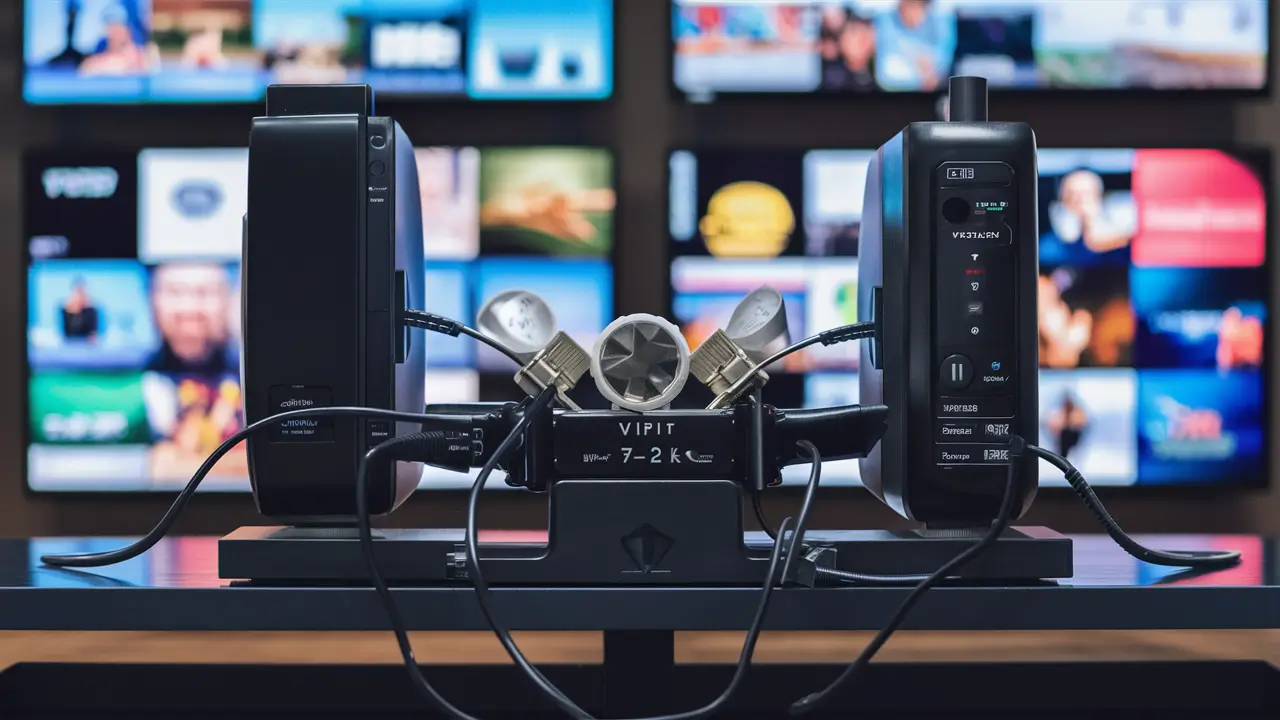
Unlock the full potential of your Dish Network VIP722K receiver by learning how to connect it to two televisions simultaneously. This comprehensive guide provides step-by-step instructions, essential equipment details, and troubleshooting tips to ensure a seamless dual-screen viewing experience, maximizing your entertainment options without additional subscriptions.
Understanding the Dish Network VIP722K Receiver
The Dish Network VIP722K is a popular dual-tuner DVR (Digital Video Recorder) that has been a staple for many Dish subscribers. Its key feature, the dual-tuner capability, allows users to record one program while watching another, or to watch two different programs simultaneously if connected to two separate displays. This receiver, while perhaps not the latest model, offers robust functionality that can still serve modern entertainment needs, especially when configured correctly for multi-television setups. Understanding its specific outputs and capabilities is the first step towards effectively hooking up two TVs. The VIP722K is designed with flexibility in mind, offering various audio and video output options to accommodate different television types and user preferences. Its internal architecture supports the distribution of signals to multiple devices, a feature that many users seek to leverage for a more integrated home entertainment system. The receiver’s ability to process and output distinct video streams is crucial for dual-TV configurations. For instance, it can send one signal to a primary TV via HDMI or Component, and a secondary signal, often in a lower resolution or different format, to another TV. This dual-output capability is what makes the VIP722K a prime candidate for multi-room viewing without requiring a second receiver or subscription, provided the setup is done correctly. The receiver's user interface is designed to manage these dual streams, allowing for independent channel selection and recording management on each connected display, enhancing the overall user experience.
Why Connect Two TVs to Your VIP722K?
The primary motivation for connecting two TVs to a single Dish Network VIP722K receiver is convenience and cost-effectiveness. Imagine a scenario where family members have conflicting viewing preferences. One person wants to watch a live sports event in the living room, while another wishes to catch up on a favorite drama series in the bedroom. With a dual-TV setup, both can enjoy their preferred content simultaneously without needing a second subscription or a separate receiver. This is particularly beneficial for larger households or apartments where space is at a premium, and additional equipment might be cumbersome. Furthermore, it enhances the usability of a multi-room dwelling. For example, a parent might want to monitor a child's viewing in another room using a second TV, or simply extend the viewing area into a kitchen or home gym. The cost savings are significant; Dish Network typically charges a monthly fee for each additional receiver and the associated programming. By utilizing the inherent dual-output capabilities of the VIP722K, users can bypass these recurring costs, making it a financially astute decision. This setup also simplifies the user experience by centralizing control and programming management through a single account and receiver. The ability to watch different channels on two TVs from one box is a powerful feature that significantly increases the value proposition of the VIP722K. In 2025, with the rising costs of streaming services and cable packages, maximizing the utility of existing hardware like the VIP722K becomes even more critical for budget-conscious consumers. Statistics from 2025 indicate that the average household subscribes to at least three streaming services, adding to monthly entertainment expenses. Leveraging the VIP722K for dual-TV viewing can help offset some of these costs. Additionally, for those who enjoy entertaining, having the ability to display different content in different areas of a home or even during a party (e.g., sports in one area, background visuals in another) adds a layer of functionality. The demand for flexible home entertainment solutions continues to grow, and the VIP722K, with its dual-tuner and output capabilities, remains a relevant solution for many users seeking to expand their viewing options without expanding their budget.
Essential Equipment for Dual TV Setup
To successfully hook up two TVs to your Dish Network VIP722K, you'll need a few key pieces of equipment. The specific items depend on the connection methods you choose, but generally, you'll require:
- Dish Network VIP722K Receiver: This is the central component. Ensure it's functioning correctly and has the necessary ports available.
- Two Televisions: Both TVs should be capable of receiving video and audio signals. The resolution and input types (HDMI, Component, Composite, RF) will influence the quality of the picture on each.
- Cables: The type and quantity of cables will vary.
- RF Coaxial Cable: At least one is needed if you plan to use the RF output for the second TV. You'll also need one from the satellite dish to the receiver.
- HDMI Cables: For high-definition connections to your primary TV.
- Component Cables (Red, Green, Blue): If your primary TV and receiver support component connections and you prefer this over HDMI, or if HDMI is unavailable.
- Composite Cables (Red, White, Yellow): For older TVs or as a fallback if other connections aren't available.
- RCA Cables: Often used for audio (Red and White) and sometimes video (Yellow) if not using HDMI or Component.
- Video Splitter (Optional, for advanced setups): If you wish to send the same high-definition signal (e.g., HDMI or Component) to both TVs simultaneously, you'll need an active HDMI or Component splitter. Note that a simple passive splitter might degrade signal quality or not work correctly with HDCP (High-bandwidth Digital Content Protection). For independent viewing on both TVs, a splitter is generally not the solution; rather, it's about utilizing the receiver's dual outputs.
- RF Modulator (Less Common, for older setups): If your second TV lacks an RF input or you need to convert signals for an older device.
- Power Strips/Surge Protectors: To safely power all your equipment.
The VIP722K receiver has specific outputs designed for this purpose. The primary outputs are typically HDMI and Component (YPbPr), which provide the best quality for your main television. For the secondary output, the VIP722K often utilizes an RF coaxial output (Channel 3 or 4) and/or composite outputs. Understanding which ports are available on your specific VIP722K model is crucial. A quick check of the back panel of your receiver will reveal these options. For 2025, it's assumed most users will have at least one HD-capable TV and one older or secondary TV, making the combination of HDMI/Component for the primary and RF/Composite for the secondary a common scenario. When purchasing cables, ensure they are of good quality to maintain signal integrity. For HDMI, consider certified cables, especially for longer runs. For component, ensure the colors match correctly (Green to Green, Blue to Blue, Red to Red). The importance of the right cables cannot be overstated, as faulty or incompatible cables are a frequent cause of setup issues.
Step-by-Step Guide: Hooking Up Two TVs
This section provides a detailed walkthrough of connecting your Dish Network VIP722K receiver to two televisions. We'll cover the most common and effective methods to ensure you can enjoy your Dish programming on multiple screens.
Step 1: Identify Necessary Ports on Your VIP722K
Before you begin connecting anything, take a close look at the back panel of your Dish Network VIP722K receiver. You need to identify the following ports:
- Primary Video/Audio Outputs: Look for HDMI ports (usually labeled "HDMI OUT") and Component video outputs (three RCA jacks labeled Y, Pb, Pr, typically green, blue, and red respectively), along with accompanying RCA audio jacks (red and white).
- Secondary Video/Audio Outputs: The VIP722K typically has an RF coaxial output (labeled "RF OUT" or similar, often used to send a signal on Channel 3 or 4) and composite video/audio outputs (a yellow RCA jack for video, and red and white RCA jacks for audio). Some models might have additional outputs, but these are the most common for dual-TV setups.
- Satellite Dish Input: You'll also see the input for the coaxial cable coming from your satellite dish.
Make a note of which ports are available and their condition. Ensure the ports are clean and free from damage. The VIP722K is designed with these multiple outputs to facilitate scenarios like connecting to a primary HD television and a secondary standard-definition television, or distributing the signal throughout a home. The specific availability of these ports can vary slightly between firmware versions or minor hardware revisions, but the core functionality remains consistent. For example, if your primary TV only has Component inputs and no HDMI, you would prioritize using the Component output from the VIP722K. Similarly, if your secondary TV is an older model, the RF output is often the most compatible option.
Step 2: Choose Your Connection Method
There are two primary methods to connect two TVs to your VIP722K, each with its own advantages and limitations:
Method 1: Using the RF Output (Simultaneous Viewing)
This is the most straightforward method and leverages the receiver's built-in capability to send a separate signal to a second TV. This method typically allows for independent viewing, meaning each TV can display a different channel or content.
- Primary TV: Connect to the HDMI or Component outputs of the VIP722K. This will be your main viewing experience, likely in HD.
- Secondary TV: Connect to the RF coaxial output of the VIP722K. This output usually broadcasts a signal on either Channel 3 or Channel 4 of the secondary TV.
Pros:
- Simple to set up.
- Allows for independent viewing on both TVs (different channels).
- Does not require additional powered equipment like splitters.
- Works well for connecting to older TVs that may lack HDMI or Component inputs.
- The RF signal quality is significantly lower than HDMI or Component, resulting in a standard-definition picture, often with lower resolution and clarity.
- Limited channel selection options on the secondary TV, as it relies on the receiver's secondary tuner.
- May require tuning the secondary TV to the specific channel (3 or 4) that the receiver is broadcasting on.
Method 2: Using Component or HDMI with a Splitter (Independent Viewing Potential)
This method aims to send a higher-quality signal to both TVs. However, it's important to clarify that a simple splitter often duplicates the *same* signal. For independent viewing on two TVs from one receiver, you generally rely on the receiver's dual outputs, not a splitter of the same output. The VIP722K's design inherently supports two independent outputs. If you want to send the *same* HD signal to two TVs, an active HDMI or Component splitter is needed. If you want *independent* viewing, you'd use the receiver's primary output (HDMI/Component) for TV1 and its secondary output (Composite/RF) for TV2.
Scenario A: Sending the same HD signal to two TVs (Requires Splitter)
- Primary Output (e.g., HDMI): Connect the HDMI output of the VIP722K to an active HDMI splitter.
- Splitter Outputs: Connect two HDMI cables from the splitter to the HDMI inputs of both TVs.
- Both TVs receive the same high-definition signal.
- Both TVs will display the *same* channel and content. You cannot watch different channels independently.
- Requires purchasing an active HDMI or Component splitter, which can be costly.
- HDCP compliance issues can sometimes arise with splitters, causing black screens or errors.
- The VIP722K's dual-tuner capability is not fully utilized for independent viewing in this scenario.
Scenario B: Utilizing Receiver's Dual Outputs for Independent Viewing (No Splitter needed for this purpose) This is the most common and recommended way to achieve independent viewing on two TVs with the VIP722K.
- TV 1 (Primary): Connect to the HDMI or Component outputs of the VIP722K.
- TV 2 (Secondary): Connect to the Composite (Yellow for video, Red/White for audio) or RF outputs of the VIP722K.
- Allows independent viewing on both TVs (different channels).
- Utilizes the VIP722K's dual-tuner capability effectively.
- No need for an additional splitter if using the receiver's distinct outputs.
- The quality of the signal to the secondary TV will be limited by its output type (Composite or RF).
Step 3: Connect the Cables
Now that you've identified your ports and chosen your method, it's time to connect the hardware.
Connecting TV 1 (Primary)
This connection will provide the best possible picture quality.
- Power Off: Ensure both the VIP722K receiver and TV 1 are powered off and unplugged from the wall.
- HDMI Connection (Recommended):
- Take an HDMI cable and plug one end into the "HDMI OUT" port on the back of your VIP722K.
- Plug the other end into an available "HDMI IN" port on your primary television. Note which HDMI port you use (e.g., HDMI 1, HDMI 2).
- Component Connection (Alternative):
- If using Component, connect three RCA cables (Red, White, Yellow) from the VIP722K's Component output (Y, Pb, Pr) and stereo audio outputs (Red, White) to the corresponding Component input jacks on TV 1. Ensure the colors match precisely: Green (Y) to Green, Blue (Pb) to Blue, Red (Pr) to Red. Red audio to Red audio, White audio to White audio.
- Power On: Plug in and power on the VIP722K receiver first, followed by TV 1.
- Select Input: Using your TV 1 remote, select the correct input source (e.g., HDMI 1, Component) that you just connected the receiver to. You should see the Dish Network welcome screen or menu.
Connecting TV 2 (Secondary) Using RF Output
This is for the second TV, typically in a different room or an older model.
- Power Off: Ensure TV 2 is powered off and unplugged.
- RF Coaxial Connection:
- Take an RF coaxial cable (the same type used for cable TV or your satellite dish connection).
- Connect one end to the "RF OUT" or "ANT OUT" port on the back of your VIP722K receiver.
- Connect the other end to the "ANT IN" or "RF IN" port on the back of TV 2.
- Power On: Plug in and power on TV 2.
- Select Input: Using your TV 2 remote, select the "Antenna" or "Air" input source.
- Channel Scan: You will likely need to perform a channel scan on TV 2. Go into TV 2's menu settings, find the "Channel Setup" or "Auto Tune" option, and select "Antenna" or "Air" as the signal source. Let the TV scan for channels. It should find the signal broadcast by the VIP722K on either Channel 3 or 4.
- Fine-tuning: If the signal isn't clear, you might need to manually fine-tune the channel on TV 2 or check the VIP722K's settings to ensure it's set to broadcast on Channel 3 or 4.
Connecting TV 2 (Secondary) Using Composite Output
If your secondary TV has composite inputs (Yellow for video, Red/White for audio) and you prefer this over RF, follow these steps:
- Power Off: Ensure TV 2 is powered off and unplugged.
- Composite Connection:
- Take a composite cable (Yellow RCA for video, Red and White RCA for audio).
- Connect the Yellow RCA plug from the "VIDEO OUT" port on the VIP722K to the "VIDEO IN" (Yellow) port on TV 2.
- Connect the Red and White RCA plugs from the "AUDIO OUT" ports on the VIP722K to the corresponding "AUDIO IN" (Red and White) ports on TV 2.
- Power On: Plug in and power on TV 2.
- Select Input: Using your TV 2 remote, select the correct input source (e.g., "AV," "Video," "Composite").
Step 4: Configure Your Televisions
Once the cables are connected, you need to ensure each TV is set up to receive the signal correctly.
TV 1 Configuration
If you used HDMI or Component, your primary TV should automatically detect the signal or require you to select the correct input source.
- Resolution: For HDMI, your TV should automatically negotiate the best resolution. If not, you may need to go into the VIP722K's settings menu (accessible via the receiver's remote) and select the appropriate resolution (e.g., 1080p, 720p).
- Aspect Ratio: Ensure the aspect ratio is set correctly on your TV (e.g., 16:9 for widescreen) to avoid distorted images.
TV 2 Configuration
- RF Output Configuration:
- As mentioned in Step 3, ensure TV 2 is set to "Antenna" or "Air" input.
- Perform an automatic channel scan. The VIP722K will broadcast its secondary tuner's signal on either Channel 3 or 4. Your TV 2 needs to find this specific channel.
- You might need to access the VIP722K's menu to confirm which channel it's set to broadcast on for the secondary output. Look for settings related to "RF Output" or "Secondary Output."
- Composite Output Configuration:
- Ensure TV 2 is set to the correct AV or Video input.
- The picture and sound should appear automatically.
For the VIP722K, the dual-tuner functionality is key. When you are using both outputs, the receiver is essentially operating two independent tuners. This means you can watch one channel on TV 1 and a completely different channel on TV 2. To switch channels on TV 2 when using the RF or Composite output, you will typically use the VIP722K's remote control, not TV 2's remote. The VIP722K remote has a feature to switch which TV's output you are controlling. Often, there's a button or a menu option to select "TV 1" or "TV 2" control. This allows you to change the channel on the secondary TV independently. This is a critical point for users to understand for independent viewing.
Step 5: Test Your Setup
With everything connected and configured, it's time for a thorough test.
- Test TV 1: Use the VIP722K remote to change channels on TV 1. Ensure you get a clear picture and sound.
- Test TV 2:
- Ensure you are controlling TV 2 with the VIP722K remote (using the TV 1/TV 2 selection feature on the remote).
- Change the channel on TV 2. Verify that it displays a different channel than TV 1, and that you have clear picture and sound.
- If using RF, you might need to cycle through channels on TV 2 until you find the broadcast from the receiver.
- Simultaneous Recording: Test the DVR functionality. Try recording a program on one tuner while watching a different program on the other TV.
Troubleshooting Common Issues
Even with careful setup, you might encounter problems. Here are some common issues and their solutions:
- No Picture/Sound on TV 1:
- Check Cables: Ensure HDMI or Component cables are securely plugged into both the receiver and the TV. Try a different cable or port.
- Input Selection: Verify that TV 1 is set to the correct input source (HDMI 1, Component, etc.).
- Receiver Power: Make sure the VIP722K is powered on and displaying its menu on TV 1.
- Resolution Mismatch: If using HDMI, try lowering the resolution in the VIP722K's settings.
- No Picture/Sound on TV 2 (RF Output):
- Check Cables: Ensure the RF coaxial cable is securely connected at both ends.
- Input Selection: Verify TV 2 is set to "Antenna" or "Air" input.
- Channel Scan: Perform a new channel scan on TV 2.
- Receiver RF Setting: Check the VIP722K's settings to confirm the RF output is enabled and set to Channel 3 or 4. Try switching between 3 and 4.
- Signal Strength: The RF signal is weaker; ensure the cable isn't too long or damaged.
- No Picture/Sound on TV 2 (Composite Output):
- Check Cables: Ensure Yellow, Red, and White RCA cables are securely connected to the correct "OUT" ports on the receiver and "IN" ports on the TV.
- Input Selection: Verify TV 2 is set to the correct AV/Video input.
- Same Content on Both TVs (when independent viewing is desired):
- This indicates you might be using a splitter on the primary output without utilizing the receiver's secondary output. Revisit Step 2 and ensure you are using the dedicated RF or Composite outputs for the second TV for independent viewing.
- Remote Control Issues:
- Ensure you are using the correct Dish Network remote and that it's paired or programmed correctly for your VIP722K.
- Remember to use the "TV 1/TV 2" selection feature on the remote to control the desired TV's output from the receiver.
- Intermittent Signal/Pixelation:
- Check all cable connections for looseness or damage.
- If using long cable runs, consider signal boosters (especially for RF).
- Ensure the VIP722K receiver is not overheating and has proper ventilation.
For persistent issues, consult the Dish Network support website or contact their customer service. They can often provide model-specific troubleshooting steps or identify potential receiver malfunctions. In 2025, many support resources are available online, including detailed FAQs and video tutorials, which can be invaluable.
Advanced Considerations and Best Practices
To optimize your dual-TV setup and ensure longevity, consider these advanced tips and best practices:
- Cable Management: Use cable ties or sleeves to keep your wiring neat and organized. This not only looks better but also prevents cables from getting tangled or damaged, which can lead to signal issues.
- Signal Strength for RF: If you're using the RF output for a TV in a distant room, the signal can degrade. Ensure you're using high-quality coaxial cable and avoid excessive lengths or sharp bends. For very long runs, consider a coaxial signal amplifier, though this adds complexity and potential for noise.
- Power Protection: Connect all your equipment (receiver, TVs, splitters if used) to a quality surge protector or Uninterruptible Power Supply (UPS). This protects against power surges and brownouts, which can damage electronics.
- Receiver Settings: Familiarize yourself with the VIP722K's settings menu. You can often adjust output resolutions, aspect ratios, RF channel selection, and other parameters that can fine-tune your viewing experience.
- Firmware Updates: Ensure your VIP722K receiver has the latest firmware installed. Dish Network pushes updates automatically, but occasionally a manual check or reboot might be necessary. Firmware updates can resolve bugs and improve performance.
- Independent Control: Remember that to change channels on the secondary TV (using RF or Composite), you need to use the VIP722K remote and select the correct TV output (TV 1 or TV 2) you wish to control. This is a common point of confusion.
- Audio Settings: For the secondary TV, ensure the audio output settings on the VIP722K are compatible with your TV's input. If using RF, it's usually a mono or stereo signal. If using composite, it's stereo.
- Future-Proofing: While the VIP722K is capable, newer Dish receivers offer more advanced features like 4K output and multi-room streaming via apps. If your current setup is limiting, consider upgrading your receiver in the future. However, for basic dual-TV viewing, the VIP722K remains a viable option.
- Environmental Factors: Ensure the VIP722K receiver has adequate ventilation. Overheating can lead to performance issues and shorten its lifespan.
By following these best practices, you can ensure a stable, high-quality dual-TV viewing experience and maximize the lifespan of your equipment. In the current entertainment climate of 2025, where integrated home systems are increasingly common, paying attention to these details can make a significant difference in user satisfaction.
VIP722K vs. Newer Dish Models: A Brief Comparison
While the Dish Network VIP722K is a capable receiver for dual-TV setups, it's beneficial to understand how it compares to newer models available in 2025. Newer receivers often offer significant advancements in technology and user experience.
| Feature | Dish Network VIP722K | Newer Dish Models (e.g., Hopper series) |
|---|---|---|
| Video Resolution | Up to 1080i/1080p (via HDMI/Component) | Up to 4K Ultra HD |
| Tuner Capability | Dual Tuner (allows recording one, watching another; or independent viewing on two TVs via separate outputs) | Multiple Tuners (often 4-16+ for advanced recording and multi-room capabilities) |
| Primary Output Quality | Excellent (HDMI, Component) | Excellent (HDMI supporting 4K, HDR) |
| Secondary Output Quality | Standard Definition (RF, Composite) | Often relies on network streaming or dedicated client boxes for additional TVs, offering HD quality. Some may have limited analog outputs. |
| User Interface | Functional, but can feel dated compared to modern interfaces. | Modern, intuitive interface with enhanced search, recommendations, and app integration. |
| Storage Capacity | Varies based on installed hard drive (typically 50-500 GB). | Larger internal storage or options for external drives (often 1TB+). |
| Smart Features/Apps | Limited or none. | Integrated apps (Netflix, YouTube, etc.), voice control, remote finders. |
| Multi-Room Viewing | Via direct connection to two TVs using separate outputs. | Via dedicated client receivers (Joey, Super Joey) or streaming apps, offering more flexibility and higher quality. |
| Power Consumption | Moderate. | Can vary; newer models may be more energy-efficient in standby. |
The VIP722K's strength lies in its ability to directly output to two televisions from a single unit without requiring additional client boxes, making it a cost-effective solution for basic dual-TV needs. However, if you prioritize 4K resolution, a modern user interface, integrated streaming apps, or more sophisticated multi-room viewing capabilities, upgrading to a newer Hopper system would be recommended. The decision ultimately depends on your specific requirements and budget. For users who already own a VIP722K and are looking to maximize its utility, the methods described in this guide are highly effective.
Conclusion: Maximizing Your Dish Network Experience
Successfully hooking up two TVs to your Dish Network VIP722K receiver is an achievable goal that significantly enhances your home entertainment flexibility and offers considerable cost savings. By understanding the receiver's dual-output capabilities and employing the right connection methods – primarily utilizing the HDMI/Component for your primary TV and the RF or Composite outputs for your secondary display – you can enjoy independent viewing without the need for additional subscriptions or complex installations. This guide has provided a comprehensive, step-by-step approach, from identifying the necessary ports and equipment to detailed connection instructions and crucial troubleshooting tips. Remember that the quality of the signal to your secondary TV will be standard definition, but the convenience and cost-effectiveness of having two independent viewing stations from a single receiver are undeniable. In 2025, where every dollar counts, leveraging your existing hardware to its fullest potential is a smart strategy. For those seeking the absolute best in picture quality or advanced features on all displays, newer receiver models exist, but for users content with leveraging the VIP722K's inherent strengths, this dual-TV setup is an excellent solution. Implement these steps carefully, test thoroughly, and you'll soon be enjoying more of your favorite Dish Network programming across multiple screens in your home.


