-
Posted on: 07 Jan 2026
-
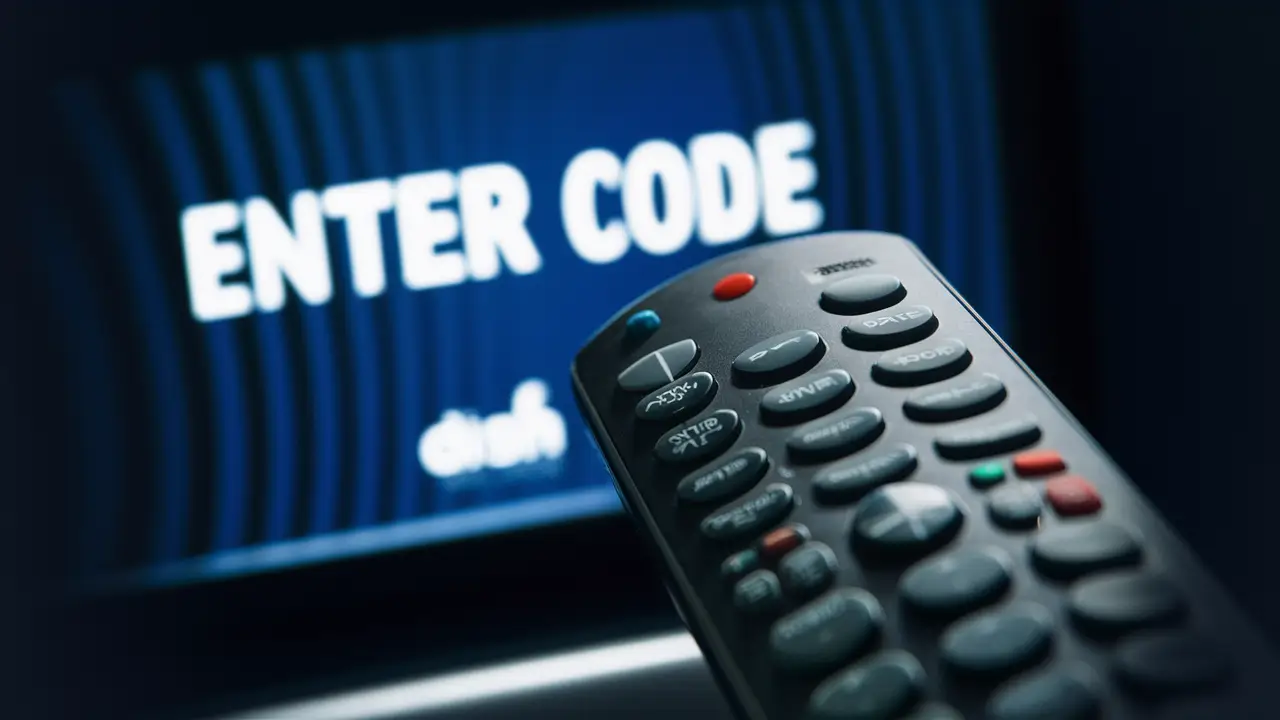
Struggling to get your Dish Network remote to control your TV, Blu-ray player, or soundbar? You're not alone. Many users find themselves needing to program their Dish remote without the specific manufacturer code. This guide provides a comprehensive, step-by-step solution, ensuring you can control all your entertainment devices with ease, even without the code. We'll cover the most effective methods for 2025-26, offering clear instructions and helpful tips to get you up and running quickly.
Understanding Universal Remote Programming
Dish Network remotes, particularly their advanced models like the Joey remotes and the Universal Remotes, are designed with a degree of universality. This means they can often control more than just your Dish receiver. They are equipped to operate a wide range of audio and video equipment from different manufacturers. The primary way this is achieved is through a database of infrared (IR) codes. Each code is a unique sequence of signals that tells a specific device how to perform an action, like turning on, changing channels, or adjusting volume.
When you program a Dish remote to control another device, you're essentially teaching it which code to send to that device. This process typically involves two main approaches: manual code entry and automatic code searching. Manual code entry requires you to know the specific code for your device's brand. Automatic code searching, on the other hand, is a trial-and-error method where the remote cycles through its entire library of codes until it finds one that works with your device.
The challenge arises when you don't have the code readily available. Manufacturers often provide code lists in their manuals, but these can be lost, or the specific code for a less common device might not be listed. Fortunately, Dish Network remotes are built with robust programming capabilities to overcome this. For 2025-26, the technology has become even more sophisticated, with updated code libraries and more intuitive programming sequences. Understanding the fundamental principles of how these remotes communicate via IR signals is the first step in successfully programming them without a code.
Why Universal Programming Matters
The convenience of a universal remote cannot be overstated. Imagine having one remote to control your TV, your soundbar, your Blu-ray player, and even your streaming device. This reduces clutter and simplifies your entertainment setup. Dish Network recognizes this need, and their remotes are engineered to offer this consolidated control. By learning to program your Dish remote without a code, you unlock this full potential, creating a seamless and enjoyable home theater experience.
The underlying technology relies on infrared (IR) signals. Every command you send from your remote – power on/off, volume up/down, channel change – is a specific pattern of IR light pulses. Different manufacturers and even different models within a manufacturer's line use different patterns for the same command. The remote's job is to store and transmit the correct pattern for each device it's programmed to control.
The process of programming without a code is essentially a sophisticated guessing game. The remote systematically tries out different codes from its internal database, sending them to your device. When the device responds correctly (e.g., turns on or off), you tell the remote to lock in that code. This makes the process accessible even for users who are not tech-savvy, as it relies on observable results rather than technical knowledge.
Key Concepts in Remote Control
Before diving into the programming steps, let's clarify a few terms:
- IR (Infrared): The invisible light spectrum used by most remote controls to transmit signals.
- Code: A unique sequence of IR pulses that commands a specific function on a specific device.
- Device Code: A numerical code (usually 3 to 5 digits) that corresponds to a specific brand and type of device (e.g., TV, DVD player).
- Universal Remote: A remote control capable of operating multiple devices from different manufacturers.
- Programming: The process of configuring a universal remote to send the correct IR codes for your devices.
Understanding these terms will make the programming instructions much clearer. The primary goal is to find the correct device code for your target equipment, and the methods we'll discuss are designed to achieve this efficiently.
The Auto-Search Method: Finding the Code Automatically
The auto-search method is often the most effective way to program a Dish Network remote without knowing the specific manufacturer code. This process involves the remote cycling through its vast library of pre-programmed codes for various device types and brands. It’s a systematic trial-and-error approach that leverages the remote’s internal database to find a compatible code for your TV, soundbar, Blu-ray player, or other audio/video equipment. This method is particularly useful for 2025-26 models, which often have expanded code libraries and more refined search algorithms.
Step-by-Step Guide to Auto-Search
Here’s a detailed walkthrough of how to perform the auto-search function on most Dish Network universal remotes:
- Power on the device you want to control (e.g., your TV). Ensure it's in a state where it can receive an IR signal (not already powered off).
- Locate the "Setup" or "Mode" button on your Dish remote. This button is typically used to enter programming modes. It might be labeled "Setup," "Mode," "Program," or have an icon like a gear or a pencil.
- Press and hold the "Setup" button until the remote's indicator light (usually a small LED near the top) stays illuminated or blinks. This signifies that the remote is in programming mode. Release the button.
- Press and hold the "TV" (or the appropriate device mode button, like "DVD," "AUX," "Soundbar") button. Keep holding it until the indicator light blinks once and then stays illuminated. This tells the remote which type of device you are trying to program.
- Press and hold the "Power" button. Crucially, do NOT release this button yet. The remote will begin sending out different power-off codes, one after another, at intervals of approximately 1-3 seconds.
- Watch your device closely. As soon as the device you are trying to control powers off, immediately release the "Power" button. This is the critical moment. You've found a code that works!
- Confirm the code. To lock in the code, press the "OK" or "Select" button. The indicator light on the remote should blink twice to confirm that the code has been stored.
- Test the remote. Point the remote at your device and try other functions, such as volume, channel up/down, or menu. If most of the primary functions work, you have successfully programmed the remote.
If the device doesn't turn off during the auto-search, or if only some functions work after confirmation, you may need to repeat the process. Sometimes, you might have missed the exact moment the device turned off, or the remote may have cycled past the correct code. In such cases, simply restart the process from step 1.
Variations in Auto-Search Procedures
While the general principle remains the same, the exact button sequences can vary slightly between Dish Network remote models. For instance, some remotes might require you to press and hold "Setup" and then press another button (like "2" or "9") to initiate the auto-search mode. Always refer to your specific remote's user manual if you have it. However, the method described above is the most common and effective for a wide range of Dish universal remotes available in 2025-26.
It's also worth noting that some newer Dish remotes might have slightly different button layouts or require a longer press of certain buttons to enter programming mode. If the indicator light doesn't behave as expected, try holding the buttons for a slightly longer duration or experiment with pressing the "Setup" button in combination with other mode buttons.
When Auto-Search Might Not Work
The auto-search method is highly effective, but it's not foolproof. There are a few reasons why it might not yield the desired results:
- Device is too old or too new: The remote's code library might not contain codes for extremely old or very recently released devices.
- Device uses non-standard IR signals: Some specialized or commercial-grade equipment might use proprietary IR protocols that standard universal remotes cannot replicate.
- Interference: Strong ambient light (like fluorescent lights or sunlight) can sometimes interfere with IR signals, though this is less common during the programming phase.
- Remote malfunction: In rare cases, the remote itself might be faulty.
If the auto-search method fails after multiple attempts, don't despair. The next section explores alternative methods for programming your Dish remote.
Manual Code Entry: When Auto-Search Fails
If the auto-search method proves unsuccessful, or if you prefer a more direct approach and happen to find a code list, manual code entry is your next best option. This method involves looking up the correct code for your device's brand and then entering it directly into your Dish Network remote. While it requires a bit more initial effort to find the code, it can be faster than auto-search if you locate a working code on the first try.
How to Find Device Codes
For 2025-26, there are several reliable sources for Dish Network remote codes:
- Dish Network Website: The official Dish Network website is an excellent resource. Navigate to their support section, and you should find a tool or a downloadable PDF listing compatible device codes for their universal remotes. Search for "Dish Network remote codes" on their site.
- Device Manufacturer's Website: Sometimes, the manufacturer of your TV, soundbar, or Blu-ray player will list compatible universal remote codes on their support pages.
- Online Universal Remote Code Databases: Numerous third-party websites aggregate remote control codes for various brands. Search for "[Your Device Brand] universal remote codes" and you'll likely find several options. Be sure to look for codes specifically listed for Dish Network remotes, as code sets can differ between remote brands.
- User Manuals: If you still have the original manual for your Dish Network remote or the device you're trying to control, it will almost certainly contain a list of compatible codes.
When searching, pay close attention to the number of digits in the code (typically 3, 4, or 5 digits) and ensure it's for the correct type of device (TV, DVD, Blu-ray, Audio, etc.).
Step-by-Step Guide to Manual Code Entry
Once you have a potential code (or a list of codes) for your device, follow these steps:
- Power on the device you wish to control.
- Press and hold the "Setup" button on your Dish remote until the indicator light stays illuminated. Release the button.
- Press and hold the device mode button (e.g., "TV," "DVD," "AUX") that corresponds to the device you are programming. Release it after the indicator light blinks once and stays on.
- Enter the first 3, 4, or 5-digit code you found for your device's brand using the remote's number pad. As you enter each digit, the indicator light should blink.
- Press the "OK" or "Select" button. The indicator light will blink twice to confirm that the code has been accepted and stored.
- Test the remote. Point the remote at your device and try the "Power" button. If it works, proceed to test other functions like volume, channels, play, pause, etc.
- If the first code doesn't work: Repeat steps 2 through 6 using the next code on your list for that brand. Continue this process until you find a code that operates your device.
It's common to have to try several codes before finding one that works, especially for less common brands or older devices. Patience is key here.
Understanding Code Lists and Device Types
Dish Network remotes are programmed to recognize different types of devices. When you select a mode button (TV, DVD, AUX, etc.), you're telling the remote to access a specific set of codes relevant to that device category. Ensure you are selecting the correct mode button for the device you are trying to control. For example, if you're programming a soundbar, you'll likely use the "AUX" or "Soundbar" mode if available, rather than the "TV" mode.
A typical code list might look something like this:
Device Type Brand Codes (3-5 Digits) TV Sony 10001, 10004, 10007, 10011, 10014 TV Samsung 10030, 10031, 10032, 10033, 10034 DVD Panasonic 10511, 10512, 10513 Blu-ray LG 11700, 11701, 11702 Soundbar Bose 13001, 13002 Soundbar Yamaha 13010, 13011, 13012 Note: These are example codes and may not be actual working codes for your devices. Always consult an official or reliable code list.
If you find that none of the codes for your brand work, even after trying multiple options, it might indicate that the device uses a proprietary IR protocol or that the available codes in the Dish remote's database are not compatible. In such scenarios, the auto-search method is still worth another attempt, or you might need to consider alternative solutions.
Troubleshooting Common Programming Issues
Even with the best instructions, programming a universal remote can sometimes present challenges. Common issues range from the remote not entering programming mode to devices not responding correctly after programming. This section addresses the most frequent problems encountered when trying to program a Dish Network remote without a code and offers practical solutions for 2025-26 users.
Issue 1: Remote Not Entering Programming Mode
Symptom: The indicator light on the remote doesn't illuminate or blink when you press and hold the "Setup" button, or it blinks erratically.
Possible Causes:
- Incorrect button press: You might not be holding the "Setup" button long enough, or you might be pressing it incorrectly.
- Low battery: Weak batteries can cause erratic remote behavior.
- Remote malfunction: The remote itself might be damaged.
Solutions:
- Try again: Press and hold the "Setup" button firmly for at least 5-10 seconds. Ensure you are pressing only the "Setup" button initially.
- Replace batteries: Install fresh, high-quality alkaline batteries.
- Consult manual: Check your specific remote's manual for the exact procedure to enter programming mode. Some models require a different sequence.
- Test other buttons: If other buttons on the remote are also unresponsive, the issue is likely with the batteries or the remote itself.
Issue 2: Device Does Not Respond to Remote Commands After Programming
Symptom: After completing the programming steps (either auto-search or manual entry), the device (TV, soundbar, etc.) does not power on/off, or other functions like volume control do not work.
Possible Causes:
- Incorrect code selected: The auto-search might have stopped on a code that partially works or doesn't work at all, or the manual code entered was incorrect.
- Device is not in the correct mode: For example, trying to control a Blu-ray player while the remote is in "TV" mode.
- Obstruction: Something is blocking the IR signal between the remote and the device.
- Remote is too far away: The effective range of the remote has been exceeded.
- Device requires a different programming method: Some devices are incompatible with standard universal remote codes.
Solutions:
- Repeat the programming process: This is the most common solution. For auto-search, ensure you release the power button the *instant* the device turns off. For manual entry, try the next code on your list.
- Verify device mode: Ensure you have selected the correct device mode button (TV, DVD, AUX, etc.) on the remote *before* attempting to control the device.
- Check for obstructions: Ensure a clear line of sight between the remote and the IR receiver on your device. Remove any objects that might be blocking the signal.
- Get closer: Move closer to the device to rule out range issues.
- Try the other programming method: If auto-search failed, try manual code entry (if you can find codes). If manual entry failed, try auto-search again.
- Reset the remote: Some remotes have a reset function. Consult your manual. This will clear all programmed codes, and you'll need to start from scratch.
Issue 3: Some Functions Work, But Not All
Symptom: The remote can power the device on and off, but volume control, channel selection, or menu navigation doesn't work.
Possible Causes:
- Partial code match: The code found works for basic functions (like power) but not for advanced functions.
- Device has multiple IR receivers or complex commands: Some devices use different IR codes for different functions than what the remote has stored.
Solutions:
- Continue auto-search or try other codes: If you used auto-search, the remote might have stopped on a code that only controls power. You may need to continue the auto-search process or try other codes from a manual list.
- Program individual functions: Some advanced Dish remotes allow you to "learn" commands directly from the original remote. Check your manual for a "learning" function. This involves pointing the original remote at the Dish remote and pressing the button to teach.
- Consider a dedicated remote: If a universal remote simply cannot control all functions of a complex device, using the original remote for that specific device might be necessary.
Issue 4: Indicator Light Blinks Continuously
Symptom: The indicator light on the remote blinks continuously after entering a code or completing a step.
Possible Causes:
- Invalid code entry: You may have entered a code that is not recognized by the remote.
- Programming error: An incorrect sequence of button presses occurred.
Solutions:
- Restart the process: Clear the current programming attempt and start over from the beginning.
- Ensure correct code format: Double-check that you are entering the correct number of digits for the code.
General Troubleshooting Tips
- Read your manual: This cannot be stressed enough. Specific models have specific quirks.
- Be patient: Programming can sometimes take multiple attempts.
- Document your attempts: If trying manual codes, keep track of which codes you've tried so you don't repeat yourself.
- Ensure clear line of sight: Always test with a direct, unobstructed path between the remote and the device.
- Use fresh batteries: This is a universal fix for many electronic device issues.
By systematically addressing these common issues, you can significantly increase your chances of successfully programming your Dish Network remote to control all your entertainment devices.
Maximizing Your Dish Network Remote's Potential
Dish Network remotes are more than just simple channel changers. Many models, especially those designed for advanced setups in 2025-26, come equipped with features that can significantly enhance your home entertainment experience. Beyond basic programming, understanding and utilizing these advanced functions can lead to a more streamlined and enjoyable interaction with your devices. This includes setting up macros, using voice commands (on applicable models), and configuring specific device settings.
Programming Macros (Activities)
Macros, often referred to as "Activities" on Dish remotes, allow you to program a sequence of commands that execute with a single button press. For example, you could set up an "Watch TV" activity that:
- Turns on your TV.
- Sets the TV to the correct HDMI input for your Dish receiver.
- Turns on your Dish receiver.
- Turns on your soundbar and sets it to the correct input.
This eliminates the need to press multiple buttons to start your viewing session. The process for setting up macros varies by remote model but generally involves:
- Entering a special programming mode (often different from the device code programming mode).
- Selecting an activity button (e.g., "Watch TV," "Watch Movie").
- Sequentially pressing the buttons on the remote that correspond to the commands you want to include in the macro, in the desired order.
- Confirming and saving the activity.
Consult your specific Dish remote's user manual for detailed instructions on programming activities. This feature is a game-changer for simplifying complex home theater systems.
Voice Control Capabilities
Many of Dish Network's newer remotes, particularly those paired with the latest Hopper or Wally receivers, incorporate voice control technology. If your remote has a microphone icon or a dedicated voice button, you can leverage this feature.
How to Use Voice Control:
- Press and hold the voice button (or microphone icon) on your remote.
- Speak clearly into the remote. You can use commands like:
- "Tune to ESPN."
- "What's the score of the game?"
- "Play the movie 'Dune'." (if integrated with streaming apps)
- "Turn up the volume."
- "Show me what's on tonight."
- Release the voice button when you're finished speaking. The remote will process your command and execute it.
Voice control significantly speeds up channel surfing and content discovery. For 2025-26, the accuracy and range of voice commands have improved, making it a highly practical feature for everyday use. Ensure your remote is properly paired with your receiver for optimal voice command performance.
Learning Functionality
Some Dish remotes possess a "learning" capability. This allows the remote to "learn" IR commands directly from the original remote of another device. This is incredibly useful if you cannot find codes for a particular device or if the universal codes don't offer full functionality.
How to Use the Learning Function:
- Place remotes head-to-head: Position the Dish remote and the original remote for the device you want to program so that their IR emitters are facing each other, typically within a few inches.
- Enter learning mode: Follow your Dish remote's manual to enter the learning mode. This usually involves pressing and holding specific buttons.
- Select the button to learn: On the Dish remote, select the button you want to assign a new command to (e.g., the "Power" button for your soundbar).
- Transmit the command: On the original remote, press and hold the button that performs the desired function (e.g., the "Power" button on the soundbar's original remote).
- Confirmation: The indicator light on the Dish remote will typically blink to confirm that it has learned the command.
- Repeat for other buttons: Repeat the process for any other buttons you want the Dish remote to control (volume, mute, input select, etc.).
- Save and exit: Save the learned commands and exit learning mode.
The learning function essentially replicates the original remote's signals, making it a powerful tool for devices with unique command sets. For 2025-26, this feature is becoming more common on higher-end Dish remotes.
Customizing Buttons and Settings
Beyond programming entire devices, many Dish remotes offer customization options for individual buttons. This might include:
- Reassigning buttons: Changing the function of a particular button to perform a different command.
- Adjusting signal strength or timing: For advanced users, some remotes might allow fine-tuning of IR signal parameters.
- Setting up favorite channels: Quickly access your most-watched channels.
These customization options, while often requiring a deeper dive into the remote's settings menu or manual, can tailor the remote precisely to your viewing habits. Exploring these advanced features can transform your Dish Network remote from a simple controller into a sophisticated command center for your entire entertainment system.
When All Else Fails: Alternative Solutions
Despite exhausting the standard programming methods – auto-search, manual code entry, and even advanced features like learning or macros – there might be instances where your Dish Network remote simply cannot control a specific device. This is more common with older, obscure, or highly specialized equipment. Fortunately, several alternative solutions can still help you achieve unified control or bypass the need for universal programming altogether.
1. Using the Device's Original Remote
The most straightforward solution, though not ideal for consolidation, is to continue using the original remote for the problematic device. While this defeats the purpose of a universal remote, it guarantees functionality. Keep the original remotes in a convenient location, perhaps in a dedicated caddy or drawer, to minimize clutter and make them easily accessible when needed.
2. Dish Network Remote Learning Function (Revisited)
We touched upon this in the advanced features section, but it bears repeating as a primary alternative if direct code programming fails. The learning function is a powerful tool. If your Dish remote has this capability, and you still have the original remote for the device, this is often the most effective method for unsupported devices. It bypasses the need for codes entirely by directly copying the signals.
3. Third-Party Universal Remotes
If your goal is a single remote for all devices and your Dish remote isn't cooperating, consider investing in a high-end universal remote from a reputable third-party manufacturer. Brands like Logitech (Harmony series, though discontinued, still supported and available used), Caavo, or SofaBaton offer remotes with extensive device databases, sophisticated learning capabilities, and robust activity-based programming. These remotes are often designed from the ground up for universal control and may have broader compatibility than remotes bundled with specific service providers.
Comparison of Third-Party Remotes (General Considerations for 2025-26):
Feature Dish Network Remote (Typical) High-End Universal Remote (e.g., Logitech Harmony, SofaBaton) Device Database Extensive, but primarily focused on Dish-supported devices and major brands. Vastly larger, often including obscure and niche devices; updated regularly. Learning Capability Present on some models, may be basic. Standard feature, often more advanced and reliable. Activity/Macro Programming Available on higher-end models, can be complex. Core feature, typically user-friendly with guided setup via apps. Voice Control Increasingly common on newer Dish models. Available on many higher-end models, sometimes integrated with smart home platforms. Price Point Often included with service or a modest upgrade fee. Can range from $50 to $300+, depending on features. Setup Complexity Moderate, depending on the model. Can be high, often requiring PC/app setup, but offers greater customization. While an additional purchase, a dedicated universal remote can be a worthwhile investment for a truly consolidated entertainment experience.
4. Smart Home Integration and Apps
For devices that are network-connected or have IR blasters that can be controlled via Wi-Fi or Bluetooth, smart home integration offers another avenue. Many modern TVs, soundbars, and streaming devices can be controlled via dedicated smartphone apps. Furthermore, smart home hubs like Amazon Echo (Alexa) or Google Home can often control these devices if they are compatible. You can then use voice commands through these assistants to operate your entertainment system.
Example Scenario: If your TV is a smart TV, you might be able to control it using the Google Home app or Alexa app, even if your Dish remote can't. You could then ask your smart speaker to "Turn on the TV" or "Change the TV input to HDMI 2." This effectively bypasses the need for the Dish remote to control that specific function.
5. IR Blasters
For older or non-smart devices that lack network connectivity, an external IR blaster system can be a solution. Devices like the Broadlink RM Pro or similar smart IR hubs allow you to "teach" them IR codes from your original remotes. Once programmed into the hub, you can control these devices via a smartphone app or integrate them with smart home assistants (like Alexa or Google Assistant). This effectively turns your non-smart devices into "smart" devices controllable remotely.
6. Contacting Dish Network Support
If you've tried everything and are still struggling, don't hesitate to contact Dish Network customer support. They have access to the most up-to-date code lists and can often provide specific guidance for your remote model and the devices you're trying to control. They may also be able to identify if your remote is capable of certain features, like learning, that you weren't aware of.
By exploring these alternative solutions, you can ensure that even if your Dish Network remote doesn't perfectly control every single device, you can still achieve a high level of convenience and integration in your home entertainment setup.
In conclusion, programming a Dish Network remote without the code is achievable through a combination of systematic methods. The auto-search function is your primary tool, offering a hands-off approach to finding compatible codes. When that doesn't suffice, manual code entry, backed by diligent research into code databases, provides a more direct route. Troubleshooting common issues with patience and attention to detail will resolve most programming hurdles. Furthermore, exploring advanced features like macros and learning functions can significantly enhance your remote's utility. Should all else fail, alternative solutions like third-party remotes or smart home integration offer robust pathways to unified control. By following these comprehensive steps, you can confidently program your Dish remote and enjoy a streamlined entertainment experience throughout 2025-26 and beyond.