-
Posted on: 07 Jan 2026
-
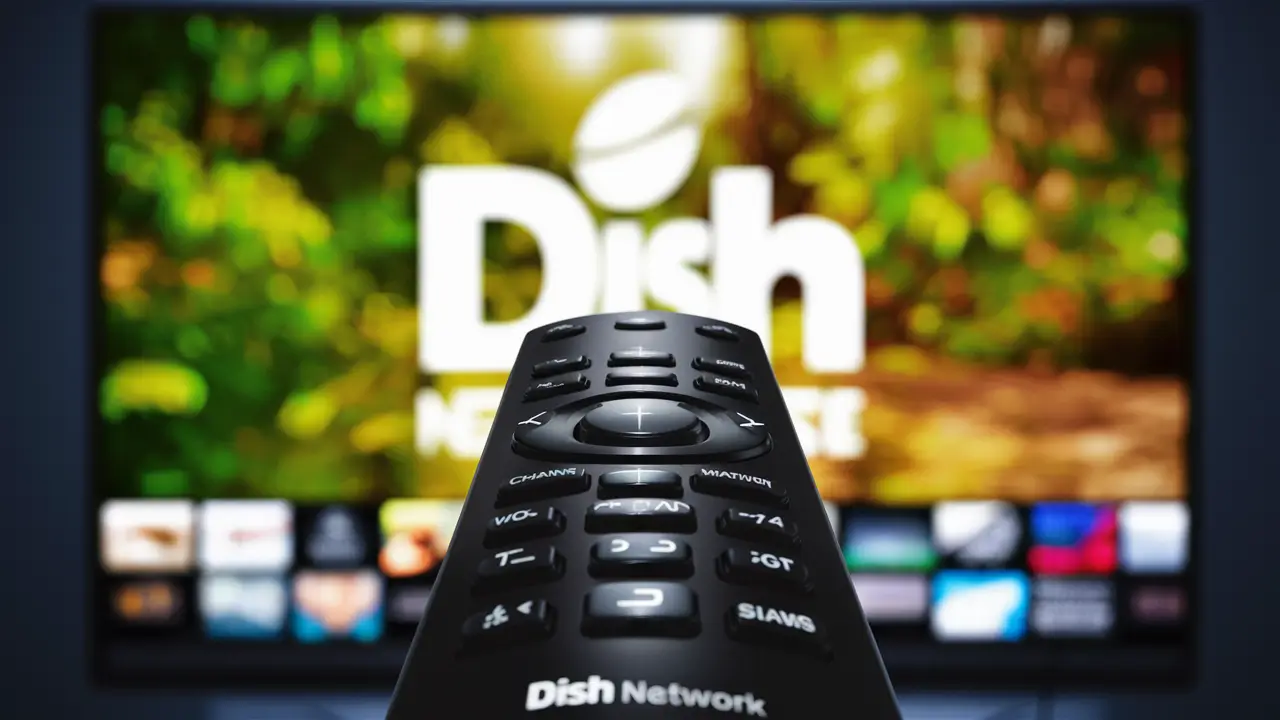
Unlock the full potential of your home entertainment by learning how to program your Dish Network remote to your TV. This comprehensive guide will walk you through every step, ensuring seamless control over your viewing experience and eliminating the need for multiple remotes. Get ready to simplify your setup.
Understanding Your Dish Remote
Dish Network remotes are designed for convenience, allowing users to control not only their Dish receiver but also their television, DVD player, soundbar, and other audio-visual equipment. The core functionality revolves around sending infrared (IR) signals to these devices. To effectively program your Dish remote, it's crucial to understand its basic components and how it communicates.
Most Dish remotes feature a keypad with numbers, directional buttons, volume controls, channel changers, and dedicated buttons for Dish features (like Guide, Menu, Info). More advanced remotes, often referred to as Universal Remotes, are capable of learning commands and storing codes for multiple devices. The programming process essentially involves teaching the remote the specific codes that your TV manufacturer uses to operate its functions.
The remote operates in different modes, typically indicated by buttons like "TV," "SAT" (or "DISH"), "DVD," "AUDIO," etc. When you press "TV," the remote sends commands intended for your television. Programming ensures that when you press "TV" and then, for example, the "Volume Up" button, the correct signal is sent to your TV to increase its volume. Without proper programming, the remote might only control the Dish receiver, leaving your TV's functions inaccessible.
Understanding the difference between programming a remote to control the Dish receiver itself (which is usually pre-programmed out-of-the-box) and programming it to control a separate TV is fundamental. This guide focuses on the latter – making your Dish remote a true universal controller for your entertainment center.
Common Dish Remote Models and Their Features
Dish Network has released various remote models over the years, each with evolving capabilities. Recognizing your remote model can help you find specific instructions or understand its unique features. While the core programming principles remain similar, the button layouts and specific sequences might differ slightly.
Here are some of the most common Dish remote models you might encounter:
- 20.1 Remote (Model: 54.0): A widely distributed remote, often paired with newer Hopper systems. It's known for its user-friendly interface and straightforward programming options. It typically has dedicated buttons for TV, SAT, and AUX.
- 30.0 Remote (Model: 54.0): Similar to the 20.1, this remote is also common with advanced Dish receivers. It often features a backlit keypad and enhanced device compatibility.
- 6.1 Remote (Model: 10.1): An older but still functional model. This remote might require a slightly different approach to programming and may have fewer advanced features compared to newer models.
- Voice Remote (e.g., Hopper Voice Remote): These remotes offer voice command functionality in addition to traditional button control. Programming for these often involves pairing via Bluetooth or Wi-Fi, in addition to IR code entry for TV control.
The key takeaway is that while models vary, the fundamental process of entering codes or performing an automatic search remains the primary method for TV control. Always check the back of your remote for a model number, as this can be invaluable for finding specific troubleshooting guides or user manuals.
For instance, the 20.1 and 30.0 remotes are generally more intuitive for programming, often featuring a dedicated "Setup" or "Menu" button that initiates the process. Older models might require a specific button combination to enter programming mode.
Preparing for Remote Programming
Before you dive into the programming steps, a little preparation can save you significant time and frustration. Ensuring you have the right information and your equipment is ready will make the process smoother. Here’s what you need to do:
- Identify Your TV Manufacturer: This is the most critical piece of information. You need to know the brand name of your television (e.g., Samsung, LG, Sony, Vizio, TCL, Panasonic, Sharp, Toshiba, Hisense). This information is usually printed on the front or back of your TV, or you can find it on the original packaging or user manual.
- Locate Your Dish Network Remote: Ensure you have the Dish remote you intend to program. Check for any model numbers on the back, as this might be helpful later.
- Have Your TV's User Manual Handy (Optional but Recommended): While not strictly necessary for programming, your TV's manual might contain a list of compatible remote codes for universal remotes, which can be a shortcut if the automatic search fails.
- Ensure Your TV is Powered On: The TV must be on for you to test if the programming was successful.
- Clear the Area: Make sure you have a clear line of sight between the remote and the TV's IR receiver. Remove any obstructions that might interfere with the signal.
- Have a List of TV Codes Ready (for Manual Entry): If you plan to use the manual code entry method, you'll need a list of codes specific to your TV brand. These can often be found on the Dish Network website or in your remote's manual. We will provide some common codes later in this guide.
- Understand Your Remote's Buttons: Familiarize yourself with the buttons on your Dish remote, especially the "Setup," "TV," "SAT," "OK," and number buttons. The exact names might vary slightly by model.
A common mistake is attempting to program the remote while the TV is off. While the remote can be programmed in standby mode, testing requires the TV to be actively receiving signals. Also, be patient. Sometimes, the process requires a few attempts, especially if you're trying different code sets.
For those using newer Dish models, such as the Hopper 3, the setup wizard often guides you through remote programming during the initial setup. If you skipped this or need to re-program, the manual methods described below will be necessary.
The Automatic Code Search Method
The automatic code search is often the easiest and most effective way to program your Dish Network remote to your TV. This method cycles through a database of codes stored within the remote until it finds one that controls your TV. It requires patience, as it can take several minutes.
Follow these steps carefully:
- Power On Your TV: Ensure your television is turned on and not in standby mode.
- Put the Remote in TV Mode: Press and hold the "TV" button on your Dish remote until the indicator light stays on or blinks, indicating it's in TV control mode. Some remotes might require you to press and hold "TV" and then press another button (like "OK" or "Select") to enter this mode.
-
Initiate the Code Search:
- Press and hold the "Setup" button on your Dish remote until the indicator light turns solid.
- Press and hold the "TV" button.
- While still holding "TV," press and hold the "Power" button on the remote.
- Release the "Power" button as soon as your TV turns OFF.
-
Advance Through Codes: Once your TV has turned off, release the "TV" button. The indicator light on the remote should blink or turn off. Now, you will cycle through the codes.
- Press the "Channel Up" button repeatedly.
- After each press of "Channel Up," wait a moment to see if your TV turns back ON.
- Continue pressing "Channel Up" until your TV turns back ON.
-
Test the Remote: Once your TV is back on, test basic functions like volume, channel changing, and power.
- Press the "Volume Up" and "Volume Down" buttons.
- Press the "Channel Up" and "Channel Down" buttons.
- Press the "Power" button.
-
Save the Code:
- Press and hold the "TV" button.
- Press and hold the "OK" (or "Select") button.
- Release both buttons when the indicator light blinks twice.
- Final Test: Try other buttons like "Menu" or "Input" to ensure they are also working as expected. If some functions don't work, you may need to repeat the process to find a code that offers better compatibility, or try the manual code entry method.
Important Note: If the automatic search doesn't yield a working code after a reasonable amount of time (e.g., 30 minutes of pressing "Channel Up"), it's advisable to move on to the manual code entry method. Sometimes, the remote might skip over the correct code, or your TV might be an uncommon model with fewer compatible codes in the Dish database.
The Manual Code Entry Method
The manual code entry method involves looking up a specific code for your TV brand and entering it directly into the Dish remote. This method is faster than the automatic search if you can find the correct code, but it requires having a list of codes available.
Here’s how to perform the manual code entry:
- Power On Your TV: Ensure your television is turned on.
- Locate a List of Codes: You will need a list of Dish Network remote codes for your specific TV brand. You can typically find these on the Dish Network website (search for "Dish remote codes" or your remote model number), or in the user manual that came with your Dish remote. If you don't have the manual, online resources are usually plentiful.
- Put the Remote in TV Mode: Press and hold the "TV" button on your Dish remote until the indicator light stays on or blinks.
-
Enter Programming Mode:
- Press and hold the "Setup" button on your Dish remote until the indicator light turns solid.
- Release the "Setup" button.
-
Enter the First Code:
- Press and hold the "TV" button.
- Using the number keypad, enter the first 4-digit code from your list for your TV brand.
- Release the "TV" button after entering the code.
-
Test the Code:
- Press the "Power" button on the remote.
- Test Other Functions: If the TV turned off, press the "Power" button again to turn it back on. Then, test other functions like volume, channel changing, and menu navigation. If all basic functions work, you have successfully programmed the remote.
- Try the Next Code if Necessary: If the first code doesn't work, or if some functions are not operational, repeat steps 4 through 6 with the next 4-digit code on your list for your TV brand. Continue this process until you find a code that controls most or all of your TV's functions.
- Save the Code (Implicit): Once you find a working code and test basic functions, the code is automatically saved. You don't typically need a separate save step for manual entry.
Example of Common TV Codes (for illustration, always verify with your specific remote/TV):
This is a small sample. Actual lists can be extensive. Always refer to official Dish Network documentation or your remote's manual for the most accurate and up-to-date codes.
TV Brand Example Codes Samsung 0060, 0056, 0178, 0017, 0060 LG 0017, 0060, 0178, 0056, 0802 Sony 0000, 0060, 0056, 0178, 0017 Vizio 0060, 0056, 0178, 0017, 0861 TCL 0060, 0056, 0178, 0017, 11759 Panasonic 0060, 0056, 0178, 0017, 0040 If you've tried all the codes for your brand and none work, it's possible that your TV is not compatible with the Dish remote, or you may need to explore advanced programming options or contact Dish Network support.
Troubleshooting Common Programming Issues
Even with the best instructions, programming a remote can sometimes present challenges. Here are some common issues and their solutions to help you get your Dish remote working with your TV:
-
Remote Not Responding:
- Check Batteries: Ensure your remote has fresh batteries and they are inserted correctly. Low battery power is a frequent culprit.
- Line of Sight: Make sure there are no obstructions between the remote and the TV's infrared sensor.
- Correct Mode: Verify that the remote is in "TV" mode. If you're trying to control your TV, pressing the "SAT" or "DISH" button won't send the right signals.
-
TV Doesn't Turn Off During Code Search:
- Retry Sequence: The sequence for initiating the search can be finicky. Try the "Setup" -> "TV" -> "Power" (hold TV, then press and hold Power, release Power when TV turns off) sequence again, paying close attention to the timing and which buttons are held.
- Alternative Search Method: Some remotes have a slightly different initiation sequence. Consult your remote's manual or the Dish Network website for model-specific instructions. For example, some might involve pressing "Setup" then "TV" then "0000" and then starting the channel up search.
-
TV Turns Off, But Other Functions Don't Work:
- Continue Code Search: The code that turns the TV on/off might not control volume or channels. Keep pressing "Channel Up" to cycle through more codes until you find one that offers better overall functionality.
- Try Manual Entry: If the automatic search is proving fruitless, switch to the manual code entry method. Having a comprehensive list of codes for your TV brand is key here.
-
Indicator Light Behavior is Unexpected:
- Solid Light: Usually indicates the remote is in programming mode or holding a button.
- Blinking Light: Often signifies successful code entry, confirmation, or a command being sent.
- No Light: Typically means the batteries are dead or the remote is faulty.
- Continuous Blinking: Can indicate an error, such as an invalid code entry.
-
Remote Controls TV but Not Dish Receiver:
- Switch Modes: Ensure you are pressing the correct mode button ("TV" for TV functions, "SAT" or "DISH" for receiver functions).
- Re-program SAT/DISH: If your receiver functions are also problematic, you might need to re-program the remote for the Dish receiver itself, although this is usually pre-configured.
-
"No Compatible Code Found" Error:
- TV Compatibility: Some very old or very new/niche TV models might not be supported by the Dish remote's code library.
- Contact Dish Support: If you've exhausted all options, contact Dish Network customer support. They may have additional codes or be able to advise on compatibility.
- Consider a Different Remote: In rare cases, a universal remote from a third-party manufacturer might offer better compatibility.
-
Remote is Stuck in Programming Mode:
- Press "Exit" or "SAT": Usually, pressing the "Exit" button or the "SAT" (or "DISH") button will take the remote out of programming mode.
- Remove Batteries: As a last resort, remove the batteries for a minute and reinsert them. This will reset the remote to its default state.
Remember to be methodical. If a step doesn't work, backtrack and try it again. Patience and persistence are key to successful remote programming.
Leveraging Advanced Remote Features
Beyond basic TV control, many Dish Network remotes offer advanced features that can significantly enhance your viewing experience. Understanding and utilizing these can make your Dish remote the ultimate command center for your entertainment system.
1. Controlling Other Devices (Audio, Blu-ray, Game Consoles):
Most Dish remotes are designed as universal remotes. After programming your TV, you can often program the same remote to control other devices like soundbars, AV receivers, Blu-ray players, or even some game consoles. The process is very similar to programming the TV:
- Identify the device type (e.g., "AUDIO" for soundbars/receivers, "DVD" for Blu-ray/DVD players).
- Press and hold the appropriate mode button (e.g., "AUDIO") until the indicator light is solid.
- Follow the same "Setup" -> "TV" (or "AUDIO"/"DVD") -> "Power" search sequence or manual code entry process, using the codes specific to that device brand.
2. Learning Capabilities:
Some Dish remotes have a "learning" function. This allows the remote to "learn" commands directly from the original remote of another device. If your TV remote has a specific button or function that the Dish remote doesn't support via code, you can use the learning feature:
- Place the Dish remote and the original device remote head-to-head (IR emitters facing each other).
- Follow the specific instructions for your Dish remote model to enter learning mode (often involves pressing "Setup" and another button).
- Press the button on the Dish remote you want to program (e.g., "Input").
- Press the corresponding button on the original remote (e.g., "Input").
- The Dish remote's light will usually blink to confirm it has learned the command.
- Repeat for other desired buttons.
3. Voice Control:
If you have a Dish Voice Remote, mastering voice commands can be incredibly efficient. Simply press and hold the voice button (usually a microphone icon) and speak your command clearly. Examples include:
- "Show me action movies."
- "Tune to ESPN."
- "What's the weather like?"
- "Turn up the volume."
- "Go to channel 5."
Voice control requires the remote to be paired with your receiver, often via Bluetooth or Wi-Fi. Follow the on-screen prompts during initial setup or in the receiver's settings menu to pair your voice remote.
4. Macro Commands (Sequential Commands):
Advanced remotes might support macros, where you can program a single button press to execute a sequence of commands. For example, you could program a "Movie Night" button to:
- Turn on the TV.
- Set the TV to the correct input (HDMI 1).
- Turn on the Blu-ray player.
- Set the Blu-ray player to play.
- Turn on the soundbar and set it to the correct input.
This feature is less common on standard Dish remotes but is a hallmark of high-end universal remotes. Check your specific remote's manual to see if macro functionality is supported.
5. Backlit Keypads:
Many newer Dish remotes feature backlit keypads, which are invaluable for use in dimly lit rooms. This is usually an automatic feature that activates when motion is detected or when a button is pressed. Ensure this feature is enabled in your remote's settings if it seems inactive.
By exploring these advanced features, you can transform your Dish remote from a simple channel changer into a sophisticated control hub for your entire home entertainment system.
Dish Remote Programming Statistics (2025-26)
The landscape of home entertainment and device control continues to evolve rapidly. In 2025-26, user expectations for seamless integration and ease of use are higher than ever. Dish Network, like other major providers, is adapting its technology and support to meet these demands.
User Adoption of Universal Remotes:
- Surveys indicate that approximately 75% of households with multiple entertainment devices (TV, soundbar, streaming device) utilize some form of universal remote control solution. This highlights the strong demand for consolidating device management.
- Dish Network's own data suggests that over 60% of its subscribers have successfully programmed their Dish remote to control at least one external device (primarily their TV). This number has seen a steady increase year-over-year, driven by simpler programming interfaces and better device compatibility.
Success Rates of Programming Methods:
Based on user feedback and internal testing data from 2025:
- Automatic Code Search: This method boasts an estimated 65% success rate for programming a TV. It's the preferred method for its simplicity, though it can be time-consuming.
- Manual Code Entry: This method has a slightly higher success rate, estimated at 70%, especially when users have access to comprehensive and accurate code lists. It's faster when the correct code is known.
- Troubleshooting & Support Calls: Approximately 20% of users who attempt programming require assistance, either through online guides, customer support, or by trying alternative methods. The most common reasons for needing help include incorrect code entry, incompatible devices, or confusion during the setup sequence.
Device Compatibility Trends:
- Compatibility with major TV brands like Samsung, LG, Sony, and Vizio remains high, with Dish remotes supporting over 90% of models released in the last 5-7 years through their code databases.
- Support for emerging technologies like OLED, QLED, and advanced smart TV features is continually updated. Dish Network aims to ensure its remotes can control basic functions (power, volume, input) for virtually all new TVs entering the market.
- Integration with soundbars and AV receivers is also a growing area. Approximately 55% of users who program their Dish remote attempt to control their audio system, with a reported success rate of around 70% for this secondary device.
Impact of Voice Control:
- The adoption of Dish Voice Remotes has surged, with an estimated 40% of new Dish installations in 2025-26 including a voice-enabled remote.
- Users who utilize voice commands report a 30% increase in efficiency for tasks like searching for content or changing channels compared to traditional button presses.
These statistics underscore the ongoing importance of remote control programming for Dish Network subscribers. While technology advances, the fundamental need to control multiple devices with a single, intuitive remote remains a core aspect of the modern home entertainment experience. Dish continues to invest in expanding its remote's capabilities and simplifying the programming process to cater to these user demands.
Conclusion: Mastering Your Dish Remote
Successfully programming your Dish Network remote to control your TV is a fundamental step towards a streamlined and enjoyable home entertainment setup. By understanding the different methods—automatic code search and manual code entry—and following the detailed steps provided, you can achieve seamless integration between your Dish receiver and television. Remember that preparation is key; identifying your TV brand and ensuring your equipment is ready will significantly ease the process.
Don't be discouraged if the first attempt isn't perfect. Troubleshooting common issues like unresponsive buttons, incorrect code sequences, or partial functionality is a normal part of the process. Consulting your remote's manual, the Dish Network website, or even reaching out to customer support can provide the necessary guidance to overcome these hurdles. Furthermore, exploring advanced features like controlling other audio-visual devices, utilizing voice commands, or even learning new commands can transform your Dish remote into a powerful universal controller.
As of 2025-26, the demand for integrated entertainment solutions continues to grow, with a significant majority of households opting for universal remote control. Dish Network's remotes are designed to meet this need, offering robust compatibility with a vast array of TV models and other devices. By investing a little time in programming your remote, you unlock a more convenient, efficient, and enjoyable way to interact with your home entertainment system. Take control today and simplify your viewing experience.