-
Posted on: 07 Jan 2026
-
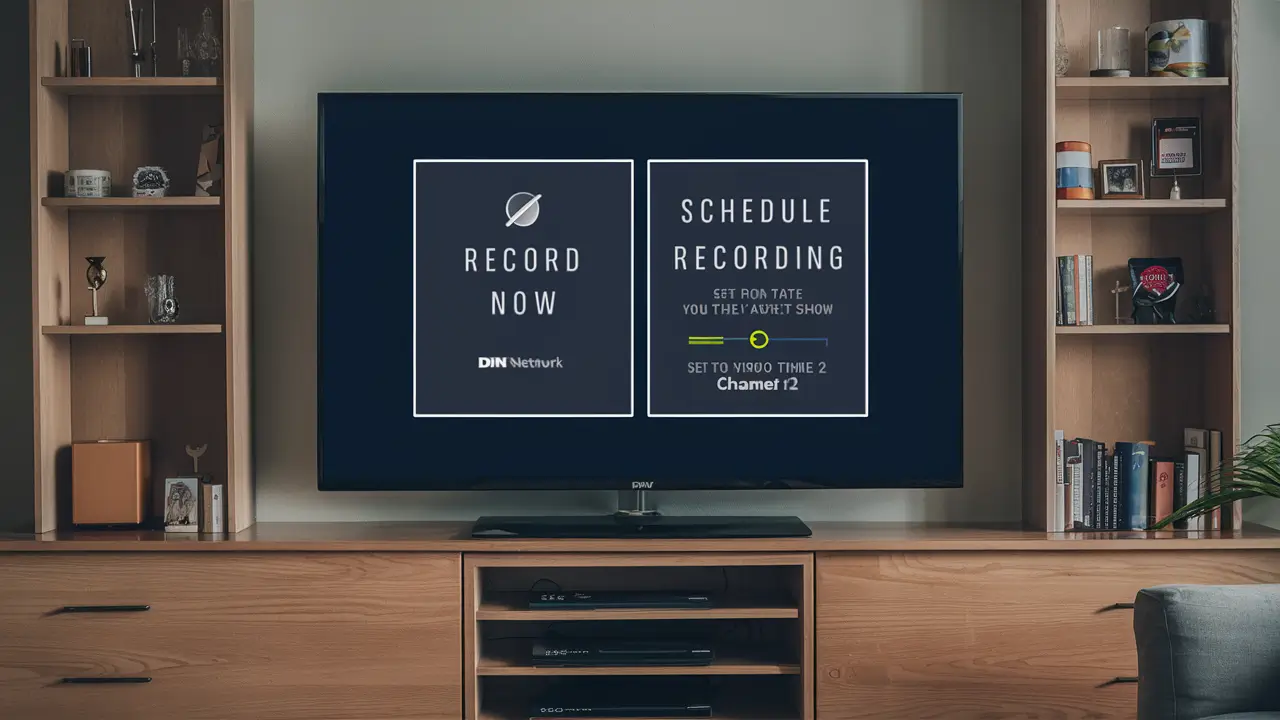
Setting your Dish Network DVR to record on a second television (TV 2) is straightforward once you understand the system's capabilities. This guide provides a comprehensive, step-by-step approach to ensure you capture all your favorite programs, even when viewing different content on another screen.
Understanding Your Dish Network DVR and TV 2 Setup
Dish Network offers sophisticated DVR (Digital Video Recorder) systems that allow for simultaneous recording and playback, often across multiple rooms. The ability to record on "TV 2" typically refers to extending the DVR's functionality to a secondary television in your home. This is usually achieved through a multi-room DVR system, such as Dish's Hopper system with Joey clients.
How Multi-Room DVRs Work
At its core, a multi-room DVR system centralizes the recording and storage of content on a primary DVR unit (the Hopper). Smaller satellite receivers, known as Joeys, are then connected to other televisions in your home. These Joeys access the content and live TV feeds from the main Hopper. Therefore, when you set a program to record, it's the central Hopper that performs the recording, making it available for viewing on any connected Joey, including the one at TV 2. The primary challenge is ensuring that the Joey connected to TV 2 is properly configured and communicating with the main Hopper.
Distinguishing Between Primary and Secondary Receivers
It's crucial to understand which receiver is your primary DVR and which is a secondary client.
- Primary DVR (Hopper): This is the main unit that has the hard drive for storing recordings. It's the brain of the operation.
- Secondary Receiver (Joey): These are smaller, client boxes that don't have their own hard drives. They rely on the Hopper for live TV and recordings. When you set a recording from a Joey, the command is sent to the Hopper.
The concept of "recording on TV 2" implies that TV 2 is connected to a Joey client that is linked to your primary Hopper. The setup process focuses on ensuring this link is stable and that the Joey can access the Hopper's recording functions.
The Role of the Joey Client
The Joey client is essential for extending your Dish Network DVR experience to additional TVs. It acts as a remote interface to the main Hopper. When you use the remote connected to the Joey at TV 2, you are essentially controlling the Hopper. This means that any recording scheduled from TV 2 is actually being scheduled by the Hopper. The Joey simply displays the interface and allows you to select channels and set recordings.
Essential Pre-Recording Checks for TV 2
Before diving into the specific steps for setting a recording, a few preliminary checks can save a lot of time and prevent frustration. These ensure your system is correctly configured for multi-room viewing and recording.
Verifying Joey-Hopper Connection
The most critical factor for recording on TV 2 is that the Joey client connected to it is properly communicating with the main Hopper.
- Physical Connections: Ensure the Joey is securely connected to the Hopper via Ethernet cable or wirelessly (if applicable and configured). Also, confirm the Joey is powered on and connected to TV 2 via HDMI or other appropriate cables.
- Network Status: Check the network settings on your Hopper and Joey. Both should be on the same home network. You can usually find this information in the system settings menu of your Hopper. A stable network connection is paramount for seamless operation.
Checking Hopper's Recording Capacity
Even if your Joey is connected, the Hopper must have available storage space and be able to handle concurrent recordings.
- Available Space: Navigate to the DVR settings on your Hopper. Check how much free space is available. If the hard drive is nearly full, you won't be able to schedule new recordings. You may need to delete old recordings.
- Simultaneous Recordings: Dish Network DVRs, particularly the Hopper, can record multiple programs simultaneously. However, there's a limit (typically 2, 4, or even 16 on the latest Hopper models). Ensure the number of programs you're trying to record at once doesn't exceed this limit. For example, if your Hopper can record 4 shows at once and you're already recording 3, you can only schedule one more.
Ensuring Correct Time and Date Settings
Accurate time and date settings are fundamental for the DVR to correctly schedule and execute recordings.
- Automatic Sync: Dish Network receivers usually synchronize their time and date automatically from satellite signals. However, it's good practice to verify this in the system settings. Incorrect time can lead to missed recordings or recordings starting/ending at the wrong times.
Confirming Channel Availability on TV 2
While the Hopper records the program, the Joey at TV 2 needs to be able to tune into the channel to display it. This is usually not an issue with a properly functioning Joey, but it's worth noting that the Joey accesses the tuner from the Hopper.
Step-by-Step Guide: Setting Dish Network DVR to Record on TV 2
Once you've completed the preliminary checks, you're ready to set up a recording. The process is virtually identical whether you're initiating the recording from the Hopper's primary TV or from the Joey connected to TV 2. The key is that the command is sent to the Hopper.
Method 1: Using the On-Screen Guide (Recommended)
This is the most intuitive and common method.
- Navigate to the Guide: On your TV 2 (connected to the Joey), use your Dish remote to bring up the program guide. Press the 'Guide' button.
- Select the Program: Browse through the guide to find the program you wish to record. Use the arrow keys to highlight the program.
- Choose Recording Option: Once the program is highlighted, press the 'Select' or 'OK' button. A program information screen will appear. Look for options like "Record," "Record Series," or "Add Timer."
-
Select "Record" or "Record Series":
- Record: This will record a single instance of the program.
- Record Series: This is ideal for shows that air regularly. It will set the DVR to record all future episodes, often with options to specify "all episodes," "new episodes only," or "first run episodes."
- Confirm Settings (if prompted): For series recordings, you might be prompted to confirm settings like how many episodes to keep, whether to record in HD, or to record only new episodes. Make your selections and confirm.
- Verify Recording: After confirming, the program in the guide will typically show a red circle or a recording icon, indicating it's scheduled. You can also check your "My Recordings" list on the Hopper to confirm the scheduled recording.
Method 2: Using the Remote Control (Quick Record)
For immediate recording of a program currently being watched.
- While Watching a Program: If you are currently watching a program on TV 2 and decide you want to record it, press the 'Record' button on your Dish remote.
- Single Recording: This will typically initiate a single recording of the current program.
- Series Recording Prompt: Depending on your system's settings, pressing 'Record' might also bring up a prompt asking if you want to record just this episode or the entire series. Choose your preferred option.
Method 3: Manually Setting a Timer
Useful for programs not currently listed in the guide or for specific time slots.
- Access Menu: On your TV 2 (via the Joey), press the 'Menu' button on your remote.
- Navigate to "Add Timer" or "Record Timer": Look for an option like "Settings," then "DVR," and then "Add Timer" or "Record Timer." The exact path may vary slightly depending on your Hopper model.
-
Enter Program Details: You will be prompted to enter:
- Channel: The channel number you want to record.
- Date: The date of the program.
- Start Time: The time the program begins.
- End Time: The time the program ends.
- Recording Type: Single or Series (if applicable, though manual timers are often for single recordings).
- Save Timer: Once all details are entered, select "Save" or "Done." The timer will be set, and the Hopper will attempt to record the program.
Viewing Recordings on TV 2
Once programs are recorded by the Hopper, you can watch them on TV 2.
- Access "My Recordings": On TV 2, press the 'Menu' button, navigate to "My Recordings" or "Watch TV," and select the recorded program you wish to view.
- Playback Controls: Use your remote to play, pause, rewind, or fast-forward the recording.
Troubleshooting Common Issues with TV 2 DVR Recordings
Despite following the steps, you might encounter issues. Here are common problems and their solutions when trying to record on TV 2.
Issue: "No Signal" or "Weak Signal" on TV 2
This usually indicates a problem with the Joey-Hopper connection or the Joey's connection to the TV.
- Check Joey Power: Ensure the Joey connected to TV 2 is powered on.
- Verify Joey-Hopper Link: Go to the Hopper's settings menu. Navigate to "System Info" or "Network Settings" and check the status of the Joey. If it's disconnected, you may need to re-establish the connection. This might involve restarting both the Hopper and the Joey, or re-pairing them wirelessly.
- Cable Connections: Double-check all HDMI and Ethernet (if wired) connections between the Joey and the TV, and between the Joey and the Hopper (if wired).
Issue: Recordings are Incomplete or Missed
This can be due to various factors, including capacity, signal issues, or scheduling conflicts.
- Check Hopper Storage: As mentioned earlier, ensure the Hopper has sufficient free space. Delete old, unwanted recordings if necessary.
- Review Recording Conflicts: Check the "Conflicts" or "Recording Conflicts" section in your Hopper's DVR settings. If multiple programs are scheduled to record simultaneously and exceed the Hopper's recording capacity, Dish will prioritize some recordings over others. You may need to adjust your schedule.
- Signal Strength: While the Joey doesn't have its own tuner, a weak signal to the Hopper can still affect recording quality. Ensure your satellite dish is properly aligned and free from obstructions.
- System Updates: Ensure both your Hopper and Joey are running the latest software updates. Sometimes, bugs that affect recording can be resolved with an update.
Issue: Cannot Access "My Recordings" on TV 2
This points to a communication breakdown between the Joey and the Hopper.
- Restart Devices: Try restarting both the Hopper and the Joey. Unplug them from power for about 30 seconds, then plug them back in.
- Re-pair Joey: In the Hopper's settings, there's often an option to "Pair Joey" or "Re-establish Connection." Follow the on-screen prompts.
- Check Network: Ensure the Hopper and Joey are on the same home network. If using Wi-Fi, verify the network is stable.
Issue: Remote Control for TV 2 Not Working
This is a Joey-specific issue, not directly related to recording, but it prevents you from setting recordings.
- Check Batteries: Ensure the remote has fresh batteries.
- Pair Remote: The remote may need to be paired with the Joey. Consult your Joey's manual for pairing instructions, which usually involve pressing a specific button combination on the remote and the Joey.
- Line of Sight: Ensure there's a clear line of sight between the remote and the Joey's sensor.
Issue: Recording Schedule Disappears
This is rare but can occur due to software glitches or power interruptions.
- Re-schedule Recordings: The most direct solution is to re-schedule the missed recordings.
- System Reset: As a last resort, a full system reset of the Hopper might be necessary, but this should only be done after consulting Dish Network support, as it can erase some settings.
Optimizing Your Dish Network DVR Experience for Multiple TVs
Beyond just setting recordings, maximizing the utility of your multi-room DVR setup involves smart organization and feature utilization.
Understanding Recording Priority
When recording conflicts arise, Dish Network assigns a priority. Typically, live TV takes precedence, followed by series recordings set to "new episodes only," and then single recordings. You can often adjust these priorities in your DVR settings to ensure your most important shows are always captured.
Managing Storage Effectively
With the advent of 4K content and longer-form shows, DVR storage can fill up quickly.
- Delete Unwatched Recordings: Regularly review your "My Recordings" list and delete programs you've watched or no longer intend to watch.
- Set Auto-Delete Options: Many Dish DVRs allow you to set recordings to automatically delete after a certain period or after a certain number of episodes have been watched. This is particularly useful for recurring series.
- Upgrade Storage: If you consistently run out of space, consider upgrading to a Hopper model with a larger internal hard drive or an external storage device (if supported by your model).
Utilizing the Dish Anywhere App
The Dish Anywhere app is a powerful tool that complements your home DVR experience.
- Remote Recording: You can set, manage, and cancel recordings from anywhere using your smartphone or tablet, provided you have an internet connection. This is incredibly convenient if you realize you forgot to set a recording.
- Watch Live TV and Recordings: Stream live TV channels and your recorded content directly to your mobile device, extending your viewing options beyond your TVs.
- Program Guide Access: The app provides full access to the Dish programming guide, making it easy to browse and schedule recordings on the go.
Setting Up Parental Controls
If you have children, setting up parental controls is essential. This can be done on the Hopper and will apply to all connected Joeys. You can block specific channels, shows, or movies based on ratings.
Customizing Channel Lists
To make channel surfing faster and easier, especially when setting recordings, consider creating custom channel lists. This allows you to group your favorite channels together, reducing the need to scroll through hundreds of channels in the guide.
Advanced Recording Tips and Features
Dish Network's DVRs offer features that go beyond basic recording, enhancing the user's ability to manage and enjoy their content.
Recording Options Explained
When you select a program to record, you'll often see several options:
- Record This Episode: Records only the current airing of the program.
- Record Series: This is the most versatile option for ongoing shows. It usually expands to sub-options:
- All Episodes: Records every instance of the show, including reruns.
- New Episodes Only: Records only first-run episodes. This is the most common and efficient setting.
- First Run Episodes: Similar to "New Episodes Only," ensuring you don't record reruns you might have already seen.
- Add Timer: For manual scheduling as described earlier.
Using "Keep Until I Delete" and Auto-Delete
For important recordings, you can set them to "Keep Until I Delete." This prevents them from being automatically deleted when storage space runs low. Conversely, for less critical series, setting an auto-delete option can help manage your storage proactively.
Understanding "Game Day" or Sports Features
Some Dish DVRs include features specifically for sports fans, such as the ability to record an entire game even if you start watching late, or to automatically record multiple games airing simultaneously. Check your Hopper's specific features for these advanced sports recording options.
Setting Up Multi-View
The Hopper system often supports Multi-View, allowing you to watch up to four channels simultaneously on a single screen. While not directly a recording feature, it's a powerful way to monitor multiple programs before deciding what to record.
Voice Control Integration
Many newer Dish remotes and Hopper models support voice commands. You can often set recordings simply by speaking into the remote, saying commands like, "Record 'The Crown' every Tuesday at 8 PM" or "Record this episode." This adds a layer of convenience, especially when you're busy.
Dish Network in 2025-26: What's New for DVR Users?
The landscape of television and DVR technology is constantly evolving. As of 2025-26, Dish Network continues to innovate, focusing on enhanced user experiences and integration with modern viewing habits.
Advancements in Hopper Technology
Dish's latest Hopper models (e.g., Hopper 4K, Hopper 3) boast significantly increased storage capacities, often supporting terabytes of data, allowing users to store hundreds of hours of HD and 4K content. They also offer faster processors for smoother navigation and quicker access to recorded content. The number of simultaneous recordings has also increased, with some models supporting up to 16 tuners, virtually eliminating recording conflicts for most households.
4K Content Recording and Playback
With the growing availability of 4K content, Dish has prioritized 4K recording and playback capabilities. Newer Hopper systems can record in 4K resolution (where available) and play back 4K content seamlessly. This means that when you set a program to record on TV 2 via a 4K Joey client connected to a 4K-capable Hopper, you can experience that content in its highest fidelity. The demand for 4K content is projected to grow by approximately 15-20% annually through 2026, making this a key feature for discerning viewers.
Enhanced Smart Home Integration
Dish is increasingly integrating its DVR systems with other smart home devices and platforms. In 2025-26, expect further developments in voice control compatibility (e.g., with Google Assistant and Amazon Alexa), allowing for more intuitive recording management. Integration with smart TVs and streaming devices is also becoming more seamless, offering a more unified entertainment ecosystem.
AI-Powered Content Recommendations and Recording Management
Artificial intelligence is playing a larger role in personalizing the viewing experience. Dish is leveraging AI to provide more accurate content recommendations based on your viewing history and recording habits. This can extend to suggesting programs to record that you might otherwise miss. AI is also being used to optimize storage management, automatically prioritizing and deleting content based on user preferences and viewing patterns.
Improved User Interface and Navigation
User experience remains a key focus. Expect updated graphical interfaces that are more intuitive and easier to navigate, especially when browsing the program guide or managing recordings on multiple screens. Features like personalized dashboards and quicker access to frequently watched channels or recordings are becoming standard. The goal is to make setting a recording on TV 2, or any other connected device, as simple as possible.
Cloud DVR Functionality (Potential Future Development)
While Dish currently relies on local DVR storage, the industry trend is moving towards cloud-based DVR solutions. While not fully mainstream for Dish in 2025-26 for primary recording, expect continued exploration and potential beta testing of cloud DVR features that could offer even greater flexibility and accessibility in the future. This would allow recordings to be accessed from virtually any internet-connected device, regardless of location.
In conclusion, setting your Dish Network DVR to record on TV 2 is a testament to the power of their multi-room DVR systems. By understanding the fundamental workings of the Hopper and Joey setup, performing essential pre-checks, and following the straightforward step-by-step guide, you can effortlessly extend your recording capabilities. Troubleshooting common issues is manageable with basic checks, and optimizing your experience involves leveraging features like the Dish Anywhere app and smart storage management. As Dish Network continues to innovate in 2025-26 with enhanced 4K support, AI-driven features, and improved user interfaces, your ability to capture and enjoy content across all your televisions will only become more seamless and powerful. Don't let a missed program get you down; with these insights, you're well-equipped to master your Dish Network DVR.