-
Posted on: 07 Jan 2026
-
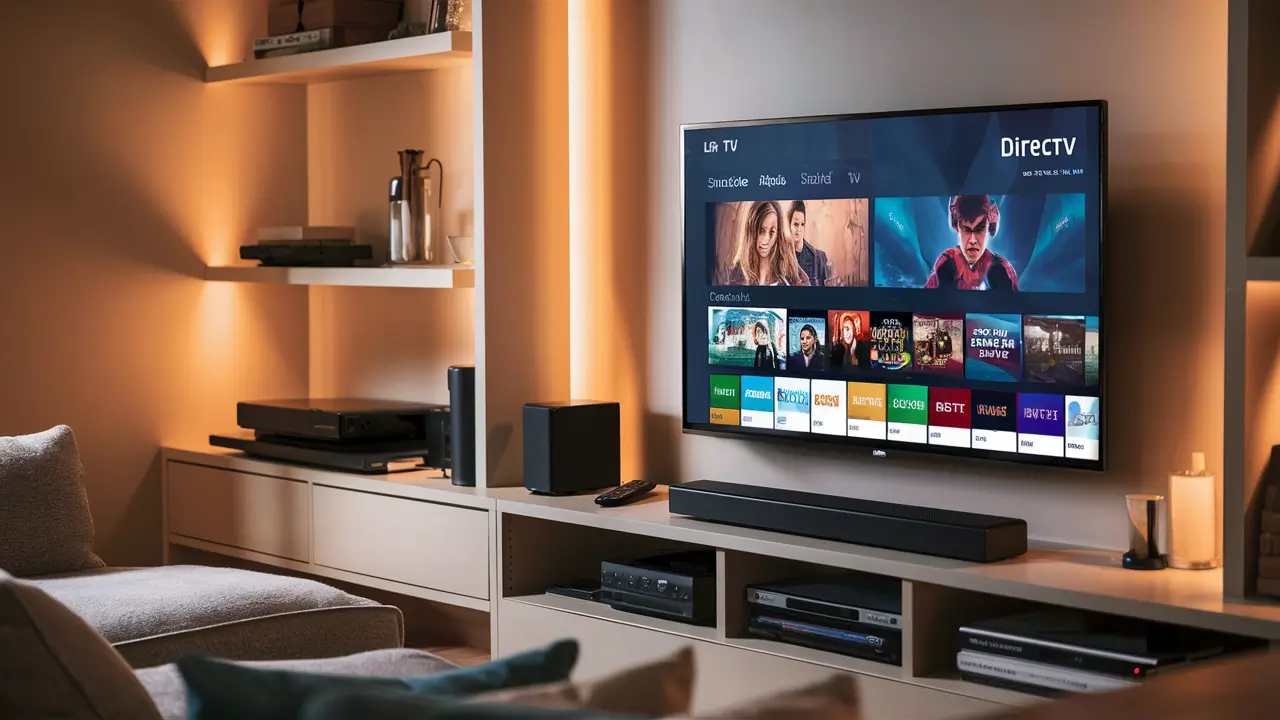
Unlock seamless entertainment by learning how to stream DIRECTV on your LG Smart TV. This guide provides a comprehensive, step-by-step approach, ensuring you can access your favorite channels and on-demand content directly on your LG device with minimal fuss. Get ready to elevate your viewing experience.
What is DIRECTV Streaming?
DIRECTV has evolved beyond traditional satellite dishes. DIRECTV streaming services offer flexible ways to watch live TV, sports, and on-demand content without the need for a physical satellite installation. These services are designed to cater to a modern audience who prefer internet-based entertainment. In 2025-26, DIRECTV offers several streaming packages, including DIRECTV Stream (formerly AT&T TV), which provides a robust lineup of channels delivered over your home internet connection. This service aims to replicate the traditional cable TV experience but with the convenience and flexibility of streaming. Users can choose from various channel packages, add-ons for sports and premium networks, and enjoy features like DVR recording (in the cloud) and multiple simultaneous streams. The core appeal lies in its ability to deliver a comprehensive entertainment solution directly to your devices, including smart TVs, without long-term contracts in many cases, making it an attractive option for cord-cutters and cord-nevers alike.
LG Smart TV Compatibility
LG Smart TVs, powered by the intuitive webOS platform, are generally well-equipped to handle a variety of streaming applications. The compatibility of DIRECTV streaming services on LG Smart TVs depends on a few key factors. Firstly, the specific DIRECTV service you subscribe to matters. DIRECTV Stream, the primary streaming offering, often has dedicated apps for major smart TV platforms. For LG Smart TVs, the availability of an official DIRECTV Stream app in the LG Content Store is the most straightforward way to access the service. This app is designed to integrate seamlessly with your TV's interface, offering a user-friendly experience. Older LG Smart TV models might have limitations in app support due to hardware or software constraints. However, LG has been consistently updating its webOS, and newer models (from 2020 onwards) are highly likely to support most popular streaming apps. As of 2025-26, LG's webOS continues to be a strong platform for streaming, with a vast array of apps readily available. If an official app isn't directly available for your specific LG TV model, there are alternative methods, such as using a web browser or casting from another device, which we will explore in detail.
Checking Your LG TV Model and webOS Version
Before proceeding, it's beneficial to know your LG TV's model number and webOS version. This information can be found in your TV's settings menu. Typically, you'll navigate to 'Support' or 'About This TV' to find these details. Knowing this will help you determine the most direct method for streaming DIRECTV and troubleshoot any potential compatibility issues. LG's webOS versions are regularly updated, and each iteration brings new features and improved app support. Newer versions like webOS 5.0, 6.0, and beyond generally offer broader compatibility with streaming services compared to older versions.
Method 1: Using the Official DIRECTV App (If Available)
The most seamless way to stream DIRECTV on your LG Smart TV is by using the official DIRECTV app, if it's available for your TV model. This method offers the best integration, performance, and user experience.
Step 1: Locate the DIRECTV App in the LG Content Store
Turn on your LG Smart TV and navigate to the LG Content Store. This is where you can download applications. Use the search function within the Content Store and type "DIRECTV" or "DIRECTV Stream." If the official app is available for your TV, it should appear in the search results. Look for the official DIRECTV Stream app icon.
Step 2: Download and Install the App
Once you find the app, select it and choose the "Install" option. Your LG TV will download and install the application. This process usually takes a few minutes, depending on your internet speed.
Step 3: Launch the App and Sign In
After installation, launch the DIRECTV app. You will be prompted to sign in with your DIRECTV account credentials. Enter your username and password. If you don't have an account, you'll need to subscribe to a DIRECTV streaming package first.
Step 4: Navigate and Start Streaming
Once logged in, you can browse channels, access your DVR recordings (if subscribed to a plan with cloud DVR), and explore on-demand content. The app's interface will be tailored for your TV's remote control, allowing easy navigation through menus and program guides.
Benefits of the Official App
- Optimized Performance: Designed specifically for smart TV platforms, ensuring smooth playback and responsive controls.
- User-Friendly Interface: Intuitive navigation that works well with your LG TV remote.
- Direct Access: No need for intermediary devices.
- Feature Integration: Full access to DIRECTV features like live TV, DVR, and on-demand.
Potential Drawbacks
- App Availability: The official app might not be available for all LG Smart TV models, especially older ones.
- Updates: Reliance on DIRECTV and LG for app updates.
Method 2: Streaming via Web Browser
If the official DIRECTV app is not available for your LG Smart TV, or if you prefer not to install it, you can often stream DIRECTV through the web browser built into your LG TV. This method leverages the DIRECTV website to deliver content directly to your television.
Step 1: Access the LG Web Browser
On your LG Smart TV, locate and open the web browser application. This is usually found in the app list or on the webOS home screen.
Step 2: Navigate to the DIRECTV Website
In the web browser's address bar, type the official DIRECTV website URL. For DIRECTV Stream, this is typically `directv.com`. You may need to log in to your account on the website.
Step 3: Find the Streaming Player
Once logged in, look for an option to watch live TV or access your account's streaming portal. This might be labeled as "Watch TV," "My Account," or a similar option. Clicking on this should launch a web-based player for DIRECTV content.
Step 4: Play Content
Navigate through the available channels or on-demand library within the web player. Click on a program to start watching. The browser should handle the video playback.
Tips for Browser Streaming
- Full-Screen Mode: Utilize the browser's full-screen option to maximize the viewing area.
- Keyboard Navigation: Some browsers might offer limited keyboard support, but generally, you'll rely on the TV remote for navigation.
- Account Management: You can often manage your account settings and subscriptions directly through the website.
Potential Drawbacks
- Performance: Web browser performance can vary. Some LG TVs may not have powerful enough processors to run complex web applications smoothly, leading to buffering or lag.
- User Interface: The web interface might not be as optimized for TV viewing as a dedicated app, making navigation less intuitive.
- Feature Limitations: Certain features, like advanced DVR controls or specific picture-in-picture modes, might not be fully supported or accessible via the browser.
- Browser Compatibility: DIRECTV's website might not be perfectly compatible with all web browsers found on LG Smart TVs.
Method 3: Casting or Mirroring from Another Device
If neither the official app nor the web browser method is ideal, you can use casting or screen mirroring features. This involves streaming DIRECTV on a compatible device (like a smartphone, tablet, or computer) and then sending that content to your LG Smart TV.
Casting with Chromecast or Similar Technologies
Many LG Smart TVs have built-in Chromecast functionality or are compatible with external Chromecast devices. If your TV has Chromecast built-in (often found on Android TVs, but some LG models might support it via updates or specific models), or if you have a Chromecast dongle plugged into an HDMI port:
- Ensure your LG TV and the casting device (e.g., smartphone, tablet) are connected to the same Wi-Fi network.
- Open the DIRECTV app or go to the DIRECTV website on your casting device.
- Look for the Cast icon (a small rectangle with Wi-Fi waves in the corner).
- Tap the Cast icon and select your LG TV or Chromecast device from the list of available devices.
- The content will start playing on your LG TV. You can control playback (play, pause, volume) from your casting device.
Note: DIRECTV Stream's mobile app supports casting. For DIRECTV satellite or older services, you might need to use the web browser on a computer and cast the entire desktop or a specific tab if your TV supports that functionality.
Screen Mirroring with LG Smart Share or Miracast
LG Smart TVs often come with features like Smart Share or support Miracast, which allow you to mirror your device's screen directly onto the TV.
- Enable screen mirroring on your LG TV. This is usually found in the TV's settings or via a quick access menu, often labeled "Screen Share," "Miracast," or "Phone Screen Mirroring."
- On your smartphone or tablet (Android devices typically use Miracast or similar built-in screen casting), go to the screen mirroring settings.
- Search for available devices. Your LG TV should appear in the list.
- Select your LG TV to initiate the connection.
- Once connected, whatever is displayed on your mobile device's screen will appear on your LG TV. Open the DIRECTV app or website on your mobile device and start playing your content.
For Windows PCs: You can often use the "Connect" feature (Windows Key + K) to cast your screen to a Miracast-enabled TV like your LG.
Advantages of Casting/Mirroring
- Wide Compatibility: Works even if the official app isn't available or the browser is slow.
- Flexibility: Use your primary device for control and browsing.
- Access to All Content: You can stream anything from your device, not just what's available in a dedicated app.
Disadvantages of Casting/Mirroring
- Requires Another Device: You need a smartphone, tablet, or computer.
- Potential for Lag: Performance is dependent on your Wi-Fi network strength and the capabilities of both devices.
- Battery Drain: Your casting/mirroring device will consume battery power.
- Interface Not Optimized: The experience is dictated by the mobile app or website, not the TV interface.
- HDCP Issues: Some content may be protected by HDCP (High-bandwidth Digital Content Protection), which can prevent mirroring or casting of certain shows or movies.
Troubleshooting Common Issues
Encountering problems when trying to stream DIRECTV on your LG Smart TV is not uncommon. Here are some common issues and their solutions, relevant for 2025-26 streaming environments.
Buffering and Lag
Cause: Slow internet connection, network congestion, or issues with the DIRECTV servers.
Solutions:
- Check Internet Speed: Run a speed test on your LG TV or another device on the same network. DIRECTV recommends at least 25 Mbps for 4K streaming and 15 Mbps for HD.
- Restart Router/Modem: Power cycle your modem and router by unplugging them for 30 seconds and plugging them back in.
- Reduce Network Load: Disconnect other devices that are heavily using your internet bandwidth (e.g., other streaming devices, large downloads).
- Use Wired Connection: If possible, connect your LG TV directly to your router via an Ethernet cable for a more stable connection.
- Clear App Cache/Data: If using the app, go to your TV's settings, find the DIRECTV app, and clear its cache and data.
- Update TV Software: Ensure your LG TV's webOS is up to date.
App Crashing or Not Loading
Cause: App glitches, outdated software, or insufficient TV memory.
Solutions:
- Restart the App: Close the DIRECTV app completely and reopen it.
- Restart Your TV: Turn off your LG TV, unplug it from the power outlet for a minute, then plug it back in and turn it on.
- Reinstall the App: If the app is available in the LG Content Store, uninstall it and then reinstall it.
- Check for Updates: Ensure both the DIRECTV app and your LG TV's operating system are updated to the latest versions.
- Check DIRECTV Server Status: Sometimes, the issue might be on DIRECTV's end. Check their official support channels or social media for any reported outages.
Login Issues
Cause: Incorrect credentials, account lockout, or website/app errors.
Solutions:
- Verify Credentials: Double-check your username and password for typos.
- Reset Password: Use the "Forgot Password" link on the DIRECTV login page.
- Clear Browser Cookies/Cache: If logging in via browser, clear your browser's cookies and cache.
- Contact DIRECTV Support: If you continue to have trouble, reach out to DIRECTV customer support for assistance with your account.
Audio or Video Sync Problems
Cause: Network latency, app bugs, or TV processing delays.
Solutions:
- Restart Playback: Stop the program and restart it.
- Check Internet Connection: As mentioned, a stable connection is crucial.
- Try a Different Method: If using the app, try the browser or casting, and vice versa, to see if the issue persists.
- Adjust TV Audio Settings: Some LG TVs have audio delay settings that can be manually adjusted.
HDCP Errors
Cause: Content protection issues, often related to HDMI connections or certain streaming methods.
Solutions:
- Check HDMI Cables: If using an external device connected via HDMI, ensure the cable is securely plugged in and is a certified High-Speed or Ultra High-Speed cable. Try a different HDMI port or cable.
- Disable Screen Mirroring/Casting: If you're experiencing HDCP errors while mirroring or casting, try using the official app or browser method instead, or vice versa.
- Update Device Firmware: Ensure all connected devices (TV, streaming stick, Blu-ray player) have their firmware updated.
Maximizing Your Streaming Experience
To ensure you get the most out of streaming DIRECTV on your LG Smart TV, consider these tips and best practices, relevant for the 2025-26 streaming landscape.
Optimize Your Wi-Fi Network
A robust Wi-Fi network is the backbone of smooth streaming. For DIRECTV, which can stream high-definition and even 4K content, network performance is paramount.
- Router Placement: Position your Wi-Fi router in a central location, away from obstructions like thick walls, metal objects, and other electronic devices that can cause interference (e.g., microwaves, cordless phones).
- Use 5GHz Band: If your router and LG TV support it, connect to the 5GHz Wi-Fi band. It offers faster speeds and less interference than the 2.4GHz band, though its range is shorter.
- Consider a Mesh Wi-Fi System: For larger homes or areas with weak Wi-Fi signals, a mesh Wi-Fi system can provide consistent coverage throughout your house.
- Update Router Firmware: Regularly check for and install firmware updates for your router to ensure optimal performance and security.
Understand Your DIRECTV Package
DIRECTV offers various packages, and understanding what's included will enhance your experience. For 2025-26, packages often include:
- Channel Lineup: Know which channels are available in your subscription.
- On-Demand Content: Explore the library of movies and shows available on demand.
- Cloud DVR: If your package includes Cloud DVR, learn how to record shows, manage recordings, and watch them on different devices. The capacity and features of cloud DVR services are continually evolving.
- Simultaneous Streams: Be aware of how many devices can stream simultaneously from your account. This is typically between 2 to 3 streams for most DIRECTV Stream packages.
For more details on specific packages and features, visit the official DIRECTV website.
Utilize LG TV Features
Your LG Smart TV has features that can complement your DIRECTV streaming experience:
- Picture Settings: Experiment with your LG TV's picture settings (e.g., Vivid, Cinema, Standard) to find what looks best for different types of content. For sports, you might prefer a brighter, more dynamic picture, while for movies, a more cinematic look might be ideal.
- Sound Settings: Adjust the sound settings to match your preference or the type of content you're watching. Some LG TVs offer AI Sound Pro for optimized audio.
- Quick Access Menu: Customize your LG TV's quick access menu to easily launch the DIRECTV app or browser.
Consider External Streaming Devices
While LG Smart TVs are capable, sometimes an external streaming device can offer a superior experience, especially if your TV is older or if DIRECTV's app performance on webOS isn't perfect.
- Roku: Known for its simple interface and wide app selection.
- Amazon Fire TV Stick: Offers integration with Amazon's ecosystem and Alexa voice control.
- Apple TV: A premium option with excellent performance and integration for Apple users.
- NVIDIA SHIELD TV: A powerful device for gamers and enthusiasts, capable of high-quality streaming.
These devices often receive app updates more frequently and can have more robust hardware, potentially leading to smoother DIRECTV streaming.
Stay Informed About Updates
Both LG and DIRECTV regularly release software and app updates. These updates can fix bugs, improve performance, and introduce new features. Ensure your LG TV's webOS and the DIRECTV app are always up to date to benefit from these improvements.
DIRECTV vs. Competitors on LG TVs
When choosing a streaming service to watch on your LG Smart TV, DIRECTV Stream is one of many options. Understanding its position relative to competitors can help you make an informed decision for 2025-26.
DIRECTV Stream vs. YouTube TV
DIRECTV Stream: Often praised for its extensive channel selection, particularly for sports fans who want access to regional sports networks (RSNs). It offers multiple package tiers, catering to different viewing needs. Its interface is designed to mimic traditional cable TV, which can be appealing to some users.
YouTube TV: Known for its user-friendly interface, unlimited cloud DVR storage, and a strong lineup of live TV channels. It's generally considered a more modern and intuitive streaming experience. YouTube TV's sports coverage is also robust, though RSN availability can vary.
On LG TVs: Both services typically have well-developed apps available on LG Content Store, offering good performance and integration.
DIRECTV Stream vs. Hulu + Live TV
DIRECTV Stream: As mentioned, its strength lies in channel depth and sports access.
Hulu + Live TV: Combines live TV with Hulu's extensive on-demand library and Disney+. This bundle is a significant draw for many households. Its interface is generally well-regarded.
On LG TVs: Both have dedicated apps. Hulu's integration with its on-demand service might offer a more unified entertainment hub for some users.
DIRECTV Stream vs. Sling TV
DIRECTV Stream: Generally offers more channels and a more comprehensive package at a higher price point.
Sling TV: A more budget-friendly option that allows users to customize their channel packages by choosing "Sling Orange" or "Sling Blue" and adding extra channel packs. It's a good choice for those who want specific channels without paying for a large bundle.
On LG TVs: Both services have apps. Sling TV's flexibility in channel selection can be appealing, while DIRECTV Stream offers a more traditional, all-inclusive experience.
DIRECTV Stream vs. FuboTV
DIRECTV Stream: Strong in sports, particularly RSNs.
FuboTV: Marketed heavily towards sports fans, offering a vast array of sports channels, including many international leagues. It also includes a good selection of entertainment and news channels.
On LG TVs: Both have apps. FuboTV's sports focus is its primary differentiator, while DIRECTV Stream offers a broader appeal beyond just sports.
Key Considerations for LG TV Users
- App Availability & Performance: Check the LG Content Store for the most up-to-date app availability and user reviews regarding performance on your specific LG TV model.
- User Interface: Consider which interface feels most intuitive for you on your LG TV's webOS.
- Channel Needs: List the essential channels you watch and compare which service offers them at the best value.
- Bundles: Look for services that offer bundles with other streaming platforms you might use (like Hulu + Live TV with Disney+).
As of 2025-26, DIRECTV Stream remains a strong contender, especially for those seeking comprehensive channel lineups and specific sports coverage, and its app generally performs well on modern LG Smart TVs.
Conclusion
Mastering how to stream DIRECTV on your LG Smart TV opens up a world of flexible entertainment. Whether you opt for the official DIRECTV app, leverage your TV's web browser, or utilize casting and mirroring features, a seamless viewing experience is well within reach. For 2025-26, DIRECTV continues to refine its streaming offerings, making it a competitive choice for LG TV owners seeking a robust channel lineup and convenient access to live and on-demand content. Always ensure your LG TV's software is up-to-date and your home internet connection is stable for the best performance. By following the steps outlined in this guide, you can confidently set up and enjoy your DIRECTV subscription on your LG Smart TV, transforming your living room into a premium entertainment hub.