-
Posted on: 07 Jan 2026
-
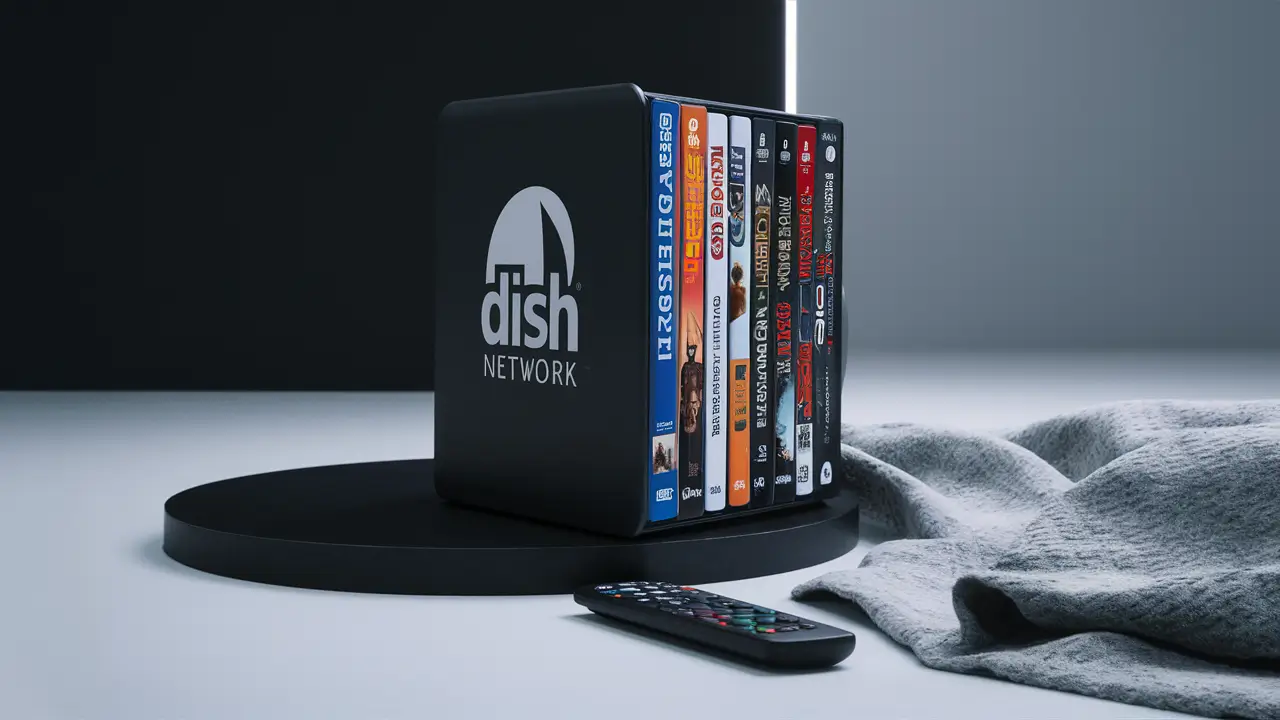
Dish Network, a leading satellite television provider, offers a vast array of entertainment options. However, for those looking to revisit their physical media collection, a common question arises: "How to watch a DVD with Dish Network?" While Dish primarily focuses on streaming and live TV, integrating your DVD player is straightforward with the right setup.
Understanding Dish Network's Core Services
Dish Network has evolved significantly from its early days as a pure satellite TV provider. Today, it offers a comprehensive suite of entertainment services designed to cater to a modern viewing audience. Understanding these core services is crucial to appreciating how a DVD player fits into the broader picture of your home entertainment system.
Satellite Television Services
At its heart, Dish remains a premier satellite television provider. It delivers hundreds of channels, including a wide range of sports, news, movies, and family programming, directly to your home via a satellite dish and receiver. The technology behind this delivery has advanced considerably, offering high-definition (HD) and even 4K content. Dish's channel packages are diverse, ranging from basic bundles to premium sports and movie selections, ensuring there's something for almost every household. For instance, their "America's Top 120" package provides a solid foundation of popular channels, while more extensive packages like "America's Everything" offer the widest selection. The flexibility in package choices is a key selling point, allowing users to tailor their subscriptions to their specific viewing habits and budgets.
On-Demand and Streaming Options
Recognizing the shift towards on-demand viewing, Dish has integrated robust streaming capabilities into its offerings. Many Dish packages include access to Dish On Demand, a library of movies and TV shows that can be streamed at no extra cost. Furthermore, Dish receivers often come with built-in apps or the ability to download popular streaming applications like Netflix, Amazon Prime Video, Hulu, and others. This convergence allows users to access a vast universe of content through a single interface, simplifying the viewing experience. The Hopper whole-home DVR system, a flagship product from Dish, enhances this by allowing users to record live TV, access on-demand content, and even stream from connected apps, all managed from one central device and accessible on multiple TVs throughout the home.
Internet Services
While not its primary focus, Dish also offers internet services, often in partnership with other providers or through its own satellite internet solutions. For users in rural areas where traditional broadband might be unavailable, Dish's satellite internet can be a viable option, though speeds and latency can vary compared to terrestrial options. A stable internet connection is increasingly important for Dish subscribers who utilize the on-demand features, app integrations, and potential future services that rely on online connectivity.
The Role of the Dish Receiver
The Dish Network receiver (often called a set-top box or DVR) is the central hub of your television experience. Devices like the Hopper series are sophisticated multimedia devices capable of receiving satellite signals, decoding them into viewable content, managing recordings, and connecting to the internet for streaming services. These receivers typically have multiple input and output ports, which are key to understanding how external devices like DVD players can be integrated. Understanding the capabilities and connectivity options of your specific Dish receiver is the first step in successfully connecting a DVD player.
DVD Players and Dish Network Compatibility
The question of how to watch a DVD with Dish Network is fundamentally about connecting a DVD player to your television and ensuring the Dish receiver doesn't impede this process. Fortunately, DVD players are generally designed for universal compatibility with televisions and the input methods they offer. The key is understanding the different types of DVD players and their output connections, as well as the input options available on your TV and, indirectly, your Dish receiver.
Types of DVD Players
Over the years, DVD player technology has evolved, leading to different types of players with varying output capabilities.
- Standard DVD Players: These are the most common and affordable. They play standard DVDs and often CDs. Their output connections typically include composite (yellow, red, white RCA cables), S-Video, and Component (red, green, blue RCA cables). Some may also have HDMI output for higher quality.
- Blu-ray Players: While primarily for Blu-ray discs, these players are backward-compatible with standard DVDs. They almost exclusively use HDMI for output, offering the highest digital quality for both DVD and Blu-ray playback.
- DVD/VCR Combos: These units combine the functionality of a DVD player and a VCR. Their output connections are similar to standard DVD players, often including composite and S-Video.
- Gaming Consoles with DVD Playback: Older gaming consoles like the PlayStation 2 and Xbox had DVD playback capabilities. These would connect via the console's standard video outputs (often composite or component).
The type of DVD player you own will dictate the cables you need and the ports you'll look for on your television.
Understanding Video Output Connections
The "output" of a DVD player refers to the way it sends audio and video signals to your television. Different connection types offer varying levels of quality:
- Composite Video (Yellow RCA): This is the oldest and lowest quality connection. It carries a single video signal, which can lead to fuzzy images and color bleeding. It's typically paired with red and white RCA cables for stereo audio.
- S-Video: A step up from composite, S-Video separates the brightness (luma) and color (chroma) signals, resulting in a slightly sharper image. It requires a separate audio connection (red and white RCA).
- Component Video (Red, Green, Blue RCA): This is a higher-quality analog connection. It splits the video signal into three components, providing a much clearer and more vibrant picture than composite or S-Video. It also requires separate audio connections.
- HDMI (High-Definition Multimedia Interface): This is the modern standard for digital audio and video transmission. It carries both audio and video signals over a single cable, offering the highest possible quality for DVDs and significantly better for Blu-rays. HDMI is the preferred connection method for its simplicity and superior performance.
The quality of your DVD viewing experience will be directly influenced by the output connection used. For the best results with a standard DVD player, component video is a good analog option, but HDMI is superior if both your player and TV support it.
Understanding TV Input Connections
Your television acts as the display device and needs to have corresponding "input" ports to receive the signals from your DVD player. Modern TVs almost universally have HDMI inputs. Older TVs might still have composite (yellow, red, white RCA) or component (red, green, blue RCA) inputs.
Crucially, your Dish Network receiver itself does not typically play DVDs. Instead, it acts as a switch or a pass-through for signals going to your TV. Therefore, you will usually connect your DVD player directly to your TV, not to the Dish receiver. The Dish receiver will also be connected to your TV, and you will switch between the DVD player input and the Dish receiver input on your TV's remote control.
The Role of the Dish Receiver in the Setup
It's a common misconception that the Dish Network receiver needs to be involved in the DVD playback process. In most standard setups, the Dish receiver is connected to your TV via HDMI (or another video output). Your DVD player is also connected to your TV, usually via a different input (e.g., a different HDMI port, or composite/component if you're using an older TV or DVD player).
You will use your TV's remote control to select the correct input source for your DVD player (e.g., HDMI 1, AV, Component) when you want to watch a DVD. When you want to watch Dish Network, you will switch your TV's input to the one connected to the Dish receiver (e.g., HDMI 2). This direct connection to the TV bypasses the Dish receiver for DVD playback, simplifying the process and ensuring optimal quality.
Some very high-end home theater systems or advanced AV receivers might act as a central hub for all devices, including the Dish receiver and DVD player. In such cases, the AV receiver would connect to the TV, and all source devices would connect to the AV receiver. However, for the vast majority of users, the DVD player connects directly to the TV.
Connecting a DVD Player to Your Dish Setup
Connecting a DVD player to your home entertainment system, which includes your Dish Network setup, is a straightforward process that primarily involves your television. The Dish receiver acts as one input source for your TV, and your DVD player will be another. The key is to use the correct cables and select the appropriate input on your television.
Step-by-Step Connection Guide
Follow these steps to connect your DVD player. The exact steps may vary slightly depending on the specific models of your TV, DVD player, and Dish receiver, but the general principles remain the same.
Step 1: Identify Available Ports on Your TV and DVD Player
Before you begin, examine the back or side panels of your television and your DVD player. Look for the input and output ports.
- On your TV: You'll need to find input ports that match the output ports of your DVD player. Common TV inputs include HDMI, Component (Y/Pb/Pr), Composite (AV), and S-Video.
- On your DVD player: You'll find output ports. For standard DVDs, these are typically Composite (Yellow for video, Red/White for audio), Component (Red, Green, Blue for video, Red/White for audio), or HDMI. Blu-ray players will almost certainly have HDMI.
Step 2: Choose the Best Connection Method
The best connection method depends on the ports available on both your DVD player and TV, and the quality you desire.
- HDMI (Recommended): If both your DVD player and TV have HDMI ports, this is the superior choice. It provides the best digital audio and video quality with a single cable. Use an HDMI cable to connect the HDMI OUT port on your DVD player to an HDMI IN port on your TV.
- Component Video (Good Analog Option): If HDMI isn't available on your DVD player but your TV has component inputs, use three RCA cables (Red, Green, Blue) for video and two more (Red, White) for audio. Connect the Component OUT ports on your DVD player to the Component IN ports on your TV. Ensure the colors match correctly (e.g., Green to Green, Blue to Blue, Red to Red for video).
- Composite Video (Basic Option): If only composite inputs are available on your TV and DVD player, use a yellow RCA cable for video and red/white RCA cables for audio. Connect the Composite OUT ports on your DVD player to the Composite IN (AV IN) ports on your TV. This will offer the lowest video quality.
- S-Video (Less Common): If both devices have S-Video ports, use an S-Video cable for video and red/white RCA cables for audio.
Step 3: Connect the Cables
With your chosen connection method, carefully plug the cables into the corresponding ports on both devices. Ensure the connections are secure.
- For HDMI: Connect one end of the HDMI cable to the DVD player's HDMI OUT and the other end to an available HDMI IN port on your TV.
- For Component: Connect the three component video cables (Red, Green, Blue) from the DVD player's Component OUT to the TV's Component IN, matching the colors. Connect the Red and White audio cables from the DVD player's Audio OUT to the TV's Audio IN.
- For Composite: Connect the Yellow video cable from the DVD player's Video OUT to the TV's Video IN. Connect the Red and White audio cables from the DVD player's Audio OUT to the TV's Audio IN.
Step 4: Connect Your Dish Network Receiver
Your Dish Network receiver should already be connected to your TV, likely via another HDMI cable. Ensure this connection is also secure. This connection is independent of your DVD player connection.
Step 5: Power On Devices
Turn on your television, your DVD player, and your Dish Network receiver.
Step 6: Select the Correct Input Source on Your TV
This is the most critical step for switching between Dish Network and your DVD player. Use your television's remote control.
- To watch a DVD: Press the "Input," "Source," or "AV" button on your TV remote. A menu will appear on your screen listing the available input sources (e.g., HDMI 1, HDMI 2, AV, Component). Navigate through this menu and select the input source that corresponds to the connection you used for your DVD player. For example, if you connected your DVD player to HDMI 1, select "HDMI 1."
- To watch Dish Network: Once you've finished watching your DVD, press the "Input," "Source," or "AV" button on your TV remote again and select the input source that your Dish Network receiver is connected to (e.g., HDMI 2).
Step 7: Play Your DVD
Once you've selected the correct input for your DVD player, you should see the DVD player's menu or screen on your TV. Insert your DVD and press "Play."
Connecting Through an AV Receiver (Advanced Setup)
If you have an Audio/Video (AV) receiver as part of a more complex home theater system, the connection process is slightly different. In this setup, the AV receiver acts as the central hub.
- Connect your DVD player to an input on your AV receiver (e.g., "DVD," "Blu-ray," or a designated HDMI IN port).
- Connect your Dish Network receiver to another input on your AV receiver (e.g., "Cable/Sat," "HDMI IN").
- Connect the HDMI OUT port from your AV receiver to the HDMI IN port on your TV.
- When you want to watch a DVD, you will use your AV receiver's remote to select the input source for the DVD player.
- When you want to watch Dish Network, you will use your AV receiver's remote to select the input source for the Dish receiver.
This setup offers more flexibility for managing multiple devices and audio configurations but adds an extra layer of complexity. For most users, the direct-to-TV connection is sufficient and simpler.
Considerations for Older TVs
If you are using an older television that lacks HDMI ports, you will rely on composite or component connections. Ensure your DVD player also has these output options. You may need to purchase specific RCA cables (composite or component) and stereo audio cables. The video quality will be lower than with HDMI, but it will still allow you to watch your DVDs.
Troubleshooting Common Connection Issues
Even with straightforward connections, issues can sometimes arise. Fortunately, most common problems when trying to watch a DVD with Dish Network are easily resolved by systematically checking your connections and settings. The key is to remember that the Dish receiver and DVD player are typically independent sources for your TV.
No Picture or Sound from DVD Player
This is the most frequent problem. Here’s how to address it:
- Check Input Source: The most common culprit is selecting the wrong input on your TV. Ensure you have used your TV's remote to select the exact input source that your DVD player is connected to (e.g., HDMI 1, AV, Component). Cycle through the input options to be sure.
- Verify Cable Connections: Double-check that all cables are firmly plugged into both the DVD player and the TV. For HDMI, try unplugging and replugging both ends. For component or composite, ensure the colors are matched correctly and the plugs are seated properly.
- Test Cables: If possible, try using a different cable. Cables can become damaged internally. If you have another HDMI cable, for example, swap it out to see if that resolves the issue.
- Check DVD Player Power: Ensure the DVD player itself is powered on and displaying its standby light.
- DVD Player Settings: Some DVD players have initial setup wizards or settings that might need to be configured. Consult your DVD player's manual.
- TV Settings: Some TVs have specific settings for different inputs. Ensure the input you're using for the DVD player is enabled and configured correctly.
Poor Picture Quality (Fuzzy, Distorted, or Color Issues)
If you have a picture but it's not clear, the issue is likely with the connection type or cable quality.
- Connection Type: You are likely using a lower-quality connection like composite video. If your DVD player and TV support it, upgrade to Component video or, ideally, HDMI for a significant improvement in picture clarity.
- Cable Quality: Cheap or damaged cables can degrade signal quality. Invest in good quality cables, especially for HDMI.
- Resolution Settings: Ensure your DVD player is set to output a resolution that your TV can handle. While DVDs are standard definition, some players might have upscaling features. Check your DVD player's settings menu.
DVD Player Works, But Dish Network Isn't
This issue usually indicates a problem with the Dish receiver or its connection to the TV, and is unrelated to your DVD player setup.
- Check Dish Receiver Input: Ensure your TV is set to the correct input source for your Dish Network receiver.
- Dish Receiver Power: Verify that your Dish receiver is powered on and functioning correctly. Check for error messages on the receiver's display or on your TV screen.
- Dish Receiver Cables: Check the HDMI or other video cable connecting the Dish receiver to your TV.
- Reboot Dish Receiver: Sometimes, simply unplugging the Dish receiver from the power outlet for about 30 seconds and then plugging it back in can resolve temporary glitches.
- Contact Dish Support: If you suspect an issue with the Dish service or receiver, it's best to contact Dish Network customer support.
Dish Receiver Works, But DVD Player Isn't (after switching inputs)
This is the reverse of the previous problem and points to an issue with the DVD player or its connection.
- Re-select DVD Input: Make sure you are selecting the correct input for the DVD player on your TV remote.
- Check DVD Player Status: Is the DVD player powered on? Does it show any indicator lights?
- Inspect DVD Player Cables: Ensure the cables connecting the DVD player to the TV are secure.
- Try a Different Input on TV: If your TV has multiple HDMI ports, try connecting the DVD player to a different HDMI port to rule out a faulty port on the TV.
Audio Issues (No Sound, Distorted Sound, or Sound Only from One Speaker)
Audio problems can be frustrating but are often linked to cable connections or settings.
- Check Audio Cables: If you are not using HDMI, ensure the red and white RCA audio cables are properly connected and matched.
- Volume Levels: Check the volume on both your TV and your DVD player (if it has independent volume control). Ensure the TV's audio output is set correctly (e.g., Stereo, Surround).
- Mute Function: Make sure neither your TV nor your DVD player is muted.
- Stereo vs. Surround Sound: If you're using composite or component, your DVD player might be set to output surround sound, but your TV or audio setup might only be capable of stereo. Try setting your DVD player's audio output to "Stereo" in its settings menu.
Dish Network Receiver Interfering with DVD Playback (Rare)
In extremely rare cases, certain advanced features of a Dish receiver or its power management might cause minor interference. However, since the DVD player connects directly to the TV, this is highly unlikely. The most common scenario is simply selecting the wrong input.
When to Contact Support
If you've tried all the basic troubleshooting steps and are still experiencing issues, it might be time to consult the manuals for your specific devices or contact customer support.
- DVD Player Manual: For specific settings or advanced troubleshooting related to the DVD player itself.
- TV Manual: For information on input configurations or troubleshooting TV-specific issues.
- Dish Network Support: If you suspect the problem is with your Dish receiver or service, contact Dish directly.
By systematically working through these troubleshooting steps, you should be able to resolve most issues and enjoy watching your DVDs seamlessly alongside your Dish Network programming.
Maximizing Your Home Entertainment Experience
Integrating your DVD player with your Dish Network setup is just one piece of the puzzle for a rich home entertainment experience. In 2025-26, consumers have more options than ever to enhance how they consume media. This section explores how to get the most out of your viewing, from optimizing audio-visual quality to leveraging smart features and considering future upgrades.
Optimizing Audio and Video Quality
The quality of your viewing experience is paramount. Even with standard definition DVDs, proper setup can make a significant difference.
- High-Quality Cables: As mentioned, using the best available cables is crucial. For HDMI, ensure you are using certified cables that support the latest standards (e.g., HDMI 2.0 or 2.1 for future-proofing, though standard HDMI 1.4 is sufficient for DVDs). For older analog connections, invest in shielded, good-quality RCA or component cables to minimize interference.
- TV Calibration: Many modern TVs come with various picture modes (e.g., Cinema, Standard, Vivid). For movie watching, a "Cinema" or "Movie" mode often provides the most accurate colors and contrast. Some high-end TVs also offer advanced calibration settings that can be adjusted professionally or through specialized tools for optimal picture accuracy.
- Audio Setup: If you have a soundbar or surround sound system, ensure it's properly configured. Connect your DVD player and Dish receiver to the sound system first, and then connect the sound system to your TV. This allows the audio system to process all incoming audio signals. For DVDs, ensure your audio receiver is set to decode the audio format correctly (e.g., Dolby Digital).
- Upscaling Technology: Most modern DVD players and TVs have upscaling capabilities, meaning they attempt to enhance standard definition content to look better on high-definition screens. While this can't magically turn a DVD into a 4K experience, good upscaling can make the image noticeably sharper and less pixelated. Ensure your DVD player's upscaling settings are enabled if available.
Leveraging Smart TV Features and Apps
If your TV is a smart TV, or if your Dish receiver (like the Hopper) supports apps, you have access to a world beyond physical media.
- Streaming Services: As of 2025-26, streaming services like Netflix, Disney+, Max, Hulu, and Amazon Prime Video are ubiquitous. If your Dish receiver has app integration, you can access these directly without needing a separate streaming stick. This offers a vast library of movies and TV shows that complement your DVD collection.
- Smart Home Integration: Many smart TVs and streaming devices integrate with voice assistants like Alexa or Google Assistant. You can use voice commands to search for content, control playback, or even switch inputs. This adds a layer of convenience to your entertainment setup.
- Content Discovery: Smart platforms often offer personalized recommendations based on your viewing habits. This can help you discover new movies and shows you might enjoy, whether they are on streaming services, available on demand, or even if they have a DVD release you might be interested in.
The Value of a Physical Media Collection in the Streaming Era
Despite the rise of streaming, physical media, including DVDs and Blu-rays, still holds significant value.
- Ownership and Permanence: Unlike streaming content, which can be removed from platforms at any time, owning a DVD means you have permanent access to that movie or show. This is especially important for classic films, niche genres, or content that is unlikely to be licensed for streaming long-term.
- Higher Quality (Potentially): While streaming quality has improved, a well-mastered DVD or Blu-ray can still offer superior picture and sound quality, especially if your internet connection is inconsistent or slow.
- Special Features: DVDs and Blu-rays often include bonus features like director's commentaries, behind-the-scenes documentaries, deleted scenes, and interviews. These are rarely available on streaming platforms.
- Cost-Effectiveness: For frequent watchers of specific titles, purchasing a DVD can be more cost-effective than subscribing to multiple streaming services or renting digitally. Used DVDs can be incredibly affordable.
- Supporting Artists: Buying physical media directly supports the creators and distributors of the content in a way that streaming royalties often do not.
In 2025-26, a balanced approach that combines the convenience of streaming with the permanence and quality of physical media is often the most satisfying.
Future-Proofing Your Setup
When considering upgrades, think about the long-term.
- 4K and HDR: While this post focuses on DVDs, if you're looking to upgrade your player or TV, consider 4K Ultra HD Blu-ray players and 4K HDR TVs. These offer a significant leap in visual fidelity. Many 4K Blu-ray players are also backward-compatible with standard DVDs.
- Next-Generation Receivers: Dish continues to innovate with its receivers. If you're due for an upgrade, consider the latest Hopper models, which offer enhanced features, better processing power for apps, and improved user interfaces.
- Connectivity: Ensure your home network is robust. A strong Wi-Fi signal or a reliable Ethernet connection is essential for seamless streaming and smart TV functionality. Consider mesh Wi-Fi systems for larger homes to ensure consistent coverage.
Considering Alternatives to Physical DVDs
While the focus is on DVDs, it's worth noting the evolving landscape.
- Digital Purchases/Rentals: Platforms like Vudu, Apple TV, and Google Play allow you to buy or rent movies digitally. This offers convenience without the physical disc.
- Blu-ray Discs: For significantly better quality than DVDs, consider upgrading to Blu-ray. Many older DVDs have Blu-ray releases available.
By thoughtfully integrating your DVD player, optimizing your TV and audio settings, and staying aware of the broader entertainment ecosystem, you can create a home viewing experience that is both versatile and highly enjoyable.
The Future of Physical Media and Dish Network
The media consumption landscape is in constant flux. As streaming services continue to dominate, the role of physical media like DVDs and Blu-rays, and how they interact with providers like Dish Network, is a topic of ongoing discussion and evolution. Understanding these trends helps in making informed decisions about your home entertainment setup.
The Dominance of Streaming and its Impact
As of 2025-26, streaming services are the primary mode of content consumption for a significant portion of the global population. The convenience of accessing vast libraries of content on-demand, often with high-quality streaming, has made it the default choice for many. This trend has led to:
- Decreased Physical Media Sales: While not extinct, the sales of DVDs and Blu-rays have seen a steady decline over the past decade. Consumers are increasingly opting for digital access.
- Content Exclusivity: Major studios and production companies are increasingly prioritizing their own streaming platforms, making their new releases and back catalogs exclusive to these services. This can sometimes make it harder to find specific titles on physical media or through traditional TV providers.
- Bundling and Integration: Dish Network, like other providers, is adapting by integrating streaming services into their offerings. The Hopper receiver's ability to access apps like Netflix, Hulu, and Amazon Prime Video directly on the TV is a prime example of this strategy. This aims to keep subscribers within the Dish ecosystem by offering a comprehensive entertainment solution.
The Enduring Niche of Physical Media
Despite the streaming surge, physical media is far from dead. It occupies a vital niche for several reasons:
- Unwavering Quality: For cinephiles and audiophiles, physical media, particularly 4K Ultra HD Blu-rays, still offers the highest achievable picture and sound quality, free from the compression artifacts that can affect streaming.
- Ownership and Preservation: As noted previously, physical discs represent true ownership. Content can disappear from streaming services due to licensing changes, but a purchased DVD or Blu-ray remains yours indefinitely. This is crucial for preserving films and shows that might otherwise be lost to digital rot or platform discontinuation.
- Special Features: The rich bonus content found on many physical releases is often a significant draw for collectors and dedicated fans.
- Reliability: Physical media does not depend on internet connectivity. This makes it a reliable option for entertainment, especially in areas with unstable internet access or during service outages.
- Collectibility: For many, collecting physical media is a hobby. Limited editions, special box sets, and criterion releases cater to a dedicated community of collectors.
Dish Network's Role in the Evolving Landscape
Dish Network's strategy appears to be one of adaptation and integration.
- Hybrid Approach: Dish recognizes that a significant portion of its customer base still values traditional television while also engaging with streaming. Their receivers are designed to bridge this gap, allowing access to both live TV and popular streaming apps.
- Focus on Convenience: By providing a unified interface for multiple content sources, Dish aims to simplify the user experience. The ability to watch live TV, record shows, and then switch to Netflix or play a DVD without juggling multiple remotes or devices is a key selling point.
- Supporting Legacy Content: While Dish doesn't directly facilitate DVD playback (that's handled by your TV and DVD player), their platform provides the necessary connections and functionality for a TV to display signals from various sources. This means your Dish setup doesn't hinder your ability to watch DVDs.
- Future Services: It's conceivable that in the future, Dish might explore further integrations, perhaps offering bundled streaming deals or even partnerships that could enhance the value proposition for users who maintain a mix of physical and digital media consumption.
The Long Tail of DVDs
Even as Blu-ray and 4K become more prevalent, standard DVDs continue to have a long tail. Many older films, niche documentaries, and independent productions may only ever be released on DVD or have their primary physical release in this format. For collectors of these specific types of content, or for those on a budget, DVDs remain a viable and accessible option.
What This Means for DVD Watchers with Dish Network
For individuals who still enjoy their DVD collections, the good news is that Dish Network's current setup is fully compatible. The process of connecting a DVD player directly to your TV and switching inputs remains the standard and most effective method.
The future of Dish Network, and indeed most pay-TV providers, will likely involve an increasing emphasis on integrating over-the-top (OTT) streaming services. However, the fundamental ability to connect external devices like DVD players directly to your television is unlikely to change, as it's a function of the TV itself rather than the satellite provider.
In essence, while the media landscape shifts towards digital, the established methods for enjoying physical media remain robust. Your Dish Network service can coexist harmoniously with your DVD player, offering you the best of both worlds: the convenience of modern TV and streaming, and the tangible enjoyment of your physical media library.
In conclusion, watching a DVD with Dish Network is a simple matter of connecting your DVD player directly to your television and using your TV's input selection feature to switch between sources. Dish Network's role is to provide your primary television service, while your TV acts as the central display for all your connected devices, including your DVD player. By understanding your TV's input options and ensuring secure cable connections, you can effortlessly enjoy your DVD collection alongside your Dish programming.