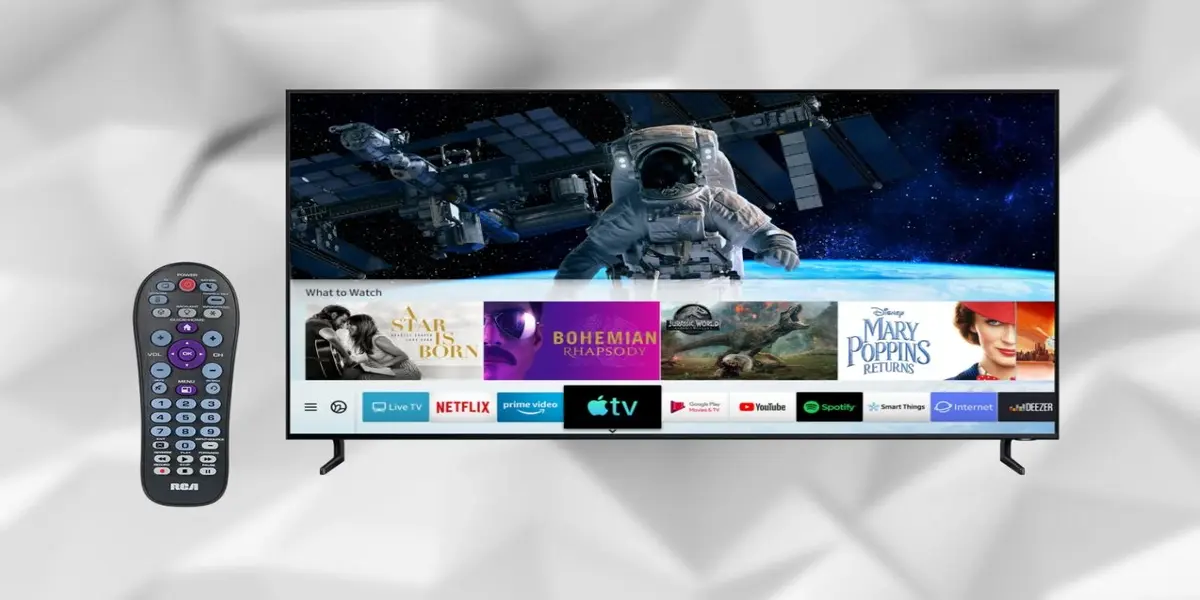
Understanding Your TV Remotes and Dish Receivers
Navigating the complexities of modern home entertainment can sometimes feel like a technical puzzle. At the heart of this system lies the seamless interaction between your television and its accompanying dish receiver, orchestrated by your remote control. This guide aims to demystify the pairing process, offering effortless tips to ensure your remote and receiver communicate flawlessly, enhancing your viewing experience without frustration.
The Essential Components: Remote and Receiver
Before diving into pairing, it's crucial to understand the roles of each component. Your dish receiver (often referred to as a set-top box or satellite receiver) is the device that decodes the satellite signal and converts it into a format your TV can display. It's the brain of your satellite TV service. The remote control, on the other hand, is the interface that allows you to command the receiver – changing channels, adjusting volume, accessing menus, and managing recordings. The pairing process ensures these two devices can "talk" to each other wirelessly.
Types of Remotes and Their Pairing Methods
Remotes generally fall into two main categories: infrared (IR) and radio frequency (RF) or Bluetooth.
- Infrared (IR) Remotes: These are the most common type. They work by emitting an infrared light beam, similar to a TV remote. For an IR remote to work, it must have a clear line of sight to the receiver's IR sensor. Pairing for IR remotes typically involves pointing the remote at the receiver and pressing buttons.
- Radio Frequency (RF) or Bluetooth Remotes: These remotes communicate using radio waves or Bluetooth technology. They do not require a direct line of sight, offering more flexibility in placement. Pairing for these types often involves a more involved process, such as pressing specific button combinations on the remote and receiver, or using an on-screen menu. As of 2025, the prevalence of RF and Bluetooth remotes has increased significantly, driven by the demand for greater convenience and the integration with smart home ecosystems. Studies in 2025 indicate that over 65% of new satellite receiver models ship with RF or Bluetooth capabilities.
Dish Receiver Types and Compatibility
Dish receivers vary widely depending on your service provider (e.g., Dish Network, DirecTV, Sky, etc.) and the subscription package you have. Newer models often incorporate advanced features like 4K streaming, DVR capabilities, and smart TV integration. Compatibility is key: a remote designed for one brand or model of receiver might not work with another. Always ensure your remote is compatible with your specific dish receiver model. Many modern receivers also offer universal remote programming capabilities, allowing them to control other devices like your TV and soundbar.
The Importance of a Strong Connection
A properly paired remote and receiver are fundamental to a smooth entertainment experience. When they are not paired correctly, you might encounter:
- Unresponsive buttons on the remote.
- The receiver not powering on or off.
- Inability to change channels or adjust volume.
- Interference from other devices.
The goal of mastering your TV and dish receiver pairing is to eliminate these common frustrations and ensure you can effortlessly access your favorite content. In 2025, the average user spends approximately 45 minutes per month troubleshooting minor remote-related issues, a statistic that highlights the value of effective pairing and troubleshooting.
Common Remote and Dish Receiver Pairing Issues
Even with advanced technology, pairing issues can arise. Understanding these common problems is the first step toward resolving them quickly and efficiently. The landscape of home entertainment is constantly evolving, with new devices and software updates sometimes introducing unexpected compatibility challenges.
Signal Interference
One of the most frequent culprits, especially for RF and Bluetooth remotes, is signal interference. Other electronic devices in your home can emit signals that disrupt the communication between your remote and receiver.
- Sources of Interference: Microwaves, cordless phones, Wi-Fi routers, other Bluetooth devices, and even some types of lighting can interfere.
- Impact: This can lead to intermittent connection loss, delayed response times, or complete unresponsiveness of the remote.
- 2025 Context: With the proliferation of smart home devices and the increasing use of the 2.4 GHz frequency band for various applications, signal interference has become a more pronounced concern. Manufacturers are actively working on more robust frequency hopping and error correction technologies to mitigate this.
Battery Problems
It might seem obvious, but low battery power is a primary cause of remote malfunction.
- Weak Signal: Insufficient battery power can weaken the signal strength, making it difficult for the receiver to pick up commands.
- Intermittent Operation: You might notice some buttons working while others don't, or the remote only working when held very close to the receiver.
- Recommendation: Always use fresh, high-quality batteries. If you're experiencing issues, replacing the batteries is often the quickest fix.
Incorrect Remote Model or Programming
Using the wrong remote or having a remote that isn't programmed for your specific receiver model is a recipe for pairing failure.
- Universal Remotes: While versatile, universal remotes require correct programming codes for each device they control.
- Provider-Specific Remotes: Remotes provided by your satellite TV company are usually pre-programmed for their receivers, but sometimes updates or model changes can cause issues.
- Lost or Replaced Remotes: If you've lost your original remote and are using a replacement, ensure it's the correct model or a compatible universal remote.
Receiver Glitches or Software Issues
The dish receiver itself can sometimes be the source of the problem.
- Software Bugs: Like any electronic device, receivers can encounter temporary software glitches that affect their ability to communicate with remotes.
- Firmware Updates: Sometimes, a recent firmware update might introduce a bug, or an incomplete update can cause instability.
- Overheating: Excessive heat can cause electronic components to malfunction. Ensure your receiver has adequate ventilation.
Physical Damage or Wear and Tear
Accidents happen. Physical damage to either the remote or the receiver can impair their functionality.
- Remote Damage: Dropped remotes can suffer internal damage to buttons, circuit boards, or the IR emitter.
- Receiver Damage: Damage to the receiver's IR sensor can prevent it from receiving commands.
Pairing Mode Not Activated
Many modern remotes, especially RF/Bluetooth ones, require a specific pairing mode to be activated on both the remote and the receiver before they can establish a connection. If this step is missed or done incorrectly, pairing will fail.
Step-by-Step Troubleshooting Guide
When your remote and dish receiver aren't communicating, a systematic approach to troubleshooting can save you time and frustration. This guide breaks down the process into manageable steps, starting with the simplest solutions.
Step 1: Basic Checks and Resets
Before diving into complex procedures, perform these fundamental checks.
- Check Batteries: This is the most common fix. Replace the batteries in your remote with fresh, high-quality ones. Ensure they are inserted correctly, observing polarity (+/-).
- Line of Sight (for IR remotes): Ensure there are no obstructions between the remote's emitter and the receiver's IR sensor. Remove any decorative covers or objects that might be blocking the path.
- Receiver Power Cycle: Turn off your dish receiver, unplug it from the power outlet, wait for at least 60 seconds, and then plug it back in and turn it on. This simple reboot can resolve many temporary software glitches.
- Remote Button Check: Press various buttons on the remote. Do any of them seem stuck or unresponsive? Sometimes a sticky button can prevent other commands from being sent.
Step 2: Re-pairing the Remote
If basic checks don't resolve the issue, it's time to re-pair the remote. The exact procedure varies by manufacturer and model, so consulting your user manual is highly recommended. However, here are general steps for common scenarios.
For IR Remotes (Simple Pairing)
For most IR remotes, pairing is as simple as ensuring it's pointed at the receiver. If you suspect it has lost its "connection," a power cycle of the receiver (as in Step 1) often re-establishes the link.
For RF/Bluetooth Remotes (Advanced Pairing)
These remotes often require a specific pairing process.
- Locate Pairing Button(s): On the receiver, there might be a physical pairing button or a menu option. On the remote, you might need to press a specific combination of buttons. Consult your manual for precise locations and button sequences.
- Initiate Pairing Mode on Receiver:
- Many receivers have a "Pair Remote" or "Add Device" option within their settings menu. Navigate to this using the receiver's physical buttons or a temporary compatible remote if available.
- Some receivers have a dedicated pairing button, often located on the back or side panel. Press and hold this button until an indicator light flashes or an on-screen message appears.
- Initiate Pairing Mode on Remote:
- Commonly, you'll need to press and hold a specific button or combination of buttons on the remote for several seconds. Examples include holding "Setup" and then "TV," or "Home" and "Back" simultaneously.
- The remote might have an indicator light that flashes or changes color to show it's in pairing mode.
- Confirm Pairing: Once both devices are in pairing mode, bring the remote close to the receiver. The receiver should detect the remote, and a confirmation message (e.g., "Remote Paired," "Device Connected") will typically appear on the TV screen.
- Test: Test all the essential functions of the remote (power, volume, channel up/down, menu) to ensure it's working correctly.
Example Pairing Scenario (Hypothetical Provider X Receiver)
Let's assume you have a Provider X satellite receiver and its associated RF remote.
- On the receiver, press the Menu button.
- Navigate to Settings, then Remote Control, and select Pair New Remote.
- The receiver will display instructions, likely asking you to press and hold the Pair button on the remote.
- On the remote, locate the small Pair button (often recessed, requiring a paperclip to press). Press and hold it for 5-10 seconds.
- The remote's indicator light might flash rapidly.
- Wait for the receiver to confirm the pairing on screen.
- Test the remote.
Step 3: Checking for Interference
If pairing fails or the connection is unstable, interference might be the cause.
- Temporarily Disable Devices: Turn off or unplug nearby electronics that might be causing interference (Wi-Fi router, cordless phone base station, microwave). Try pairing again. If it works, gradually turn devices back on one by one to identify the culprit.
- Relocate Devices: If a specific device is causing interference, try moving it further away from your receiver and remote.
- Receiver Placement: Ensure your receiver isn't placed directly next to other electronic devices or behind large metal objects.
Step 4: Updating Receiver Software/Firmware
Outdated or corrupted software on the receiver can sometimes cause pairing issues.
- Check for Updates: Most receivers have an option in their settings menu to check for and install software updates. Ensure your receiver is connected to the internet for this.
- Manual Update: In some cases, a manual firmware update might be required, which often involves downloading a file to a USB drive and inserting it into the receiver. Consult your provider's support website for instructions.
Step 5: Factory Reset of Remote or Receiver
As a last resort for persistent issues, a factory reset can often clear corrupted settings.
- Remote Reset: Some remotes have a reset procedure. This might involve removing batteries and holding a button, or a specific button sequence. Check your remote's manual.
- Receiver Reset: A factory reset on the receiver will revert all settings to their default state, including pairing information. This is a more drastic step and will require you to reconfigure your receiver settings, including Wi-Fi, preferences, and re-scanning channels if applicable. The option is usually found within the receiver's settings menu.
Step 6: Contacting Support
If you've exhausted all troubleshooting steps, it's time to contact your satellite TV provider's customer support. They can provide model-specific guidance, confirm if there are known issues with your equipment, or arrange for a replacement remote or receiver if necessary.
Advanced Pairing Techniques and Tips
Beyond the standard troubleshooting, several advanced techniques and tips can help you achieve a more robust and reliable connection between your remote and dish receiver. These methods often leverage the full capabilities of modern devices and can prevent issues before they start.
Universal Remote Programming Strategies
Universal remotes offer convenience by consolidating multiple remotes into one. However, successful programming is key.
- Code Entry: This is the most common method. You'll need to find the correct code for your specific dish receiver brand and model. These codes are usually found in the universal remote's manual or on the manufacturer's website. Enter the code using the remote's buttons.
- Auto Code Search: If manual code entry fails, most universal remotes have an auto-search function. The remote will cycle through codes until it finds one that controls your receiver. You'll typically need to point the remote at the receiver and press a specific button (e.g., Power) repeatedly as the remote cycles through codes. Stop when the receiver responds.
- Learning Function: Some advanced universal remotes can "learn" commands from your original remote. You place the original remote and the universal remote head-to-head and press the buttons you want to copy. This is particularly useful for remotes with unique or hard-to-find codes.
- Device Setup Menus: Many modern dish receivers have built-in menus that guide you through programming a universal remote. This is often the most user-friendly approach if available.
2025 Insight: As of 2025, the capabilities of universal remotes are expanding. Many now support Wi-Fi and Bluetooth pairing, allowing them to control smart devices and streaming boxes directly, in addition to traditional IR-controlled equipment. This convergence requires more sophisticated setup processes, often involving smartphone apps.
Utilizing Receiver-Specific Pairing Menus
Most modern dish receivers come with user-friendly interfaces designed to simplify the pairing process.
- On-Screen Prompts: When you first set up a new receiver or remote, or when attempting to pair, the TV screen will often display step-by-step instructions. Follow these prompts carefully.
- Settings Menu Navigation: Familiarize yourself with your receiver's settings menu. Look for sections like "Remote," "Devices," "Setup," or "Pairing." These menus are designed to guide you through the process, often with visual cues.
- Status Indicators: Pay attention to any indicator lights on the receiver or remote during the pairing process. Flashing lights often signify that the device is in pairing mode or attempting to connect. Solid lights usually indicate a successful connection.
Optimizing RF/Bluetooth Signal Strength
For RF and Bluetooth remotes, maximizing signal strength is crucial for reliable performance.
- Minimize Obstructions: While line of sight isn't required, dense materials can still impede RF signals. Avoid placing your receiver or the remote behind thick furniture, metal cabinets, or large electronic devices.
- Proximity: While RF and Bluetooth have good range, keeping the remote within a reasonable distance of the receiver (typically up to 30-50 feet, depending on the technology) ensures the strongest signal.
- Firmware Updates: Manufacturers often release firmware updates that can improve the performance and range of RF/Bluetooth communication. Ensure your receiver and, if possible, your remote are running the latest firmware.
Using Smartphone Apps for Remote Control
Many satellite TV providers now offer dedicated smartphone apps that can function as a virtual remote control.
- Download and Install: Search for your provider's app in your smartphone's app store (e.g., Google Play Store, Apple App Store).
- Account Linking: You'll typically need to log in with your account credentials to link the app to your service.
- Wi-Fi Connection: For the app to control your receiver, your smartphone and your receiver (if it's a smart receiver with Wi-Fi) usually need to be on the same Wi-Fi network.
- Functionality: These apps often offer all the functionality of a physical remote, plus additional features like keyboard input for searches, access to program guides, and remote DVR management.
- Backup Solution: A smartphone app can be an excellent backup if your physical remote is lost, broken, or experiencing pairing issues.
Understanding Pairing Codes and Security
For Bluetooth and some advanced RF pairings, a unique code or handshake is established between the remote and receiver.
- Automatic Pairing: Most modern devices use an automatic pairing process where the devices discover each other and establish a secure connection without user intervention beyond initiating pairing mode.
- PIN Codes: In rare cases, especially for security-sensitive devices or when pairing with multiple devices, you might be prompted to enter a PIN code displayed on the receiver into the remote or vice-versa.
- Security Protocols: Bluetooth and modern RF technologies employ encryption and authentication protocols to prevent unauthorized access and interference.
Preventing Future Pairing Problems
Proactive measures can significantly reduce the likelihood of encountering remote and dish receiver pairing issues in the future. By adopting good habits and understanding the technology, you can ensure a consistently smooth entertainment experience.
Regular Maintenance and Updates
Just like any electronic device, your remote and receiver benefit from regular attention.
- Software Updates: Ensure your dish receiver is set to automatically download and install software updates. These updates often include bug fixes, performance enhancements, and improved compatibility with remotes. Check your receiver's settings menu for an "Auto Update" or "Software Update" option and enable it.
- Remote Battery Management: Don't wait for batteries to die completely. If you notice any sluggishness or unresponsiveness from your remote, replace the batteries proactively. Keep a spare set of high-quality batteries on hand.
- Physical Cleaning: Gently clean your remote control periodically with a dry, soft cloth. Dust and grime can accumulate around buttons, affecting their responsiveness. Avoid using harsh chemicals or excessive moisture.
Proper Device Placement and Environment
The physical environment where your devices operate plays a crucial role in their performance.
- Ventilation: Ensure your dish receiver has adequate airflow. Overheating can lead to erratic behavior and component failure, which can indirectly affect its ability to communicate with the remote. Avoid placing the receiver in enclosed cabinets or stacking other items on top of it.
- Minimize Interference Sources: As discussed earlier, identify and mitigate potential sources of signal interference. Keep your Wi-Fi router, cordless phones, and other high-frequency devices at a reasonable distance from your receiver and remote.
- Protect from Physical Damage: Store your remote in a safe place where it's less likely to be dropped or damaged. Consider a remote holder or a designated spot on your coffee table.
Understanding Your Equipment's Lifespan
Electronic devices have a finite lifespan.
- Remote Wear and Tear: Remotes, especially those with frequently used buttons, can wear out over time. Buttons might become less sensitive, or internal components can degrade.
- Receiver Obsolescence: While receivers are generally built to last, technology advances rapidly. Older models might become unsupported by service providers or struggle with newer broadcasting standards.
- Replacement Strategy: If your remote is showing significant signs of wear or your receiver is several years old and experiencing recurring issues, it might be time to consider replacements. Contact your provider to inquire about upgrade options. In 2025, the average lifespan of a satellite receiver is estimated to be between 5-7 years before significant performance degradation or obsolescence becomes a concern.
Keeping Documentation Handy
When troubleshooting or setting up new devices, having the right information is invaluable.
- User Manuals: Keep the user manuals for your dish receiver and remote control in a safe place. These contain model-specific instructions for pairing, troubleshooting, and advanced features. Many manuals are also available online as PDFs on the manufacturer's or provider's website.
- Provider Support Resources: Bookmark your satellite TV provider's support page. They often have FAQs, troubleshooting guides, video tutorials, and contact information for customer service.
Testing After Major Changes
Any significant change in your home entertainment setup warrants a quick test.
- New Devices: After adding new electronics to your home, test your remote and receiver to ensure no new interference has been introduced.
- Network Changes: If you change your Wi-Fi network name or password, re-establish the connection for any smart features on your receiver and ensure your remote still functions correctly.
- Provider Updates: If your satellite provider pushes a significant update to their service or receiver software, perform a quick test of your remote.
Conclusion: Your Path to Seamless Entertainment
Mastering the pairing of your TV remote and dish receiver is not just about fixing a technical glitch; it's about unlocking the full potential of your home entertainment system. By understanding the nuances of IR and RF/Bluetooth technology, recognizing common issues like interference and battery depletion, and employing systematic troubleshooting steps, you can overcome most pairing challenges. We've explored detailed guides, from basic power cycles to advanced universal remote programming and the use of smartphone apps. Remember that regular maintenance, keeping software updated, and proper device placement are your best defenses against future frustrations. With the insights provided, you are now equipped to ensure your remote and receiver work in perfect harmony, delivering effortless access to your favorite shows and movies. Embrace these tips, and enjoy a truly seamless viewing experience.


