-
Posted on: 07 Jan 2026
-
Unlocking the world of DIRECTV streaming means understanding the essential equipment you'll need. This guide demystifies the process, detailing every device and connection required to enjoy seamless, high-quality entertainment, ensuring you're fully prepared for your DIRECTV streaming journey without any technical hurdles.
What Exactly Is DIRECTV Streaming?
DIRECTV streaming, often referred to as DIRECTV Stream, is a modern television service that delivers live TV channels, on-demand content, and premium networks over the internet. Unlike traditional satellite TV, it doesn't require a bulky satellite dish or professional installation. Instead, it leverages your existing internet connection and a compatible streaming device to bring you a robust entertainment package. This shift to internet-based delivery means the equipment you need is significantly different and generally more accessible.
Core Equipment for DIRECTV Streaming
To get started with DIRECTV streaming, a few fundamental pieces of equipment are non-negotiable. These are the building blocks of your streaming experience, ensuring you can access and enjoy the service reliably.
Internet Connection: The Foundation
The absolute cornerstone of any internet streaming service, including DIRECTV streaming, is a stable and sufficiently fast internet connection. Without it, you simply cannot access the content. This means subscribing to an internet service provider (ISP) and having a working modem and router in your home. The quality and speed of your internet will directly impact the viewing experience, affecting picture clarity, buffering, and the number of devices you can use simultaneously.
In 2025-26, with the increasing prevalence of 4K streaming and higher bandwidth demands, ensuring your internet plan can handle these needs is paramount. Many households now rely on fiber optic or high-speed cable internet to ensure a smooth experience across multiple devices. Satellite internet can be used, but it often comes with higher latency and data caps, which can be problematic for consistent live TV streaming.
Streaming Device: Your Gateway
This is the device that connects to your TV and your internet, allowing you to download and run the DIRECTV streaming app. DIRECTV streaming is compatible with a wide range of devices, giving you flexibility in how you watch.
Smart TV
Many modern televisions come with built-in "smart" capabilities, meaning they have an operating system and can connect to the internet to run apps. If you own a Smart TV manufactured in the last 5-7 years, there's a good chance it supports the DIRECTV streaming app. Brands like Samsung, LG, Sony, Vizio, and TCL often have pre-installed apps or allow you to download them from their respective app stores. This is often the most convenient option as it eliminates the need for an extra box connected to your TV.
Streaming Sticks and Boxes
For non-smart TVs or Smart TVs with limited app support, dedicated streaming devices are an excellent solution. These are small, plug-and-play devices that connect to your TV's HDMI port and your home Wi-Fi network. Popular options include:
- Amazon Fire TV Stick (e.g., Fire TV Stick 4K Max): Known for its user-friendly interface and Alexa voice control.
- Roku Streaming Devices (e.g., Roku Streaming Stick+, Roku Ultra): Offers a vast selection of apps and a simple, intuitive interface.
- Google Chromecast with Google TV: Integrates Google Assistant and offers a personalized content experience.
- Apple TV 4K: A premium option offering excellent performance, a sleek interface, and integration with the Apple ecosystem.
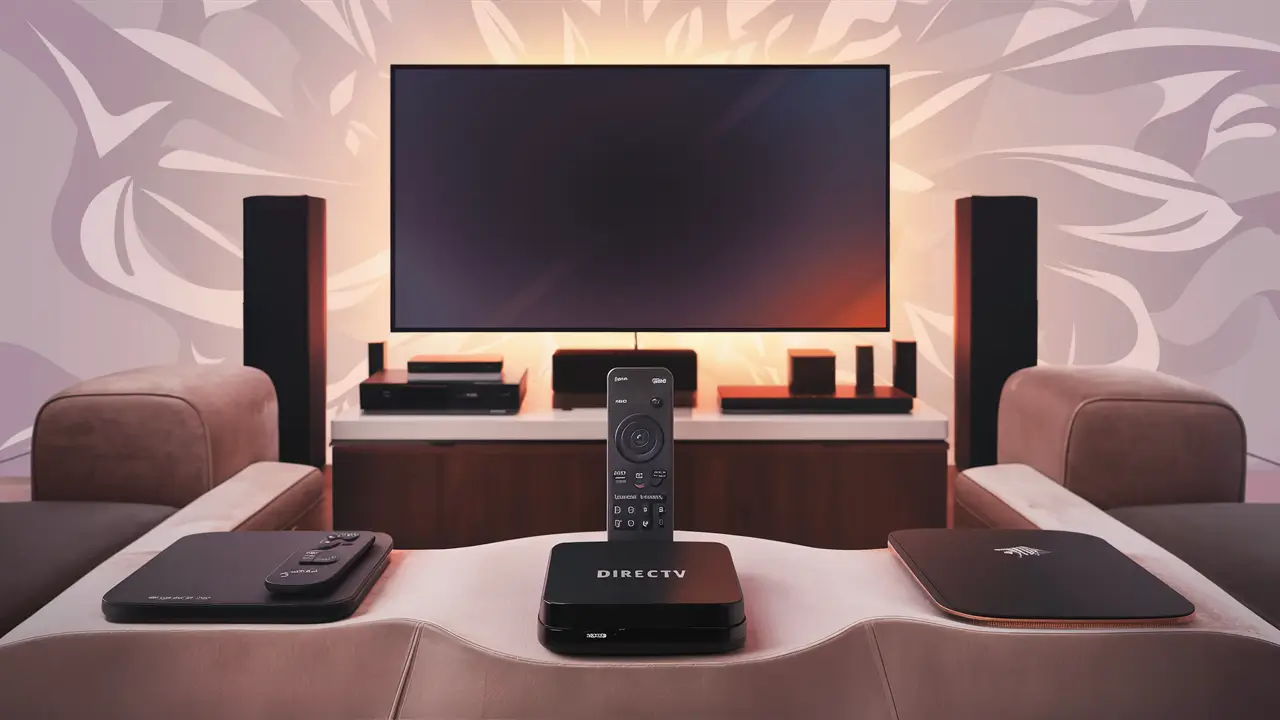
- DIRECTV Stream Device: DIRECTV also offers its own branded streaming device, optimized for their service, which can be a good option for a seamless experience.
These devices typically range in price from $30 to $150, depending on the model and its capabilities (e.g., 4K support, faster processors).
Gaming Consoles
If you own a modern gaming console like the PlayStation 5 or Xbox Series X/S, you can likely download and run the DIRECTV streaming app directly on it. These consoles are powerful computing devices with robust internet connectivity, making them perfectly capable of handling high-definition streaming. This is a great way to consolidate devices if you're already a gamer.
Mobile Devices and Tablets
For on-the-go viewing or if you prefer to watch on a smaller screen, your smartphone or tablet can also be used. Simply download the DIRECTV app from the Apple App Store or Google Play Store. You can then stream content directly to your device, either over Wi-Fi or your cellular data plan (though Wi-Fi is recommended for longer viewing sessions to avoid data overages).
Router and Modem: Connectivity Essentials
Your modem is the device that connects your home to your ISP's network, translating the signal into a format your devices can understand. Your router then takes that internet connection and broadcasts it wirelessly (Wi-Fi) or via Ethernet cables to your various devices. For DIRECTV streaming, especially if you plan to stream in 4K or have multiple users, a modern router capable of handling high bandwidth is crucial. Dual-band or tri-band routers that support the latest Wi-Fi standards (like Wi-Fi 6 or Wi-Fi 6E in 2025-26) are highly recommended for optimal performance.
Many ISPs provide a modem/router combo unit. While convenient, these may not always offer the best performance. If you experience consistent buffering or slow speeds, upgrading your router or using a separate, high-performance router can make a significant difference.
Optional but Recommended Equipment
While the core equipment gets you up and running, a few additional items can enhance your DIRECTV streaming experience, making it more immersive and convenient.
External Speakers and Soundbars
The built-in speakers on most TVs, especially thinner models, are often adequate but rarely provide a rich, cinematic audio experience. For a more immersive sound, consider investing in a soundbar or a multi-speaker surround sound system. Soundbars are a popular choice for their simplicity and significant audio improvement over TV speakers. High-end soundbars can even simulate surround sound without the need for multiple speakers. This is particularly beneficial for sports, action movies, and live concerts, making the viewing experience far more engaging.
Ethernet Cable for Stability
While Wi-Fi is convenient, a wired Ethernet connection is almost always more stable and can provide faster, more consistent speeds. If your streaming device and router are close enough, connecting them directly with an Ethernet cable can eliminate potential Wi-Fi interference and reduce buffering, especially for high-resolution streams. This is a simple yet highly effective way to ensure a smooth viewing experience.
Universal Remote Controls
If you have multiple streaming devices, a gaming console, and a smart TV, you might find yourself juggling several remotes. A universal remote can consolidate these into one device, simplifying control of your entertainment system. Many modern universal remotes can be programmed to control various devices, including streaming boxes, TVs, and soundbars, offering a streamlined user experience.
Choosing the Right Streaming Device
With numerous options available, selecting the best streaming device for your DIRECTV streaming needs can feel overwhelming. Consider these factors to make an informed decision.
Factors to Consider
- Budget: Streaming devices range from under $30 to over $150. Determine how much you're willing to spend.
- TV Capabilities: Do you have a 4K TV? Do you need HDR support? Ensure the device matches your TV's capabilities.
- User Interface: Some interfaces are simpler than others. If you're not tech-savvy, a more intuitive interface like Roku's might be preferable.
- App Availability: While DIRECTV streaming is the primary focus, consider if you use other streaming services and if the device supports them easily.
- Voice Control: If you enjoy using voice commands, look for devices with integrated voice assistants like Alexa, Google Assistant, or Siri.
- Ecosystem Integration: If you're heavily invested in Apple or Google products, devices within those ecosystems (Apple TV, Chromecast with Google TV) might offer better integration.
- DIRECTV Stream Device: For the most seamless integration, DIRECTV's own device is designed specifically for their service and often comes with optimized performance and features.
Comparison of Popular Streaming Devices (2025-26)
Here's a look at some leading streaming devices and their suitability for DIRECTV streaming:
Device Price Range (Approx.) Key Features DIRECTV Streaming Suitability Pros Cons DIRECTV Stream Device $120 (or often free with certain plans) Optimized for DIRECTV, 4K HDR, voice remote, easy setup Excellent, designed for the service Seamless integration, best performance for DIRECTV Limited to DIRECTV ecosystem for some features Apple TV 4K $120 - $150 A15 Bionic chip, 4K HDR, Dolby Vision/Atmos, Siri remote Excellent, robust app support Top-tier performance, sleek interface, great for Apple users Higher price point Roku Ultra $100 4K HDR, Dolby Vision, voice remote, lost remote finder Excellent, wide app compatibility User-friendly, vast app store, reliable Interface can feel cluttered to some Amazon Fire TV Stick 4K Max $55 4K HDR, Wi-Fi 6 support, Alexa voice control Very Good, easy access to apps Affordable, good performance, strong Alexa integration Interface can be ad-heavy Google Chromecast with Google TV $50 4K HDR, Google Assistant, Google TV interface Very Good, intuitive content discovery Excellent content aggregation, good value Can sometimes feel slower than premium options Internet Speed Requirements for DIRECTV Streaming
The quality of your DIRECTV streaming experience is directly tied to your internet speed. DIRECTV provides recommendations to ensure you can enjoy their service without interruption.
Minimum Recommended Speeds
DIRECTV generally recommends the following internet speeds for their streaming service:
- Standard Definition (SD): 5 Mbps
- High Definition (HD): 12 Mbps
- 4K Ultra HD: 25 Mbps or higher
These are minimums. For the best experience, especially if multiple devices are streaming simultaneously or if you have other internet-heavy activities (like online gaming or large downloads), it's wise to have a plan that significantly exceeds these minimums. For a household with multiple users, a plan offering 100 Mbps or more is often ideal in 2025-26.
Impact of Internet Speed on Quality
Buffering: If your internet speed is too slow, the video stream will constantly pause to buffer, leading to a frustrating viewing experience. This is the most common issue with insufficient bandwidth.
Picture Quality: Streaming services often use adaptive bitrate technology. This means the video quality will automatically adjust based on your available bandwidth. If your speed fluctuates or is low, you'll experience lower resolution, pixelation, and a less sharp image. Conversely, with ample speed, you'll enjoy crisp HD or vibrant 4K resolution.
Simultaneous Streams: Each streaming device and active user consumes bandwidth. If your internet plan is too slow, you may only be able to stream on one device at a time without experiencing issues on others.
Latency: While less critical for general TV viewing than for gaming, high latency (the delay in data transmission) can sometimes affect the responsiveness of the app and channel switching.
How to Check Your Internet Speed
You can easily check your current internet speed using various online tools. Simply search for "internet speed test" on your preferred search engine. Popular and reliable options include:
- Speedtest.net by Ookla
- Fast.com (powered by Netflix)
- Google's own speed test tool (search "internet speed test")
Run the test on a device connected to your home network, preferably via Wi-Fi in the room where you'll be streaming, or even better, via an Ethernet connection if possible. Compare the results (download speed, upload speed, and ping) to your ISP's advertised speeds and DIRECTV's recommendations.
Setting Up Your DIRECTV Streaming Equipment
Getting your DIRECTV streaming setup ready is generally a straightforward process. Here's a step-by-step guide:
Step 1: Ensure Internet Connectivity
First, confirm that your modem and router are properly connected to your internet service and are broadcasting a Wi-Fi signal. Test your internet connection on another device to ensure it's working correctly. If you're using an Ethernet cable, connect it from your router to your streaming device's Ethernet port.
Step 2: Connect Your Streaming Device
For Smart TVs: Ensure your TV is connected to your Wi-Fi network or via Ethernet. Navigate to your TV's app store.
For Streaming Sticks/Boxes: Plug the device into an available HDMI port on your TV. Connect the power adapter to the streaming device and plug it into a power outlet. If the device requires an Ethernet connection, plug one end of the cable into your router and the other into the device.
For Gaming Consoles: Ensure your console is connected to your TV via HDMI and is connected to your internet (Wi-Fi or Ethernet).
Step 3: Download the DIRECTV App
Once your streaming device is set up and connected to the internet, navigate to its respective app store (e.g., Google Play Store, Apple App Store, Amazon Appstore, Roku Channel Store). Search for "DIRECTV" or "DIRECTV Stream" and download the official app. If you're using the DIRECTV Stream Device, the app is typically pre-installed.
Step 4: Log In and Start Streaming
Open the DIRECTV app. You will be prompted to log in using your DIRECTV account credentials (username and password). If you don't have an account, you'll need to sign up for a DIRECTV streaming package first. Once logged in, you can browse channels, access your DVR recordings (if applicable to your plan), and start watching your favorite shows and movies.
For first-time setup of a new streaming device, you may need to follow on-screen prompts to connect it to your Wi-Fi, update its software, and sign in to your various streaming service accounts.
Troubleshooting Common Equipment Issues
Even with the best equipment, you might encounter occasional issues. Here are some common problems and their solutions:
No Internet Connection
Problem: Your streaming device cannot connect to the internet.
Solutions:
- Check if your modem and router are powered on and functioning.
- Restart your modem and router by unplugging them for 30 seconds and plugging them back in.
- Verify that your streaming device is connected to the correct Wi-Fi network and that you've entered the password correctly.
- If using Ethernet, ensure the cable is securely plugged into both the router and the streaming device.
- Test your internet connection on another device. If other devices also can't connect, the issue is likely with your ISP or modem/router.
Buffering and Lag
Problem: Video playback is constantly pausing or choppy.
Solutions:
- Check Internet Speed: Run a speed test (as described above) to ensure you meet DIRECTV's recommendations.
- Reduce Network Congestion: If other devices are heavily using the internet (e.g., large downloads, multiple streams), try pausing those activities.
- Restart Devices: Restart your streaming device, router, and modem.
- Move Closer to Router: If using Wi-Fi, try moving your streaming device closer to the router, or vice versa.
- Use Ethernet: If possible, connect your streaming device directly to the router with an Ethernet cable.
- Update Router Firmware: Ensure your router has the latest firmware installed.
App Crashing or Not Loading
Problem: The DIRECTV app closes unexpectedly or won't open.
Solutions:
- Restart the App: Close the app completely and reopen it.
- Restart the Streaming Device: Power cycle your streaming device.
- Check for App Updates: Ensure the DIRECTV app is updated to the latest version.
- Check for Device Software Updates: Make sure your streaming device's operating system is up to date.
- Clear App Cache/Data: On some devices, you can clear the app's cache and data (this may require you to log back in).
- Reinstall the App: Uninstall and then reinstall the DIRECTV app.
Audio or Video Sync Problems
Problem: The audio is ahead of or behind the video.
Solutions:
- Restart Devices: Restart your streaming device and TV.
- Check App Settings: Some apps have audio sync adjustments.
- Check TV Settings: Ensure no unusual audio processing settings are enabled on your TV (e.g., "game mode" might affect sync).
- Try a Different HDMI Cable/Port: A faulty HDMI cable or port can sometimes cause sync issues.
- Update Software: Ensure both the app and your device's firmware are up to date.
Conclusion: Your DIRECTV Streaming Setup Guide
To successfully stream DIRECTV, the essential equipment boils down to a reliable internet connection, a compatible streaming device, and a functional modem/router. Whether you opt for a Smart TV, a dedicated streaming stick like Roku or Fire TV, or even your gaming console, the key is ensuring it can run the DIRECTV app and connect to your home network. For the best experience in 2025-26, prioritize internet speeds of at least 25 Mbps for HD and consider 50-100 Mbps for seamless 4K streaming and multiple users. Optional additions like soundbars and Ethernet cables can further elevate your viewing pleasure. By understanding these components and following the simple setup steps, you're well on your way to enjoying the comprehensive entertainment DIRECTV streaming offers, free from technical frustrations.