-
Posted on: 07 Jan 2026
-
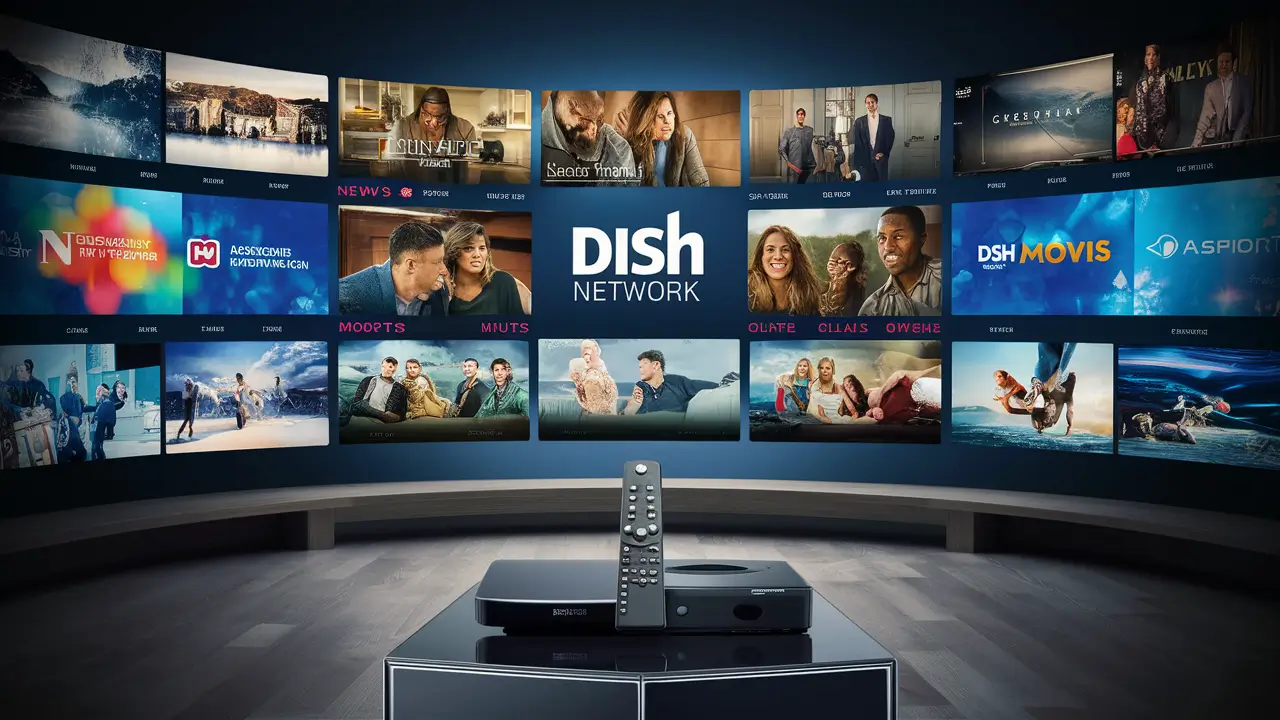
Unlock the full potential of your Dish Network subscription by learning how to watch multiple channels simultaneously. This guide will demystify the features and technologies that allow you to enjoy more content, from picture-in-picture to advanced multi-room viewing, ensuring you never miss a moment of your favorite programming.
Understanding Dish Network's Multi-Channel Viewing Features
Dish Network, a leading satellite television provider in the United States, offers a robust suite of features designed to enhance the viewer's experience. For many subscribers, the core question revolves around "how to watch multiple channels on Dish Network?" This isn't just about flipping between channels; it's about intelligently managing and consuming content across different screens and even within the same screen. In 2025, Dish continues to refine its offerings, building upon its reputation for innovation in the pay-TV market. The primary methods for achieving multi-channel viewing on Dish Network fall into two main categories: on-screen features like Picture-in-Picture (PiP) and multi-room viewing capabilities facilitated by their advanced DVR systems, most notably the Hopper.
The satellite TV landscape is competitive, with providers constantly vying to offer superior user experiences. Dish has consistently invested in technology that allows subscribers to get more value from their subscriptions. This includes not only access to a vast array of channels but also the flexibility to watch what you want, when you want, and how you want. Understanding these features is key to unlocking a more dynamic and personalized entertainment environment. By the end of 2026, it's projected that over 80% of households will subscribe to at least one premium streaming service, alongside traditional cable or satellite TV. This trend highlights the growing demand for flexible viewing options, a demand that Dish Network aims to meet with its advanced technology.
This comprehensive guide will delve into the specifics of how you can effectively watch multiple channels on your Dish Network service. We'll explore the built-in functionalities of your receiver and DVR, discuss the necessary equipment, and provide practical tips for optimizing your viewing. Whether you're a sports enthusiast wanting to catch two games at once, a family with differing viewing preferences, or simply someone who enjoys keeping an eye on the news while watching a movie, Dish Network offers solutions.
Leveraging Picture-in-Picture (PiP)
Picture-in-Picture (PiP) is one of the most straightforward and widely recognized methods for viewing multiple channels simultaneously on a single screen. Dish Network's implementation of PiP allows you to watch one channel full-screen while a smaller, secondary channel plays in a window within the main screen. This feature is particularly useful for keeping up with breaking news, monitoring multiple sports games, or simply having a secondary program running in the background.
The availability and specific functionality of PiP can vary slightly depending on your Dish Network receiver model. However, most modern receivers, especially those integrated with the Hopper DVR system, offer robust PiP capabilities. The general principle involves selecting a primary channel to view full-screen and then activating a PiP window to display a second channel. You can typically cycle through channels for the PiP window, adjust its size and position (though options may be limited on some models), and even swap the main and PiP channels.
How to Activate PiP on Dish Network (General Steps):
- Tune to your primary channel: Select the channel you wish to watch in full screen.
- Access the PiP function: This is usually done through the remote control. Look for a button labeled "PiP," "Picture-in-Picture," or an icon representing a smaller window within a larger one. On some remotes, you might need to press the "Menu" or "Options" button and navigate to the PiP settings.
- Select the secondary channel: Once PiP is activated, a smaller window will appear. You will then be prompted to select the channel you want to display in this window. You can typically use the channel up/down buttons or directly enter a channel number.
- Manage the PiP window: Depending on your receiver, you might have options to move the PiP window to different corners of the screen, resize it, or even turn off the audio for the PiP channel.
- Swap channels: A common feature allows you to quickly swap the full-screen channel with the PiP channel, making the secondary channel the primary one and vice-versa.
- Deactivate PiP: To return to single-channel viewing, you'll typically press the PiP button again or navigate to the PiP settings and select "Off."
Considerations for PiP:
- Receiver Compatibility: Ensure your Dish Network receiver supports PiP. Older models might not have this feature. The Hopper series generally excels in this area.
- Audio: Typically, only the audio from the full-screen channel is heard. Some advanced systems might offer options to toggle audio between channels, but this is less common.
- Channel Availability: You can generally select any channel available in your Dish Network programming package for the PiP window, provided your receiver can tune to it simultaneously.
- User Interface: The exact button presses and menu navigation will depend on your specific Dish Network remote and receiver model. Consult your user manual for precise instructions.
In 2025, PiP remains a valuable tool for efficient channel surfing and multi-tasking viewing. While it doesn't allow for completely independent viewing of two channels, it provides a convenient way to stay informed and entertained across multiple programs on a single television set.
Mastering Multi-Room Viewing with Hopper Features
The true power of watching multiple channels on Dish Network, especially in a household with diverse viewing interests, lies in its multi-room viewing capabilities, primarily driven by the advanced Hopper DVR system. The Hopper, particularly the Hopper 3, is designed to be the central hub of your home entertainment, allowing for simultaneous viewing and recording across multiple televisions without requiring separate subscriptions for each room.
The core of Dish's multi-room solution is the Hopper DVR itself, which can support multiple "Joeys" – smaller client devices that connect to the main Hopper. Each Joey essentially acts as a satellite receiver, allowing you to watch live TV, access recorded programs, and use on-demand features on a different television in your home, all powered by the single Hopper subscription. This means that while one person is watching a live game in the living room via the main Hopper, another can be watching a recorded movie in the bedroom via a Joey, and a third can be watching a different live channel in the kitchen via another Joey. This is a significant advantage over traditional setups where each TV might require its own subscription and tuner.
Key Hopper Features for Multi-Room Viewing:
- Simultaneous Live TV: With a Hopper and its associated Joeys, you can watch different live channels on up to four TVs simultaneously. The Hopper 3, for instance, can support up to 7 Joeys, allowing for extensive multi-room viewing and recording.
- Whole-Home DVR: This is the cornerstone of Dish's multi-room experience. All your recordings are stored on the central Hopper DVR. This means that from any TV connected to a Joey, you can access the entire library of recorded content. You can start watching a recorded show in one room and finish it in another.
- PrimeTime Anytime: A standout feature that automatically records the four major networks' primetime programming (ABC, CBS, FOX, NBC) every night. This allows you to watch your favorite shows on demand during primetime hours, even if you missed the live broadcast. With multiple Joeys, different family members can watch different primetime shows from the previous night.
- Multi-Viewer: The Hopper 3 introduced a sophisticated Multi-Viewer feature that allows you to watch up to four channels simultaneously on a single screen, similar to PiP but often with more customization. You can choose which channels appear in the grid and select which one has audio. This is a significant upgrade for sports fans or anyone who wants to monitor multiple events at once.
- Sports Bar Mode: Another innovation for sports enthusiasts, this feature, available on Hopper 3, allows you to view up to four games side-by-side on one screen, each with its own audio channel. This is perfect for major sporting events like March Madness or the NFL playoffs.
The economics of multi-room viewing with Dish Network are also compelling. While there is an additional monthly fee for each Joey client device, it is significantly less expensive than obtaining separate full subscriptions for each television. This makes it an attractive option for larger households or those with multiple TVs they wish to utilize effectively.
As of 2025, Dish continues to innovate in this space. While competitors offer their own forms of multi-room solutions, Dish's Hopper system is often cited for its robust functionality, extensive recording capacity, and user-friendly interface. The ability to access all recordings from any room, coupled with advanced features like Multi-Viewer and PrimeTime Anytime, positions Dish as a leader in providing a seamless and comprehensive multi-channel viewing experience.
Step-by-Step: Setting Up Multi-Room Viewing
Setting up multi-room viewing with Dish Network, primarily through the Hopper DVR and Joey client devices, is a process that can often be handled by a professional Dish technician during installation. However, understanding the steps involved can be beneficial for troubleshooting or if you're considering expanding your multi-room setup. The core components are the main Hopper DVR and the Joey devices, which connect to the Hopper via your home's coaxial cabling or, in some configurations, wirelessly.
Prerequisites:
- Dish Network Subscription: You must have an active Dish Network subscription that includes the Hopper DVR service.
- Hopper DVR: This is the central unit that stores recordings and distributes signals.
- Joey Devices: These are the client receivers for other rooms. There are different types of Joeys (e.g., Joey, 4K Joey, Wireless Joey) with varying capabilities.
- Coaxial Cabling: For wired setups, each TV location needs to be connected to the main Hopper via coaxial cable.
- Internet Connection (Optional but Recommended): For on-demand features, app access, and software updates, an internet connection is highly recommended.
Installation Process (General Overview):
- Professional Installation: For most users, the easiest and most reliable way to set up multi-room viewing is to schedule a professional installation with Dish Network. A technician will ensure all equipment is correctly installed, wired, and configured.
- Placement of Hopper: The main Hopper DVR is typically installed near your primary television and connected to the satellite dish.
- Connecting Joeys:
- Wired Joeys: For each additional TV, a Joey device is placed near the television. A coaxial cable is run from the Hopper (or a distribution block connected to the Hopper) to the Joey. The Joey then connects to the TV via HDMI.
- Wireless Joeys: Dish also offers Wireless Joeys, which can reduce the need for extensive cabling. These Joeys communicate wirelessly with a Wireless Video Bridge (WVB) that is connected to the Hopper. The WVB acts as a central hub for the wireless signals. The Wireless Joey then connects to the TV via HDMI.
- Powering On and Activation: Once all devices are physically connected, they are powered on. The Hopper will guide you through an initial setup and activation process. This often involves connecting to your home network (if applicable) and confirming the system configuration.
- Pairing Joeys with the Hopper: The Hopper needs to recognize and pair with each Joey. This is usually an automated process during setup, but sometimes manual pairing might be required. The system will confirm that each Joey is communicating with the Hopper.
- Channel Tuning and Setup: Once paired, each Joey will tune to the available channels and allow you to set up preferences for that specific TV, such as aspect ratio and display settings.
- Testing: The final step is to test the system. Try watching live TV on different TVs, access recorded programs from the Hopper on a Joey, and test features like PrimeTime Anytime.
Troubleshooting Common Setup Issues:
- No Signal on Joey: Check coaxial cable connections (for wired Joeys) or ensure the Wireless Joey is within range of the WVB and has a strong wireless signal. Verify that the Hopper is powered on and functioning.
- Joey Not Pairing: Restart both the Hopper and the Joey. If using a Wireless Joey, ensure the WVB is powered on and properly connected. You may need to initiate a manual pairing process through the Hopper's menu.
- Slow Performance or Lag: This can sometimes indicate network congestion or signal strength issues. For wireless setups, ensure there are no major obstructions between the Joey and the WVB. For wired setups, check cable integrity.
- Inability to Access Recordings: Confirm that the Hopper is connected to the network (if required for full functionality) and that the Joeys are successfully communicating with it.
Expanding Your Setup:
If you wish to add more TVs to your multi-room viewing setup, you will typically need to purchase additional Joey devices. Depending on your Hopper model and existing setup, you may also need additional VB-1000 Wireless Video Bridges if you are using wireless Joeys and have reached the limit of the current bridge.
By following these steps or relying on professional installation, you can effectively set up and enjoy the convenience of watching multiple channels and accessing your entire recorded library from various locations within your home, significantly enhancing your Dish Network experience.
Exploring Advanced Viewing Options and Apps
Beyond the core features of Picture-in-Picture and multi-room viewing via Hopper and Joeys, Dish Network offers a range of advanced options and companion applications that further expand how you can watch multiple channels and manage your entertainment. These tools leverage modern technology to provide flexibility and convenience, catering to the evolving habits of viewers in 2025 and beyond.
Dish Anywhere App:
The Dish Anywhere app is a cornerstone of Dish's mobile and remote viewing strategy. Available for smartphones, tablets, and web browsers, this app allows subscribers to:
- Watch Live TV: Stream live channels from your Dish subscription to your mobile device, wherever you have an internet connection. This means you can watch a different channel on your tablet while someone else watches the main TV.
- Watch DVR Recordings: Access and watch your recorded programs from your Hopper DVR remotely. This is incredibly useful for catching up on shows while traveling or away from home.
- Manage Your DVR: Schedule recordings, manage your recordings library, and even download select recordings to your mobile device for offline viewing.
- Browse and Search: Access the Dish Network programming guide, search for content, and find information about upcoming shows and events.
The Dish Anywhere app effectively turns your mobile devices into additional viewing screens, allowing you to watch different content simultaneously with others in your household. For instance, a child could watch cartoons on a tablet via the app while parents watch a movie on the main television.
Smart Home Integration and Voice Control:
In 2025, smart home integration and voice control are increasingly becoming standard features. Dish Network receivers, particularly the Hopper, often support integration with popular voice assistants like Amazon Alexa and Google Assistant. This allows for hands-free control of your TV, including:
- Channel Changing: "Alexa, tune to ESPN on Dish."
- DVR Control: "Hey Google, play the latest episode of [show name] on my Hopper."
- Searching for Content: "Alexa, find action movies on Dish."
While not directly enabling simultaneous viewing of multiple channels on one screen (beyond PiP/Multi-Viewer), voice control streamlines the process of switching between channels and accessing content, making the overall viewing experience more fluid and interactive. It also simplifies the process of finding specific channels or shows, which is crucial when managing multiple viewing preferences.
Streaming App Integration:
Dish Network is increasingly integrating popular streaming apps directly into its set-top boxes. For example, the Hopper 3 can often access apps like Netflix, Amazon Prime Video, and YouTube. This convergence of services allows users to access a wider array of content through a single interface. While this doesn't directly facilitate watching multiple *Dish* channels simultaneously, it consolidates entertainment options. For example, a user could watch a Dish Network channel on one TV and a Netflix show on another TV connected to a Joey, all managed through the Dish ecosystem.
Sports-Specific Features (Revisited):
As mentioned earlier, the Hopper 3's advanced features like Sports Bar Mode and Multi-Viewer are critical for sports fans. These are not just about watching more games; they are about providing a curated, integrated experience. Imagine watching four different NFL games simultaneously during a Sunday doubleheader, with the ability to easily switch audio to the game of your choice. This level of customization and multi-channel focus is a significant draw for sports enthusiasts.
Future Trends and Expectations:
Looking ahead to 2026, we can expect further advancements in how satellite TV providers like Dish integrate with the broader digital entertainment landscape. This includes deeper integration with smart TVs, more sophisticated AI-driven content recommendations, and potentially even more advanced multi-screen viewing capabilities. The demand for personalized and flexible viewing experiences will continue to drive innovation, ensuring that subscribers can always find ways to watch what they want, when they want, and how they want.
By utilizing the Dish Anywhere app, exploring voice control, and taking advantage of the specialized features on the latest Hopper models, subscribers can significantly enhance their ability to manage and enjoy multiple channels and content sources, making their Dish Network subscription more versatile than ever.
Troubleshooting Common Multi-Channel Viewing Issues
While Dish Network's multi-channel viewing features, particularly those powered by the Hopper and Joeys, are generally reliable, users may occasionally encounter issues. Understanding common problems and their solutions can save time and frustration. This section addresses frequent troubleshooting scenarios related to watching multiple channels on Dish Network.
Issue 1: Picture-in-Picture (PiP) Not Working or Displaying Incorrectly
- Symptom: The PiP window doesn't appear, the secondary channel isn't loading, or the PiP window is frozen.
- Possible Causes:
- Receiver model does not support PiP.
- Incorrect button sequence or menu navigation.
- Software glitch.
- Channel being selected for PiP is unavailable or experiencing an issue.
- Troubleshooting Steps:
- Verify Receiver Compatibility: Check your receiver's manual or Dish Network's website to confirm if your model supports PiP.
- Restart the Receiver: Power cycle your Dish Network receiver by unplugging it from the power outlet for 30 seconds, then plugging it back in. This often resolves temporary software glitches.
- Review Activation Steps: Carefully follow the instructions for activating PiP on your specific receiver model. Ensure you are pressing the correct buttons in the correct order.
- Try Different Channels: Attempt to use PiP with different channel combinations to rule out issues with specific channels.
- Check for Software Updates: Ensure your receiver's software is up to date. Updates are typically downloaded automatically, but you can sometimes manually check for them in the receiver's settings menu.
Issue 2: Multiple Joeys Not Working or Showing "No Signal"
- Symptom: One or more Joeys are not displaying live TV, recorded programs, or are showing an error message like "No Signal" or "Cannot Connect to Hopper."
- Possible Causes:
- Loose or damaged coaxial cable connections (for wired Joeys).
- Wireless interference or Joeys too far from the Wireless Video Bridge (WVB) (for wireless Joeys).
- Hopper DVR is off or experiencing issues.
- Joey is not properly paired with the Hopper.
- Power supply issue to the Joey or WVB.
- Troubleshooting Steps:
- Check Hopper Status: Ensure the main Hopper DVR is powered on and functioning correctly.
- Inspect Cable Connections (Wired Joeys): Verify that all coaxial cables are securely connected to both the Joey and the wall outlet (or distribution block). Check for any visible damage to the cables.
- Check Wireless Signal Strength (Wireless Joeys): Ensure the Wireless Joey is within the recommended range of the WVB. Obstructions like thick walls or large appliances can interfere with the signal. Try moving the Joey closer to the WVB.
- Restart Devices: Power cycle the affected Joey device and the Hopper DVR. If using wireless Joeys, also restart the WVB. Wait a few minutes after restarting before checking if the issue is resolved.
- Re-pair the Joey: Access the Hopper's menu and navigate to the settings related to Joeys or Whole Home HD DVR. Follow the on-screen prompts to re-pair the problematic Joey.
- Check Power: Ensure the Joey and WVB (if applicable) are receiving adequate power.
- Contact Dish Support: If the issue persists after these steps, it may indicate a hardware failure or a more complex network configuration problem. Contact Dish Network customer support for further assistance.
Issue 3: Slow Performance or Lagging on Joeys or Dish Anywhere App
- Symptom: Live TV is choppy, recordings take a long time to load, or the app is unresponsive.
- Possible Causes:
- Network congestion within the home.
- Weak Wi-Fi signal (for Dish Anywhere app or wireless Joeys).
- Issues with the home internet connection.
- Hopper DVR is overloaded or experiencing performance issues.
- Troubleshooting Steps:
- Check Home Network: If you have many devices using your home network simultaneously, try reducing the number of active devices to see if performance improves.
- Improve Wi-Fi Signal: For wireless Joeys and the Dish Anywhere app, ensure you have a strong Wi-Fi signal. Consider repositioning your router, using a Wi-Fi extender, or upgrading to a mesh network system.
- Test Internet Speed: Run an internet speed test to ensure your connection meets the recommended requirements for streaming and DVR access.
- Restart Router/Modem: Power cycle your home router and modem.
- Manage Hopper Recordings: If your Hopper DVR is heavily utilized with numerous recordings or multiple simultaneous recordings, it might affect performance. Try deleting old, unneeded recordings.
Issue 4: Dish Anywhere App Not Connecting or Streaming
- Symptom: The app fails to connect to your account, shows an error message, or streams are constantly buffering.
- Troubleshooting Steps:
- Verify Account Credentials: Ensure you are using the correct username and password for your Dish account.
- Check Internet Connection: Confirm that your mobile device has a stable internet connection (Wi-Fi or cellular data).
- Update the App: Make sure you have the latest version of the Dish Anywhere app installed from your device's app store.
- Restart Your Device: Sometimes, simply restarting your smartphone or tablet can resolve connectivity issues.
- Log Out and Log In: Try logging out of the Dish Anywhere app and then logging back in.
- Check Dish Network Service Status: In rare cases, there might be a temporary outage with Dish Network's servers. Check Dish's official website or social media for any service alerts.
By systematically addressing these common issues, you can maintain a smooth and enjoyable multi-channel viewing experience with your Dish Network service. Remember that contacting Dish Network customer support is always an option if you are unable to resolve a problem on your own.
Maximizing Your Dish Network Viewing Experience
To truly harness the power of "how to watch multiple channels on Dish Network," it's essential to go beyond basic functionality and explore strategies that optimize your overall viewing experience. As of 2025, Dish Network offers a sophisticated ecosystem of technology and services, and by understanding how to leverage these fully, you can transform how you consume entertainment.
1. Understand Your Equipment:
The foundation of multi-channel viewing lies in your Dish equipment. The Hopper DVR (especially the Hopper 3) is your central command. Familiarize yourself with its capabilities: PrimeTime Anytime, Multi-Viewer, Sports Bar Mode, and its extensive recording capacity. Similarly, understand the different types of Joeys (standard, 4K, wireless) and their specific features. Knowing your hardware ensures you're using it to its fullest potential.
2. Leverage the Dish Anywhere App:
The Dish Anywhere app is more than just a remote viewing tool; it's an extension of your home entertainment system. Use it to:
- Plan your viewing: Check schedules and set recordings remotely, ensuring you don't miss anything, even when away from home.
- On-the-go entertainment: Turn commutes or travel time into viewing opportunities, watching live TV or downloaded DVR content on your mobile devices.
- Second screen experience: Use your tablet to browse program guides or watch a different channel while someone else uses the main TV.
3. Optimize Your DVR Usage:
With features like PrimeTime Anytime, your Hopper automatically saves primetime shows. Make it a habit to:
- Clear old recordings: Regularly delete shows you've finished watching to free up space on your DVR for new recordings.
- Utilize series linking: Ensure all your favorite shows are set to record automatically.
- Explore download options: For select content, download recordings to your mobile device via the Dish Anywhere app for viewing without an internet connection.
4. Embrace Sports Features:
If you're a sports fan, the Hopper 3's Sports Bar Mode and Multi-Viewer are game-changers. These features allow you to monitor multiple games simultaneously, switch audio feeds effortlessly, and never miss a crucial play. Plan your game days around these capabilities.
5. Integrate with Smart Home Technology:
If you have smart home devices like Amazon Alexa or Google Assistant, link them with your Dish system. Voice control simplifies channel surfing, DVR management, and content discovery, making the entire experience more seamless and intuitive. For example, you can ask your assistant to tune to a specific sports channel or find a movie without touching the remote.
6. Consider Package Upgrades Strategically:
While this guide focuses on features, the channels available are paramount. Review your Dish Network channel packages periodically. Are you subscribed to the channels that best suit your multi-channel viewing habits? For instance, if you frequently use Sports Bar Mode, ensure you have access to the relevant sports networks.
7. Stay Informed About Updates:
Dish Network, like all technology providers, regularly releases software updates for its receivers and apps. These updates often introduce new features, improve performance, and fix bugs. Ensure your equipment is set to receive automatic updates, or periodically check for them manually in the system settings.
8. Plan for Family Viewing:
With multi-room viewing, households can finally cater to diverse preferences. Discuss with your family who wants to watch what and when. The Hopper and Joeys make it possible for one person to watch live news, another to watch a recorded show, and a child to watch cartoons on a tablet, all simultaneously. This reduces household friction and increases overall satisfaction.
By implementing these strategies, you can move from simply knowing "how to watch multiple channels on Dish Network" to actively mastering and optimizing your viewing experience. This proactive approach ensures you get the most value and enjoyment from your Dish subscription, keeping you entertained and informed in a dynamic media landscape.
In conclusion, mastering "how to watch multiple channels on Dish Network" is achievable through a combination of understanding your equipment, leveraging advanced features like Picture-in-Picture and the multi-room capabilities of the Hopper system, and utilizing companion apps like Dish Anywhere. Dish Network provides robust solutions for households with diverse viewing needs, enabling simultaneous live TV, access to recordings from any room, and even multi-channel viewing on a single screen with features like Multi-Viewer and Sports Bar Mode. By staying informed about your equipment's functionalities and employing strategic viewing habits, you can unlock a truly personalized and flexible entertainment experience, ensuring you never miss a moment of your favorite content.
How To Watch Multiple Channels On Dish Network?
Research, Compare & Choose With Confidence
Last updated: June 25, 2026